The real-time monitoring feature is in beta testing and is still being updated in iteration mode. If you have any feedback or suggestions, submit a ticket.
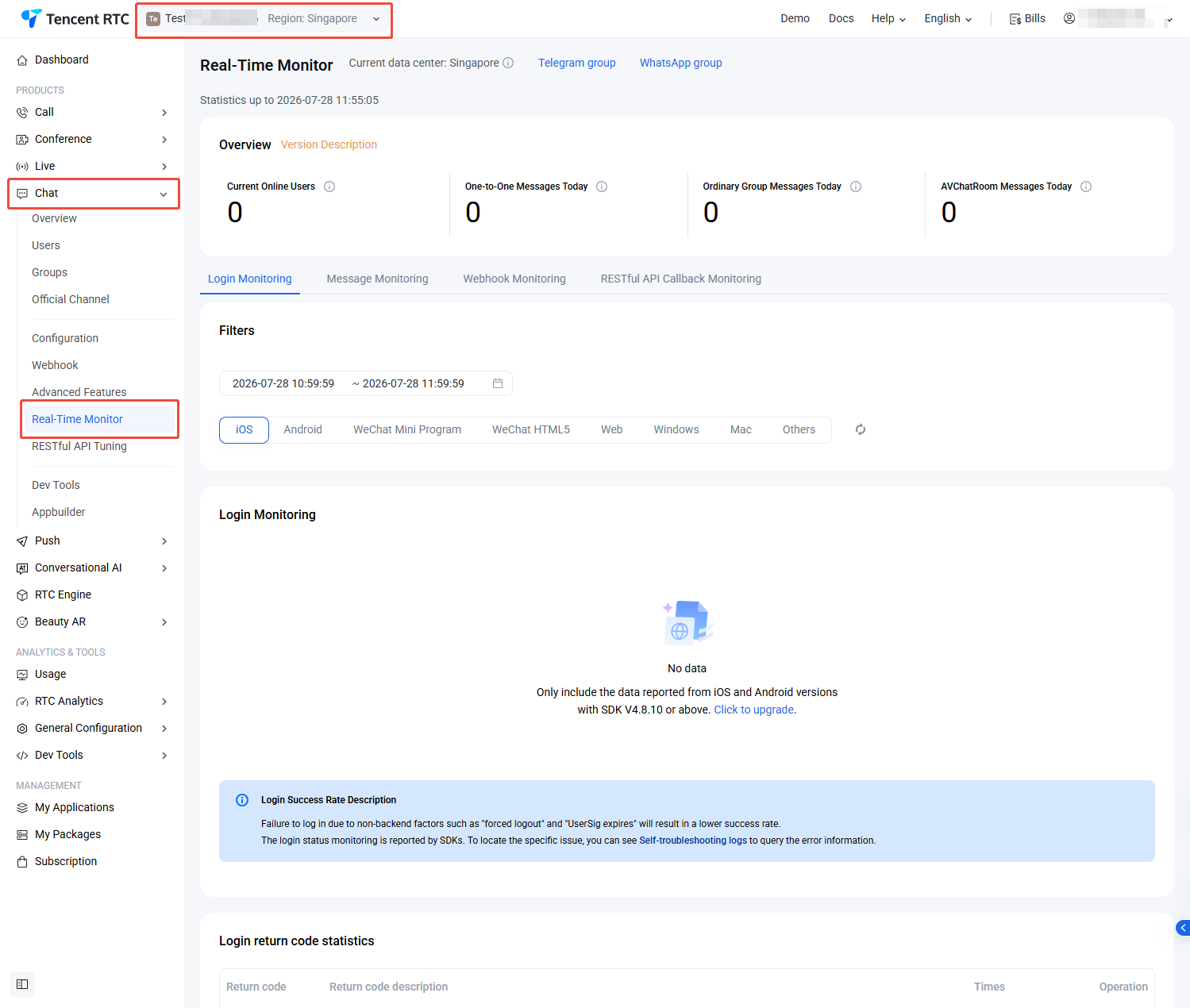
1. In the left sidebar, choose Chat > Real-Time Monitor, and select the target application at the top.
2. In the overview area, you can view Current Online Users, One-to-One Messages Today, Ordinary Group Messages Today, and Audio-Video Group Messages Today.
3. In the detailed monitoring data area, data of the 24 hours of the natural day is displayed on the timestamp by default. When the mouse cursor points to the data chart area, you can use the scroll wheel to zoom in the timestamp to view details, drag the timestamp left and right to view the data before and after the time, and click the legend below the timestamp to hide or show the corresponding value in the chart.
In the login monitoring area, you can view the login times and login success rate of each client.
Note:
Currently, only the login data reported by 4.8.10 or later Chat SDKs for iOS, Android, Windows, and macOS will be displayed. You are advised to upgrade to the latest version of SDK.
In the message monitoring area, you can view the number of one-to-one or group messages sent by each client and the message sending success rate.
Note:
Currently, only the login data reported by 4.8.10 or later Chat SDKs for iOS, Android, Windows, and macOS will be displayed. You are advised to upgrade to the latest version of SDK. Currently, the web SDK does not support collecting message statistics by chat type.
In the callback monitoring area, you can view the number of callbacks and the callback success rate.
In the RESTful API monitoring area, you can view the number of RESTful API requests and the request success rate.
In the offline push monitoring area, you can view the number of offline push times and the push success rate.