Android (Compose)
ダウンロード
フォーカスモード
フォントサイズ
This guide walks you through building the Contacts interface.
Development Environment Requirements
Android Studio Arctic Fox (2020.3.1) or later
Android SDK API Level 21 (Android 5.0) or later
Prerequisites
Before you begin implementing the Contacts interface, make sure you have completed the following steps:
1. Created an application in the console.
2. Created at least two user accounts in the console.
3. Integrated
TUIKit Compose.4. Called the
login method of LoginStore to authenticate the component.Note:
1. Log in only once each time the app starts.
2. Ensure that the login is successful. We recommend handling subsequent operations in the login success callback.
If you have not completed these four steps, refer to Quick Start for guidance. Otherwise, you may encounter issues implementing the features below.
If you have completed the prerequisites, continue with the following instructions.
Implementation Steps
Note:
If no contacts have been added, the Contacts interface will be empty. Once contacts are added, they will appear in the list. To add contacts using TUIKit Compose, see the documentation: Add Contacts.
If you are using the sample code provided, you must pre-fill the following parameters:
sdkAppID: The sdkAppID you obtained earlier.userID: The operator’s userID (e.g., user1, created during Quick Start).userSig: The userSig for user1, generated during Quick Start.The app will load the Contacts interface at startup. Sample implementation:
// ContactListActivity.ktimport android.os.Bundleimport androidx.activity.compose.setContentimport androidx.appcompat.app.AppCompatActivityimport androidx.compose.foundation.backgroundimport androidx.compose.foundation.layout.Columnimport androidx.compose.foundation.layout.Rowimport androidx.compose.foundation.layout.fillMaxSizeimport androidx.compose.foundation.layout.fillMaxWidthimport androidx.compose.foundation.layout.heightimport androidx.compose.foundation.layout.paddingimport androidx.compose.foundation.layout.statusBarsPaddingimport androidx.compose.material3.HorizontalDividerimport androidx.compose.material3.Textimport androidx.compose.ui.Alignmentimport androidx.compose.ui.Modifierimport androidx.compose.ui.text.font.FontWeightimport androidx.compose.ui.unit.dpimport androidx.compose.ui.unit.spimport io.trtc.tuikit.atomicx.basecomponent.theme.LocalThemeimport io.trtc.tuikit.atomicx.contactlist.ui.ContactListimport io.trtc.tuikit.atomicxcore.api.CompletionHandlerimport io.trtc.tuikit.atomicxcore.api.login.LoginStoreclass ContactListActivity : AppCompatActivity() {private val sdkAppID: Int = 1234567890 // TODO: Fill in your sdkAppID hereprivate val userID = "" // TODO: Fill in your userID hereprivate val userSig = "" // TODO: Fill in your generated userSig hereoverride fun onCreate(savedInstanceState: Bundle?) {super.onCreate(savedInstanceState)login()}private fun login() {LoginStore.shared.login(this, sdkAppID, userID, userSig, object : CompletionHandler {override fun onSuccess() {showContactListPage()}override fun onFailure(code: Int, desc: String) {// Handle login failure}})}private fun showContactListPage() {setContent {val colors = LocalTheme.current.colorsColumn(modifier = Modifier.fillMaxSize().background(color = colors.bgColorOperate).statusBarsPadding()) {// Navigation BarRow(modifier = Modifier.fillMaxWidth().padding(horizontal = 16.dp).height(44.dp),verticalAlignment = Alignment.CenterVertically) {Text(text = "Contacts",fontSize = 17.sp,fontWeight = FontWeight.W600,color = colors.textColorPrimary)}HorizontalDivider(color = colors.strokeColorPrimary)// ContactListContactList(onContactClick = { contact ->// Handle contact click// contact.contactID},onGroupClick = { group ->// Handle group click// group.contactID})}}}}
The runtime interface appears as follows:
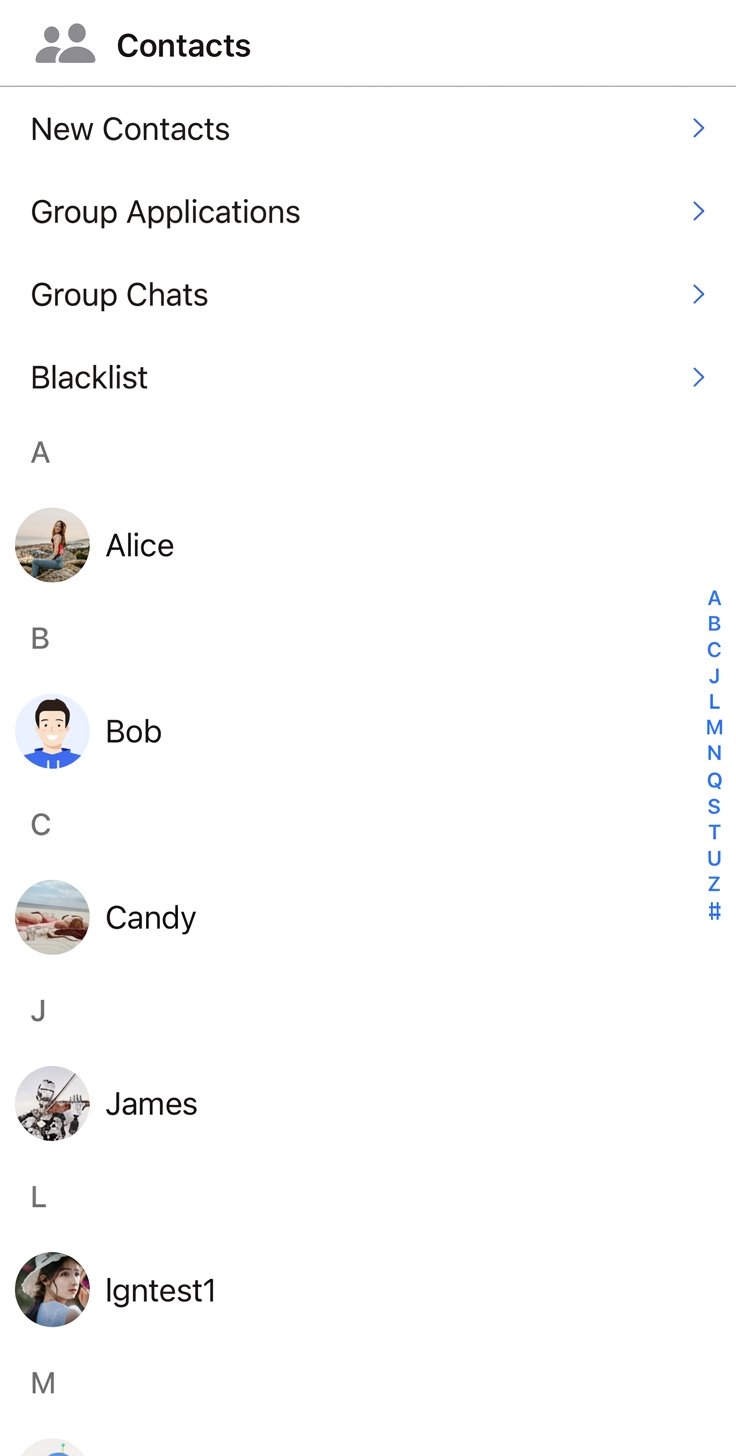
ContactList provides default click handling for the following actions:
Action | Effect |
Click New Contacts | Displays pending friend requests. |
Click Group Applications | Shows group join request list. |
Click Group Chats | Lists all group chats for the current account. |
Click Blacklist | Shows the blacklist for the current account. |
Further Practice
Contact Us
フィードバック