Renewing a Cloud Disk
Download
フォーカスモード
フォントサイズ
Overview
This document describes how to manually renew cloud data disks or enable auto-renewal for them in the Lighthouse console.
Directions
Manual Renewal
You can choose the following renewal methods according to the cloud disk status:
1. Log in to the Lighthouse console and click Cloud Disk on the left sidebar.
2. Select a region at the top of the Cloud Disks page, find the target cloud disk, and click Renew under the Operation column.

3. In the Renew cloud disk pop-up window, select the renewal period, click OK, and make the payment for the renewal order.
You can renew an unexpired cloud disk in the following methods:
Renew on the cloud disk page
1. Log in to the Lighthouse console and click Cloud Disk on the left sidebar.
2. Select a region at the top of the Cloud Disks page, find the target cloud disk, and click Renew under the Operation column.

3. In the Renew cloud disk pop-up window, select the renewal period, click OK, and make the payment for the renewal order.
Renew on the instance details page
1. Log in to the Lighthouse console and select the target instance and enter the details page.
2. Select the Cloud Disks tab, find the target cloud disk, and click Renew under the Operation column.

3. In the Renew cloud disk pop-up window, select the renewal period, click OK, and make the payment for the renewal order.
Auto-Renewal
It's recommended that you enable the auto-renewal to prevent the cloud disks from being returned or terminated due to overdue payment. The methods for enabling the auto-renewal are as follows:
Note:
If you have enabled auto-renewal, the system will automatically deduct the fee for the next billing cycle from the CBS disk on the expiration date and renew it for another cycle. The deduction order is as follows:
1. The system deducts the account balance first.
2. If the account balance is insufficient, the system deducts the signed credit/debit card under your account.
1. Log in to the Lighthouse console and click Cloud Disk on the left sidebar.
2. Select a region at the top of the Cloud Disks page, find the target cloud disk, and click More > Enable auto-renewal under the Operation column.
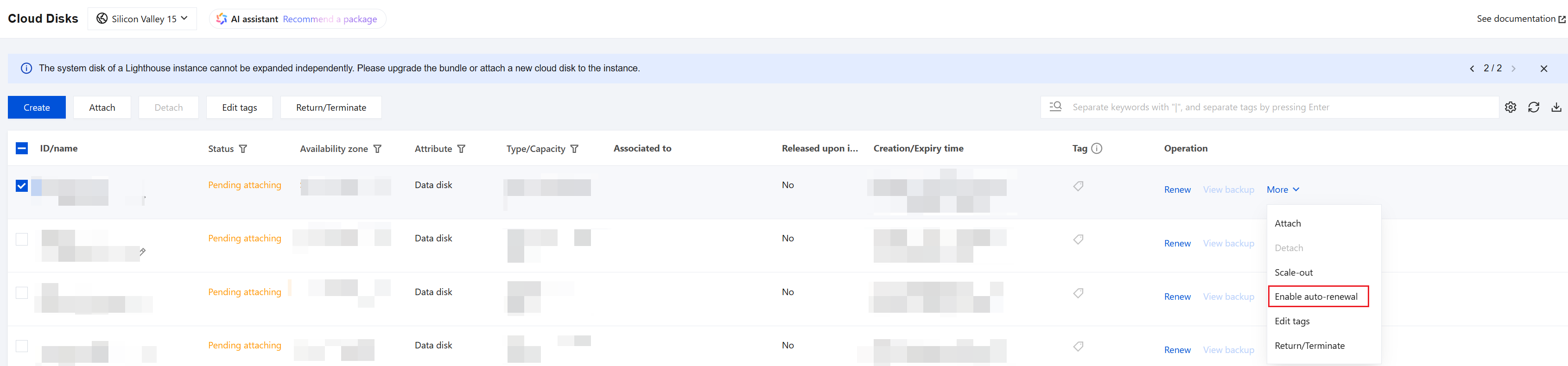
3. Click OK in the pop-up window.
1. Log in to the Lighthouse console and select the target instance and enter the details page.
2. Select the Cloud Disks tab, find the target cloud disk, and click More > Enable auto-renewal under the Operation column.
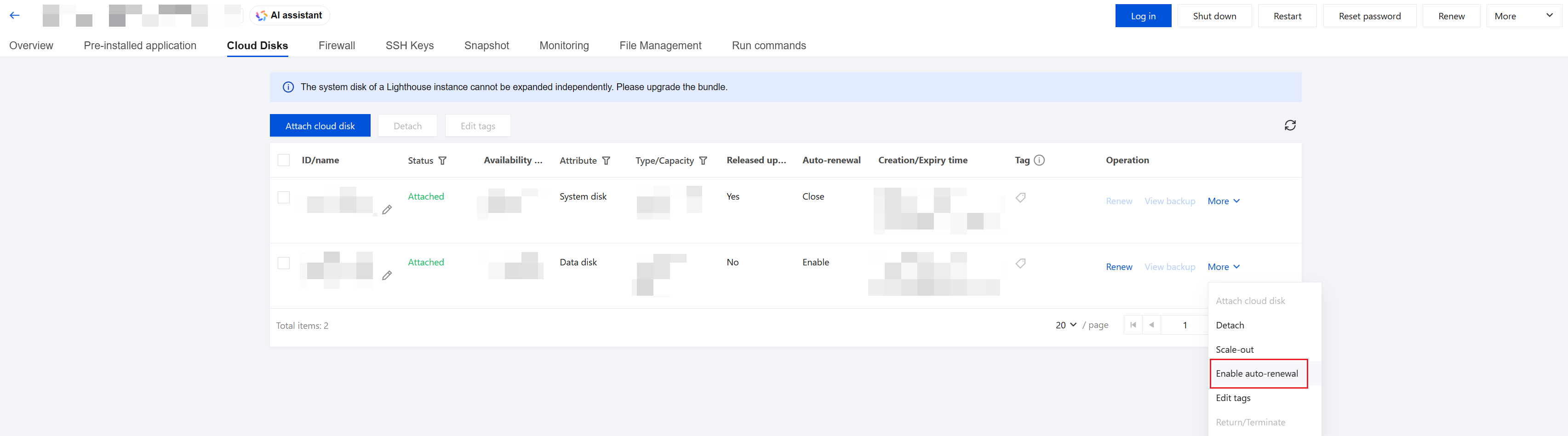
3. Click OK in the pop-up window.
フィードバック