Using DTS to Synchronize TDSQL Boundless Data
ダウンロード
フォーカスモード
フォントサイズ
Use the DTS synchronization feature to perform real-time synchronization of TDSQL Boundless data to the target database (supports MySQL, TDSQL-C MySQL), applicable to scenarios such as multi-active across cloud and on-premises, cross-region disaster recovery, cross-border synchronization, and real-time data warehousing.
Limitations
Only database instances with kernel version 19.2.0 and above support enabling Binlog.
Database instances with kernel versions below 20.0.0 will automatically disable the
CREATE TABLE ... AS SELECT ... syntax after Binlog is enabled. To restore it, contact technical support to disable the synchronization feature and restart the instance.Database instances with kernel versions below 21.0.0 do not support generating Binlog for VIEW operations.
Currently, generating Binlog for FUNCTION, PROCEDURE, and TRIGGER operations is not supported.
Step 1: Enable Binlog (TDSQL Boundless Side)
1. Follow the procedures described in Managing Binlog to enable Binlog for the instance.
After successful activation, you will receive the IP address and port for Binlog CDC. Please keep it secure as it will be used to create data subscription tasks later.
2. Create a dedicated user for data synchronization and grant
REPLICATION SLAVE and REPLICATION CLIENT privileges.2.1 Log in to the TDSQL Boundless console, and select the instance ID with Binlog enabled in the Instance List.
2.2 Go to the Account Management page, click Create Account, and create a dedicated user for data synchronization.
2.3 In the account row, click Operation column Modify Permissions to grant
REPLICATION SLAVE and REPLICATION CLIENT privileges.
Step 2: Create a data synchronization task (DTS end)
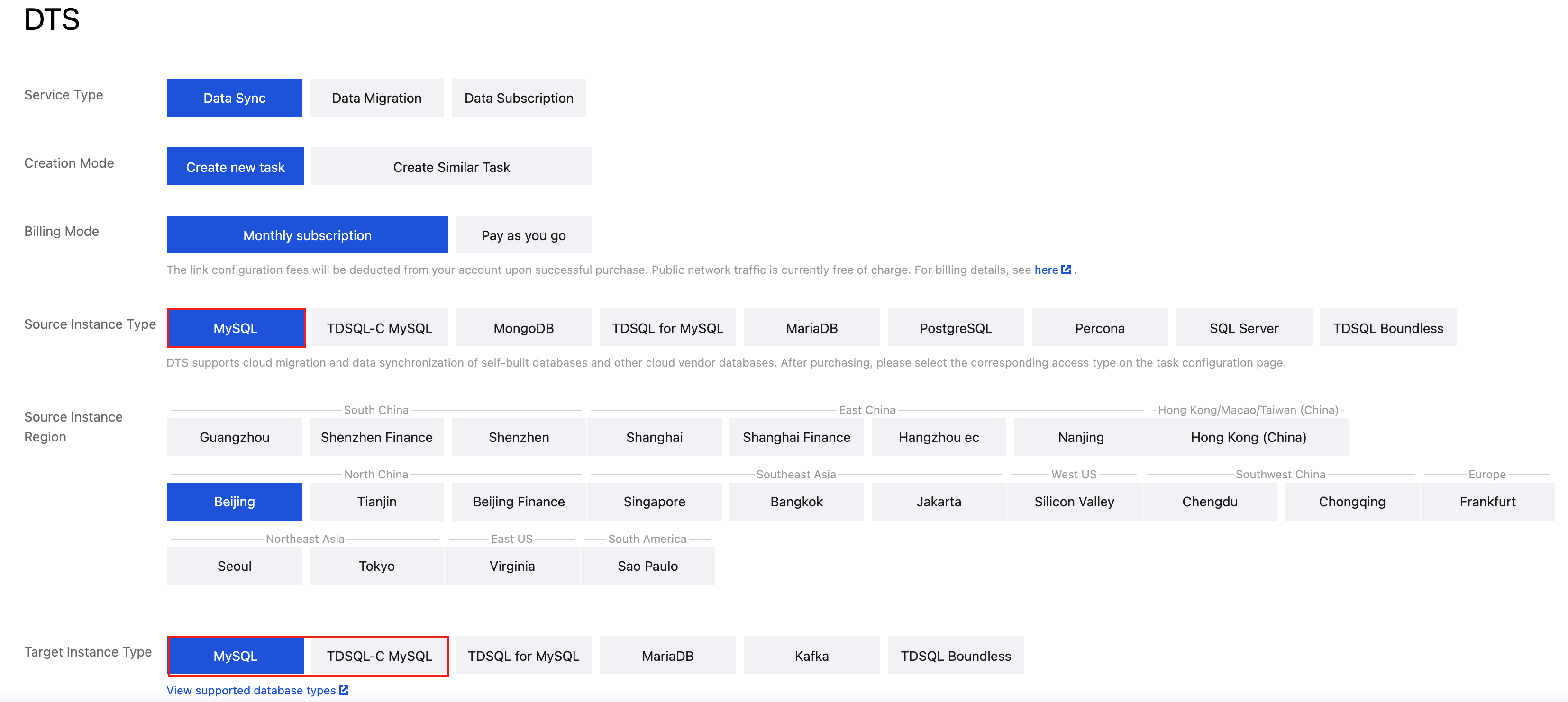
1. Log in to the Data Sync Purchase Page, select the appropriate configuration, and click Buy Now.
Configuration Item | Description |
Service Type | Select Data Sync. |
Source Instance Type | Select TDSQL Boundless. |
Target Instance Type | Select the database type to be synchronized based on business needs. Currently supported target instance types include MySQL and TDSQL-C MySQL. |
2. After a successful purchase, return to the Data Sync List where the newly created data synchronization task can be seen.
3. In the data synchronization list, click Configure in the Operation column to go to the synchronization task configuration page.

4. On the synchronization task configuration page, configure the source database access type, host address, port, account, and password; configure the target database access type, host address, port, account, and password. After testing connectivity, click Next.
Module | Configuration Item | Description |
Task Configuration | Task Name | DTS automatically generates a task name. It is recommended that users modify it to a meaningful name to facilitate task identification. |
| Running Mode | Immediate execution: The task will be started immediately once the pre-check passes. Scheduled execution: Set a start time for the task execution. After the pre-check passes, the task is not started immediately, but is started at the scheduled time. |
Source Database Settings | Source Instance Type | Select TDSQL Boundless. |
| Account | In the first step, the created data synchronization user with REPLICATION SLAVE and REPLICATION CLIENT privileges. |
| Password | |
Target Database Settings | - | Depending on the target database type, for detailed configurations, see: MySQL: See Sync from TDSQL Boundless to MySQL. TDSQL-C MySQL: See Sync from TDSQL Boundless to TDSQL-C MySQL. |
5. On the page of setting synchronization options and synchronization objects, set the data initialization, data synchronization, and synchronization object options. After the settings are completed, click Save and Next.
Depending on the target database type, for detailed configurations, see:
MySQL: See Sync from TDSQL Boundless to MySQL.
TDSQL-C MySQL: See Sync from TDSQL Boundless to TDSQL-C MySQL.
Note:
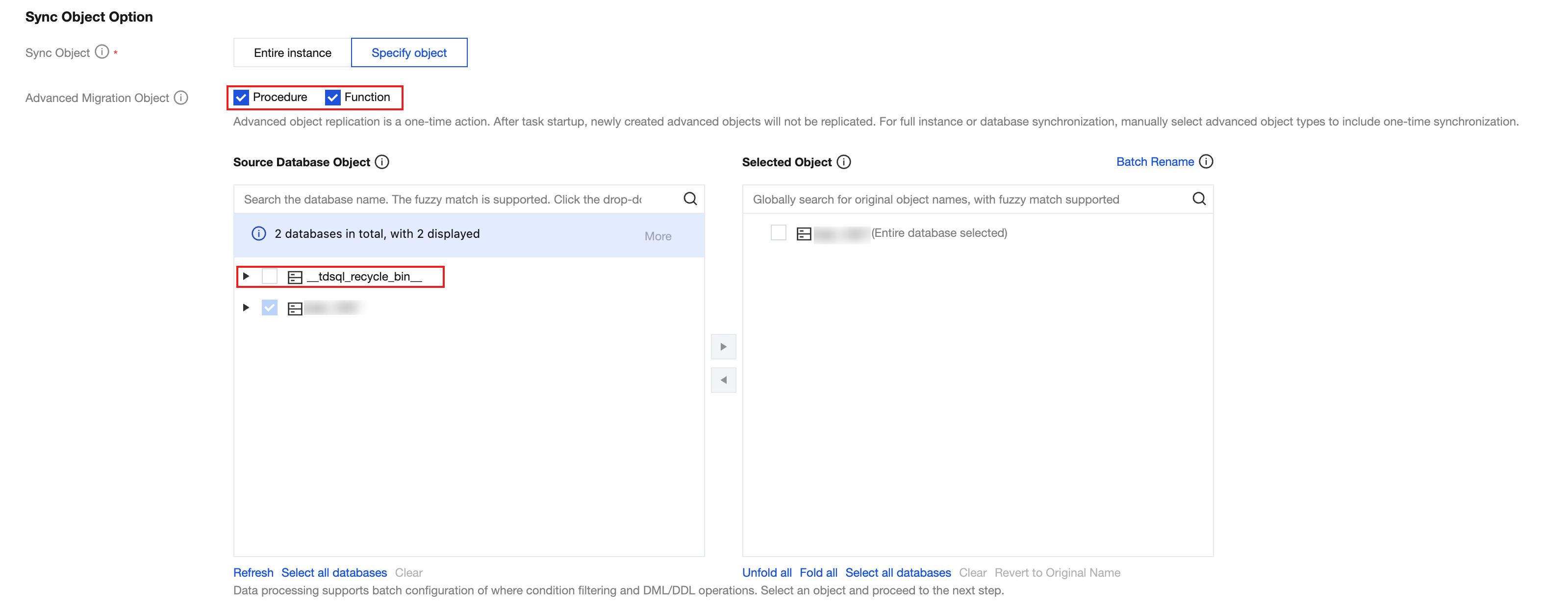
Do not select the
_tdsql_recycle_bin_ for the source database objects, as this may cause the synchronization task to fail.The system does not currently support generating Binlog for FUNCTION, PROCEDURE, and TRIGGER operations. Therefore, do not select PROCEDURE and FUNCTION for advanced migration objects.
6. On the task validation page, after the validation is completed and all check items are passed, click Start Task.
If the validation task fails, you can view the specific check items and failure reasons, fix the issues according to the prompts on the page, and then restart the validation task.
7. Return to the data synchronization task list, and the task will enter the Running status.

8. (Optional) To view the overall synchronization progress, see Task Management. If task exceptions or errors are encountered, see Error Handling.
9. To receive alarms for abnormal synchronization task metrics, see Configuring Data Synchronization Metric Alarms to configure.
フィードバック