Operation Overview (Provisioned Resource Instance)
Download
フォーカスモード
フォントサイズ
This document describes the features and operations available on the Instance List page and the Management page of the TDSQL Boundless console, guiding you to manage your TDSQL Boundless databases with ease.
Instance List Page
On the Instance List page of the TDSQL Boundless console, you can view instance-related information and manage instances.

Function | Description |
Log in | Click Operation column Log In to log in to the database using the new-generation database tool. For details, see Connecting via DMC. |
Adjust Configurations | Click Operation column Adjust Configurations to adjust the configuration of the database instance (scale out/in), supporting instance upgrade and downgrade. For details, see Modifying the Instance Configuration. You can also quickly add or remove read-only nodes by adjusting the configuration. For details, see Modifying the Number of Peer Nodes. |
Renew | Select the target instance(s), click Renew above the instance list to manually renew instances billed on a yearly/monthly subscription basis. For details, see Renewal. |
Set auto-renewal | Select the target instance(s), click  |
Pay-as-You-Go to Monthly Subscription | Click Operation column More > Pay-as-You-Go to Monthly Subscription to modify the billing mode of pay-as-you-go instances. |
Disable Auto-Renewal | Select the target instance(s), click  |
Edit Tag | Click Operation column More > Edit Tag to edit and manage Tags for instance resources. For details, see Editing Tag. |
Create Instance | Select Create Instance above the instance list to jump to the purchase page and create an instance. For details, see Creating Instances. |
Rename Instance | Click  |
Restart | Click Operation column More > Restart to perform a rolling restart of a single instance. For details, see Restarting Instance. You can also select multiple target instances (for batch restart), then click More > Restart above the instance list to restart the selected instances. During a rolling restart, existing connections to the instance need to be re-established. Please prepare accordingly to avoid any impact. Ensure you restart during business off-peak hours to guarantee a successful restart and minimize the impact on your business. |
Terminate Instance (Return) | Click Operation column More > Terminate (Return) to self-service terminate an instance. For details, see Terminating Instance. |
Instance Management Page
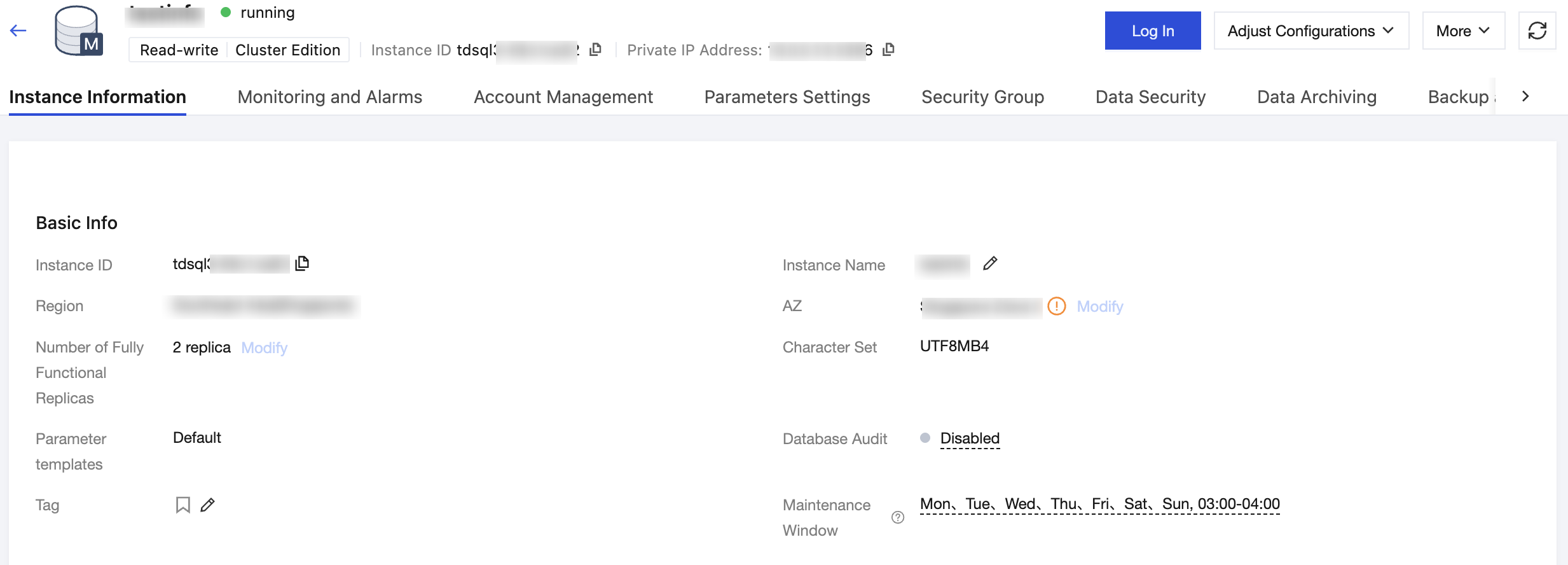
Log in to the TDSQL Boundless console. On the Instance List page, click the Instance ID to go to the Instance Details page. You can switch between tabs to view instance information, monitoring and alarms, account management, parameter settings, security group, data security, backup and restoration, and the log center.
Feature Page | Feature Item | Description |
Instance Details | Adjust Specifications | Click Adjust Configurations > Adjust Specifications in the upper right corner of the page to adjust the instance specification. For details, see Modifying the Instance Configuration. |
| Adjust Storage | Click Adjust Configurations > Scale Disk in the upper right corner of the page to adjust the hard disk capacity of peer nodes. For details, see Modifying the Instance Configuration. |
| Scale Out | Click Adjust Configurations > Adjust Number of Peer Nodes in the upper right corner of the page to adjust the number of peer nodes for the instance online. This operation is used to horizontally scale out/in computing and storage capacity based on business load. For details, see Modifying the Number of Peer Nodes. |
| Migrate AZs | Click More > Migrate AZ in the upper right corner of the page to upgrade a single AZ to three AZs or downgrade three AZs to a single AZ. For details, see Modifying the AZ. |
| Modifying the Instance Maintenance Time | In the Basic Information area, click Edit at Maintenance Window to set an acceptable maintenance time for the business instance. For details, see Modifying the Instance Maintenance Time. |
| Change Network | In the Network Information area, click Change Network after the Network field to adjust the business network plan. For details, see Changing the Network. |
| Modify Network Address | In the Network Information area, click  |
| Manage Binlog | In the Specs Configuration area, click Enable after Binlog Settings to enable Binlog. For details, see Managing Binlog. |
| Enabling the Read-Only Analysis Engine | In the Column Storage Information area, click Enable on the right side of Read-Only Analysis Engine to enable a read-only analysis instance. For details, see Enabling a Read-Only Analysis Instance. |
| Disaster Recovery Instance | In the Instance Architecture Diagram area, click Add Disaster Recovery Read-Only Instance to add a disaster recovery instance to the TDSQL Boundless primary instance. For details, see Adding a Disaster Recovery/Read-Only Instance. On the Instance Details page of the target disaster recovery instance, click Switch with the source instance in the upper-right corner to upgrade the disaster recovery/read-only instance to a primary instance. For details, see Promote a DR or Read-Only Instance to Primary. On the Instance Details page of the target disaster recovery instance, click More > Disable Disaster Recovery Instance Sync in the upper-right corner. This action removes the synchronization relationship between the TDSQL Boundless primary instance and the disaster recovery instance. For details, see Detach a DR or Read-Only Instance |
Monitoring and Alarms | View Monitoring Metrics | On the Monitoring tab, select to query the monitoring status of resources, connections, and access for instances or nodes. You can add time comparison, filter time granularity, and view monitoring metrics. For details, see Viewing Monitoring Data. |
| Verify Instance Alarms | TDSQL Boundless supports setting alarms for monitoring metrics. By monitoring performance metrics in real time, you can understand the resource usage and operational status of the database. By setting alarm notifications, you can obtain alarm information in a timely manner. By viewing alarm history, you can review alarm history details, which helps improve the operational status of the database. For details, see Alarms. |
Account Management | Create Account | Before using the instance, you need to create a database account. For details, see Creating Account. |
| Modify Account Permissions | In the console, you can authorize and manage existing database accounts, grant global or object-level privileges to database accounts, and also revoke their authorization. For details, see Modifying Account Permissions. |
| Reset Password | If you forget the database account password or need to change the password while using the database, you can reset the password through the console. For details, see Resetting Password. |
| Delete Account | |
Parameter Settings | | You can view database parameters and adjust some parameter values based on business needs. For details, see Setting Instance Parameters. |
Security Group | | You can configure a security group for the instance or modify the security group of the instance. For details, see Configuring Security Group. |
Data security | Data Encryption | TDSQL Boundless provides the Transparent Data Encryption (TDE) feature. Transparent encryption means that data encryption and decryption operations are transparent to users. It supports real-time I/O encryption and decryption of data files, encrypting data before it is written to disk and decrypting it when read from disk into memory, meeting the compliance requirements for data-at-rest encryption. For details, see Enabling TDE. |
| SSL | SSL (Secure Sockets Layer) authentication is client-to-cloud database server authentication, authenticating both users and servers. By enabling SSL encryption, you can obtain a CA certificate and upload it to the server. When a client accesses the database, the SSL protocol is activated, establishing an SSL secure channel between the client and the database server. This enables encrypted transmission of data information, preventing data from being intercepted, tampered with, or eavesdropped on during transmission, thereby ensuring the security of information exchanged between both parties. For details, see Setting SSL Encryption. |
Data Archiving | | For historical data such as orders, transactions, logs, and audits that require long-term retention but have low access frequency, the unit cost of local high-performance storage is high. After data archiving is enabled, you can transparently offload this cold data to COS, allowing local storage to carry only hot data. This significantly reduces long-term storage costs while ensuring business access experience. Archived data can still be queried normally via standard SQL and is transparent to applications. For details, see Enabling Cold Data Archiving. |
Backup and Restore | Back Up Databases | To prevent data loss or corruption, you can use automatic or manual backup to back up the database. For details, see Backing Up Databases. |
| Manage Backup Sets | On the data backup list page, you can filter by time to view manually and automatically backed up data backup sets. You can also delete backup sets that are no longer needed or convert backup sets to scheduled backups for long-term retention as needed. For details, see Managing Data Backup Sets. |
| View Backup Space | |
| Clone Instance | TDSQL Boundless supports the instance cloning feature. Users can restore an instance to any point in time within the log backup retention period or to a specified backup set through cloning. The cloning operation creates a new instance based on the backup data according to the point in time or backup set selected by the user. For details, see Cloning Instance. |
Log Center | Slow Logs | It covers querying and downloading slow logs by time and SQL keywords (retained for 7 days by default), and delivering slow logs to CLS for long-term retention and analysis. For details, see Slow Log Management. |
フィードバック