Viewing Subnet Information
ダウンロード
フォーカスモード
フォントサイズ
You can view the resources of all subnets in the VPC on the VPC console, for instance, the cloud resources deployed in the subnet, the route table associated with the subnet, and the ACL rules bound to the subnet.
How It Works
1. Log in to the VPC console.
2. Click Subnet on the left sidebar to access the subnet management page.
3. At the top of the Subnet page, select the region and VPC to which the subnet belongs. If you keep the default value, namely All VPCs, then you can view all subnets of all VPCs in this region.
Note
Click the VPC ID of the network to which the subnet belongs, or the route table ID of the associated route table to view the detailed information of the corresponding resource.
Click the number of CVMs to go to the CVM instance page. If the quantity is 0, click the CVM icon to go to the CVM purchase page.
Click the Filter icon next to the Availability zone field and select an availability zone to view all subnets in the availability zone.
Click the search box in the top-right of the list to query subnets by Subnet ID, Subnet Name, Tag, Keyword and IPv4 CIDR Block.
Click the Setting icon in the upper right to customize the displayed fields.

The meaning of the list fields displayed in the interface is as follows:
ID/Name: The subnet ID and name. Each subnet is assigned an ID when it is created, and the subnet name can be modified on your own.
Network: The VPC to which the subnet belongs.
CIDR: The CIDR block of the subnet. It cannot be modified once confirmed.
Availability Zone: The availability zone where the subnet is located.
Associated Route Table: The route table associated with the subnet.
CVM: Number of CVMs deployed in the subnet.
Available IPs: Number of available IP addresses within the CIDR block of the subnet.
Default subnet: Default subnets are subnets created automatically by Tencent Cloud upon the launch of new CVM instances. Each region has one and only default VPC and subnet.
Creation Time: The subnet creation time.
Tags: You can optionally add tags to help you better manage resource permissions of sub-users and collaborators.
Operation: Available actions. A subnet can be deleted when it’s not associated with any resource. Click More > Change Route Table to replace the route table associated with the subnet.
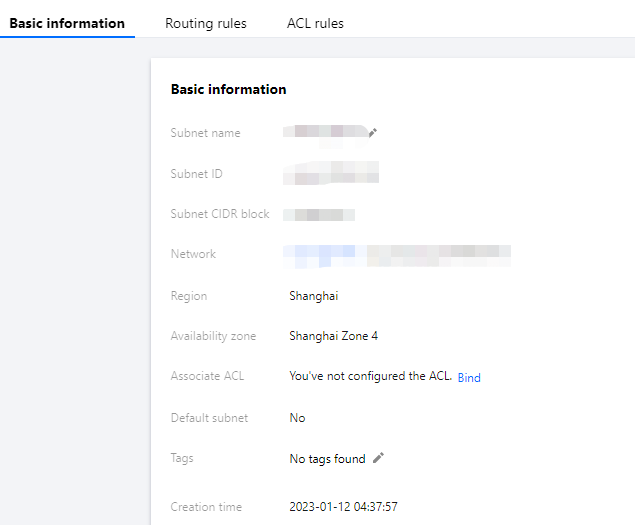
4. Click the subnet ID to view the resource details of the subnet. Switch the tab to view the routing rules and the ACL rules.
フィードバック