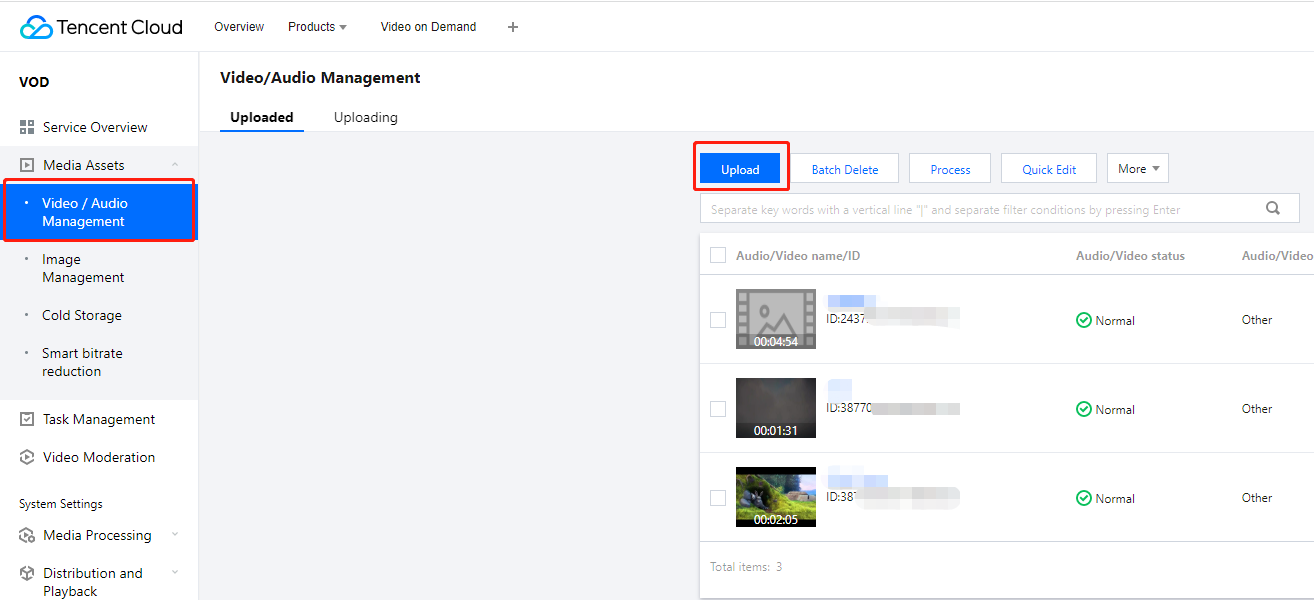
1. In the VOD console, select Application Management on the left sidebar and select the target application. On the Media Assets > Video/Audio Management page, click Upload.
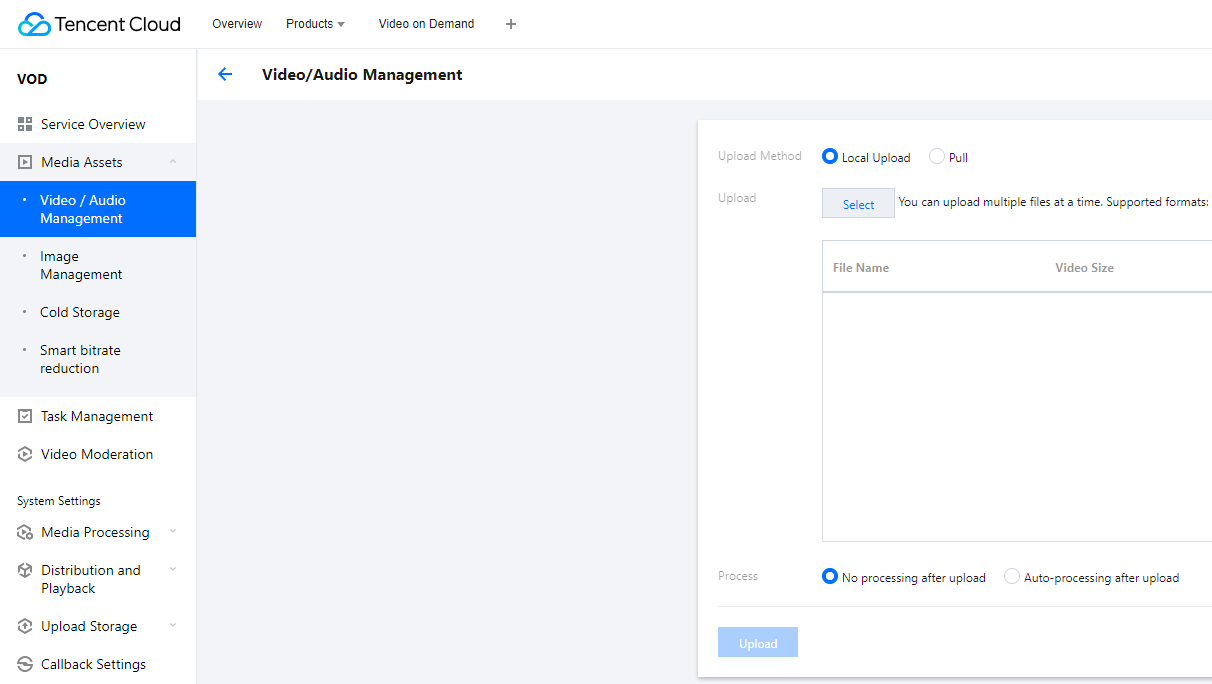
2. On the upload page, select Local Upload, and click Select File to upload a local video. Set the other fields as follows:
Select No processing after upload for Media processing.
3. Click Upload. You will be taken to the Uploading page. When Status changes to Uploaded successfully, the upload is completed, and you can view the file ID of the file (for example, 387xxxxx8142975036).
Step 2. Generate a Player Signature
In this step, you use the signature tool to quickly generate a player signature to play the video.
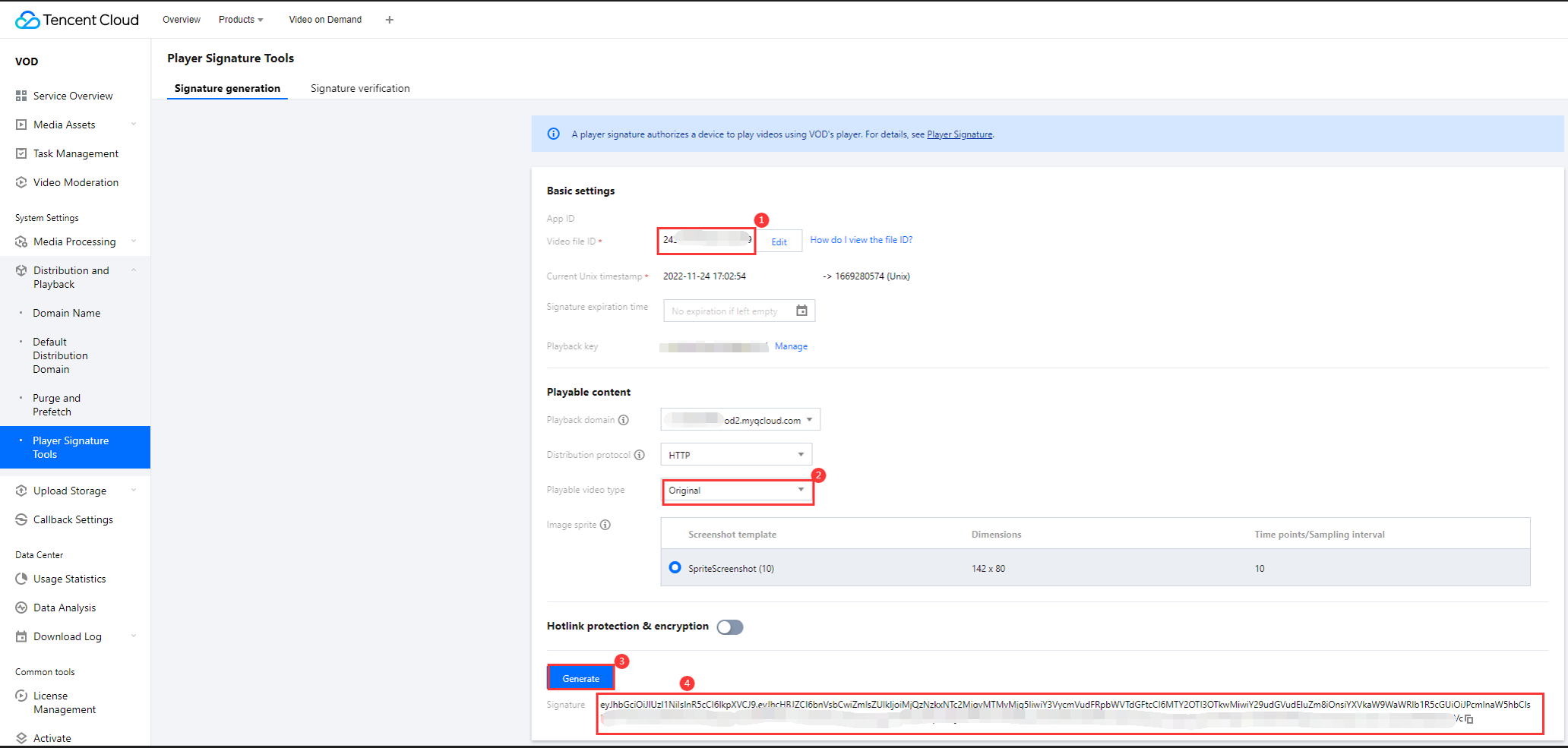
1. Select Distribution and Playback > Player Signature Tools on the left sidebar and complete the following settings:
Video file ID: Enter the file ID generated in Step 1 (387xxxxx8142975036).
Signature expiration time: Enter the player signature expiration time. If you leave it empty, the signature will never expire.
Playable video type: Select Original.
2. Click Generate to get the signature string.
Step 3. Play the Video
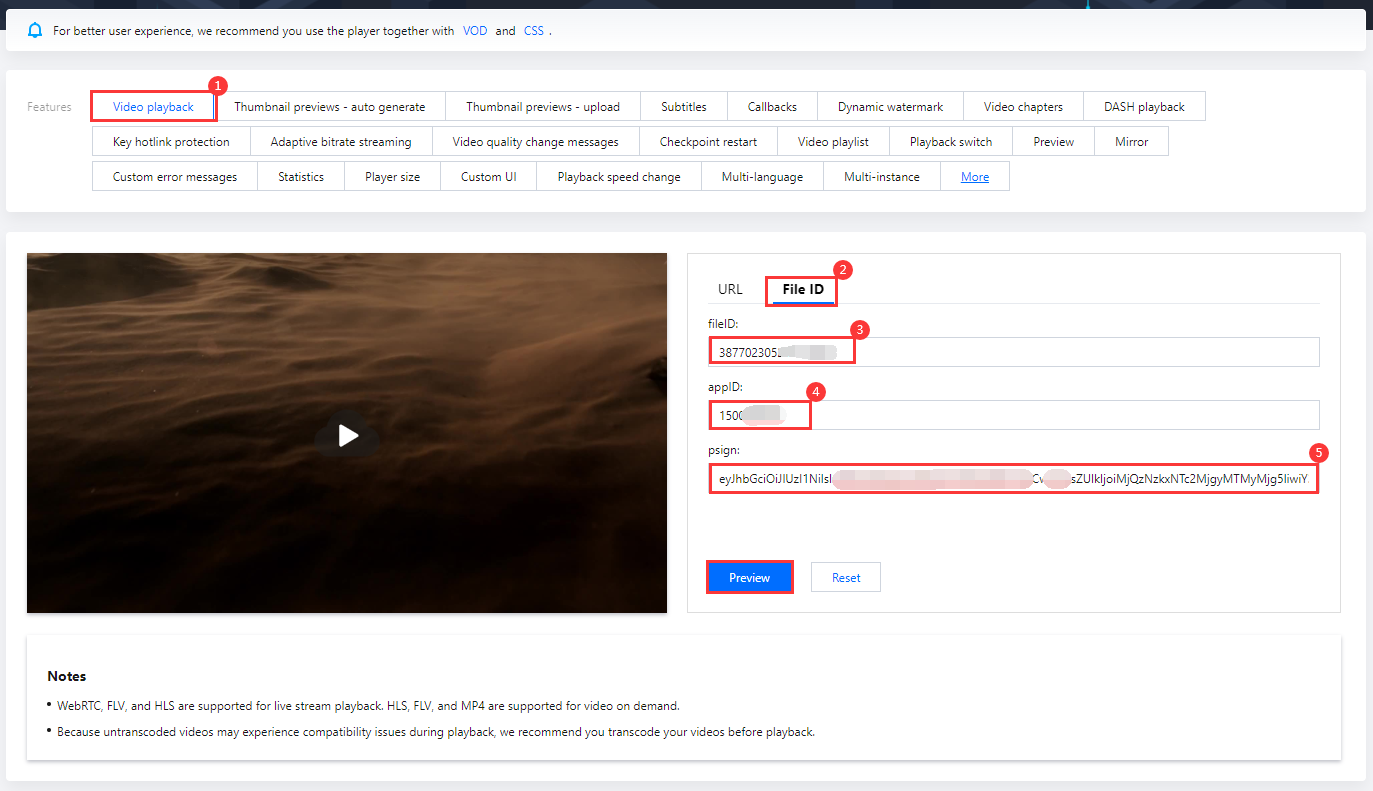
After step 2, you have obtained the three parameters needed for video playback: appId, fileId and psign (player signature). The following describes how to play the video on the web.
fileID: Enter the same file ID (387xxxxx8142975036) in the previous step.
appID: Enter the ID of the VOD application to which the file belongs (which is also the App ID displayed on the signature generation page in the previous step).
psign: Enter the signature string generated in the previous step.
2. Click Preview to play the video.
Multi-platform player demos
After generating the player signature, you can use our player demos for web, Android, and iOS to play the video. For details, see the source code for the demos.
Summary
At this point, you have understood how to upload a video to VOD and play it back in the player.