Configuring SSL Encryption for Database Proxy
ダウンロード
フォーカスモード
フォントサイズ
TencentDB for PostgreSQL supports SSL (Secure Sockets Layer) encryption for database proxy connection addresses. You can enable SSL encryption and download and install the SSL CA certificate on the required application services to improve the connection security of TencentDB for PostgreSQL. This document describes how to configure SSL encryption for the database proxy.
Prerequisites
Must-Knows
After it is enabled, database proxy connections will use SSL/TLS encrypted transmission.
After SSL encryption is enabled, the certificate source defaults to a cloud certificate provided by Tencent Cloud, and custom upload is not supported.
When you enable or disable SSL encryption, the database proxy will deliver the configuration and may cause transient connection jitter. We recommend that you perform this operation during off-peak hours.
Enabling SSL Encryption
1. Log in to the TencentDB for PostgreSQL console.
2. Locate the target instance in the instance list, click the Instance ID, and go to the instance management page.
3. On the instance management page, select the Database Proxy tab.
4. Under Overview > Connection Address, click Configuration in the SSL Encryption field.

5. In the pop-up dialog box, turn on the button after SSL Encryption and click Confirm.
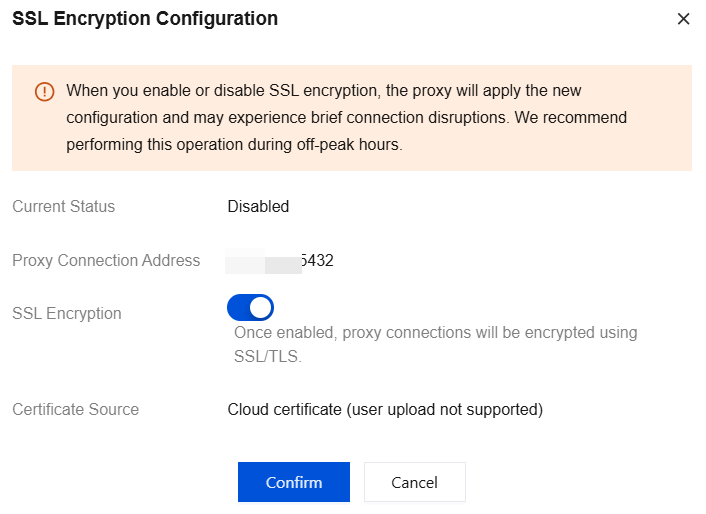
6. When the database proxy status returns to Running, SSL encryption is successfully enabled.
Download Certificate
You can download the SSL CA certificate only after SSL encryption is enabled.
1. Log in to the TencentDB for PostgreSQL console.
2. Locate the target instance in the instance list, click the Instance ID, and go to the instance management page.
3. On the instance management page, select the Database Proxy tab.
4. Under Overview > Connection Address, click Configuration in the SSL Encryption field.
5. In the pop-up dialog box, click Download Certificate.
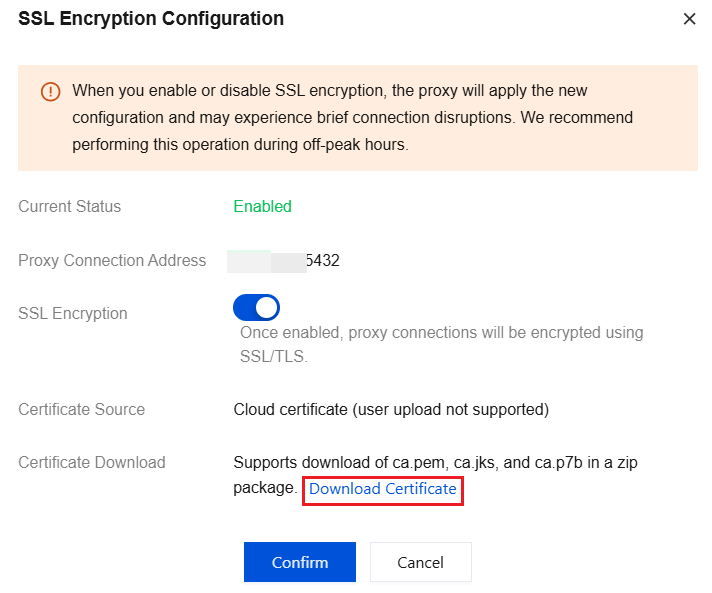
The downloaded file is a compressed package (TencentDB-PG-SSL-CA.zip) that contains the following three files:
.p7b file: It is used to import the CA certificate to Windows systems.
.jks file: It is a truststore and keystore certificate storage file in Java, with a unified password of tencentdb_pg, and is used to import the CA certificate chain into Java programs.
.pem file: It is used to import the CA certificate to other operating systems or applications.
Connecting to a Database via SSL
After downloading and installing the SSL CA certificate on your application server, you can connect to the database by following the method for connecting over SSL described in Configure SSL Encryption, with the connection address set to the database proxy connection address.
Disabling SSL Encryption
1. Log in to the TencentDB for PostgreSQL console.
2. Locate the target instance in the instance list, click the Instance ID, and go to the instance management page.
3. On the instance management page, select the Database Proxy tab.
4. Under Overview > Connection Address, click Configuration in the SSL Encryption field.
5. In the pop-up dialog box, disable the button after SSL Encryption and click Confirm.
フィードバック