TDMQ for CKafka (CKafka) supports the automatic disk watermark adjustment feature. When the disk watermark reaches the threshold, you can set a dynamic message retention policy to reduce the message retention period, or set automatic disk capacity expansion to adjust disk space.
Dynamic message retention: After users set a message retention period, messages will be deleted upon expiration. When disk space is used up due to a surge in user messages, messages cannot be normally produced or consumed. With a dynamic data retention policy set, when disk space utilization reaches a certain threshold, the system will automatically expire a certain proportion of data in advance to prevent such a situation.
Automatic disk capacity expansion: When disk load becomes excessive, messages cannot be normally produced or consumed. With an automatic disk capacity expansion policy set, if disk load reaches the trigger threshold, the system will automatically adjust disk capacity according to the expansion policy to prevent such a situation.
Constraints and Limitations
The disk watermark adjustment policy applies to Advanced Edition and Pro Edition (Fixed Storage). In Pro Edition (Elastic Storage), it is enabled by default and does not need to be manually enabled.
Policy Type
Advanced Edition
Pro Edition (Fixed Storage)
Pro Edition (Elastic Storage)
Dynamic message retention
✓
✓
/
Automatic disk capacity expansion
×
✓
/
Only the dynamic message retention policy or automatic disk capacity expansion can be enabled at a time.
Change Impacts
Automatic disk capacity expansion does not affect business operations. However, if disk usage surges within a short period, the system cannot guarantee that automatic disk capacity expansion is completed before disk usage reaches the capacity threshold. It is recommended to plan capacity in advance and expand disk capacity based on the watermark before enabling automatic disk capacity expansion.
After dynamic message retention is triggered, the earliest historical data will be deleted, which may affect businesses that depend on complete data. Additionally, the adjustment may take effect at a delayed time. It is recommended to consume data promptly to reduce data backlogs.
Since migration and configuration change operations may conflict with automatic disk capacity expansion, automatic disk capacity expansion may fail during migration and configuration changes. It is recommended to assess disk capacity expansion before performing migration and configuration changes.
Prerequisites
Expanding the disk storage space of a CKafka instance incurs corresponding fees. Ensure that your account has a sufficient balance, as an insufficient balance can cause the capacity expansion failure. For specific prices for the storage space of CKafka instances, see Enabling Elastic Storage.
2. In the left sidebar, click Instance List, and then click the ID/name of the target instance to go to the basic information page.
3. In the Disk Utilization Policy module on the basic instance information page, you can set the disk watermark adjustment policy to adjust disk space.
2. In the left sidebar, click Instance List, and then click the ID/name of the target instance to go to the basic information page.
3. On the page, select the Smart Ops tab at the top and then select the Auto Scaling sub-tab. In the Disk Utilization Policy module, set a disk space adjustment policy.
Setting the Disk Watermark Adjustment Policy
Dynamic Message Retention Policy
Automatic Disk Capacity Expansion Policy
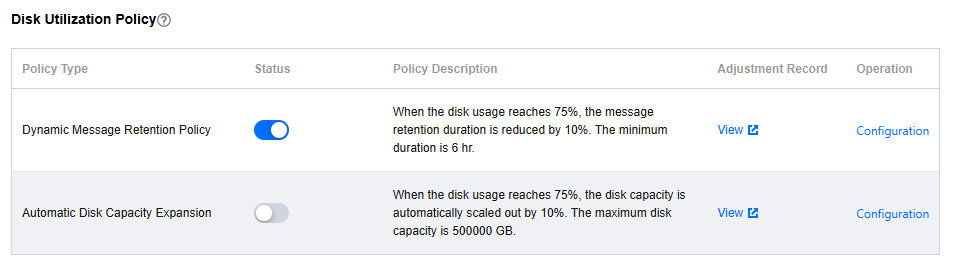
1. In the Disk Utilization Policy module, enable Dynamic Message Retention Policy.
Note:
The default dynamic policy is to reduce the message retention period by 10% when disk usage reaches 75%, with a minimum message retention period of 6 hours.
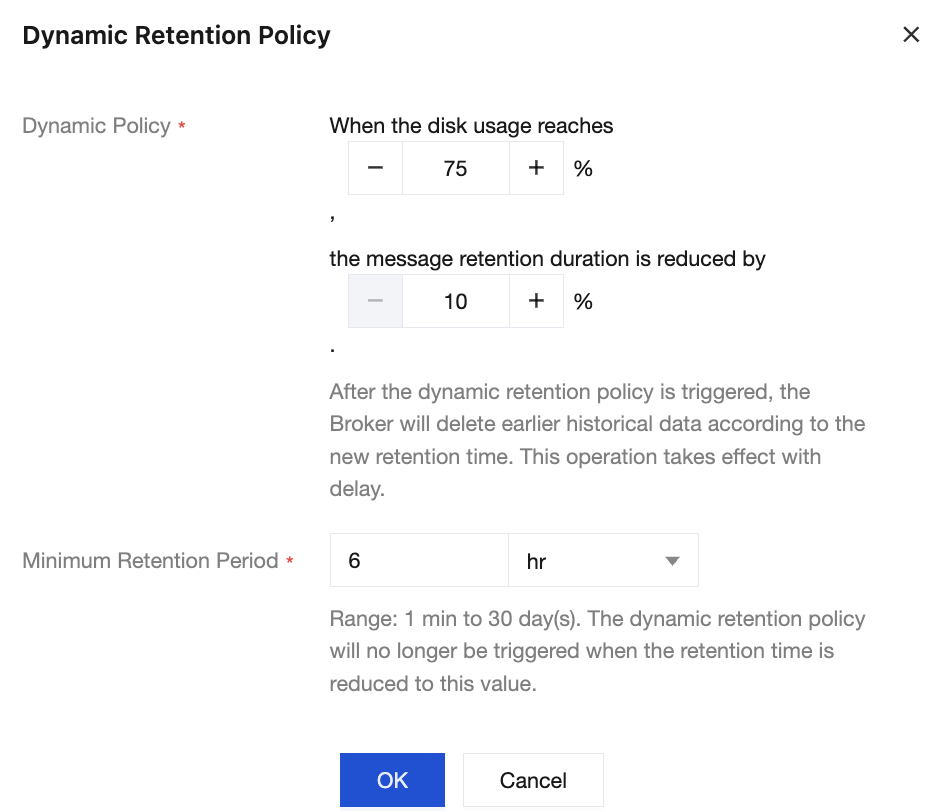
2. Click Configuration in the Operation column of the dynamic retention policy to set a dynamic policy and minimum message retention period.
Dynamic Policy: After the message retention period adjustment is triggered, the broker will delete certain earliest historical data based on the new retention period. The adjustment may take effect at a delayed time.
Minimum Retention Period: 1 minute to 30 hours. After the minimum message retention period is dynamically adjusted to this value, dynamic adjustments will no longer be triggered.
3. Click OK to complete the policy configuration.
4. Click View in the Adjustment Records column to go to Event Center, where you can view the details of adjustment records on automatic disk capacity expansion.
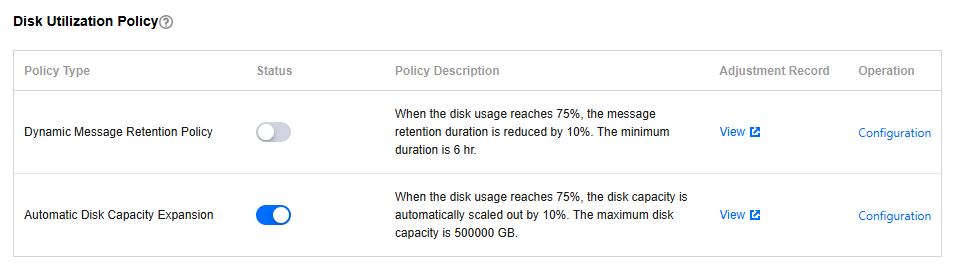
1. In the Disk Utilization Policy module, enable Automatic Disk Capacity Expansion.
Note:
By default, when disk usage reaches 75%, the disk capacity will be automatically expanded by 10%. The maximum disk size is the disk limit corresponding to the current instance specification. The data displayed in the console shall prevail.
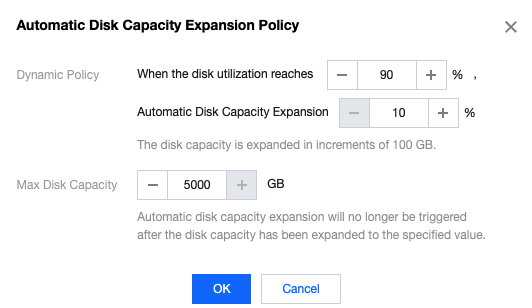
2. Click Configuration in the Operation column of automatic disk capacity expansion to set a dynamic policy and the maximum disk size.
Dynamic Policy: When disk usage reaches the trigger threshold, the disk capacity will be automatically adjusted according to the expansion policy. The adjustment may take effect at a delayed time. The step size of disk capacity expansion is 100 GB.
Maximum Disk Capacity: Automatic expansion will no longer be triggered after automatic expansion to this disk specification.
3. Click OK to complete the policy configuration.
4. Click View in the Adjustment Records column to go to Event Center, where you can view the details of adjustment records on automatic disk capacity expansion.