Configuring Dynamic Partition Processing
Download
フォーカスモード
フォントサイズ
Scenarios
TDMQ for CKafka (CKafka) supports the dynamic partition processing feature. When partition skew occurs in the instance cluster, you can manually perform partition balancing to redistribute partitions across nodes. Alternatively, you can choose automatic partition balancing, where CKafka checks the partition distribution of topics automatically at the scheduled time and initiates partition balancing during off-peak hours determined through automatic analysis.
Constraints and Limitations
Only CKafka Pro Edition instances support this feature.
Automatic partition balancing and manual partition balancing tasks cannot run simultaneously.
After a partition balancing task is started, the topic that is undergoing partition balancing cannot be deleted. Otherwise, the partition balancing task will not end.
Partition balancing may cause traffic changes and jitters. It is recommended to perform this operation during off-peak hours.
Change Impacts
Businesses may experience request timeouts or increased latency.
When the data volume of a topic is large, partition balancing will consume significant network and storage bandwidth due to data migration. As a result, businesses may experience request timeouts or increased latency. In this case, you should carefully evaluate the impact on your business. It is recommended to perform this operation during off-peak hours.
The traffic of other topics may be affected.
Partition balancing on a topic will consume certain network and storage bandwidth. When partition balancing is performed on the current topic, if bandwidth resources are tight, the normal production and consumption of other topics may be affected, and partition balancing may not end. If partition balancing does not end consistently, contact our customer service personnel for assistance.
When the data volume of a topic is large, partition balancing may take a long time. It is recommended to wait patiently and simultaneously monitor the relevant metrics for the topic. The data volume of a topic can be viewed through the total disk space used by messages in the topic section on the monitoring page. For specific steps, see Viewing Monitoring Data.
After partition balancing, the metadata of the topic will change. If the producer does not support a retry mechanism, a small number of requests may fail, resulting in the failure to produce certain messages. In this case, restart the producer.
Prerequisites
Before performing partition balancing on a topic, check the instance specifications, total disk space used by messages in the topic, current CPU utilization, and disk utilization to evaluate whether the current status is suitable for partition balancing.
When the total disk space used by messages in the topic is large, performing partition balancing will consume significant network and storage bandwidth.
When CPU utilization and disk utilization exceed 90%, it is not recommended to perform partition balancing.
The above data can be viewed on the monitoring page in the console. For specific steps, see Viewing Monitoring Data.
Operation Steps
1. Log in to the CKafka console.
2. In the left sidebar, click Instance List, and then click the ID/name of the target instance to go to the basic information page.
3. On the basic information page, select the Smart Ops tab and then select the Auto Scaling sub-tab.
4. In the Dynamic Partition Processing module on the Elastic Scaling page, enable Automatic Partition Balancing.
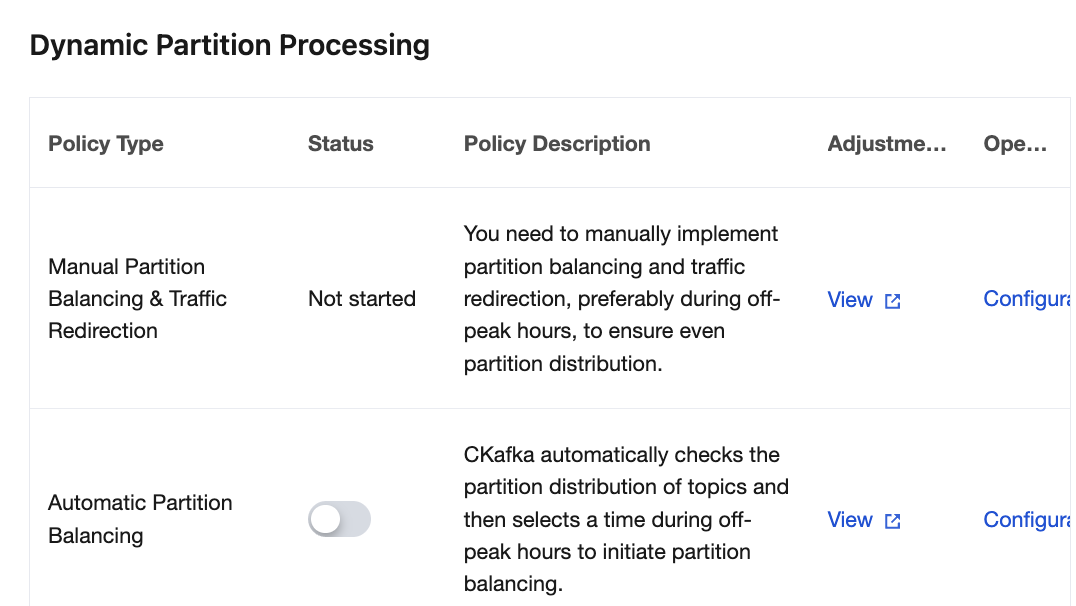
5. Click Configuration in the Operation column of Automatic Partition Balancing to set an automatic partition balancing policy.
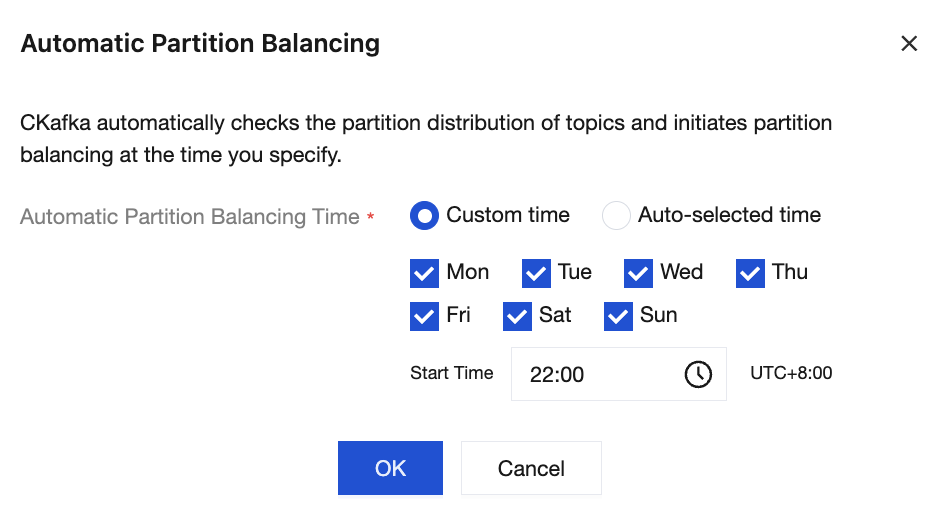
Custom time: Customize the time for initiating partition balancing. It is recommended to select off-peak hours to avoid affecting your business.
Auto-selected time: CKafka selects the time for initiating partition balancing during off-peak hours determined through automatic analysis.
6. Click OK to complete the configuration.
7. Click View in the Adjustment Records column to go to Event Center, where you can view the details of adjustment records on automatic partition balancing.
1. Log in to the CKafka console.
2. In the left sidebar, click Instance List, and then click the ID/name of the target instance to go to the basic information page.
3. On the basic information page, select the Smart Ops tab and then select the Auto Scaling sub-tab.
4. In the Dynamic Partition Processing module on the Elastic Scaling page, click Configuration in the Operation column to configure manual partition balancing for traffic diversion.
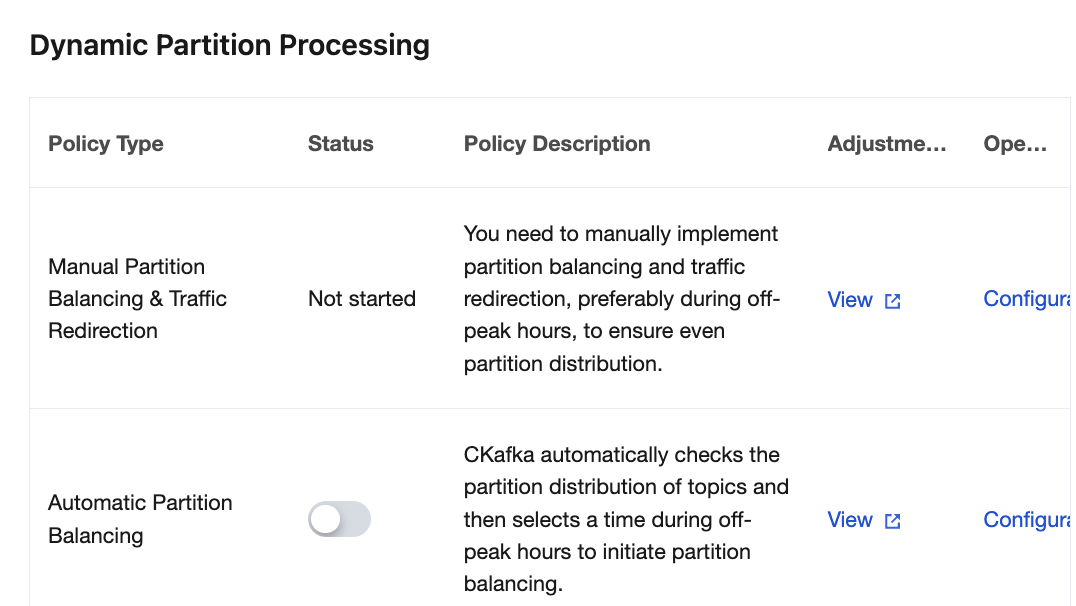
5. In the pop-up window, select the topic that requires manual partition balancing and manually configure a partition balancing policy.
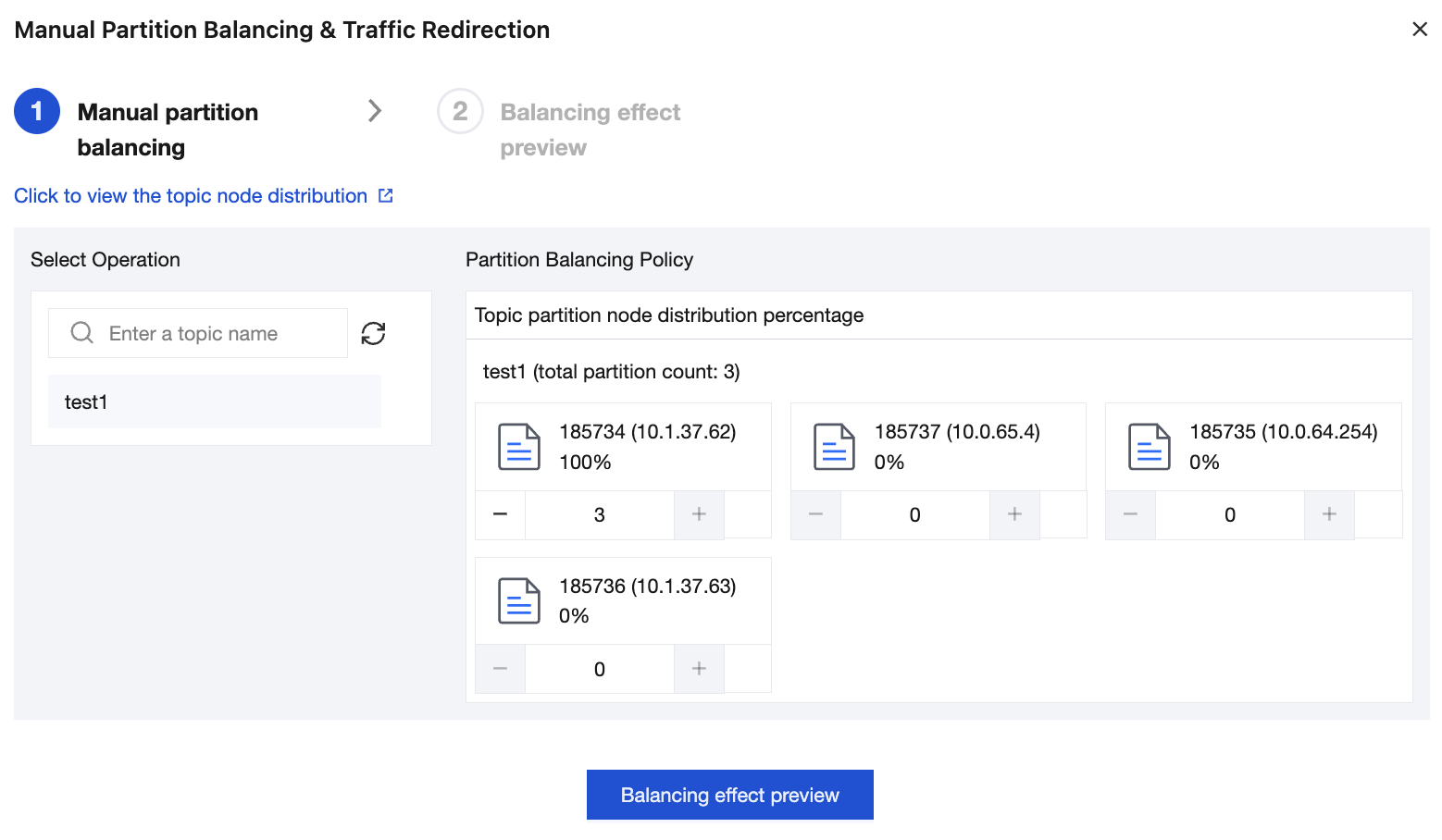
6. Preview the balancing effect.
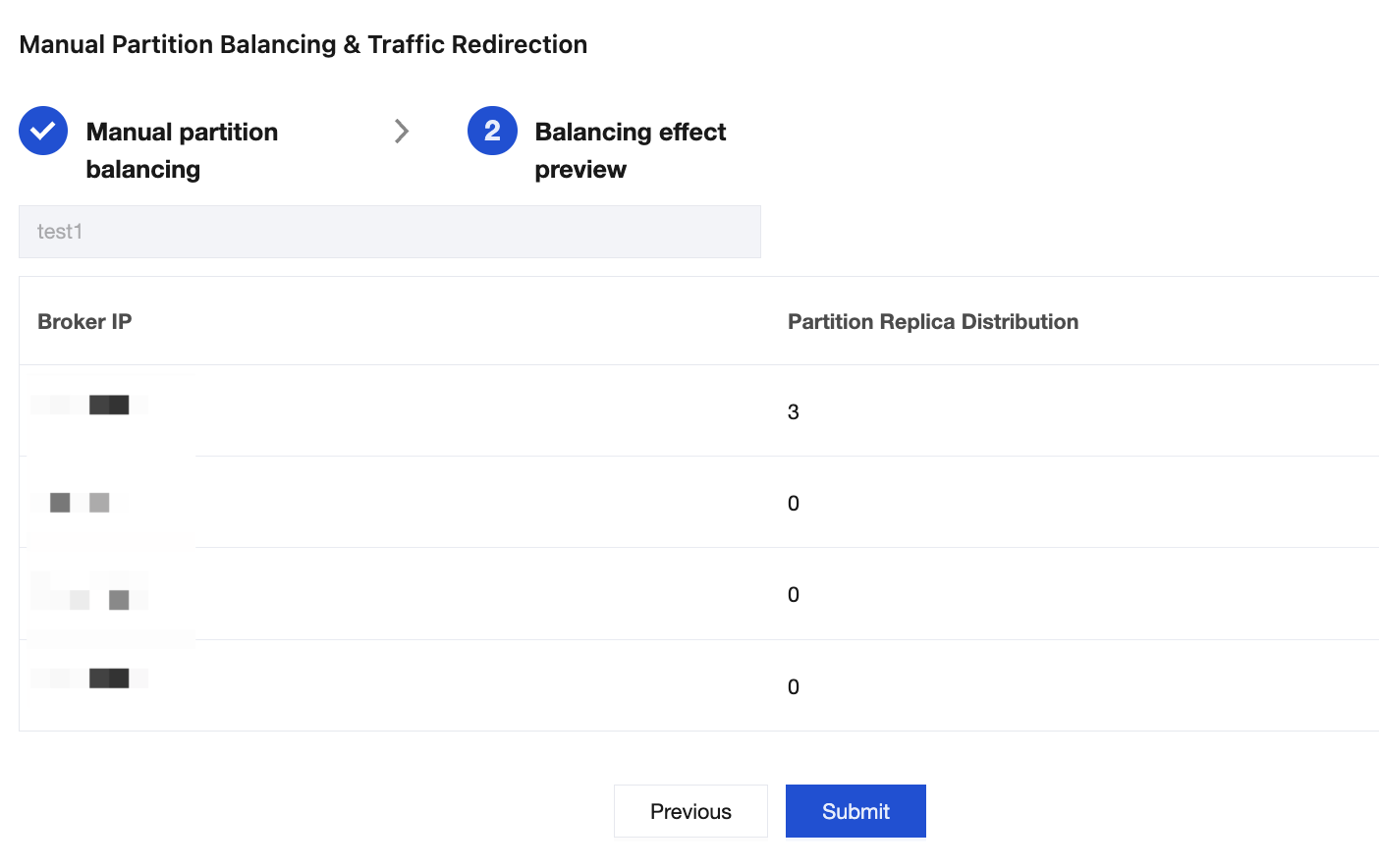
7. Click Submit to initiate the partition balancing and traffic diversion task.
8. Click View in the Adjustment Records column to go to Event Center, where you can view the details of adjustment records on automatic partition balancing.
フィードバック