Upgrading the Kernel Minor Version of Instance
Download
フォーカスモード
フォントサイズ
TDMQ for CKafka (CKafka) Pro Edition supports upgrading the kernel minor version, enabling the use of new features, performance improvements, and issue fixes.
Scenarios
Automatic upgrade trigger scenarios
Scenario 1: When a major bug or security vulnerability occurs in CKafka, the system will initiate an upgrade of the kernel minor version during your maintenance window and push upgrade notifications in advance via methods such as the message center and Short Message Service (SMS).
Scenario 2: When operations triggering cluster migration (such as upgrading cluster specifications, expanding or reducing disk capacity, or upgrading the CKafka version) occur in CKafka, the system will upgrade your cluster to the latest kernel minor version.
Manual upgrade scenarios
In addition to automatic upgrade scenarios, you can upgrade the kernel minor version manually in the console.
Constraints and Limitations
Only Pro Edition instances support upgrading the kernel minor version of instances.
Upgrading instances from an earlier version to a later version is supported, but downgrading to a compatible version is not supported.
The system will automatically check the minor version of instances for upgrades. Custom target versions are not supported.
Compatible version upgrades for instances do not incur additional fees.
Upgrade Impacts
If a topic has only one replica, since it lacks redundant backups, it will become completely unavailable during the upgrade, preventing any message production or consumption operations and posing a risk of business interruption.
If a topic has multiple replicas, it can maintain service continuity during the upgrade, but nodes need to be restarted one by one. The load will be transferred to other available nodes. Therefore, it is recommended to schedule the upgrade operation during off-peak hours.
During the upgrade process, nodes are upgraded one by one. The upgrade of each node consists of two key stages: software package upgrade and data synchronization. The duration for upgrading a single node is the sum of the software package upgrade duration and the data synchronization duration.
Upgrade the software package: It takes approximately 5 minutes.
Synchronize data: The duration depends on the amount of data generated by leader replicas on other nodes during the software upgrade. The larger the data scale, the longer the synchronization duration.
During the upgrade, the monitoring process may be partially lost or temporarily interrupted due to rolling node restarts, resulting in inaccurate or missing monitoring data. Data monitoring returns to normal after node restarts.
During the upgrade, rolling node restarts will trigger partition leader re-elections, causing second-level momentary disconnections. Under stable network conditions, leader switching typically completes within 1 minute. To ensure the service reliability of the multi-replica topic, it is recommended to configure a retry mechanism in production clients:
For scenarios using the Kafka open-source client, check the configuration of the retries parameter. It is recommended to set it to 3–5.
For environments using the Flink client, verify whether an appropriate restart policy has been configured.
Prerequisites
The kernel minor version of a CKafka instance can only be upgraded when its status is Healthy.
Operation Steps
1. Log in to the CKafka console.
2. In the left sidebar, click Instance List, and then click the ID/name of the target instance to go to the basic information page.
3. In the Basic Infor module, click Upgrade Version on the right side of the instance version and set the upgrade time.
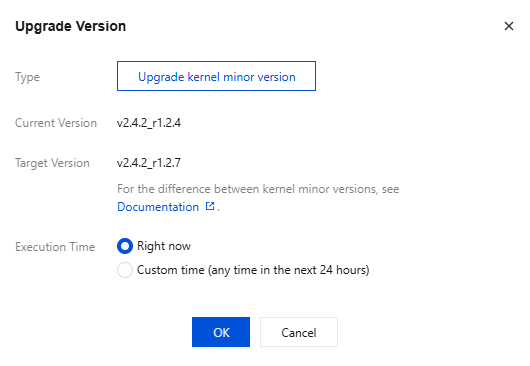
Current Version: current kernel version.
Target Version: The instance is upgraded to the latest broker version by default. The system automatically detects the minor version. If Minor Version Upgrade cannot be selected, it indicates that the instance is already the latest minor version. For differences between kernel minor versions, see Broker Version Upgrade Records.
Execution Time: You can select Right now or Custom Time (any time within the next 24 hours). It is recommended to perform the operation during off-peak hours.
4. Click OK to submit the upgrade task.
5. On the left side of the page, select the Event Center tab to view a record of upgrading the instance version.

6. Click View Details in the Operation column of this record to view the detailed progress of the upgrade task.
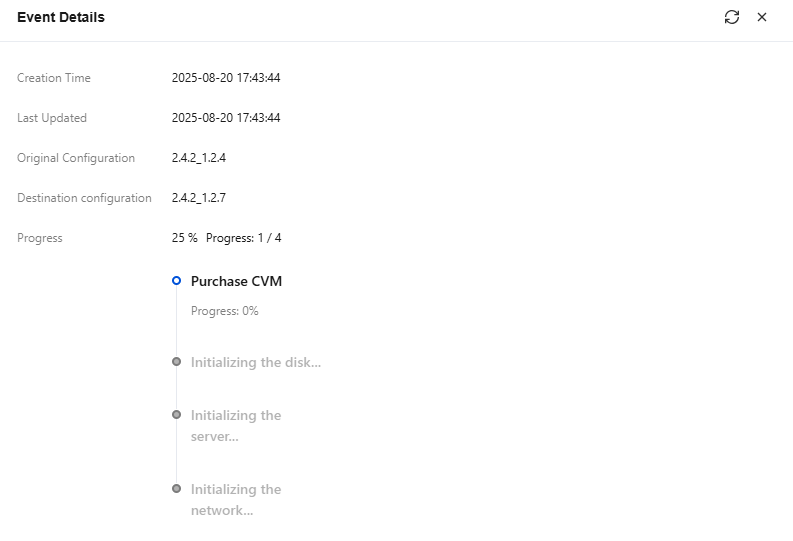
7. Back on the instance list page, you can see that the instance status has changed to Modifying, and the upgrade progress can be viewed.
8. During the configuration change of the instance, it is recommended that you do not operate the features under Topic Management and Intelligent Ops to avoid the configuration change failure caused by unexpected exceptions.
フィードバック