Changing AZs of Instances
Download
フォーカスモード
フォントサイズ
Scenarios
TDMQ for CKafka (CKafka) Pro Edition supports the capability to change availability zones (AZs). It supports migrating instances to other AZs in the same region. After an instance is migrated to AZs, all its properties, configurations, and connection addresses remain unchanged. This feature is applicable to the following scenarios:
Assume you are trying to modify the type of an instance but cannot create or purchase an instance of the new type in the current AZ. In this case, you can migrate the instance to an AZ where this type of instance can be started.
If the current AZ has no resources for scale-out, you can also migrate the instance to other AZs with sufficient resources in the same region to meet your business requirements.
Feature Description
If the original instance is deployed in a single AZ, you can switch AZs or upgrade its single-AZ deployment mode to the multi-AZ deployment mode. For details about multi-AZ deployment, see High Reliability of Clusters.
If the original instance is deployed in multiple AZs, you can switch AZs but cannot switch its multi-AZ deployment mode back to the single-AZ deployment mode.
Migration Types and Scenarios
Migration Type | Scenario |
Migrating an instance from one AZ to another | The AZ where the instance resides is fully loaded or has other issues that affect instance performance. |
Migrating an instance from one AZ to multiple AZs | Cross-IDC disaster recovery is required to improve the disaster recovery capability of instances. The primary and secondary instances are deployed in different AZs. Compared to single-AZ instances, multi-AZ instances can withstand higher-level disasters. For example, single-AZ instances can withstand server and rack-level failures, while multi-AZ instances can withstand IDC-level failures. |
Constraints and Limitations
Only Pro Edition supports this capability. Advanced Edition does not currently support migrating the AZs of instances.
Change Impacts
Changing AZs requires data migration. It is recommended to schedule the change operation during off-peak hours.
If a topic has only one replica, since it lacks redundant backups, it will become completely unavailable during the change, preventing any message production or consumption operations and posing a risk of business interruption.
If a topic has multiple replicas, it can maintain service continuity during the change process, but nodes need to be restarted one by one. The load will be transferred to other available nodes, and instance performance may fluctuate temporarily.
During the change, the monitoring process may be partially lost or temporarily interrupted due to rolling node restarts, resulting in inaccurate or missing monitoring data. Data monitoring returns to normal after node restarts.
During the change, rolling node restarts will trigger partition leader re-elections, causing second-level momentary disconnections. Under stable network conditions, leader switching typically completes within 1 minute. To ensure the service reliability of the multi-replica topic, it is recommended to configure a retry mechanism in production clients:
For scenarios using the Kafka open-source client, check the configuration of the retries parameter. It is recommended to set it to 3–5.
For environments using the Flink client, verify whether an appropriate restart policy has been configured.
The time required for migration depends on the data volume of the instance. Instances with larger data volumes may migrate more slowly. It is recommended that you perform the operation during off-peak hours.
Fee Description
This feature is free of charge. Even if you migrate an instance from a single AZ to multiple AZs, no fees are charged.
Prerequisites
The instance status is Running.
The region where the instance resides must have multiple AZs to support the AZ migration feature.
Operation Steps
1. Log in to the CKafka console.
2. In the left sidebar, click Instance List and then click the ID of the target instance to go to the basic information page.
3. In the Basic Information module, click Edit next to AZ, and select the target AZ for migration.
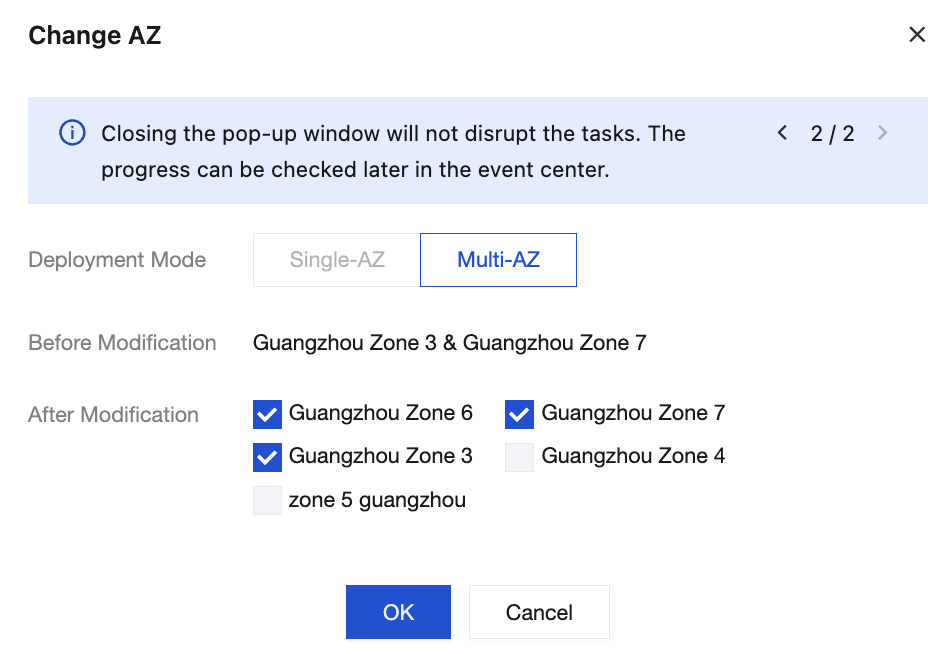
4. Click OK and wait for 5–10 minutes to complete the configuration change. You can view the configuration change progress in the Status column of the instance list.
フィードバック