Enabling Access Control
다운로드
포커스 모드
폰트 크기
To guarantee your business security, SSL VPN provides the SSL VPN server access control feature to improve your linkage security.
Notes
If you enable access control, you need to configure the access policy after the server is created; otherwise, the server will reject all connections.
If you select Certificate verification as the verification method, the SSL VPN server will accept all connections by default.
Note:
Currently, only SSO authentication-enabled SSL VPN servers support the access control feature. For more information, see SSO Authentication.
Enabling access control while creating an SSL VPN server
1. Log in to the VPC console.
2. Click VPN Connections > SSL VPN server on the left sidebar to enter the management page.
3. Click +New.
4. In the Create an SSL VPN server pop-up window, enable access control and configure relevant parameters while enabling identity verification.
Note:
If you enable access control, you need to configure the access policy after the server is created; otherwise, the server will reject all connections.
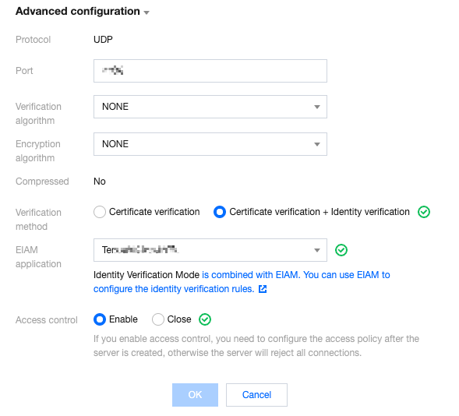
Parameter | Description |
Verification method | Certificate verification: In this verification method, the SSL VPN server can be accessed through all SSL VPN client connections by default. Certificate verification + Identity verification: In this verification method, only connections allowed by the access control policy can be established. You can configure the access control policy for specified user groups or all users. After this option is selected, you need to select an EIAM application. |
EIAM application | |
Access control | SSL VPN server access control switch |
Enabling access control after creating an SSL VPN server
Note:
If you enable access control, you need to configure the access policy after the server is created; otherwise, the server will reject all connections.
1. Log in to the VPC console.
2. Click VPN Connections > SSL VPN server on the left sidebar to enter the management page.
3. Click the name of the target instance.
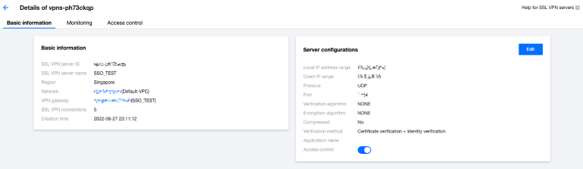
4. On the instance details page, enable access control in the Server configurations section on the Basic information tab.
피드백