To guarantee your business security, SSL VPN provides the SSL VPN server access control feature for you to manage your SSL VPN servers in a fine-grained manner.
Note:
Currently, only SSO authentication-enabled SSL VPN servers support the access control feature. For more information, see SSO Authentication.
Prerequisites
You have created a user group, added a user, and granted the application access permission to the user group in the EIAM console.
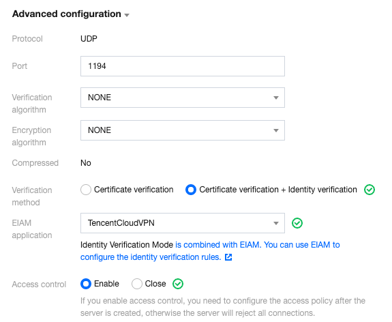
You have enabled certificate verification + identity verification and access control for the SSL VPN server in the VPC console.
Option 1. Enable the feature while creating an SSL VPN server.
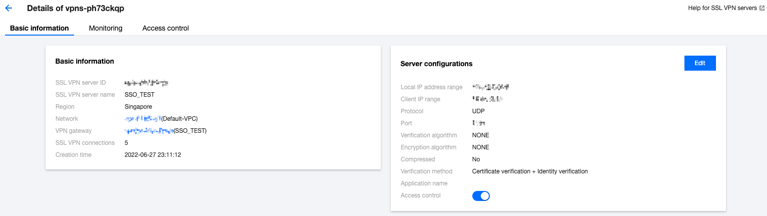
Option 2. Enable the feature after creating an SSL VPN server.
Note:
If you select Certificate verification as the verification method, the SSL VPN server can be accessed through all client connections by default, that is, any client can connect to it.
If you enable access control, you need to configure the access policy after the SSL VPN server is created; otherwise, the server will reject all connections.
2. Click VPN Connections > SSL VPN server on the left sidebar to enter the management page.
3. Click the name of the target instance.
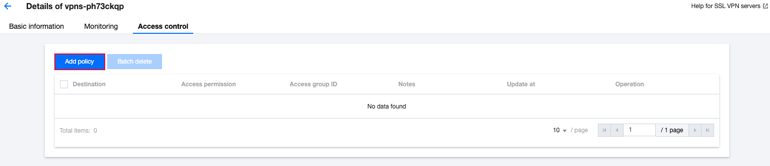
4. On the instance details page, click Access control > Add policy.
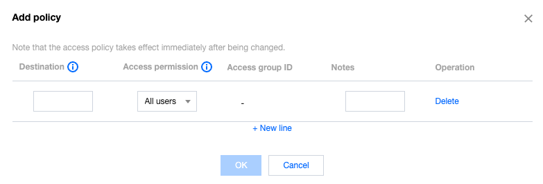
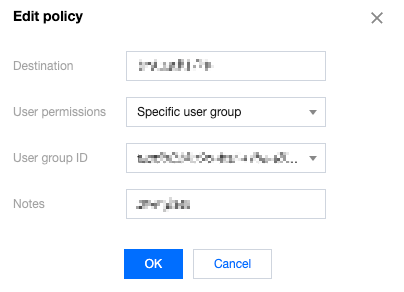
5. In the pop-up window, configure an access control policy.
Parameter
Description
Destination
Enter the local IP range, i.e., IP range for accessing the cloud.
Note:
The destination IP range needs to be in the same IP range as the local IP range. If you change the local IP range, you need to modify the destination address of the access control.
Access permission
Specific user group: The access control policy will take effect for the specified user group, and you need to configure the access group ID after selecting this option.
All users: The access control policy will take effect for all users.
Note:
You can choose to configure access policies for specific user groups or all users. Specific user groups can be user groups configured on the [identity verification platform](https://console.tencentcloud.com/eiam).
Access group ID
An access group ID is the ID of a user group in the EIAM application. You can select multiple IDs, and then the access control policy will take effect only for the selected user groups.
Notes
Enter the policy remarks, which are required and make it easier for you to find the policy.
6. Click OK.
After completing the configuration, the SSL VPN server will accept all connections from users in the user group.
Deleting an access control policy
Note:
After an access control policy is deleted, clients of users in user groups associated with the policy cannot access the SSL VPN server.
If all access control policies are deleted, the SSL VPN server will reject the access requests from all clients by default. If you want the server to be accessible again, you can configure an access control policy or change the verification method to Certificate verification.
2. Click VPN Connections > SSL VPN server on the left sidebar to enter the management page.
3. Click the name of the target instance. On the Access control tab, click Edit in the Operation column of the target policy and modify its parameters as needed.