Data Retrieval
다운로드
포커스 모드
폰트 크기
Introduction
Intelligent Search MetaInsight provides you with scalar search and vector search methods, allowing you to perform search operations in different scenarios based on business needs. For example, image search is applicable to scenarios such as cloud drive album queries, product search, or recommendations, while face search is applicable to security and attendance scenarios.
Prerequisites
A face and image search template dataset has been created, and a data source with uploaded files has been bound.
Basic Information Search
1. Log in to the Cloud Infinite console.
2. In the left sidebar, choose MetaInsight > Data Retrieval.
3. On the Data Retrieval page, select Basic Information Search as the search scenario.
4. Select the dataset to search. Specify the query conditions, such as file name and contentType. For condition setting rules, see Scalar Search Expression Syntax.
You can also click More query criteria to configure settings such as sorting mode and data aggregation.
5. Click Query to obtain the search results.
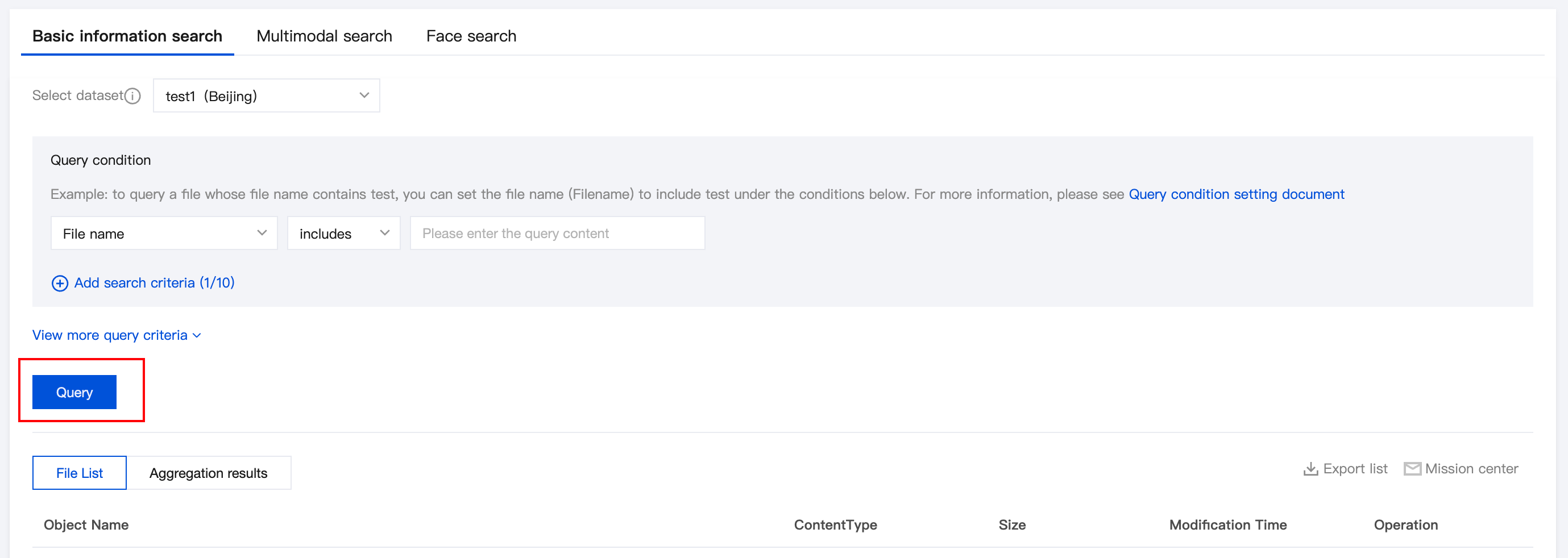
For the search results, you can also export them by clicking the Export List button in the results area, and view the export progress in the Task Center.
Multimodal Search
Multimodal search integrates the "Image Search" feature on the Cloud Infinite console, allowing you to perform various search operations on a single page.
Operation Steps
1. Log in to the Cloud Infinite console.
2. In the left sidebar, choose MetaInsight > Data Retrieval.
3. On the Data Retrieval page, select Multimodal Search as the search scenario.
4. Select the dataset and operator template to search. Under the search conditions, enter text or an image related to the search content.
5. Click to expand Advanced Settings to adjust the number of pictures and minimum similarity of an image.
6. Click Query to obtain the search results.
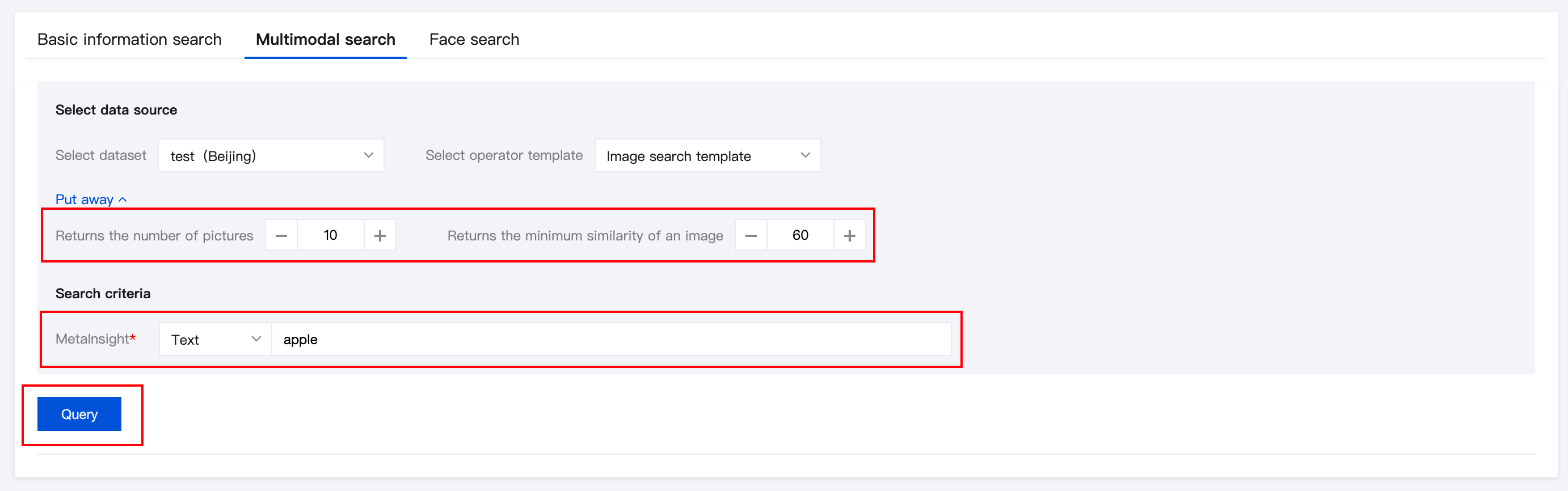
Result Query
Image Search: The search results display information such as images that meet the search criteria and their similarity scores.
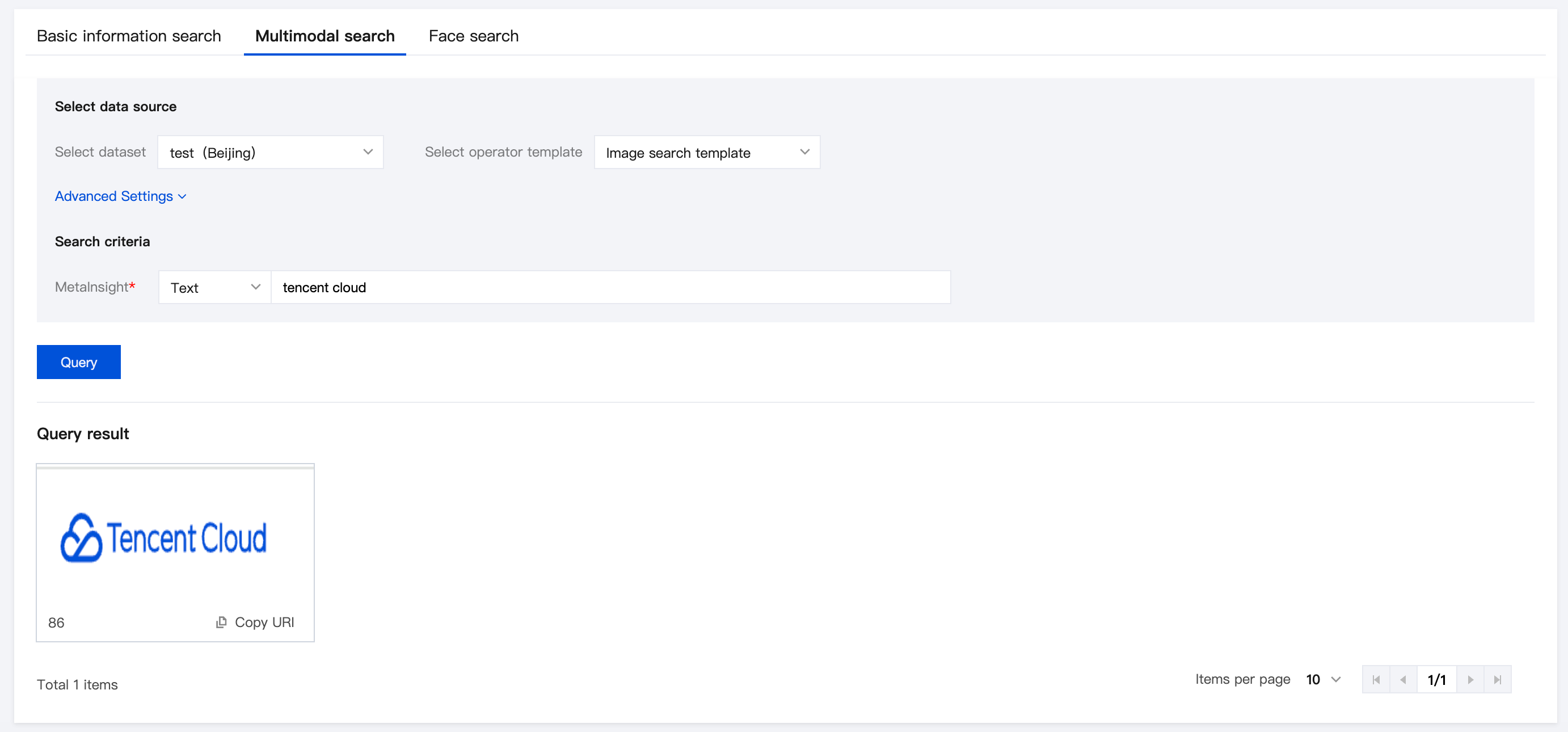
Face Search
1. Log in to the Cloud Infinite console.
2. In the left sidebar, choose MetaInsight > Data Retrieval.
3. On the Data Retrieval page, select Face Search as the search scenario.
4. Select the dataset to search, and select an operator template.
5. Click to expand Advanced Settings to adjust the number of pictures and minimum similarity of an image.
6. Select the face image to search, select the file source, and then choose a file from a bucket or upload a local file. After selecting the file, click OK.
7. Click Query to obtain the search results.
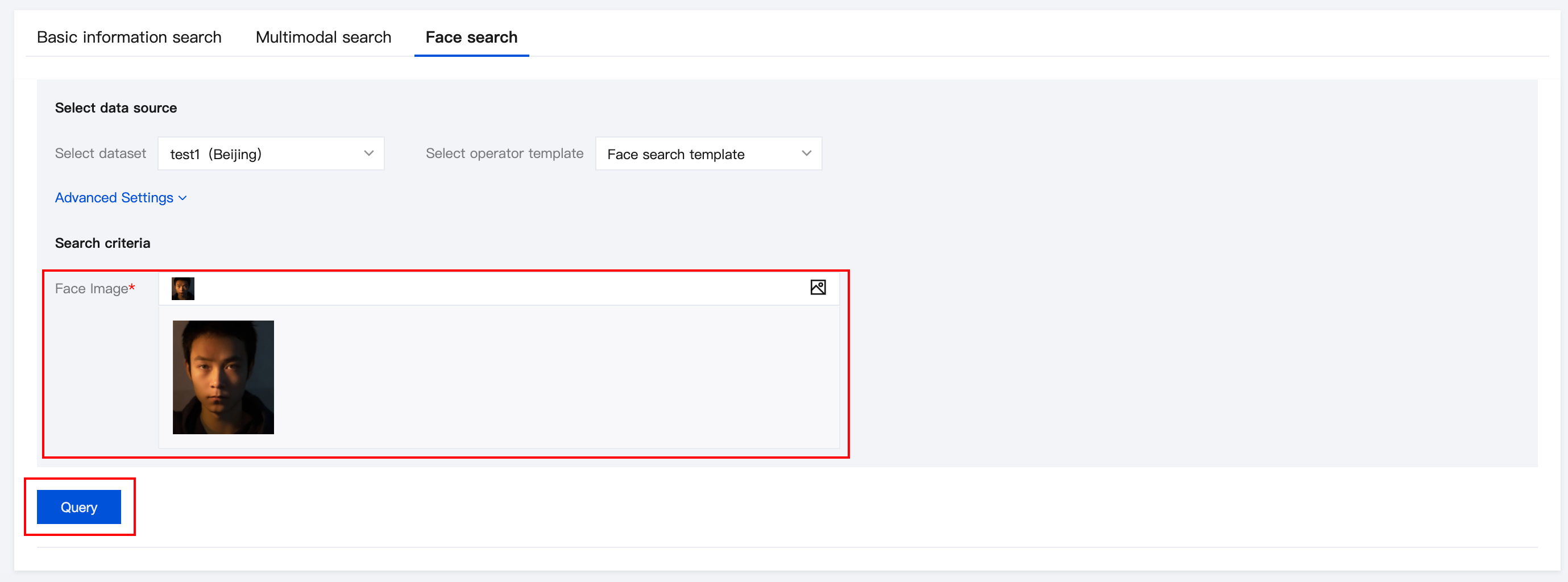
피드백