iOS
Download
포커스 모드
폰트 크기
Prerequisites
1. Development Environment
Xcode 9 or later
iOS 12.0 or later
2. Download SDK
Download TAVMagic_Professional_iOS.zip archive; after extracting the SDK files, you can start integration.
3. Apply for a License
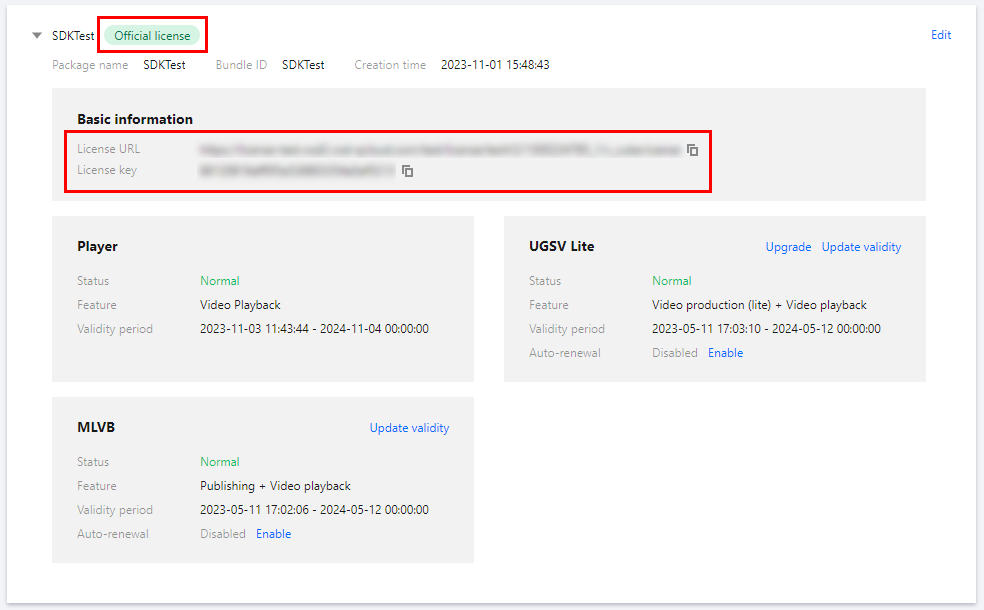
Please refer to the License Application Guide to obtain your License. After successful application, you may copy the License Key and License URL from the License Management page in either the CSS console or the VOD console, as illustrated below:
Integrate SDK
CocoaPods Integration
# add in podfilepod 'TAVMagic', :podspec => 'https://mediacloud-76607.gzc.vod.tencent-cloud.com/TAVMagic/iOS/Release/1.6.2.0/TAVMagic.podspec'# update pod in terminalpod install --repo-update
Manual Integration
1. Drag the entire TAVMagic folder into your project.
2. Add the following system dependency libraries to your project:
CoreTelephony.framework
JavaScriptCore.framework
libc++.tbd
MetalPerformanceShaders.framework
VideoToolbox.framework
Metal.framework
3. In the project's General-->Frameworks,Libraries..., set the Embed option for TECodec.framework, XMagic.framework, and YTCommonXMagic.framework to Embed & Sign.
Initialize SDK
1. Set Up License Authentication
You can set the URL and KEY in the initialization code of the relevant business module according to your business needs. After setting the License, the download will be triggered immediately. For proper functionality, it is recommended to set the License in advance and verify that the validation result is successful before entering the short video editing feature.
// If you only want to trigger license download/update without caring about the auth result, pass null for the completion parameter.[TELicenseCheck setTELicense:@"license url" key:@"licenseKey" completion:^(NSInteger authresult, NSString * _Nonnull errorMsg) {NSLog(@"authResult : %zd msg:%@",authresult,errorMsg);}];
Authentication errorCode descriptions:
Error Code | Description |
0 | Success. |
-1 | Invalid input parameter, e.g. URL or KEY is empty. |
-3 | Download failed. Please check your network settings. |
-4 | TE authorization info read from local storage is empty, possibly caused by an IO failure. |
-5 | Content read from VCUBE TEMP License file is empty, possibly caused by an IO failure. |
-6 | JSON fields in v_cube.license file are incorrect. Please contact the Tencent Cloud team. |
-7 | Signature verification failed. Please contact the Tencent Cloud team. |
-8 | Decryption failed. Please contact the Tencent Cloud team. |
-9 | JSON fields in TELicense are incorrect. Please contact the Tencent Cloud team. |
-10 | TE authorization info parsed from network is empty. Please contact the Tencent Cloud team. |
-11 | Failed to write TE authorization info to local file, possibly caused by an IO failure. |
-12 | Download failed, and parsing the local asset also failed. |
-13 | Authentication failed. |
Others | Please contact the Tencent Cloud team. |
2. Initialize SDK
1. Call the SDK initialization API.
- (void)buildSDK {NSString *bundlePath = [[NSBundle mainBundle] pathForResource:@"LightSDK" ofType:@"bundle"];self.editor = [[TAVEditor alloc] initWithRenderSize:CGSizeZero assetsPath:bundlePath];}
2. Set the preview container.
TAVPreviewParam *param = [[TAVPreviewParam alloc] init];param.videoView = self.view;param.observer = self; // includes preview progress and status callbacksparam.shouldRepeat = YES;[self.editor initPlayerWithPreviewParam:param];
SDK Usage
1. Introduction to SDK Features
All SDK features are accessed through the
TAVEditorclass.2. Short Video Editing
1. After initialization and preview are complete, you can add video sources via
addVideoClip or add image sources via addImageClip to preview video or images in the player:// Add a video source[editor addVideoClip(@"your_video_path")];// After adding all video sources, call refresh to regenerate preview resources and view the result[editor flushImmediately];// Set the playback time range of the 1st video, from 0 to its duration[editor setClipRange:timeRange index:1];// Set the volume of the 1st video source (optional), volume range is [0,1][editor setClipVolume:volume index:1];
2. You can also use
seekToTime to seek to a specific position for playback:[editor seekToTime:seekTime];
3. Template-Based Editing Preview
1. The template-based editing feature requires setting the template folder path via
setTemplateDir . The API returns a value; refer toTAVTemplateCode。TAVTemplateCode ret = [editor setTemplateDir:@"template_folder_path"];
2. The SDK also provides the
getTemplateConfig method to retrieve template slot and duration information. Example:TAVTemplateConfig config = [editor getTemplateConfig(@"template_folder_path")];// Compatible media formats: VIDEO, PHOTO, MULTI (mixed)TAVTemplateMediaType mediaType = config.mediaType;// Fill quantity limitNSArray<TAVClipPlaceHolder *> clipHolders = config.clipPlaceHolders;// Playback duration of each segmentclipHolders[0].contentDuration
3. After setting the template info, you can use
addVideoClipto add video sources or useaddImageClipto add image sources to complete the template-based editing preview. Example:// In template-based editing mode, the selected video source duration should be longer than the corresponding TAVClipPlaceHolder playback duration// Add a video source[editor addVideoClip(@"your_video_path")];// After adding all video sources, call refresh to regenerate preview resources and view the result[editor flushImmediately];
4. Other Basic Operations
Refresh
/*** After changing resources/BGM, call this API to refresh and regenerate playback resources*/- (void)flushImmediately;
Export
1. You can use the
generateVideoAPI for quick export. Example:// The first parameter of generateVideo specifies the export compression quality, supporting the following four levelstypedef NS_ENUM(NSInteger, TAVVideoCompressed) {TAVVideoCompressed480P = 0 , // Compress to 480P resolution (640*480)TAVVideoCompressed540P = 1 , // Compress to 540P resolution (960*540)TAVVideoCompressed720P = 2 , // Compress to 720P resolution (1280*720)TAVVideoCompressed1080P = 3 // Compress to 1080P resolution (1920*1080)};NSString *outputPath = @"your_export_path";[self.editor generateVideoWithCompressed:TAVVideoCompressed1080P outputPath:outputPath progress:^(CGFloat progress) {} completion:^(NSError * _Nonnull error, NSString * _Nonnull outputPath) {}];
2. If you have higher requirements for exported video, you can customize the export parameters. Use the other
generateVideomethod to setTAVEditorGenerateConfig, and the video will be exported with the width and height specified in the config, instead of using theTAVVideoCompressedcompression. Example:TAVEditorGenerateConfig *config = [TAVEditorGenerateConfig new];config.resolution = CGSizeMake(720,1280);config.frameRate = 60;config.videoBitRate = 8 * 1000 * 1000;NSString *outputPath = @"your_export_path";[self.videoContext.editor generateVideo:nil outputPath:resDir progress:^(CGFloat progress) {NSLog(@"progress : %f",progress);} completion:^(NSError * _Nonnull error, NSString * _Nonnull outputPath) {}];
Release Resources
When exiting the editor, you need to release the SDK. You can directly call the
TAVEditorin thereleasemethod to release resources:[editor deinit];
5. Preview Playback
Start Video Playback
/*** Start playback*/- (void)play;
Pause and Resume
/*** Pause*/- (void)pause;/*** Stop playback, will seek to 0*/- (void)stop;/*** Check if playing** @return Whether playback is in progress*/- (BOOL)isPlaying;
Get Total Playback Duration
/*** Get total playback duration** @return Time*/- (CMTime)getTotalDuration;
Seek to a Specified Position
/*** seek** @param seekTime Time*/- (void)seekToTime:(CMTime)seekTime;
Detailed SDK Features
Feature | Introduction |
Preview & Export | |
BGM | |
Motion Effects | |
Filters | |
Stickers & Text | |
Picture-in-Picture (PIP) | |
Templates | |
Thumbnail Extraction |
피드백