COS Quick Start
다운로드
포커스 모드
폰트 크기
This article introduces how to quickly get started with COS in CDC, including tool usage instructions and accessing COS using the SDK.
Environment Check and Preparation
Before various tools or SDKs are used to access the CDC COS cluster, please clarify the client's network environment, specify the access domain name to be used, and confirm network connectivity. You can use commands such as Curl to check connectivity and ensure the machine can connect to COS.
COS Domain Name and Access Path
CDC internal physical network access
Refers to client access within CDC, such as physical machines or other clients that can connect to the physical IP address of the CSG, including accessing the COS domain name example:
xxxx-1.cos-cdc.ap-guangzhou.myqcloud.com.CVM access under VPC (common scenario)
Refers to CVM access within CDC or direct access to CVMs in the region where the cluster is located under CDC, COS domain name example:
xxxx-1.cos-cdc-int.ap-guangzhou.tencentcos.cn.Note:
Public network access is not supported currently.
Connectivity Check
After determining the object storage domain name, use the Curl command to perform a connectivity check; normally, it will respond with HTTP 200.
curl xxxx-1.cos-cdc-int.ap-guangzhou.tencentcos.cn -v
Tool Usage Instructions
COSBrowser Graphical Tool
COSBrowser is a visual interface tool launched by Tencent Cloud COS, enabling you to use simpler interactions to easily view, transfer, and manage COS resources. For more information about COSBrowser, see Introduction to COSBrowser.
1. Download the corresponding tool version according to your operating system.
https://cosbrowser.cloud.tencent.com/beta/cdctest/cosbrowser-setup-2.12.2.exe
https://cosbrowser.cloud.tencent.com/beta/cdctest/cosbrowser-2.12.2-arm64.dmg
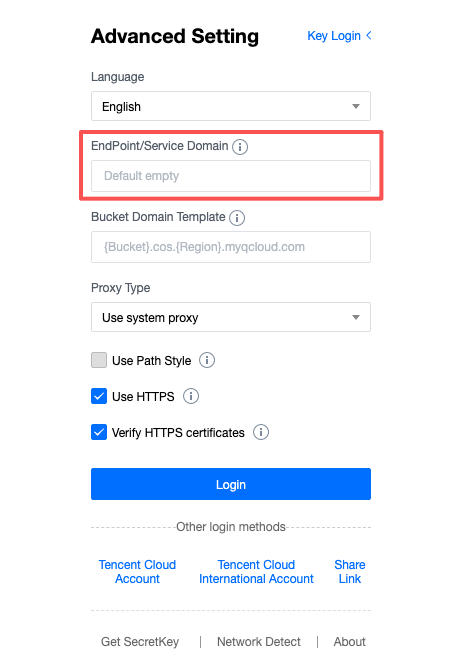
2. To connect to buckets in CDC, you need to configure the corresponding COS domain name (excluding bucket name information) in Advanced Settings > EndPoint/Service Domain Name Settings, so that requests can be sent to the CDC COS cluster.
Note:
COSBrowser does not support configuring bucket and object ACL permissions. If configuration is required, please use the console or SDK to configure them.
S3 Browser Graphical Tool
S3 Browser is a free Windows client software that provides a simple and easy-to-use web service interface, allowing you to store and retrieve any amount of data from anywhere on the web at any time. For more information about S3 Browser, see S3 Browser Community Documentation.
1. Click Download the tool installer, then configure your account after installation is complete.
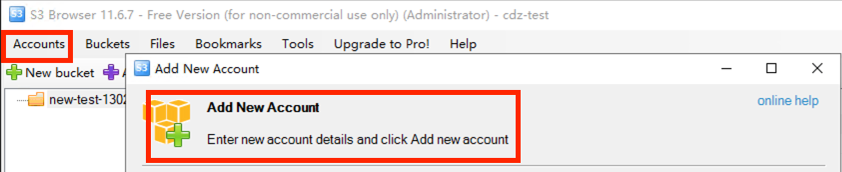
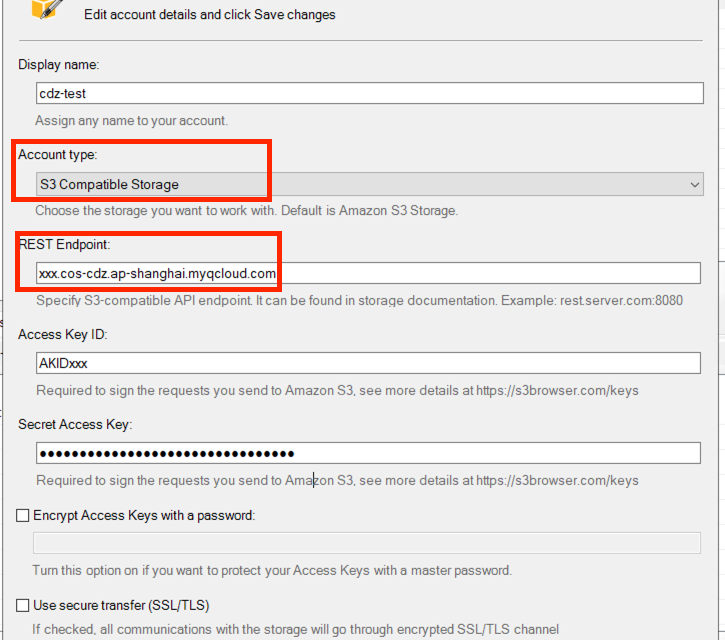
2. Account type select S3 storage (S3 Compatible Storage), and in REST Endpoint, enter the correct COS domain name.
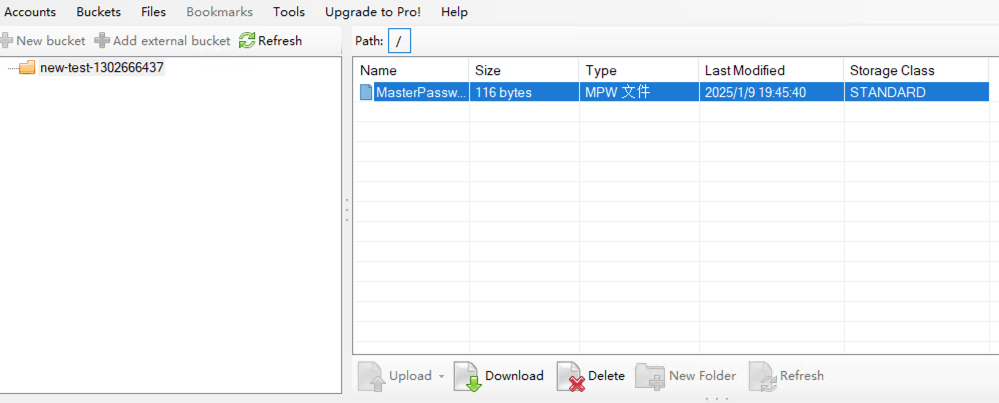
3. After a successful connection, you can perform file uploads and downloads through the graphical page.
S3cmd Command-Line Tool
Note:
When used as a command-line tool, since the permission systems of S3 and Tencent Cloud are inconsistent, it does not support bucket and object ACL-related operations. For permission-related operations, it is recommended to use the console, while all other operations are supported.
1. Install the S3cmd command-line tool.
yum install s3cmd -y
2. Modify the configuration file. In
host_base and host_bucket, enter your COS domain name.vi .s3cfg# Configuration file content:access_key=AKxxxsecret_key=SKxxxhost_base = cluster-xxxx.cos-cdc.ap-guangzhou.myqcloud.comhost_bucket = cluster-xxxx.cos-cdc.ap-guangzhou.myqcloud.com/%(bucket)use_https=Falsesignature_v2 = False
Common commands are as follows:
s3cmd ls // List bucketss3cmd ls s3://bucekt // List files in the buckets3cmd put local_file s3://bucekt // Upload an objects3cmd get s3://bucekt/object // Download the objects3cmd rm s3://bucekt/object // Delete the objects3cmd rb s3://bucekt // Delete the buckets3cmd -h // View help information and usage for the tool.
COSCMD Command-Line Tool
1. Install the COSCMD tool. For details, see COSCMD tool.
2. Modify the configuration file where
endpoint is your COS domain name.vi .cos.conf# Configuration file content:[common]secret_id = AKxxxsecret_key = SKxxxbucket = 12345-1309118522region = ap-guangzhouendpoint = cluster-xxxx.cos-cdc.ap-guangzhou.myqcloud.commax_thread = 5part_size = 1retry = 5timeout = 60schema = httpanonymous = False
3. After configuration is complete, you can run the following command to list the files.
coscmd list
The returned result is as follows:

MSP Migration Tool
Note:
For details about semi-hosted migration with msp-agent, see COS Migration Tutorial.
Semi-hosted migration requires self-preparation of an independent Agent machine, which can simultaneously access the source COS and the target COS for migration.
1. Deploy the semi-hosted migration Agent. For specific operations and precautions, see Using Semi-Hosted Migration Agent.
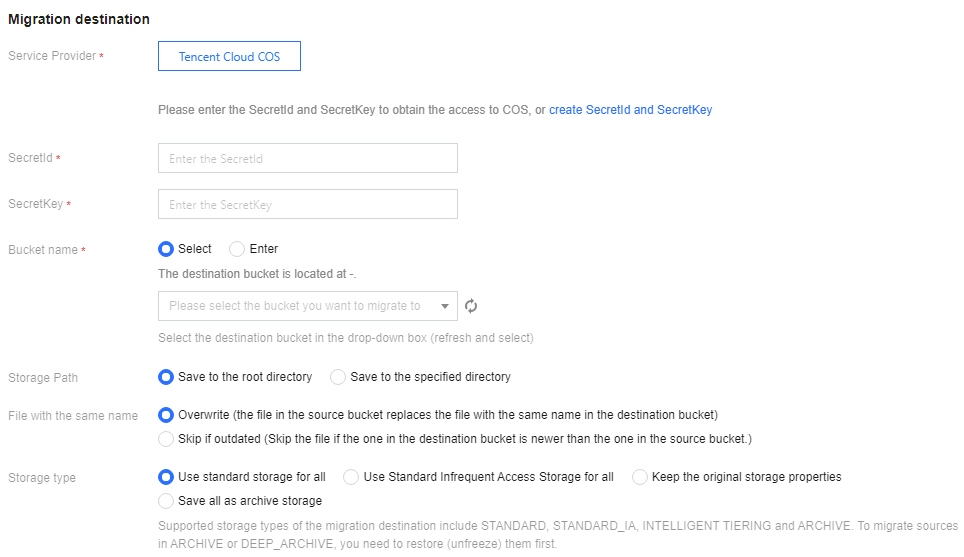
2. Data migration to CDC can be performed according to the Tencent Cloud COS semi-hosted migration solution. For Migration bucket name, fill in the full domain name of the bucket. For detailed steps, see Tencent Cloud COS Migration.
Use SDK to Access COS
Use the official website COS SDK (COS SDK Overview) to integrate with the CDC COS cluster. The difference from using public cloud COS mainly lies in the need to set the Endpoint to the corresponding CDC COS domain name to connect to the specified cluster. Assume that the COS domain name is
cluster-xxxx.cos-cdc.ap-guangzhou.myqcloud.com, and environment checks and preparations have been completed. Below provides several common SDK integration examples for reference.Go SDK Usage
// Bucket domain name, used for bucket and object operations.u, _ := url.Parse("http://examplebucket-1250000000.cluster-xxxx.cos-cdc.ap-guangzhou.myqcloud.com")// Service domain name, used for Get Service queries.su, _ := url.Parse("http://cluster-xxxx.cos.ap-guangzhou.myqcloud.com")b := &cos.BaseURL{BucketURL: u, ServiceURL: su}// Create a client.client := cos.NewClient(b, &http.Client{Transport: &cos.AuthorizationTransport{SecretID: "SECRETID",SecretKey: "SECRETKEY",},})// The usage of other interfaces is largely consistent with cos.
Java SDK Usage
// 1 Initializing user identity information (appid, secretId, secretKey)COSCredentials cred = new BasicCOSCredentials("*******", "******");// 2 Set the bucket region. This must be configured before setEndpointBuilder, otherwise it will override the setEndpointBuilder configuration.ClientConfig clientConfig = new ClientConfig(new Region("ap-guangzhou"));clientConfig.setEndpointBuilder(new SuffixEndpointBuilder("cluster-xxxx.cos.ap-guangzhou.myqcloud.com"));clientConfig.setHttpProtocol(HttpProtocol.http);// 3 Generating a COS clientCOSClient cosclient = new COSClient(cred, clientConfig);// 4. The usage of other interfaces is largely consistent with cos.
Python SDK Usage
# -*- coding=utf-8from qcloud_cos import CosConfigfrom qcloud_cos import CosS3Clientimport sysimport osimport logging# Under normal circumstances, the log level is set to INFO. When troubleshooting is required, it can be changed to DEBUG, at which point the SDK will log communication details with the server-side.logging.basicConfig(level=logging.INFO, stream=sys.stdout)secret_id = os.environ['COS_SECRET_ID']secret_key = os.environ['COS_SECRET_KEY']region = None # When initializing via Endpoint, region does not need to be configured.scheme = 'http' # Configure as needed based on cluster supportendpoint = 'cluster-xxxx.cos.ap-guangzhou.myqcloud.com'config = CosConfig(Region=region, SecretId=secret_id, SecretKey=secret_key, Endpoint=endpoint, Scheme=scheme)client = CosS3Client(config)# The usage of other interfaces is largely consistent with cos.
피드백