Setting Custom Scale-Out
다운로드
포커스 모드
폰트 크기
Use Cases
Custom scale-out is the scaling method currently supported by CPU elastic scale-out. You specify the number of additional cores and manually control the start and end of the scale-out: After you enable it, the number of cores is immediately increased based on the original specification, remains effective until you manually end it, and then scales back to the original specification after you manually end it. Compared to conventional configuration changes, custom scale-out takes effect faster and is billed based on actual usage duration. It is suitable for temporary emergency scale-out scenarios such as sudden traffic surges or operational campaigns.
Prerequisites
The instance must run MongoDB version 4.0 or later and must not be an instance of Cloud Disk Edition.
The original number of CPU cores for an instance cannot exceed 32.
Scale-out is supported by sufficient balance in your Tencent Cloud account.
The underlying physical machine hosting the instance must have available CPU resources. If the underlying physical machine resources are insufficient, the scale-out operation will fail (the probability of this occurring is extremely low).
Use Limits
Custom scale-out uses a step size of 1 core. The maximum number of cores that can be added in a single scale-out operation is the MIN (the number of cores of the current smallest shard, 24 cores).
After you enable custom scale-out, the scale-out continues and billing persists. It does not automatically scale back before you manually disable it. Please disable it promptly based on your business needs.
After custom scale-out is enabled, the number of scale-out cores cannot be modified. To adjust the number of cores, disable it first and then re-enable it with the desired number of cores.
Operation Steps
Enabling Custom Scale-out
1. Log in to the TencentDB for MongoDB console.
2. In the left sidebar, expand the MongoDB dropdown list, and select either Replica Set Instance or Shard Instance.
3. At the upper part of the Instance List page on the right, select a region.
4. Locate the target instance whose nodes you need to view in the instance list.
5. Click its Instance ID to go to the Instance Details page.
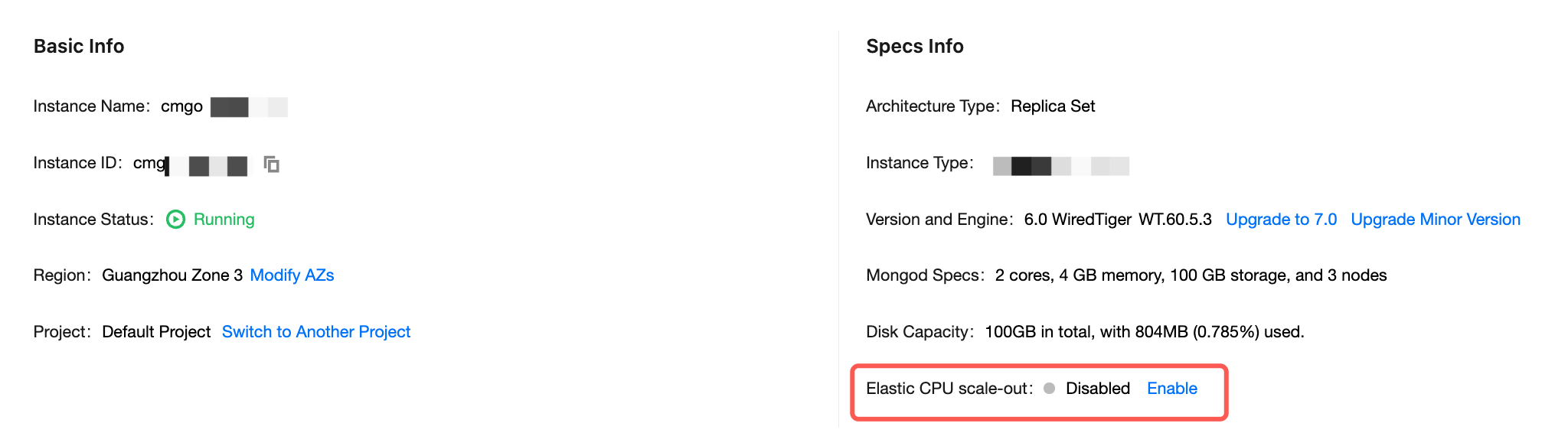
6. In the Spec Info area, after configuring Elastic CPU scale-out, click Enable.
7. In the Elastic CPU scale-out window, select Custom Scale-out for Scale-Up Method and configure the Number of Cores for Scale-Up.
Note:
The additional CPU cores are added in increments of 1 core, with a maximum of MIN (the number of cores of the current smallest shard, 24 cores).
After custom scale-up is enabled, scale-up occurs immediately. The scale-up does not automatically scale back, and you need to disable it manually. After you disable it manually, it immediately scales back to the original number of CPU cores.
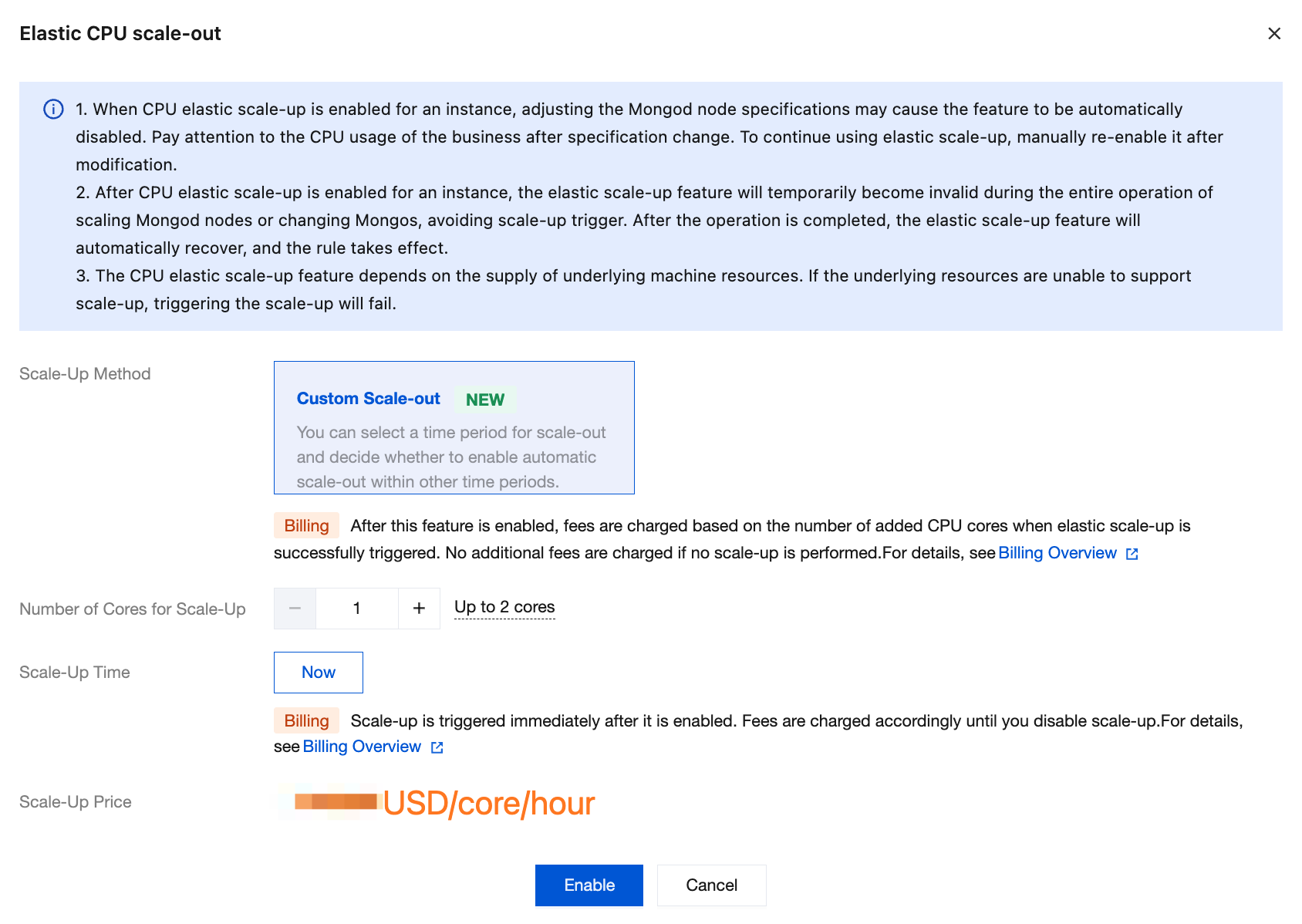
8. After confirming the scale-up fees, click Enable. The new number of CPU cores takes effect immediately, and the CPU elastic scale-up status changes to Enabled.
Disabling Custom Scale-out
Attention:
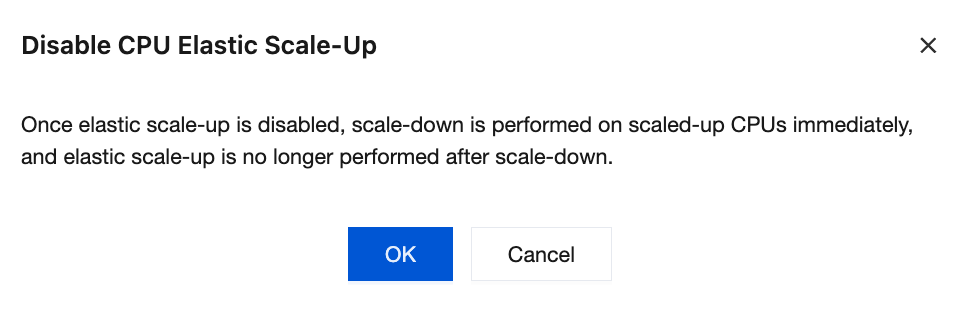
After it is disabled, the scaled-out CPUs are scaled back to the original specification, and the instance no longer receives elastic support.
1. Go to the instance details page, and after Elastic CPU scale-out, click Close.
2. In the Disable CPU Elastic Scale-up dialog box, click OK.
피드백