Intelligent Video Reframing Integration
Download
포커스 모드
폰트 크기
Overview
About Horizontal-to-Vertical Video Transformation
Landscape-to-portrait conversion is more than just a simple rotation; it uses Region of Interest (ROI) identification to crop videos into an aspect ratio optimized for mobile playback. This feature enables bulk short video generation, allowing existing landscape video assets to be efficiently converted into portrait format.
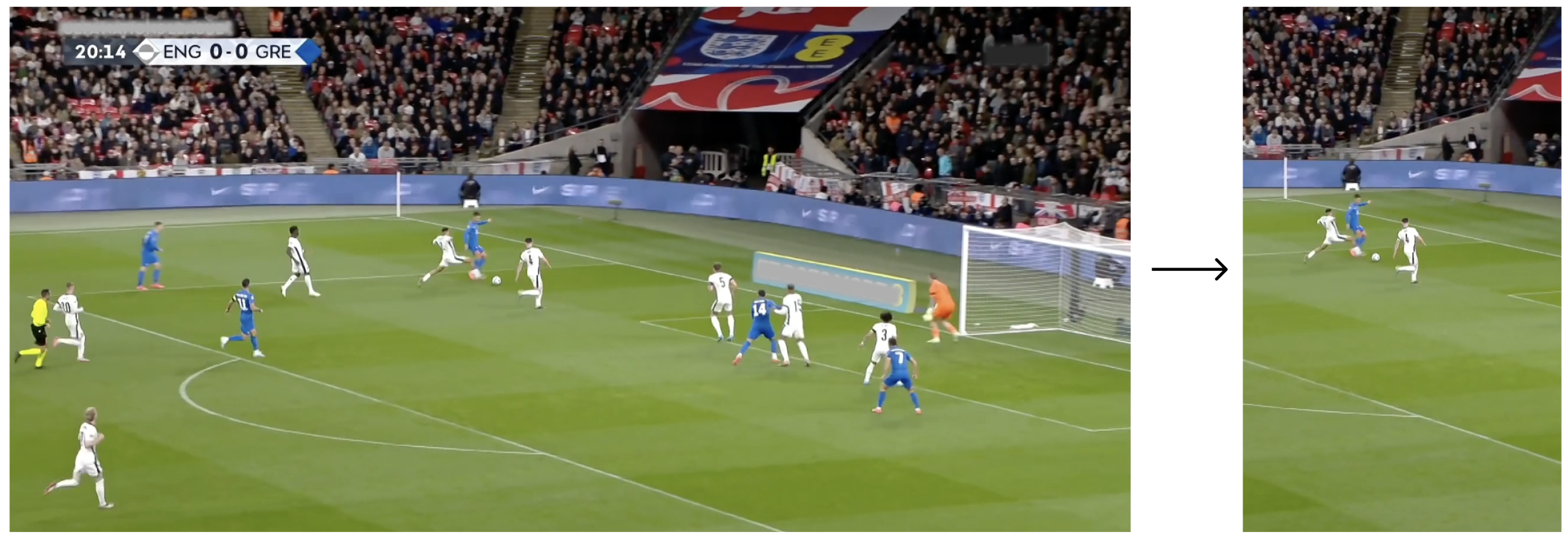
Demo
1. Access the Experience Center to navigate to the Horizontal to vertical page. On the right side, select an offline video file, specify the scenario type and ratio, and click One-Click Processing.
2. Once the processing is complete, you can view the results.
Note:
The function of the MPS Demo is relatively simple, only for experiencing the basic effect, please use the API access to test the complete effect.
Prerequisites
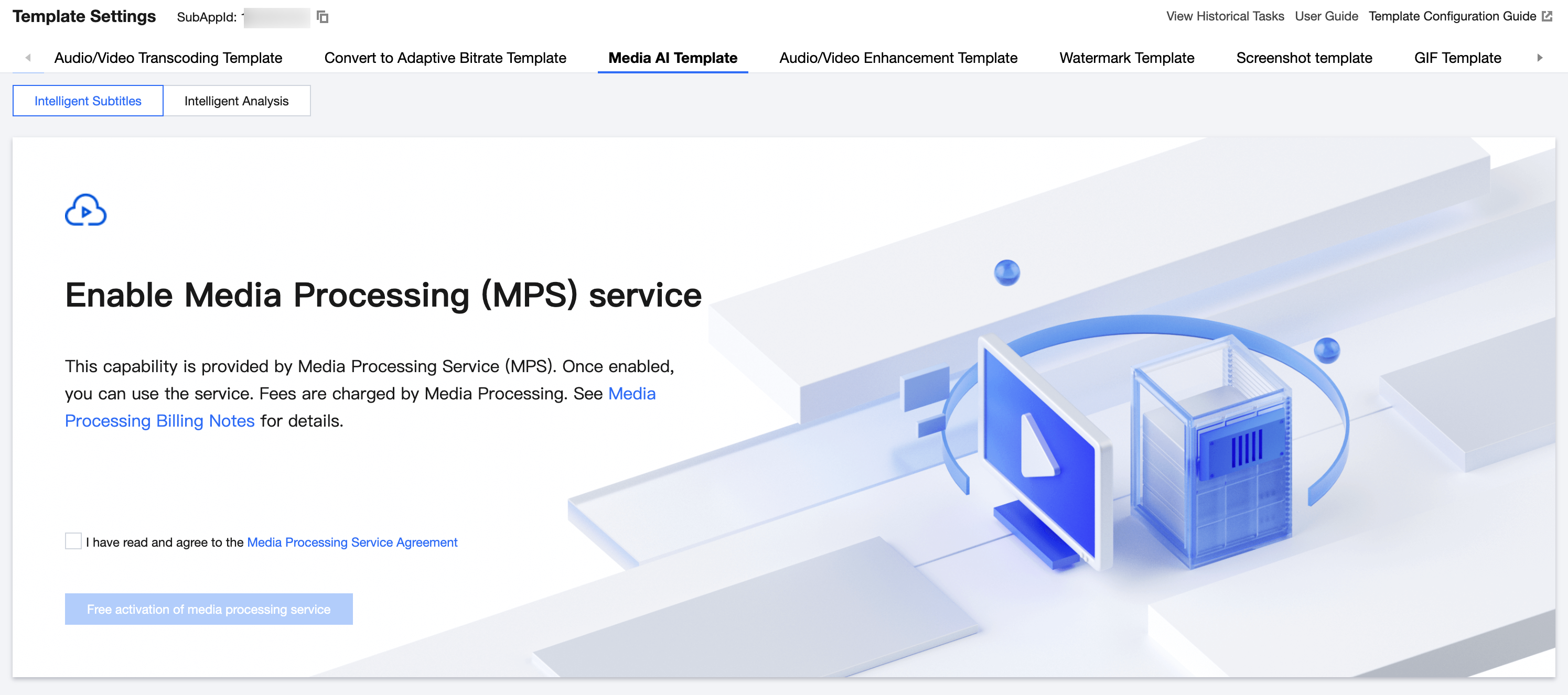
Before integration, you need to activate the MPS (Media Processing Service) on the Media Intelligence Template page. This can be found under Media Processing > Media Processing Template within the VOD (Video on Demand) Console.
Note:
This feature is powered by MPS (Media Processing Service). To use this feature, you must activate both the VOD and MPS services.
Feature usage data and billing will be displayed on the MPS platform. For pricing details, please refer to MPS Media AI Pay-As-You-Go Pricing.
Method 1: Operating via the Console
Initiating a Task
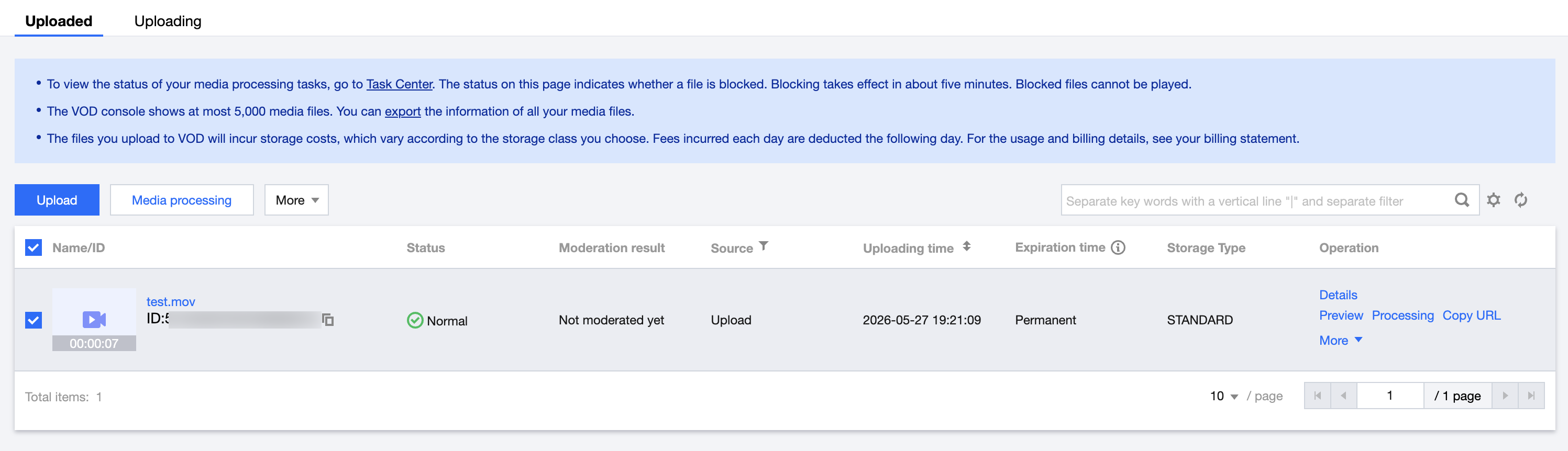
You can initiate a task by navigating to the Intelligent Media Asset Management > Audio/Video Management page in the VOD Console.
1. Select the video for which you want to initiate a task, and then click Media Processing.
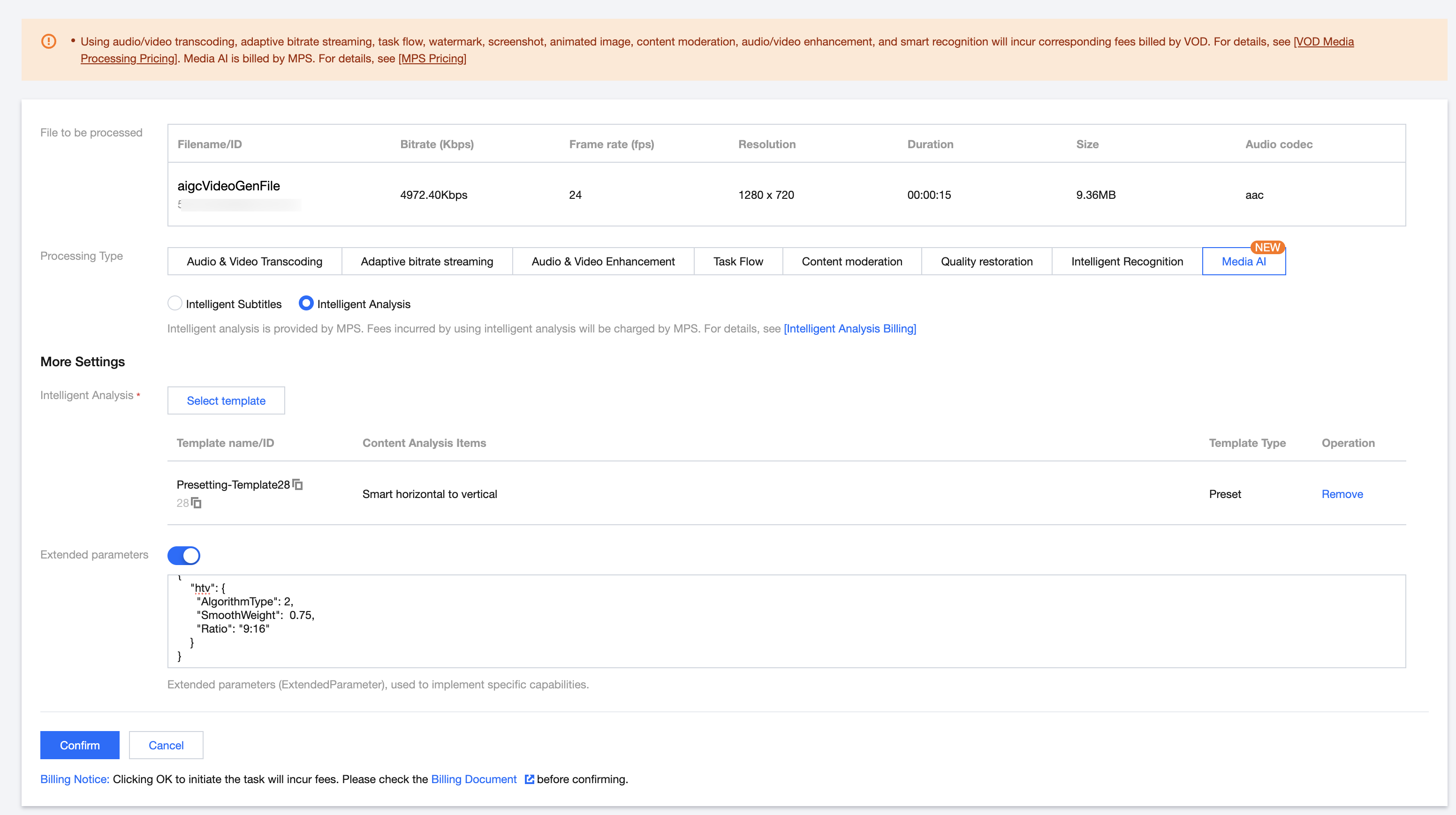
2. Select Intelligent Analysis under the "Media AI" processing type. You can then choose preset template No. 28 and initiate the task by passing the required parameters as described in the Extension Parameter Description section below.
Note:
The console automatically handles string escaping. Please input the raw JSON data directly instead of an escaped string; otherwise, the task will fail.
Checking Task Results
Navigate to the Task Center page in the VOD Console, locate the corresponding task, and click Details to view the results.
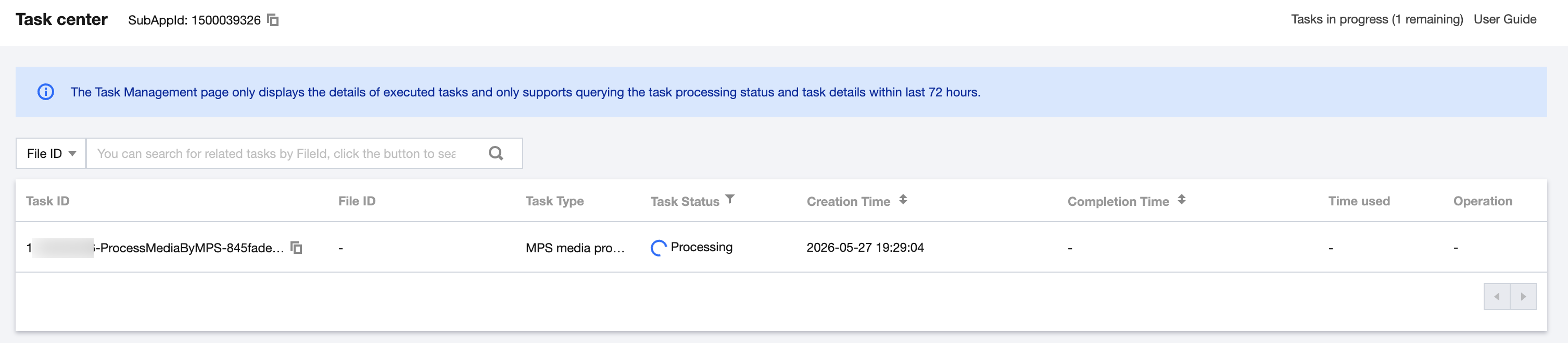
You can also call the DescribeMediaInfos API to query the results saved to your media assets.
Note:
For tasks using the same template, only the latest task result will be retained in your media assets.
Method 2: API Integration
Initiating a Task
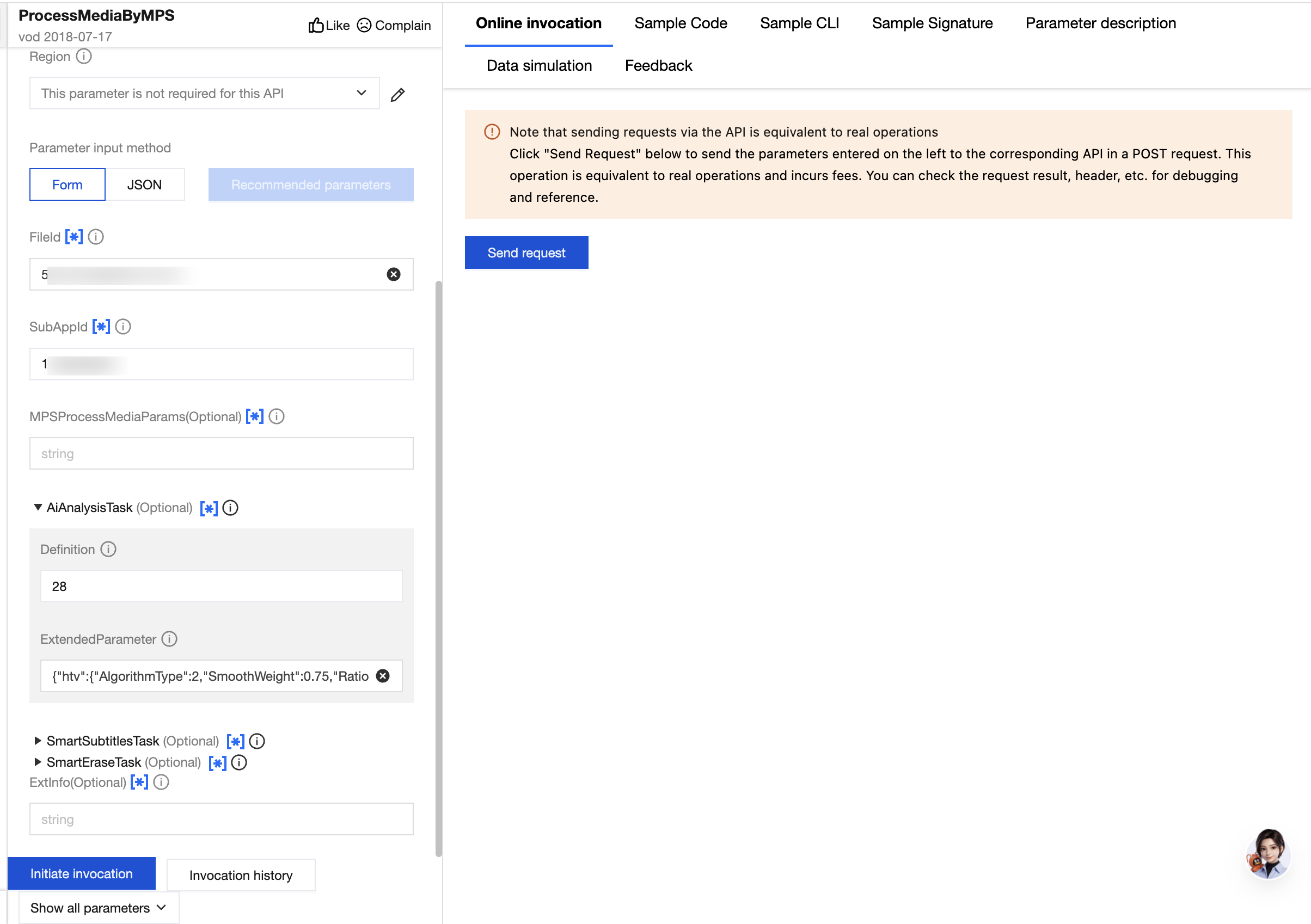
Call the ProcessMediaByMPS API. Fill in the FileId field with the ID of the media asset to be processed, and enter the sub-application ID in the SubAppId field. Within the AiAnalysisTask, set the Definition to 28 (the preset template). Use the ExtendedParameter field to pass additional custom parameters to enable specific capabilities.
{"AiAnalysisTask":{"Definition":28,"ExtendedParameter":"{\\"htv\\":{\\"AlgorithmType\\":2,\\"SmoothWeight\\":0.75,\\"Ratio\\":\\"9:16\\"}}"}}
Querying Task Results
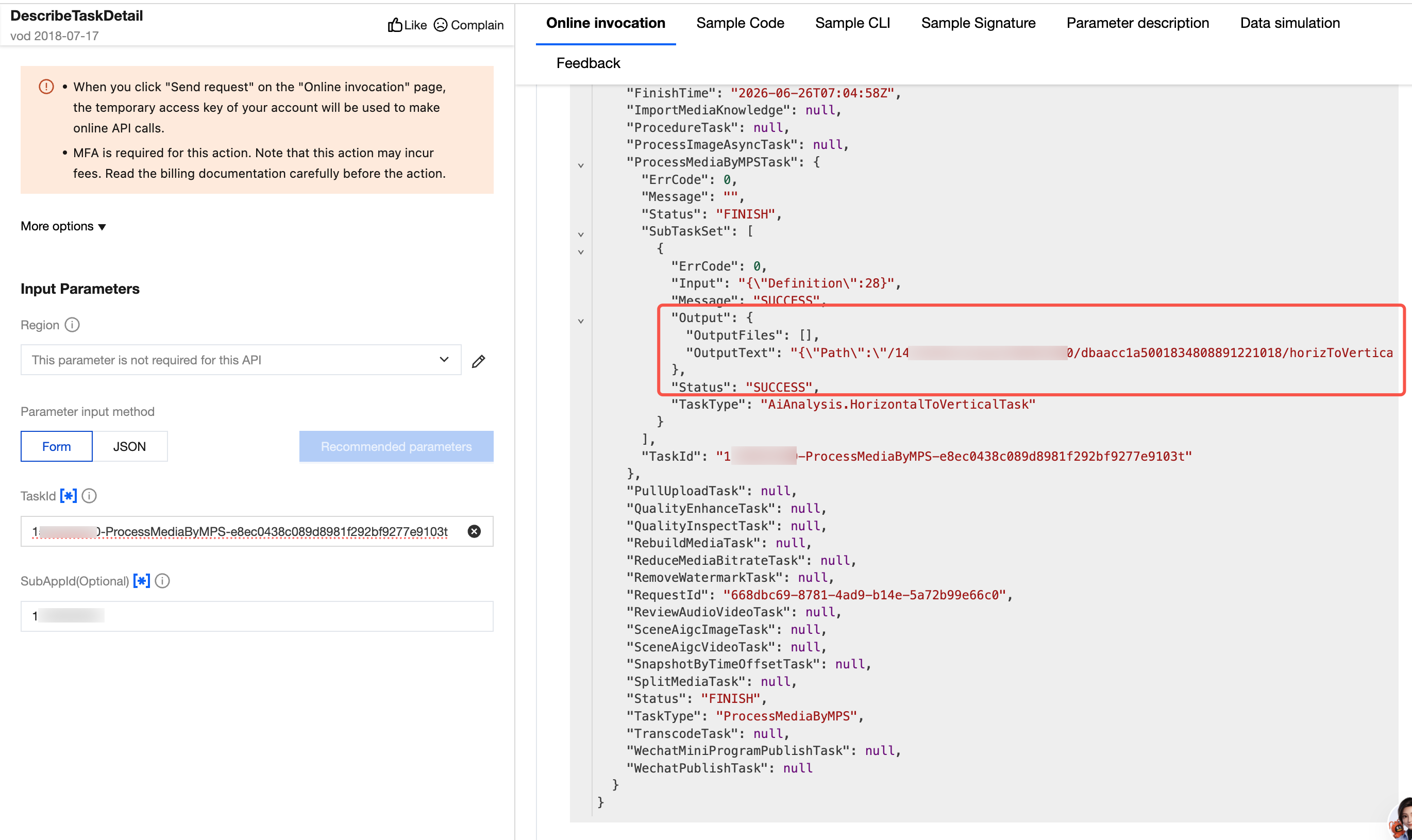
The generated results can be found within the output information of the API response.
Extension Parameter Description
The
ExtendedParameter is used to customize the video understanding task. Refer to the table below for all available options and descriptions. Request parameter example:{"htv": {"AlgorithmType": 2,"SmoothWeight": 0.75,"Ratio": "9:16"}}// After escaping (required when the API is called directly): {\\"htv\\": {\\"AlgorithmType\\": 2, \\"SmoothWeight\\": 0.75, \\"Ratio\\": \\"9:16\\" }}
Name | Type | Description |
AlgorithmType | Integer | Designated Algorithm Categories: 2:Supports multiple model algorithms with customized optimization. 3:Utilizes precise face detection algorithms; when two faces are detected, the screen splits vertically to display them, centering each face as much as possible. 5:Directly scales the video to center it within the portrait frame, using a gaussian-blurred version of the video as the background. 6:AIGC Mode: Generates and extends original landscape videos into a 9:16 portrait aspect ratio. 7:AIGC Mode: Generates and extends original portrait videos into a 16:9 landscape aspect ratio. |
Ratio | String | Video aspect ratio, which is a string and parsed internally. If parsing fails, the default value of 9:16 is used for cropping (for example, "9:16" indicates converting to a video with an aspect ratio of 9:16, taking the original video's height). |
FaceDetectConfig | Object | Face detection configurations. |
OutputPattern | String | For customizing the filename, timestamp and sessionId serve as available substitution parameters. For instance, "htv-{sessionId}-{timestamp}" would result in the output file being named "htv-xxxx-202412250000", where "xxxx" represents the actual sessionId of the task. If not specified, the default output filename will be "htv-{sessionId}". |
BlurWeight | Integer | Blurring parameter: the higher the value, the more pronounced the blurring effect. Excessively high parameter values may impede processing speed. |
SmoothWeight | Float | A floating-point number between 0 and 1, which controls the parameter for smoothing speed. The smaller the value, the faster the camera moves. |
FaceDetectConfig
Name | Type | Description |
FaceScoreThd | Integer | The recognition threshold for the face detection algorithm. A face is considered valid only when the recognition score exceeds this threshold. |
FaceAccuracy | String | Optional, the number of executions for the face detection algorithm, defaults to "Balance". Other selectable options include "Efficiency" and "Precision". |
FallbackConfig | Object | The fallback strategy for face detection includes scenarios with "NoFaceDetect" (no faces detected) and "DoubleFace" (two faces detected). |
FallbackConfig
Name | Type | Description |
NoFaceDetect | String | Options: "Scale", "ScaleWithoutBlur" (default). |
DoubleFace | String | Options: "Scale", "ScaleWithoutBlur", "SplitScreenVertical" (default). |
Scale: Center the frame through scaling, and replace the background with an image treated with a frosted glass effect.
ScaleWithoutBlur: Center the frame through scaling, and replace the background with pure black.
SplitScreenVertical: The default processing logic for dual faces involves splitting the screen vertically, with each face centered in the top and bottom areas respectively.
피드백