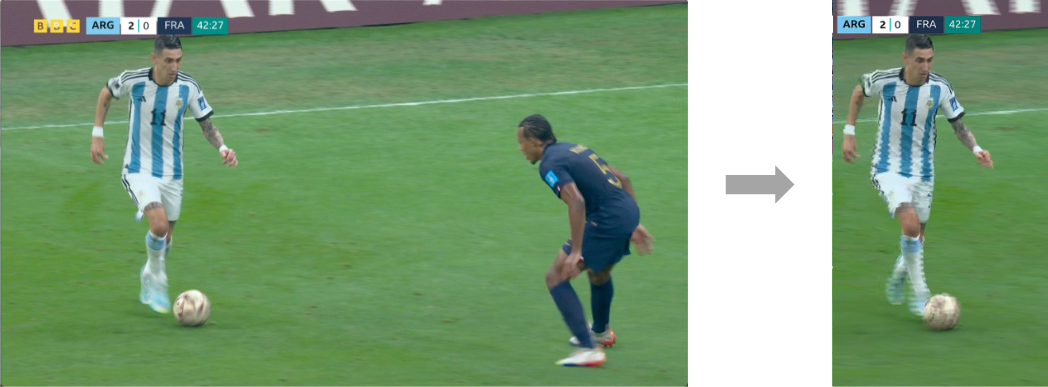
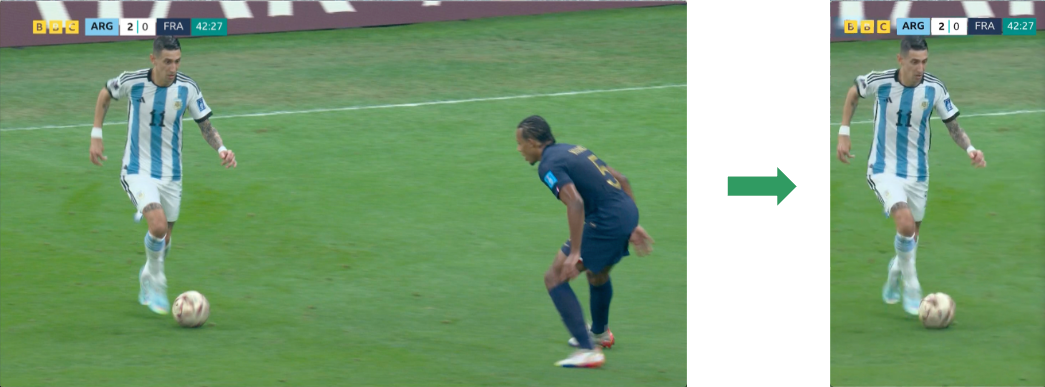
The region of interest (ROI) in different scenarios, such as human faces, game roles, basketballs, and scoreboards, can be recognized. Further achieving effects such as Horizontal-to-Vertical Video Transformation and Intelligent On-Screen Chat for Covering Prevention.This document explains how to create, modify, and delete ROI recognition templates in the console.
Notes
Horizontal-to-Vertical Video Transformation is available in Standard and Advanced editions. The Advanced edition not only performs intelligent cropping but also automatically identifies and preserves key on-screen elements such as scoreboards, subtitles, and channel logos to prevent information loss after the transformation. Details are as follows:
Capability
Description
Processing Example
Description
Landscape-to-Portrait - Standard Edition
By identifying the Region of Interest (ROI), it crops the existing horizontal video into a vertical video with a specific aspect ratio suitable for playback on mobile devices. The following operations in this document apply to the Standard Edition only. The Advanced Edition is not yet available. To enable it, submit a ticket.
Intelligently crops the video based on the ROI (for sports videos, typically the location of the ball) during horizontal-to-vertical transformation.
Charges for "Landscape-to-Portrait - Standard Edition" apply. For pricing, see the Billing Documentation.
Landscape-to-Portrait - Advanced Edition
Based on large model visual understanding, it automatically identifies and retains key on-screen elements such as scoreboards, subtitles, and channel logos during horizontal-to-vertical cropping.
Retains key elements such as scoreboards during horizontal-to-vertical transformation.
Charges for "Landscape-to-Portrait - Advanced Edition" apply. For pricing, see the Billing Documentation.
A template takes effect about 5-10 minutes after it is created.
To utilize the Horizontal-to-Vertical Video Transformation feature, the pull URL must include the pull parameter txFeature=ROI followed by the configuration name. An example of such a pull URL is:
http://domain/AppName/StreamName.flv?txSecret=Md5(key+StreamName+hex(time))&txTime=hex(time)&txFeature=Template Name
To use the ROI recognition feature, you need to add the parameter roirecognition= ROI configuration name to your streaming URL. This lets the player access and process ROI data from the live stream, which can enable features like background blur and preventing on-screen comments from covering important parts of the video. For detailed instructions, see ROI Intelligent Recognition Feature Practice. Example streaming URL:
rtmp://domain/AppName/StreamName?
txSecret=Md5(key+StreamName+hex(time))&txTime=hex(time)&roirecognition=Template Name
The ROI recognition feature is a paid value-added service. Use of this feature incurs live transcoding fees. Additionally, if the Horizontal-to-Vertical Video Transformation feature is utilized, a base fee for value-added features (specifically categorized as "Horizontal-to-Vertical Video Transformation") will be charged; if the Intelligent On-Screen Chat for Covering Prevention feature is utilized, Media Processing Service (MPS) intelligent content recognition fees will also apply.
Prerequisites
You have activated Tencent Cloud Streaming Services.
Creating an ROI Configuration Template
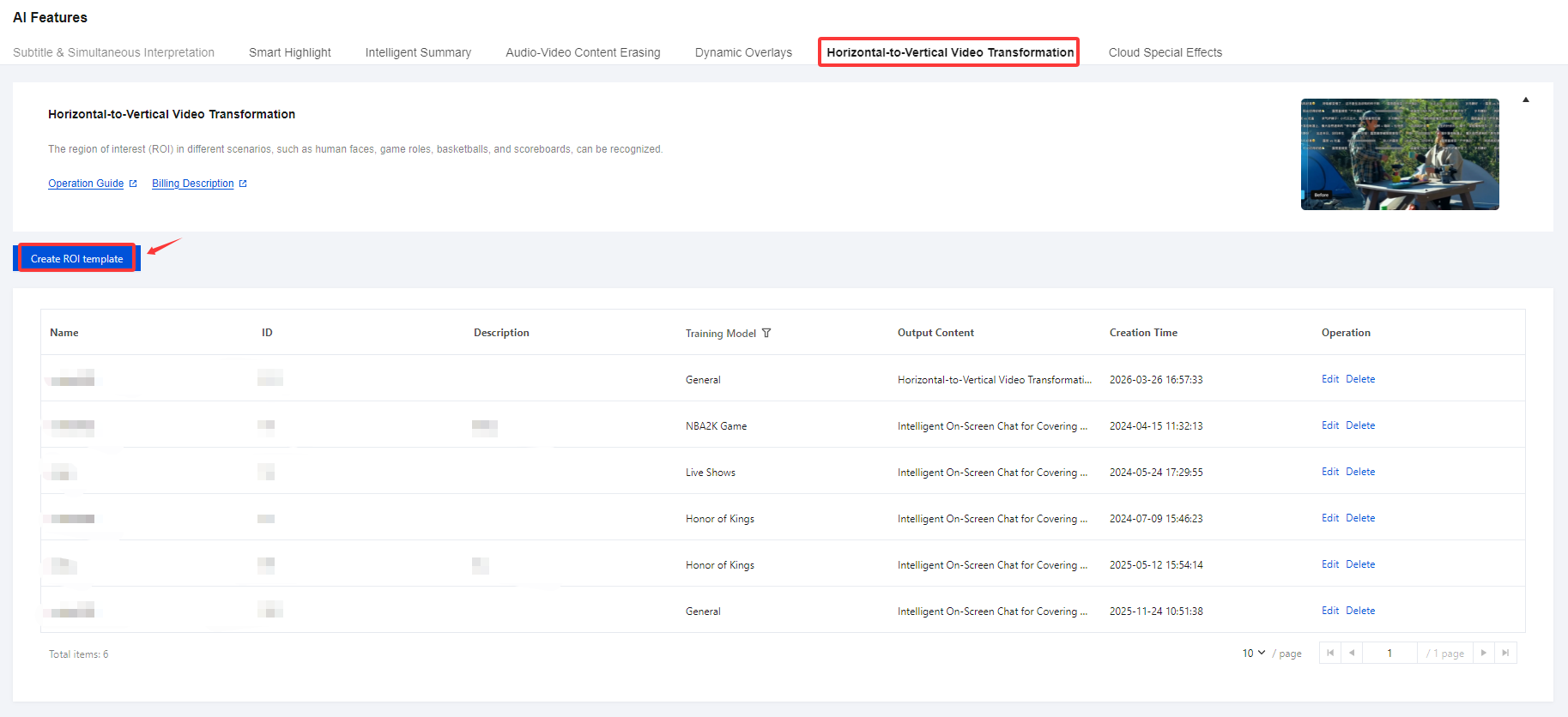
1. Log in to the CSS Console and navigate to Feature Configuration > AI Features > Horizontal-to-Vertical Video Transformation.
Note:
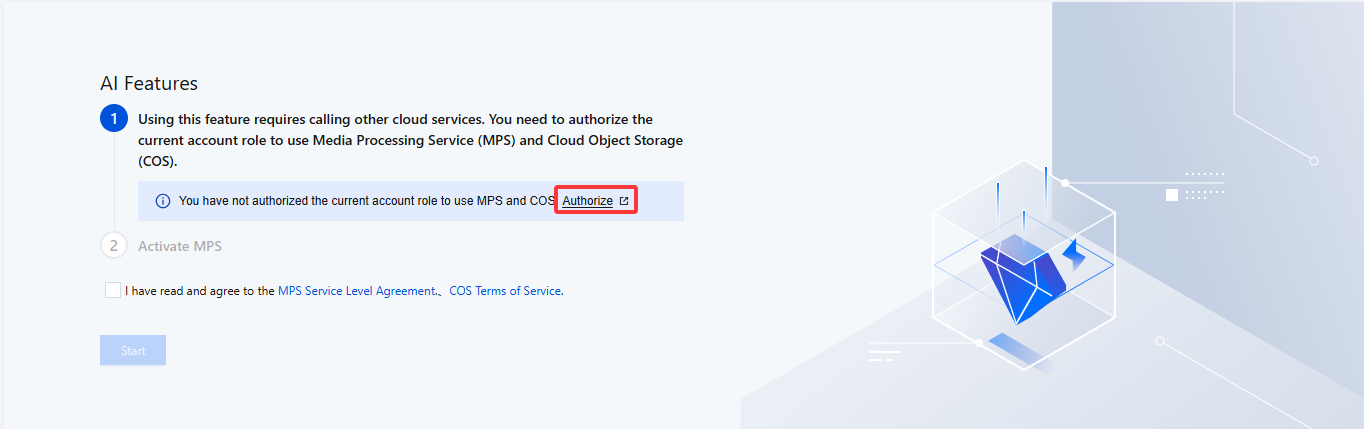
To use Horizontal-to-Vertical Video Transformation in the AI Features, you need to create a service role and authorize the current account role to use the Media Processing Service (MPS) and Cloud Object Storage (COS) products on first creation.
2. Click Authorize to enter the CAM role management page.
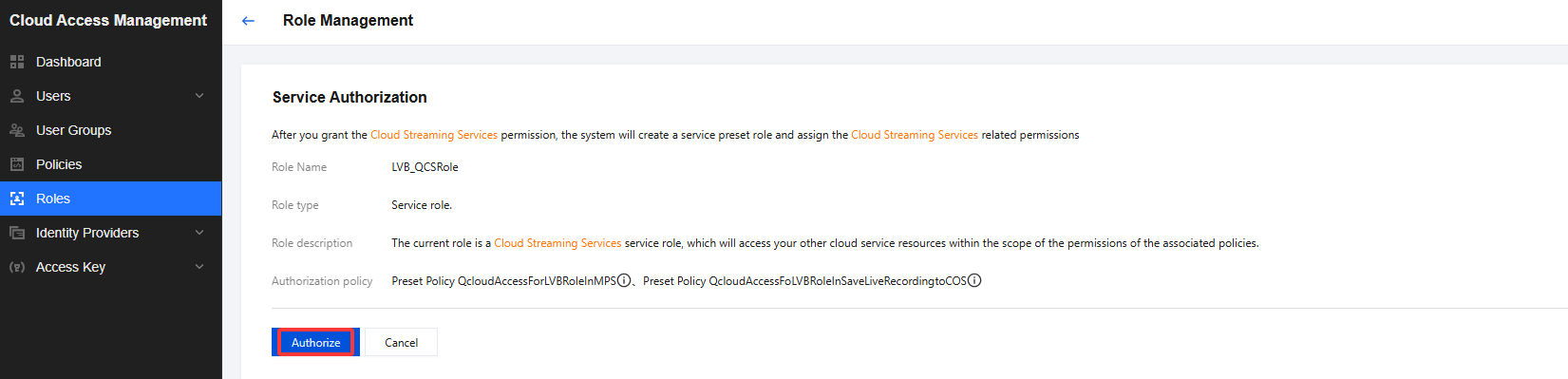
3. On the role management page, click Authorize. After completing identity verification, you can authorize Media Processing Service and Cloud Object Storage (COS) and use the Media Processing Service and Cloud Object Storage services normally.
4. After successful authorization, check the service agreement and click Start, and the system will automatically activate the MPS product and open the Horizontal-to-Vertical Video Transformation management page.
5. Enter the Horizontal-to-Vertical Video Transformation management page, and click Create ROI template.
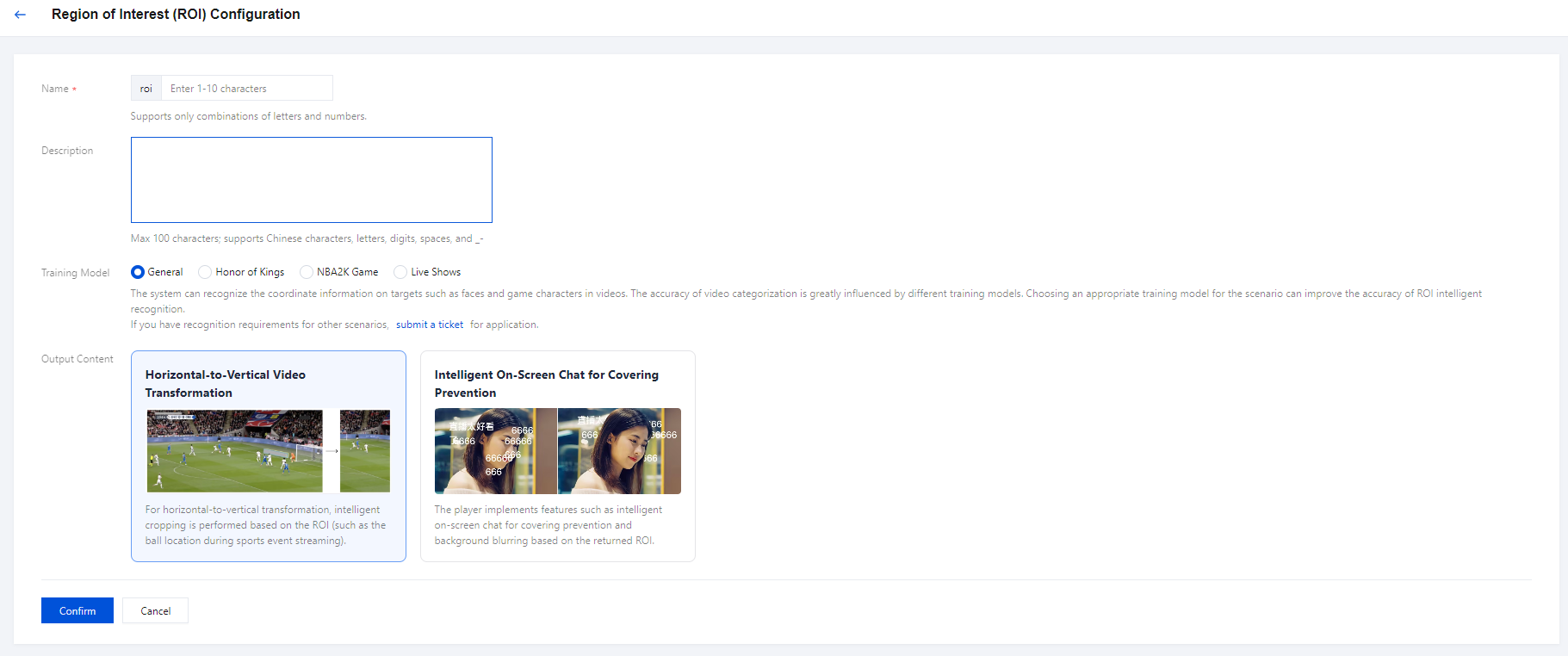
6. Enter the ROI configuration page and proceed with the following configuration:
Configuration Item
Description
Name
The default prefix "roi" is added to the template name. The template name can be 1-10 characters long (only combinations of letters and digits are supported).
Description
Supports only Chinese, English, digits, spaces, underscores (_), hyphens (-) and can be up to 100 characters long.
Training Model
Default is General. Supported training models include: Honor of Kings, NBA2K Game, and Live Shows.
General: Capable of recognizing common areas of human eye focus in different environments.
Honor of Kings: Capable of recognizing hero roles and zones in different environments within the Honor of Kings game.
NBA2K Game: Capable of recognizing players, basketballs, scoreboards, and other zones in different environments within the NBA2K game.
Live Shows: Capable of recognizing the host's face.
Note:
The system can identify elements such as faces and game characters within the video. Selecting an appropriate training model for the scenario can greatly improve the accuracy of ROI intelligent recognition. If the models provided do not meet the needs of your specific scenario, you can submit a ticket to request a model.
Output Content
The default setting is Horizontal-to-Vertical Video Transformation, with the option to enable the Intelligent On-Screen Chat for Covering Prevention feature.
Horizontal-to-Vertical Video Transformation:For horizontal-to-vertical transformation, intelligent cropping is performed based on the ROI (such as the ball location during sports event streaming).
Intelligent On-Screen Chat for Covering Prevention:The player implements features such as intelligent on-screen chat for covering prevention and background blurring based on the returned ROI.
7. After filling in the configuration items, click Confirm to complete.
Modifying a Template
1. Log in to the CSS Console and navigate to Feature Configuration > AI Features > Horizontal-to-Vertical Video Transformation.
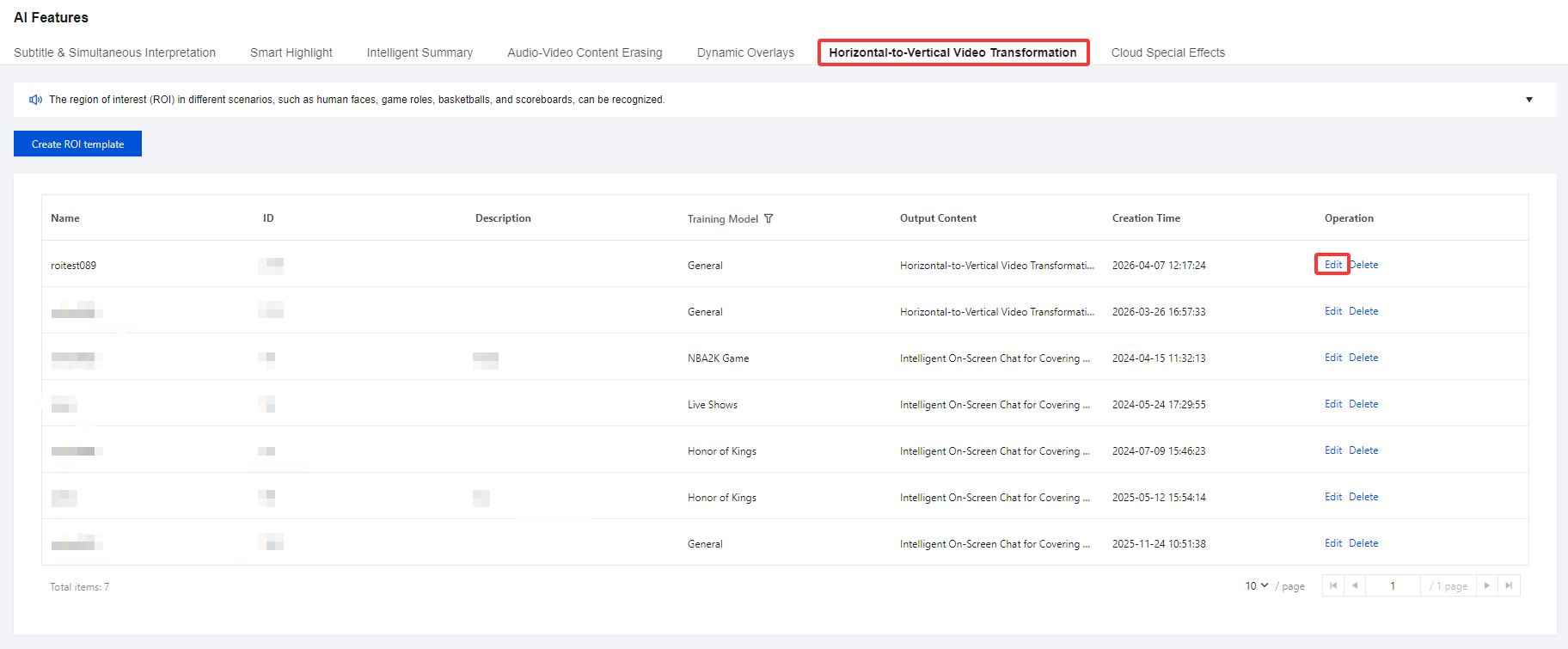
2. Select your successfully created ROI configuration template, and click Edit on the right to modify the template information.
3. Click Confirm to complete.
Deleting a Template
1. Log in to the CSS Console and navigate to Feature Configuration > AI Features > Horizontal-to-Vertical Video Transformation.
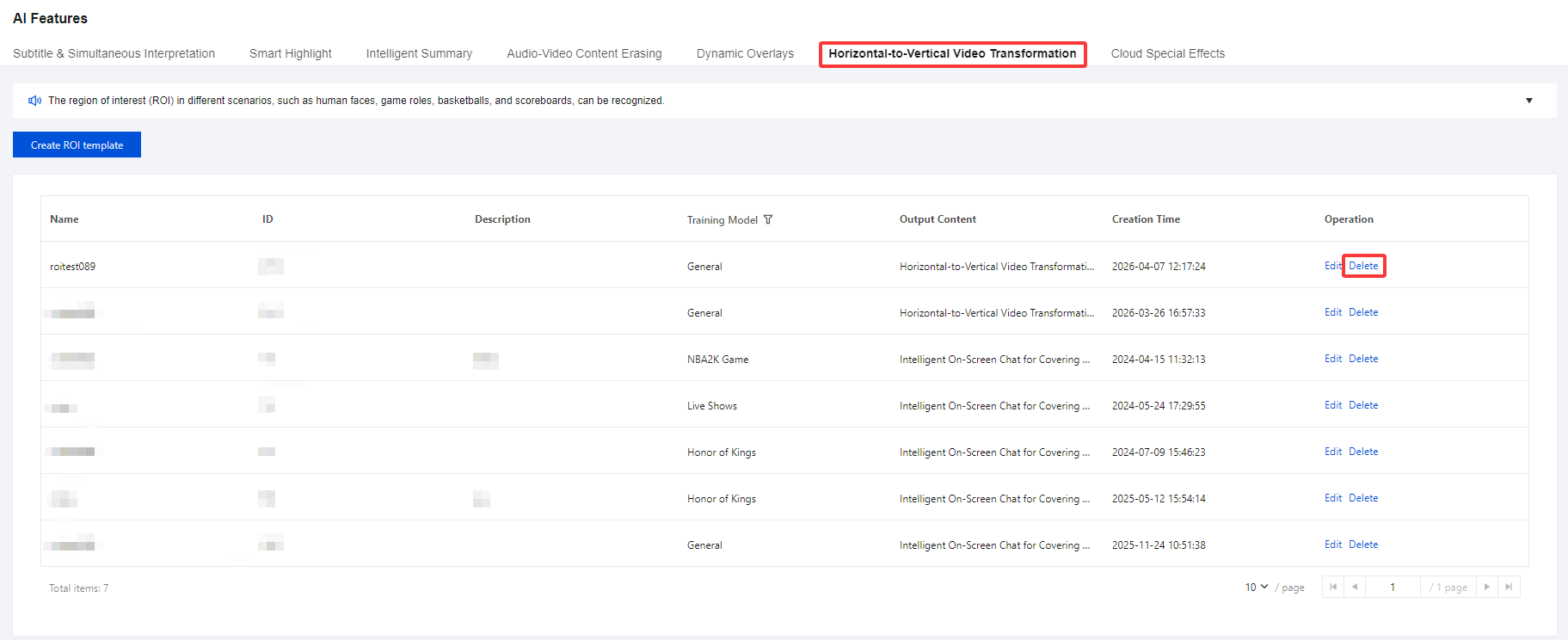
2. Select your successfully created ROI configuration template, and click Delete to the right.
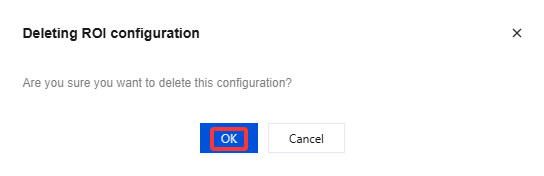
3. Click OK to confirm that you want to delete the template.