Audio and Video Enhancement
다운로드
포커스 모드
폰트 크기
The audio and video enhancement feature leverages advanced AI algorithms for audio-visual quality restoration and enhancement, achieving a transformative improvement in visual quality and significantly enhancing the subjective quality of audio and video content. This document provides instructions on creating, modifying, and deleting audio and video enhancement templates.
Notes
To use the audio and video enhancement feature, it should be paired with the Top Speed Codec (TSC) transcoding. When pulling a stream, include the stream-pulling parameter
txFeature= followed by the name of the audio and video enhancement template to apply the enhancement effect to the live stream. An example of a stream-pulling URL is as follows:http://domain/AppName/StreamName_Top Speed Codec transcoding template name.flv?txSecret=Md5(key+StreamName_Top Speed Codec transcoding template name+hex(time))&txTime=hex(time)&txFeature=enhancementtestCurrently, audio and video enhancement only supports transcoding resolutions of ≤ 1080P by default. To enable support for other resolutions, you can submit a ticket for configuration.
Audio and video enhancement is a paid add-on service. Using this feature will incur both TSC transcoding fees and audio and video enhancement fees. For details on the billing rules, see billing documentation.
Prerequisites
Creating an Audio and Video Enhancement Template
1. Log in to the CSS console and navigate to Feature Configuration > Audio/Video Enhancement.
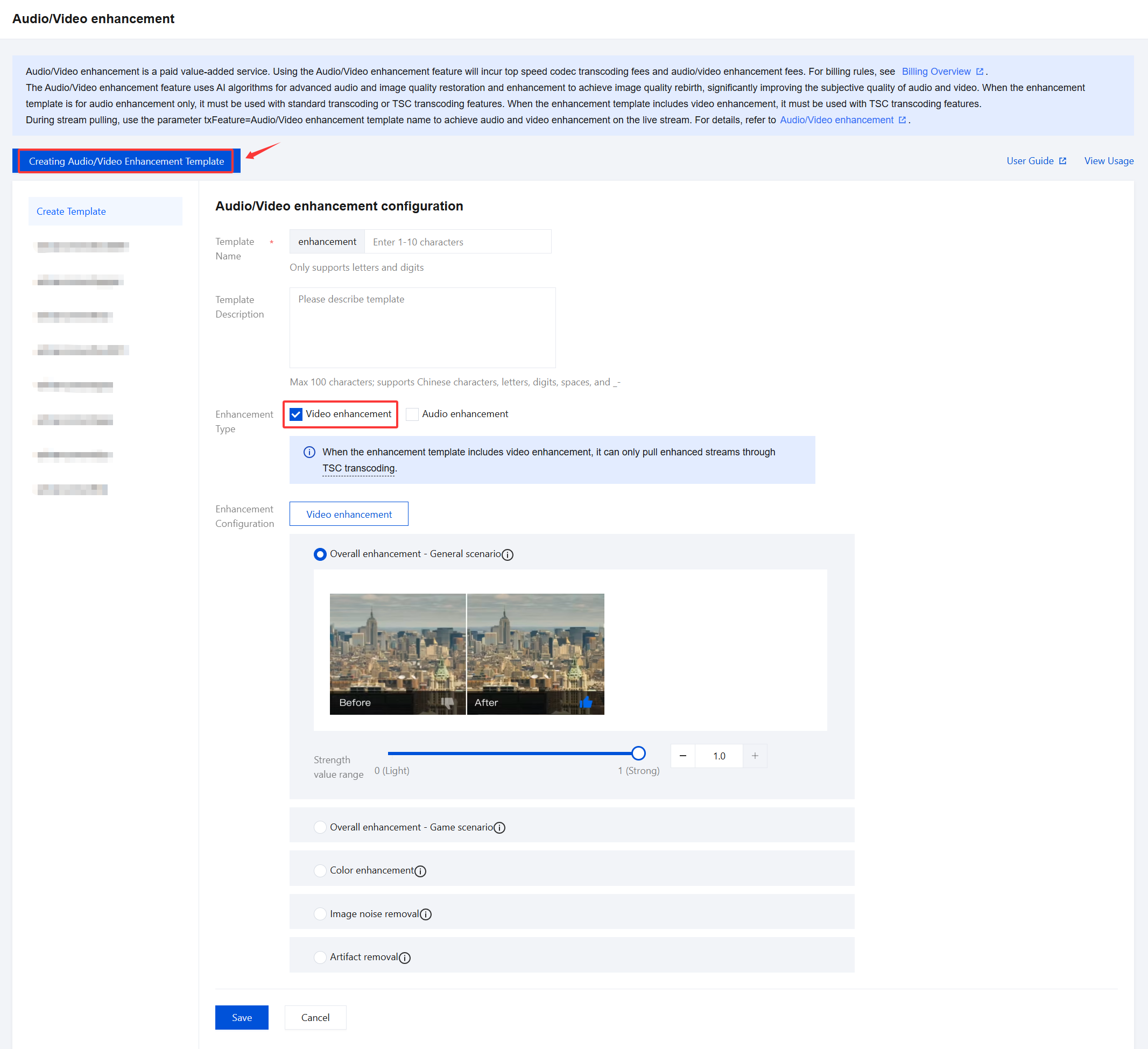
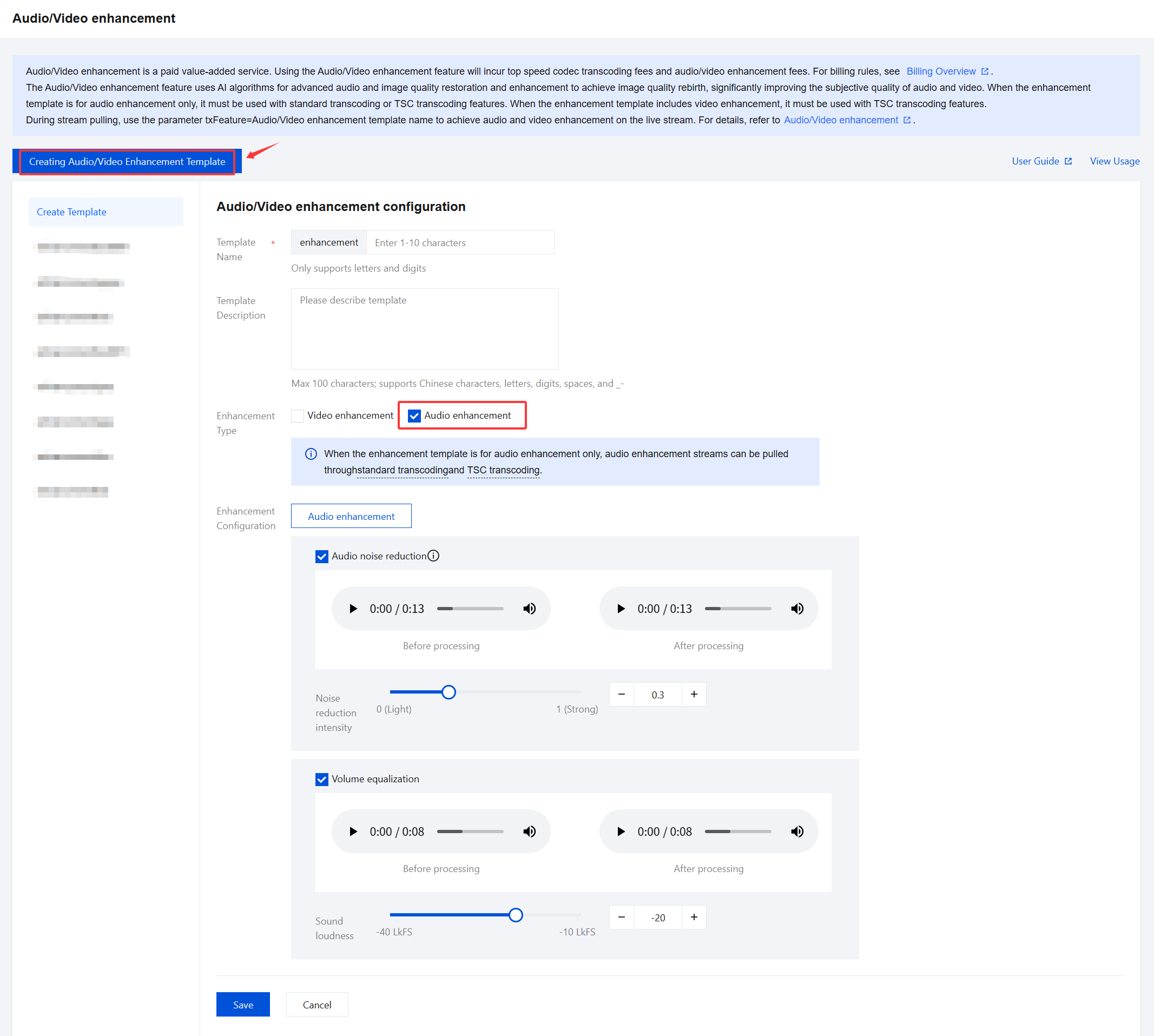
2. Click Create Audio/Video Enhancement Template and configure the following settings:
Configuration Item | | Description |
Template name | | The prefix of the template name is fixed as enhancement. The name cannot exceed 10 characters and supports only English letters and numbers. |
Template description | | Supports Chinese, English, numbers, spaces, underscores (_), and hyphens (-), with a maximum of 100 characters. |
Enhancement Type | | When selecting the enhancement type, you can manually choose either Video Enhancement, Audio Enhancement, or both based on your actual business needs. If the enhancement template includes video enhancement, the enhanced stream can only be pulled using TSC transcoding. If the enhancement template includes only audio enhancement, the enhanced audio stream can be pulled using either standard transcoding or TSC transcoding. |
| Video enhancement | Enhancement Configuration The default setting is overall enhancement - general scenario, which can be switched to overall enhancement - game scenario, color enhancement, image noise reduction, or artifact removal. The default intensity value is 1, with a configurable range from 0 to 1. When using the video enhancement feature, select the appropriate enhancement type based on your actual needs. Below is a description of the available video enhancement types. Overall Enhancement - General Scenario: Designed for common live streaming scenarios such as show streaming and e-commerce streaming, this enhancement leverages AI’s comprehensive analysis capabilities to automatically balance texture content. It removes compression artifacts and glitches while enhancing critical details, significantly improving the overall subjective quality of the live stream. Overall Enhancement - Game Scenario: Tailored for game live streaming scenarios, this enhancement leverages AI’s comprehensive analysis capabilities to automatically balance texture content. It removes compression artifacts and glitches while enhancing critical details, significantly improving the overall subjective quality of the live stream. Color Enhancement: Addressing color distortion or enhancement needs caused by issues with capture devices or video storage, this feature adjusts the colors to more closely match real-life tones while enhancing them to better suit human visual preferences. Image Noise Reduction: During live streaming, random noise may be introduced by cameras and environmental factors. This feature provides noise reduction while preserving details, eliminating random noise from the video. Artifact Removal: During transcoding or multiple rounds of transcoding, repeated compression can introduce block effects, ringing effects, chroma bleeding, and mosquito noise, causing visual distortions in the video. This feature effectively repairs compression-induced distortions, enhancing the visual quality of the video. |
| Audio enhancement | Enhancement Configuration Audio noise reduction is selected by default. Based on your actual business needs, you can manually select Volume Equalization, or enable both features. Audio noise reduction The noise reduction intensity value controls the effect of audio noise reduction, with lower values indicating weaker noise reduction and higher values indicating stronger noise reduction. The default intensity value is 0.3, and the configurable range is 0 to 1. Note: It is recommended to enable noise reduction when there is no complex background noise and the focus is on highlighting vocals. For sources without background music, it is recommended to set the intensity value below 0.6. Higher values may degrade audio quality, leading to issues like muffled speech or excessive reverberation. For sources with background music, it is not recommended to enable noise reduction. If it is necessary, set the intensity value below 0.3. Higher values may suppress vocal volume and negatively impact audio quality. Volume equalization The sound loudness value measures the loudness level of an audio signal. It is recommended to adjust this parameter based on the actual playback environment: higher values for noisy environments and lower values for quiet environments. The default loudness value is -20, with a configurable range from -40 to -10. |
Modifying a Template
1. Navigate to Feature Configuration > Audio/Video enhancement.
2. Select the audio and video enhancement template you have created and click Edit on the right to modify the template information.
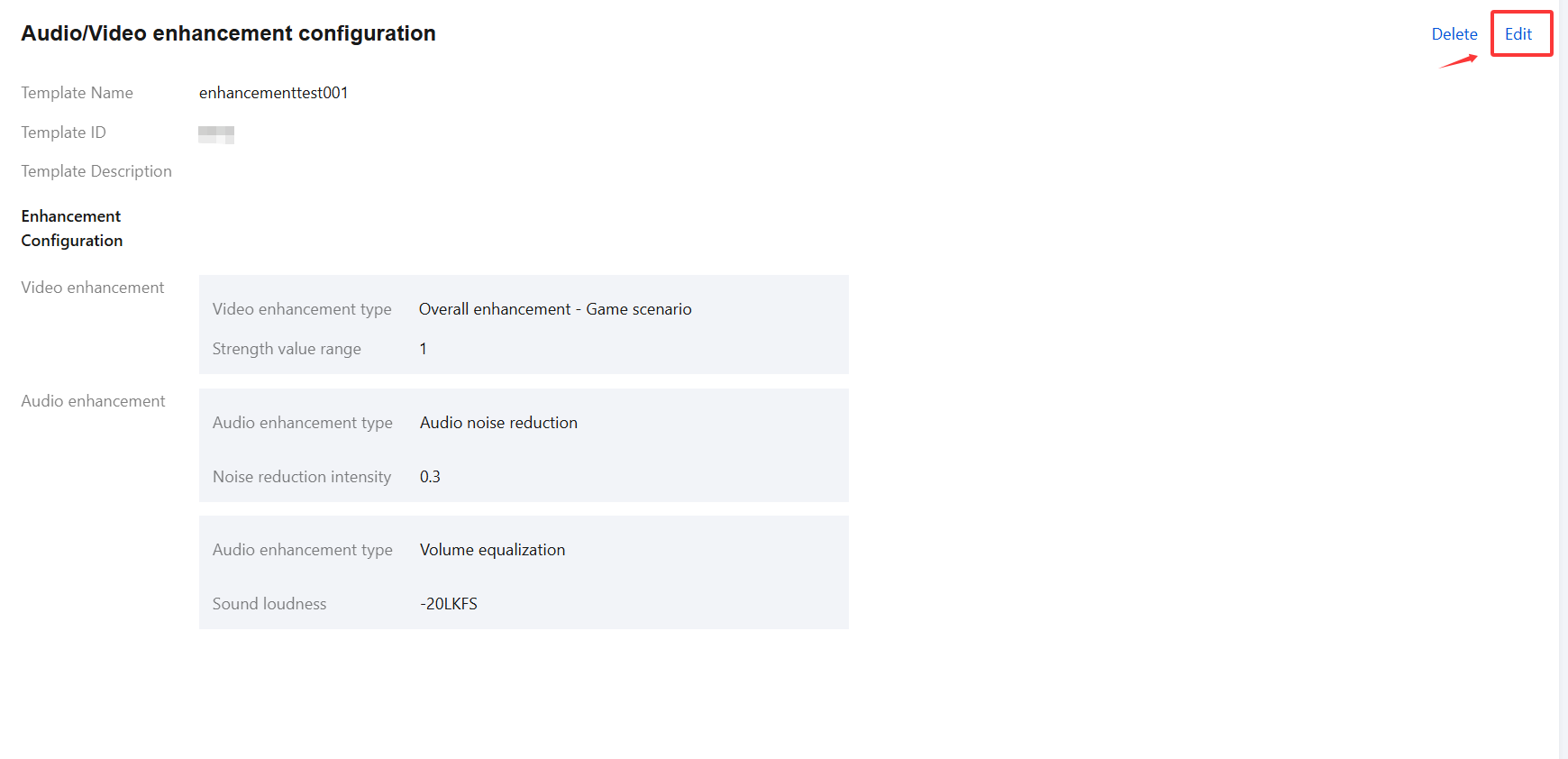
3. Click Save.
Deleting a Template
1. Navigate to Feature Configuration > Audio/Video enhancement.
2. Select the audio and video enhancement template you have created and click Delete at the top.
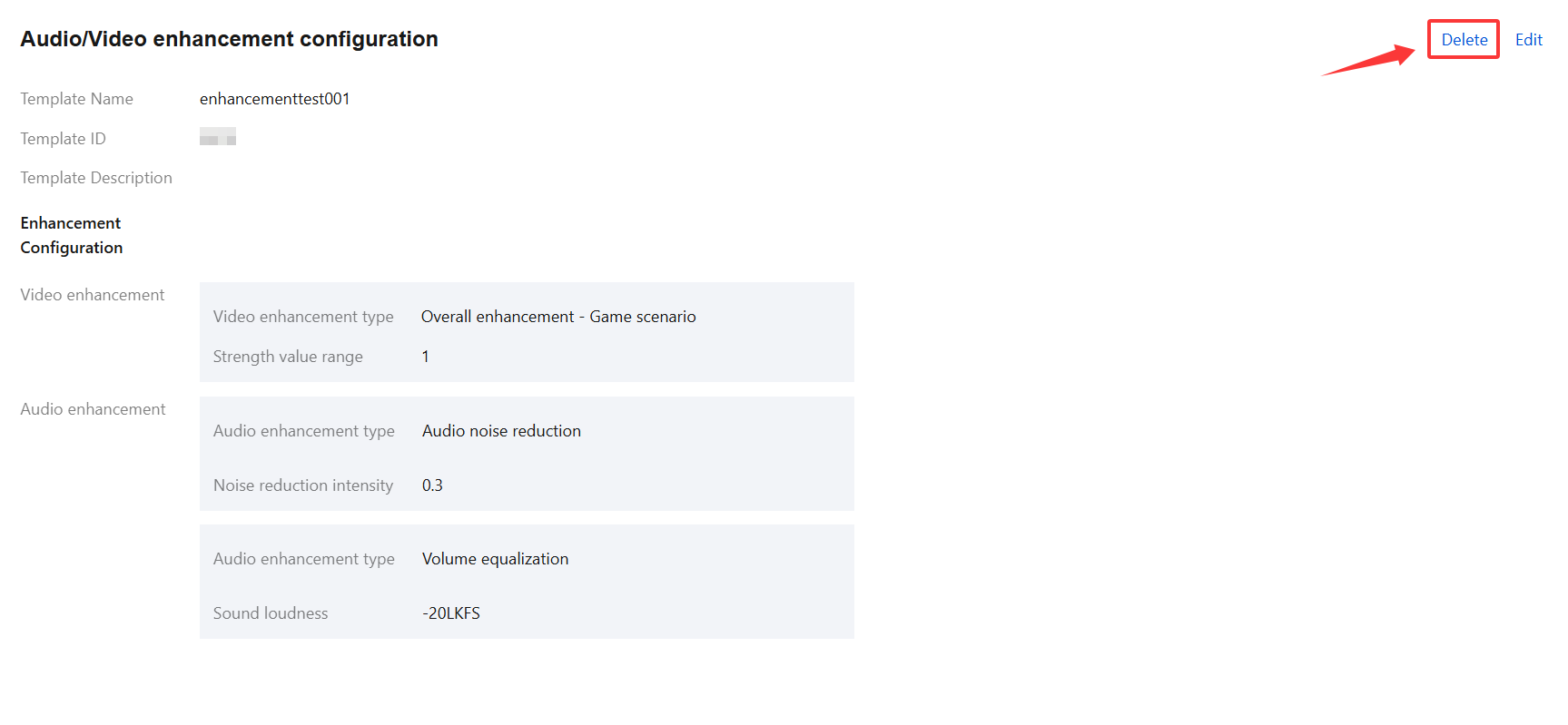
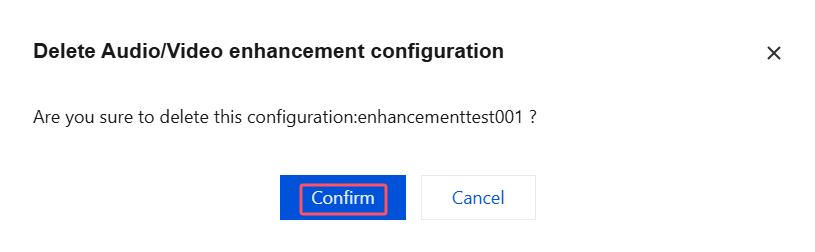
3. Confirm whether to delete the selected audio and video enhancement template, and click Confirm to successfully delete it.
피드백