Intelligent Summary
Download
포커스 모드
폰트 크기
Intelligent live streaming summary is based on AI technology. This feature performs multimodal in-depth analysis of the live streaming content to intelligently generate summaries and outlines.
This document describes how to create, modify, and delete intelligent summary templates through the console.
Points of Attention
It takes about 5-10 minutes to take effect after the template is successfully created and bound.
Prerequisites for Use
The CSS service has been activated.
Creating Summary Template
1. Log in to the CSS console. Choose Feature Configuration > AI Features > Intelligent Summary.
Note:
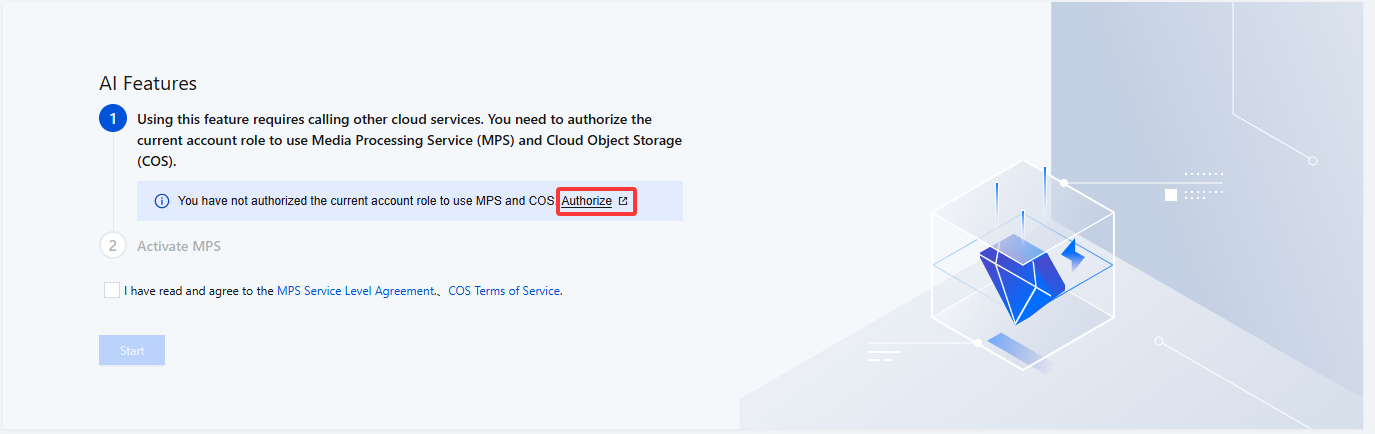
To use Intelligent Summary in the AI Features, you need to create a service role and authorize the current account role to use the Media Processing Service (MPS) and Cloud Object Storage (COS) products on first creation.
2. Click Authorize to enter the CAM role management page.
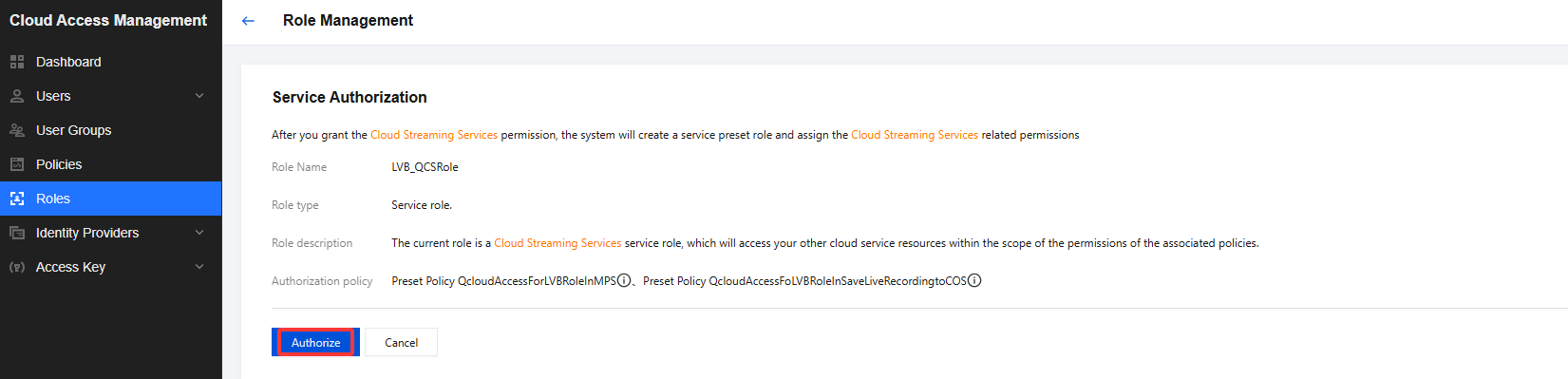
3. On the role management page, click Authorize. After completing identity verification, you can authorize Media Processing Service and Cloud Object Storage (COS) and use the Media Processing Service and Cloud Object Storage services normally.
4. After successful authorization, select the service agreement and click Start. The system will automatically activate the Media Processing Service product and Cloud Object Storage (COS), and will redirect you to the Intelligent Summary management page.
5. Click Create Summary Template to enter the creation page, and configure it as follows:
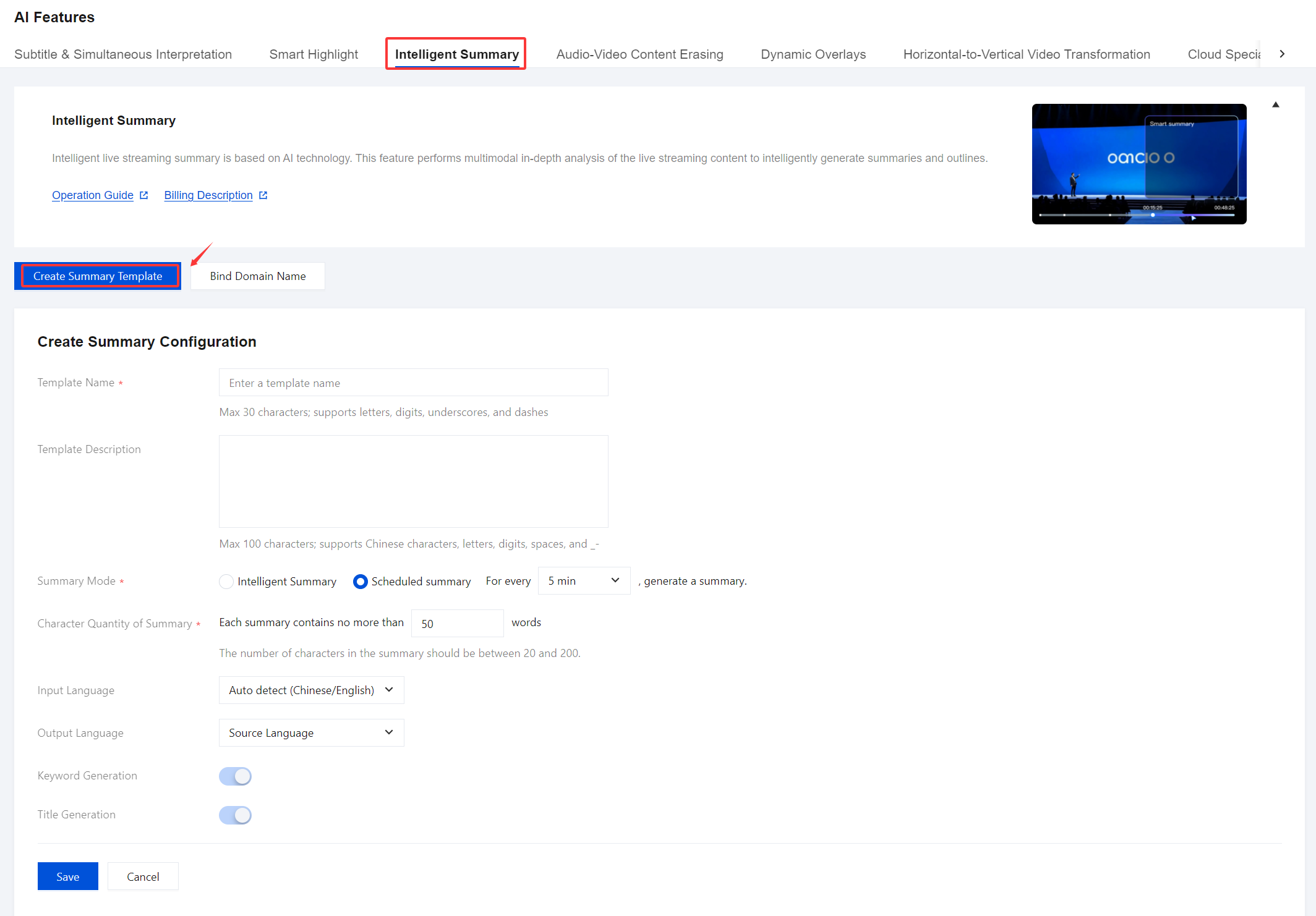
Configuration Item | Description |
Template Name | Customizable (Max 30 characters; supports letters, digits, underscores, and dashes). |
Template Description | Customizable (Max 100 characters; supports Chinese characters, letters, digits, spaces, and _-). |
Summary Mode | Depending on your business requirements, you can choose between Intelligent Summary or Scheduled Summary modes: Intelligent Summary:The system automatically analyzes live streaming content and generates intelligent segmented summaries with flexible time intervals. Scheduled summary:Generate summaries at fixed time intervals. The default setting is a 5-minute interval, with optional intervals of 5, 10, 20, or 30 minutes. |
Character Quantity of Summary | The number of characters in the summary should be between 20 and 200. |
Input Language | Auto detect (Chinese/English) is supported by default, but you can also manually select Chinese, English, Japanese or Korean. |
Output Language | Source Language is supported by default, but you can also manually select Chinese, English, Japanese, or Korean. |
Keyword Generation | Enabled by default. Generate keywords based on the summary content. |
Title Generation | Enabled by default. Automatically generates summary titles. |
Binding Summary Template
1. Log in to the CSS console. Choose Feature Configuration > AI Features > Intelligent Summary.
2. Bind a domain name in either of two ways:
Bind a domain to an existing template: Click Bind Domain Name in the top left.

Bind a domain name after creating a summary template : After the Summary Template is successfully created, click Bind Domain Name in the pop-up window.
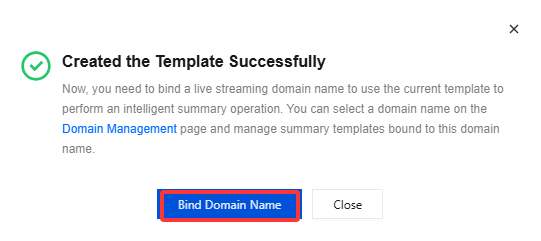
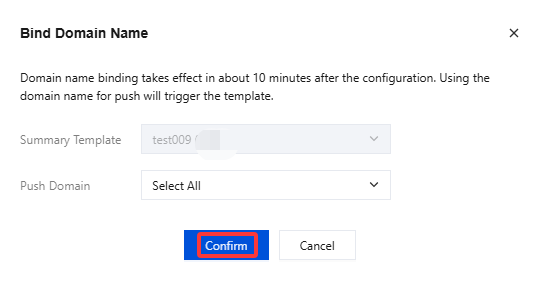
3. Select a summary template and a push domain(Multiple push domain names can be bound simultaneously) in the domain binding window and then click Confirm.
Unbinding
1. Log in to the CSS console. Choose Feature Configuration > AI Features > Intelligent Summary.
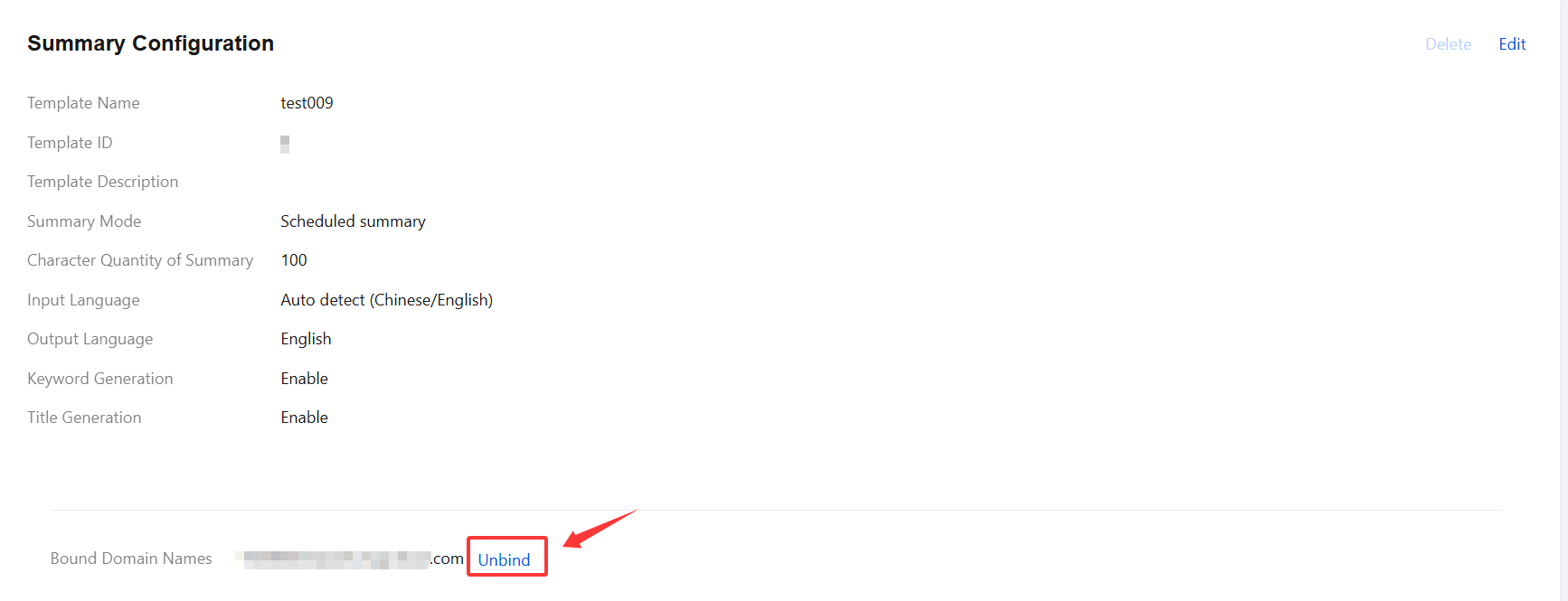
2. Select the summary template associated with a domain name and click Unbind.
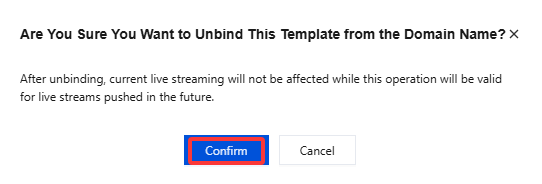
3. Confirm whether to unbind the current associated domain. Click Confirm to unbind it.
Modifying a Template
1. Log in to the CSS console. Choose Feature Configuration > AI Features > Intelligent Summary.
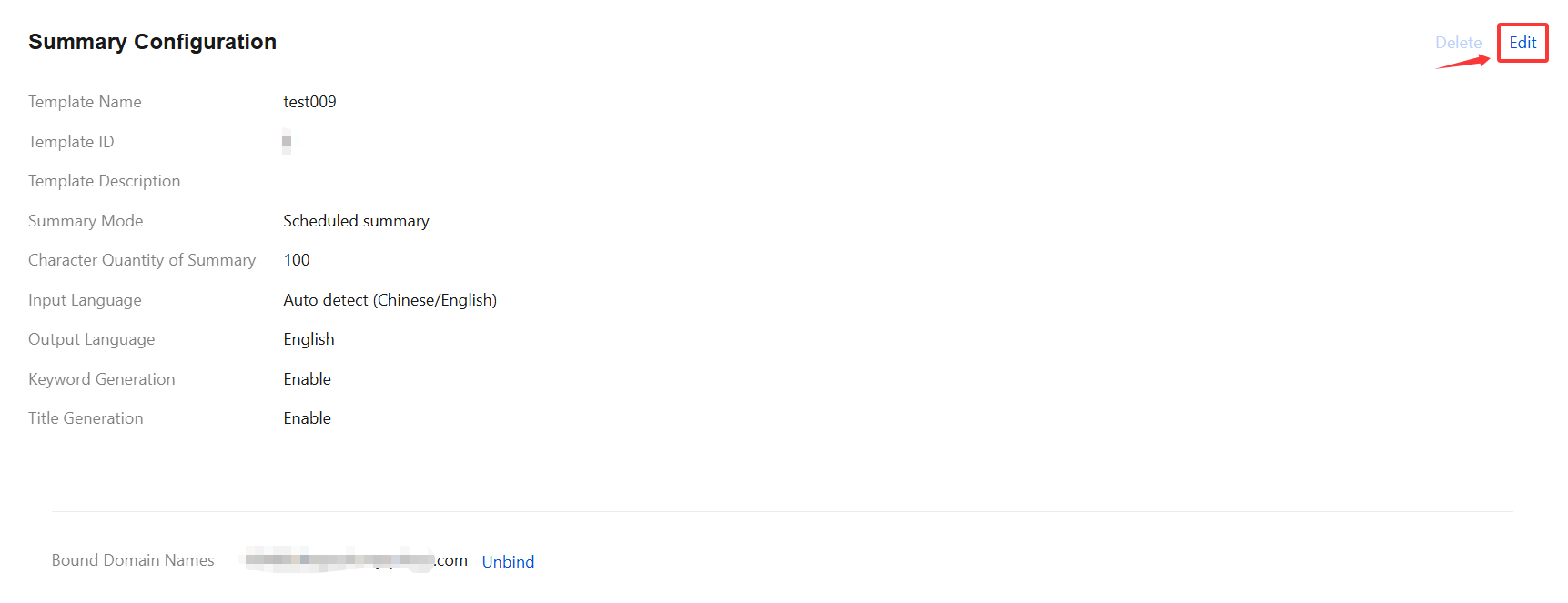
2. Select the successfully created summary template and click Edit on the right to go to the template information modification page. Click Save to finish the modification.
Deleting a Template
Note:
If the template has already been associated, you must first unbind it before you proceed with the deletion process.
Note that a template cannot be restored after deleted. Be careful when performing operations.
1. Log in to the CSS console. Choose Feature Configuration > AI Features > Intelligent Summary.
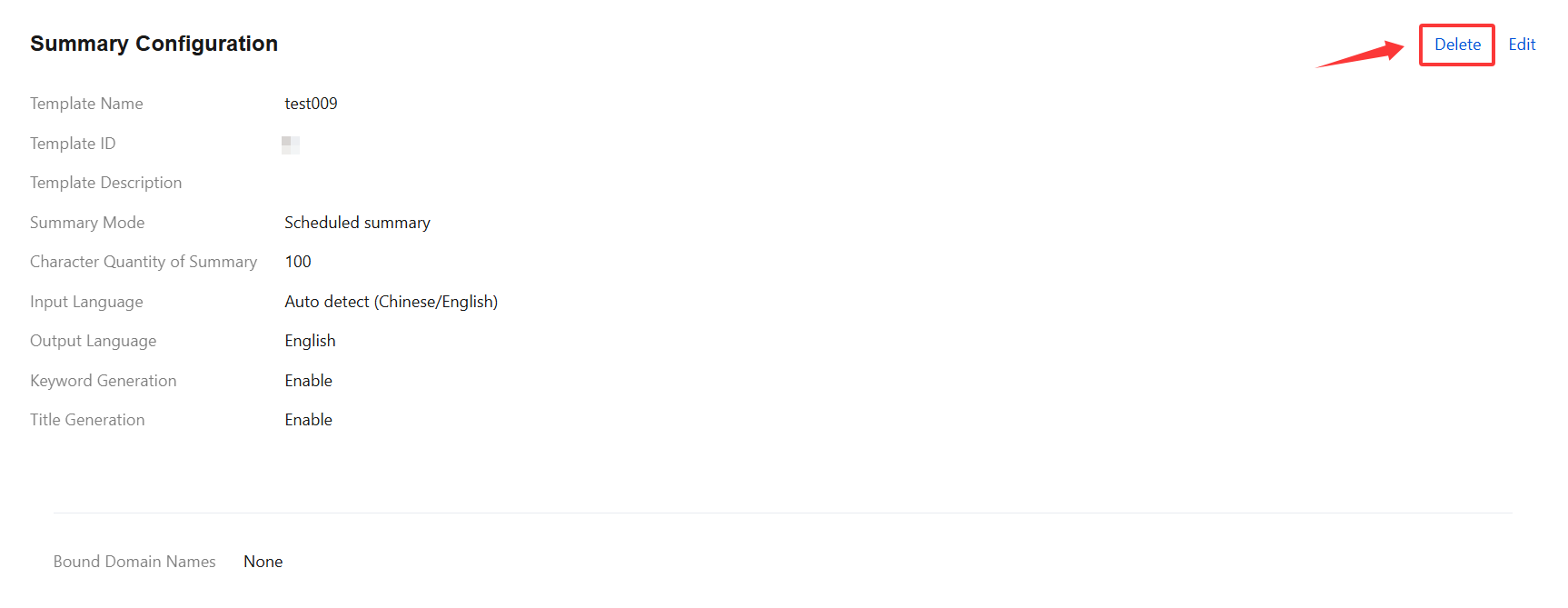
2. Select the target template (make sure it’s not bound to a domain), and click Delete.
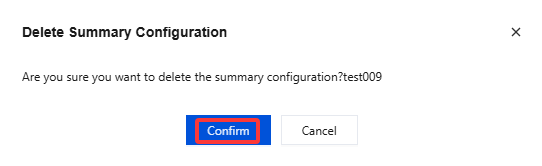
3. Confirm whether to delete the current summary template, then click Confirm to successfully delete it.
More
You can also unbind and bind domains and summary templates on the Domain Management page. For details, see Intelligent Live Streaming Summary Configuration.
피드백