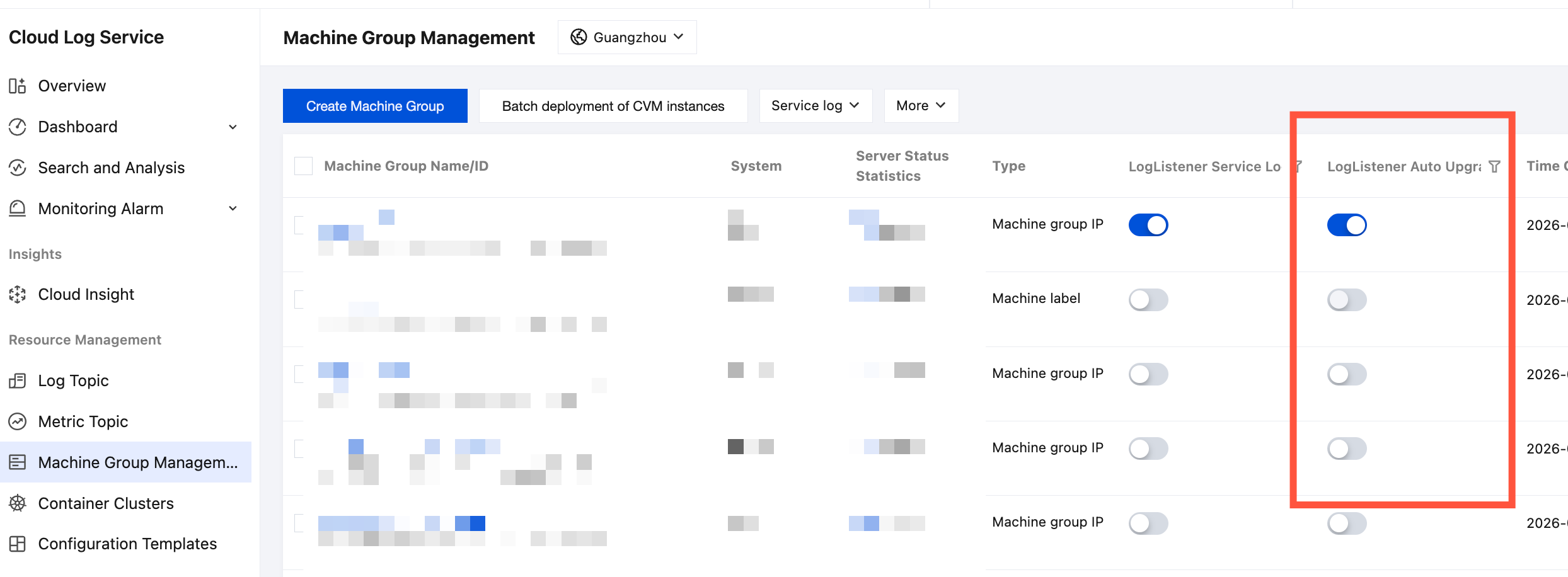
To provide better log collection service for CLS, LogListener now supports automatic upgrade, one-click console upgrade, and semi-automatic upgrade using a script. After a new LogListener collection end version is released, users no longer need to manually download the new installation package and perform manual upgrades. Instead, they can schedule an automatic upgrade for a server group in the console or perform a one-click manual upgrade directly on the target servers.
Note:
The LogListener automatic upgrade feature is supported starting from LogListener version 2.5.0 and above. For a better user experience, it is recommended to first upgrade LogListener to a version above 2.5.0 via semi-automatic upgrade.
When the LogListener version is below 2.8.3, the semi-automatic upgrade script feature requires Python 2.7 support. If the version installed on the collection machine is not Python 2.7, you cannot use this method to upgrade. It is recommended to upgrade the Python version.
The LogListener automatic upgrade feature does not support direct upgrades from versions below 2.8.3 to version 3.x. To upgrade, first upgrade to version 2.8.6 via semi-automatic upgrade, and then use the automatic upgrade feature.
2. In the left sidebar, select Machine Group Management to go to the Machine Group Management page.
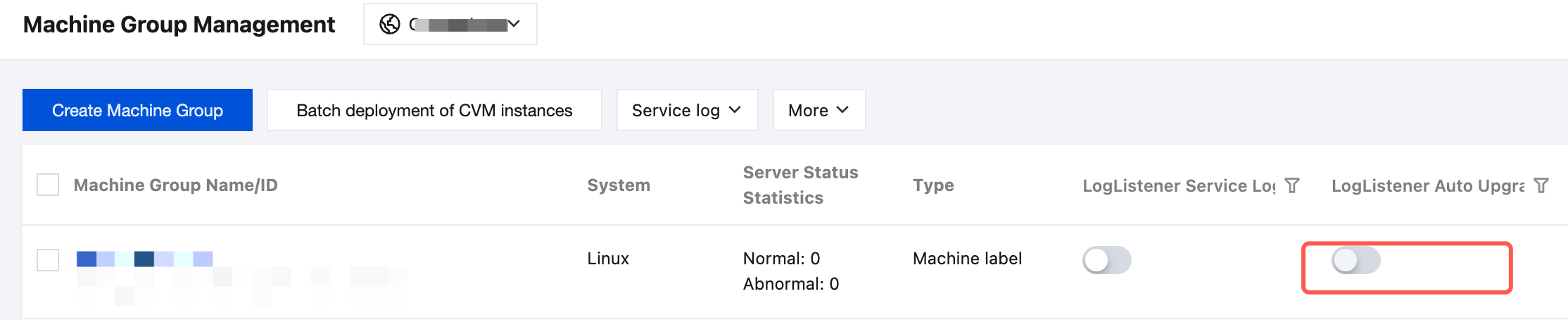
3. Locate the target machine group that requires automatic upgrade, and click
.
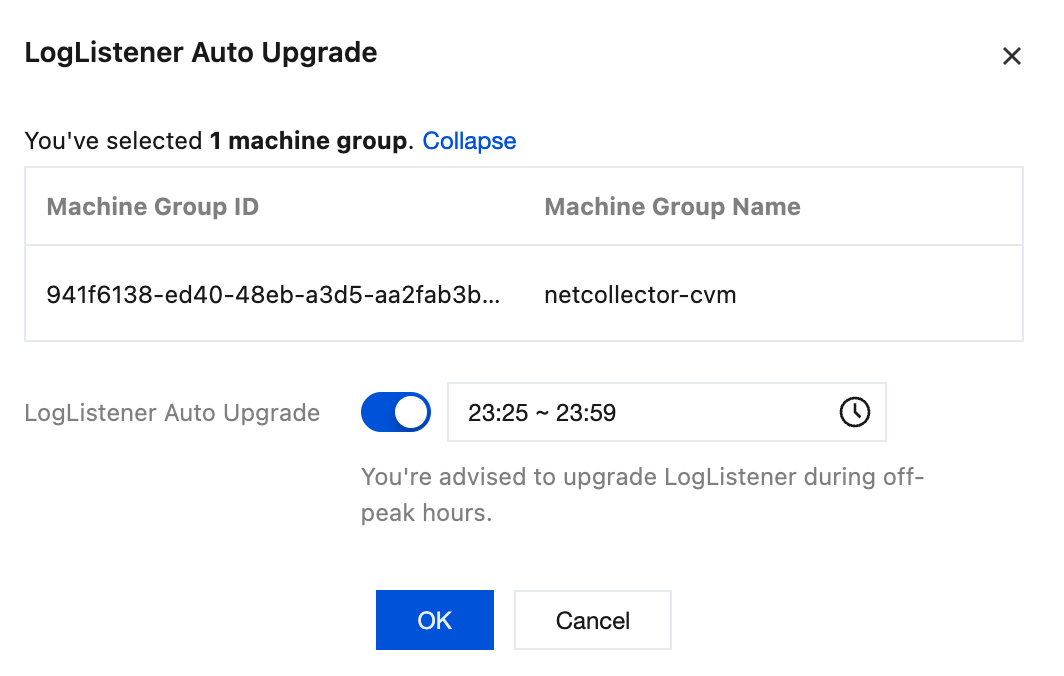
4. In the pop-up window, enable the LogListener automatic upgrade switch and specify the upgrade time period (default: from the current time to two hours later, such as 23:25 to 01:25).
5. Click OK. The Auto Upgrade column for the target machine group changes to
, indicating that enabling automatic LogListener upgrade is successful.
Note:
You can set any time period for the auto upgrade, and the system will check if upgrade is needed every day in the specified time period. If the upgrade conditions are met, the auto-upgrade will be performed; otherwise, the operation will be performed.
To perform LogListener automatic upgrade for multiple machine groups, select multiple target machine groups and then click LogListener Automatic Upgrade under More Operations to perform batch upgrade.
2. In the left sidebar, select Machine Group Management to go to the Machine Group Management page.
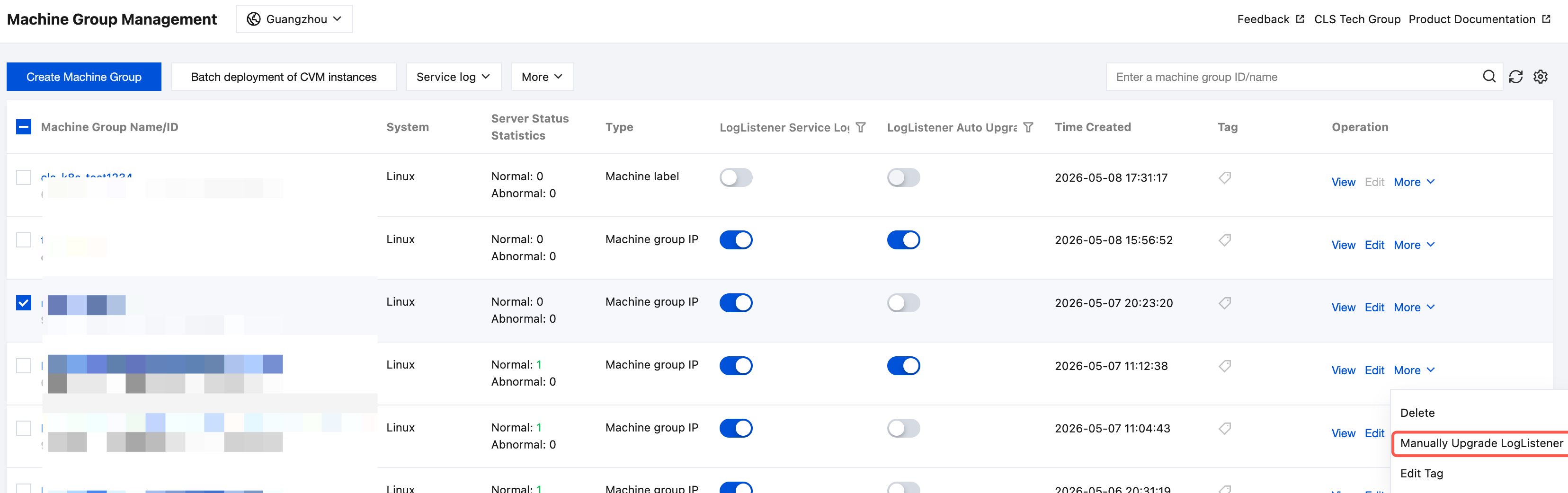
3. Locate the target machine group that requires upgrade, click More in the operation column, and then locate and click Manually Upgrade LogListener in the drop-down list.
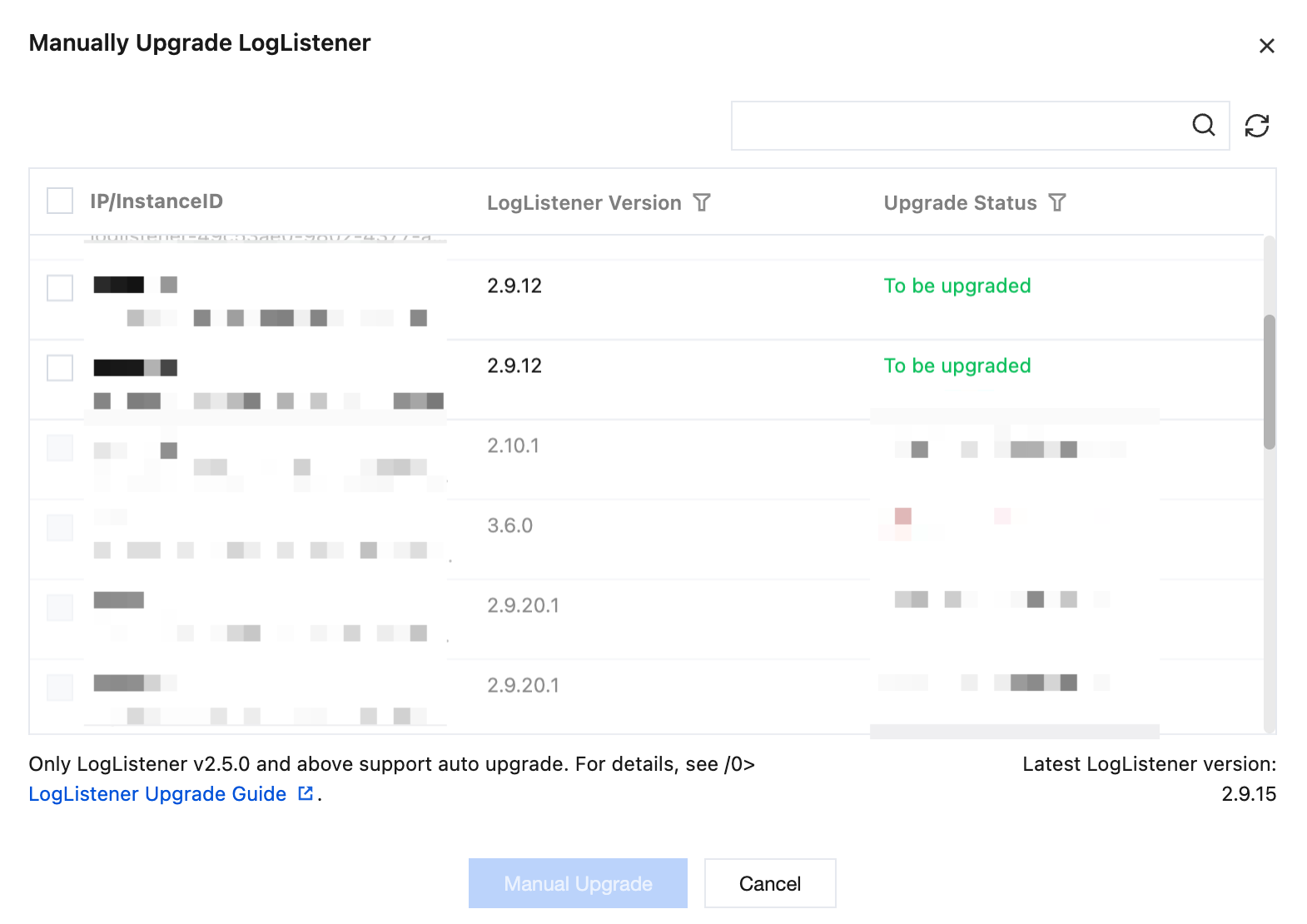
4. In the pop-up window, select the target machines with Upgrade Status as To be upgraded, and click Manual Upgrade.
The system is upgraded to the latest version by default. When the Upgrade Status is Already the Latest Version, it indicates that the upgrade is successful.
Note:
When the upgrade status shows Update Not Supported, it indicates that one-click LogListener update in the console is not supported. You need to manually download the new version installation package to perform the relevant manual upgrade operation. For details, see Semi-automatic Upgrade.
When the upgrade status shows Heartbeat Abnormal, check the machine group status.
Semi-auto upgrade
Upgrading to the Latest Version of Loglistener with the New Architecture (Version 3.x)
Upgrading to the Latest Version of LogListener with the Legacy Architecture (Version 2.x)
Specifies the installation directory for the new LogListener version. The default value is /usr/local/loglistener.
--url
Specifies the URL of the installation package for the LogListener to be upgraded. The default value is the URL of the latest LogListener installation package. To specify a version, append "-version number" after "loglistener-linux-x64". For example: the URL of the LogListener installation package for version 3.5.0 is:
Specifies the installation directory for the new LogListener version. The default value is /usr/local/loglistener.
--url
Specifies the URL of the installation package for the LogListener to be upgraded. The default value is the URL of the latest LogListener installation package. To specify a version, append "-version number" after "loglistener-linux-x64". For example: the URL of the LogListener installation package for version 2.8.7 is http://mirrors.tencent.com/install/cls/test/loglistener-linux-x64-2.8.7.tar.gz.
Note:
If the specified version does not exist, the download will fail. If the specified version is lower than the currently installed version on the server, the update will not take effect.
Risk Statement for Automatic Upgrade in Non-Standard Deployment Environments
Note:
If you deploy LogListener using non-standard methods such as custom image packaging, self-developed script deployment, or modifying the default installation path, the automatic upgrade feature may not work properly and could even damage the collection environment. After confirming your deployment method, assess the risks by referring to the instructions in this section.
Definition of Non-Standard Deployment Environment
Any of the following scenarios constitutes a non-standard deployment environment:
Scenario
Description
Custom Image Packaging
Package LogListener binaries or the installation directory into custom container images or system images, without using the official installation script for deployment.
Self-developed Script Process Management
Use self-developed start/stop/restart scripts to manage the LogListener process, without using the official tools/loglistener.sh script for management.
Non-default Installation Path
The installation directory is not the default path /usr/local/loglistener, for example, if it has been migrated to /opt/loglistener or another custom directory.
Process Name or Path Modified.
The executable file name or symbolic link path of LogListener has been modified, causing the actual process path to be inconsistent with the standard deployment.
Conflict Risks Between Automatic Upgrade and Non-Standard Environments
The automatic upgrade script relies on the standard installation path and process characteristics to locate LogListener instances. If your deployment method does not conform to the standard, the following issues may occur:
Upgrade script fails to locate process: The automatic upgrade locates LogListener processes by searching the preset path. A non-standard path causes process location to fail. Consequently, the upgrade script may misinterpret this as an uninstalled state and trigger a fresh installation, overwriting the existing environment.
File overwrite conflict: The upgrade script writes new version files to the default path, which conflicts with the actual running instance at your custom path. This can result in configuration file loss or process exceptions.
Environment state inconsistency: After the upgrade is completed, the path/process pointed to by the self-developed management script does not match the actual upgraded version, causing the collection service to fail to start or run normally.
Disabling Automatic Upgrade for Non-Standard Environments
If your LogListener is deployed in a non-standard environment as described above, it is recommended to disable the automatic upgrade feature and manage version updates using manual or semi-automatic upgrade methods instead. The steps to disable automatic upgrade are as follows: