LogListener is a dedicated log collector provided by the Cloud Log Service (CLS) of Tencent Cloud. It can be installed and deployed on the server to quickly collect logs into the CLS.
Installation Environment
LogListener only supports 64-bit Windows Server operating system environments.
LogListener version
Operating System Category
Supported Installation Environment
v2.8.9 or later
Windows Server
Windows Server 2012R2,Windows Server 2016,Windows Server 2019,Windows Server 2022,Windows Server 2025
Supported Features
Notes:
Only LogListener v2.9.7 and later versions can collect text logs in a Windows operating system environment.
Open Windows PowerShell as an administrator and run the following command in the path where LogListener has been extracted to install LogListener:
Private network environment
.\\loglistener_installer.exe install --secret_id AKID******************************** --secret_key whHwQfjdLnzzCE1jIf09xxxxxxxxxxxx --region ap-xxxxxx --network intra
Public network environment
.\\loglistener_installer.exe install --secret_id AKID******************************** --secret_key whHwQfjdLnzzCE1jIf09xxxxxxxxxxxx --region ap-xxxxxx --network internet
Note:
In the initialization command, --secret_id, --secret_key, --region are required parameters. For more parameters, see the parameter specifications below.
If the root account has granted read/write permissions for the CLS to the collaborator, it is recommended to use the collaborator's key.
The --region parameter specifies the location of your CLS, not the location of your business machine.
When the Cloud Virtual Machine (CVM) and the logset are in the same region, it is recommended to access the service domain name via the private network. Conversely, if they are located in different regions, it is recommended to access the service domain name via the public network.
TencentCloud API Key consists of two parts. SecretKey is the key used to encrypt signature strings and verify signature strings on the server side. Ensure that the account associated with the TencentCloud API Key has the corresponding LogListener log collection permission.
encryption
No
Whether to encrypt and store the TencentCloud API key. To encrypt the key, pass true; to skip encryption, pass false. For details, see Key Encryption Storage. (Supported only in LogListener version 2.9.7.13 and above for text log collection.)
network
No
It indicates how LogListener accesses the CLS service. Values: intra for private network access and internet for public network access.
Private network access: Applicable to Tencent Cloud servers located in the same region as the machine group.
Public network access: Applicable to non-Tencent Cloud servers or to servers located in regions that do not match those of the machine group.
region
Yes. (Unless domain name is configured.)
Region indicates the region where the CLS is deployed. Enter the appropriate domain name abbreviation, such as ap-beijing or ap-guangzhou.
endpoint
Yes. (Unless region is configured)
Domain name indicates the domain name for the region where the CLS is deployed, such as ap-beijing.cls.tencentcloud.com and ap-guangzhou.cls.tencentcloud.com.
ip
No
It indicates the IP address of the machine that can be associated with the machine group using the configured IP address. For details, see Machine Group. If left blank, LogListener will automatically obtain the local IP address.
label
No
It indicates a machine label. Once entered, the machine will be associated with the corresponding machine group that shares this label. For details, see Machine Group. You can configure multiple labels by separating them using commas.
Note:
If a machine label is configured, the machine can only be associated with the machine group using the machine label instead of the IP address; if not configured, the machine group can only be associated with the machine using the IP address.
check_net
No
Whether to perform network connectivity verification during installation. Default value: true. If the input parameter is true, the installation will fail when a network exception occurs. If network environment verification is not required, set the input parameter to false. (Windows event collection is not supported.)
switch_endpoint
No
Enable backup domain. Default: false. If set to true, the backup domain will be used when the primary domain network fails.
When the input parameter is set to true, the configuration file adds a backup_endpoints field (backup domain), and the system will automatically populate the backup domain.
If the user initializes with private network access, backup_endpoints will be automatically populated with the public network domain.
If the user initializes with public network access, backup_endpoints will be automatically populated with the private network domain.
You can also manually modify the backup domain in the configuration file (multiple entries are supported). If the primary domain is inaccessible, LogListener will attempt each backup domain in sequence until successful.
Notes:
This parameter is supported only in the Windows edition of LogListener version 2.9.7.15 and above. Windows event collection does not support this parameter.
Return sample of successful installation
3. Adding to a Machine Group
Note:
Servers running the LogListener (Windows edition) can only be added to machine groups that operate within a Windows system environment.
After the LogListener is installed and started, you need to create a machine group or choose an existing one in the CLS console and add the server to the machine group.
You can add servers to a machine group in the following two ways:
Taking the installation path C:\\Program Files (x86)\\Tencent\\LogListener as an example, open Windows PowerShell as an administrator and run the following command in the installation path to check the LogListener edition:
.\\loglistener_work.exe -v
Stopping LogListener
Note:
Before the command is run to stop LogListener, ensure that all files in the LogListener installation path are closed; failure to do so will prevent LogListener from being stopped successfully.
Taking the installation path C:\\Program Files (x86)\\Tencent\\LogListener as an example, open Windows PowerShell as an administrator and run the following command in the installation path to stop LogListener:
.\\loglistener_daemon.exe -action stop
Restarting LogListener
Note:
Before the command is run to restart LogListener, ensure that all files in the LogListener installation path are closed; failure to do so will prevent LogListener from being restarted successfully.
Taking the installation path C:\\Program Files (x86)\\Tencent\\LogListener as an example, open Windows PowerShell as an administrator and run the following command in the installation path to restart LogListener:
.\\loglistener_daemon.exe -action restart
Checking the Heartbeat and Configuration Of LogListener
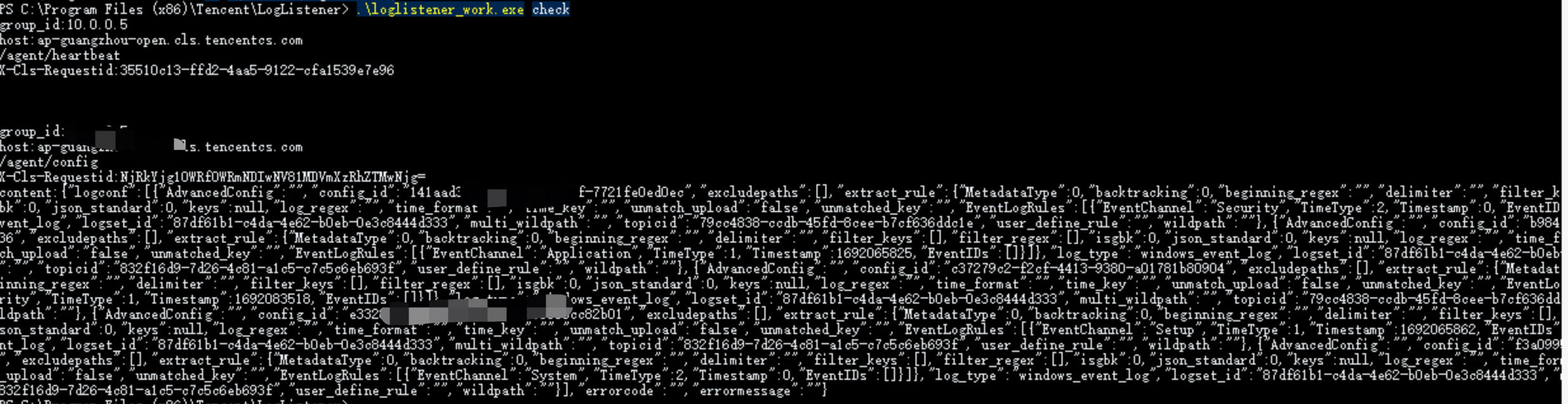
Taking the installation path C:\\Program Files (x86)\\Tencent\\LogListener as an example, open Windows PowerShell as an administrator and run the following command in the installation path to check the heartbeat and configuration of LogListener:
.\\loglistener_work.exe check
Return sample:
Uninstalling LogListener
Notes:
Before the command is run to uninstall LogListener, ensure that all files in the LogListener installation path are closed; failure to do so will prevent LogListener from being uninstalled successfully.
The uninstallation tool can be found in the LogListener installation package, rather than in the LogListener installation path.