Data Assets
Baixar
Modo Foco
Tamanho da Fonte
The Database Risk Monitoring Data Asset module covers core scenarios such as asset compliance inventory, sensitive data-specific protection, and permission compliance remediation. Its coverage spans from asset synchronization to permission assignment and sensitive data identification.
Operation Overview
Operation | Scenario |
Sync cloud database assets under the current account to Database Risk Monitoring. | |
View synced database assets and their status information. | |
View basic information, access topology, audit logs, alarms, risks, and sensitive data of the target database asset. | |
Enable security monitoring for the target database asset to monitor access and violation operations in real time. | |
Disable security monitoring for database assets with security audit enabled. |
Synchronizing Data Assets
1. Log in to the CSC console. In the left navigation pane, click Data Security Situation Management > Database Risk Monitor.
2. On the Database Risk Monitoring page, click the Instance list Tag.
3. On the Instance List Tag page, click Sync Assets to synchronize the database assets under your current account.

Viewing the Asset List
1. Log in to the CSC console. In the left navigation pane, click Data Security Situation Management > Database Risk Monitor.
2. On the Database Risk Monitoring page, click the Instance list Tag.
3. On the Instance List Tag page, synchronized database assets are displayed.
Data Asset Details
1. On the Instance List Tag page, select the target database asset and click Instance ID.

2. On the Asset Details page, the basic information of the current database asset, user information, database account information, alarm information, risk information, sensitive data identification details, and access topology are displayed.
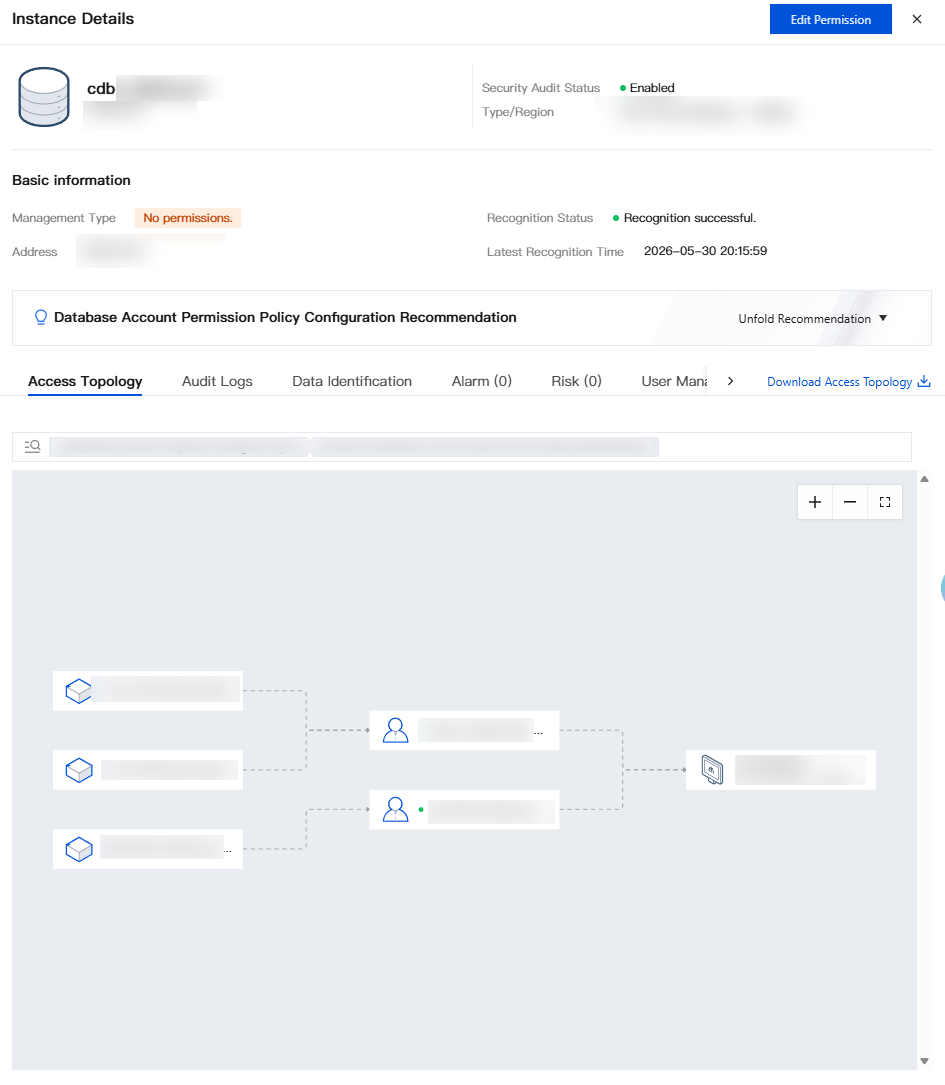
Enabling Security Audit
Enable security audit for the target database asset. After it is enabled, the system monitors the security status of the asset in real time, including access behaviors and violation operations, and generates alarms and risk information.
1. Log in to the CSC console. In the left navigation pane, click Data Security Situation Management > Database Risk Monitor.
2. Locate the target instance in the instance list and click Enable Security Audit in its Operation column.

3. In the dialog box, confirm the ID/name, region, and private IP address of the instance to enable, as well as the quota consumption and available quota. Then, click Confirm.
Note:
Enabling security audit consumes License authorized assets. Make sure that you have sufficient remaining authorization quota.
After security audit is enabled, the system needs a short period of time to initialize the monitoring policy, during which there may be a slight delay.
Enabling security audit is a prerequisite for viewing alarm and risk information. Monitoring data cannot be generated before security audit is enabled.
For asset types that support security audit, see Supported Database Types and Versions.
Disabling Security Audit
Disable security monitoring for database assets that have security audit enabled. After security monitoring is disabled, the system no longer audits these assets, and their new audit logs cannot be viewed.
1. Log in to the CSC console. In the left navigation pane, click Data Security Situation Management > Database Risk Monitor.
2. Locate the target instance in the instance list and click Disable in its Security Audit Status field.

3. In the dialog box, confirm the ID/name, region, and private IP address of the instance to disable. Then, click Confirm.
Note:
After confirmation, the security protection of the selected instance will be disabled, security audit on the instance will stop, and historical audit logs will be cleared.
Ajuda e Suporte
Esta página foi útil?
Você também pode entrar em contato com a Equipe de vendas ou Enviar um tíquete em caso de ajuda.
comentários