Space analysis provides comprehensive observation and detailed analysis capabilities for storage space on TDSQL Boundless (TDStore engine) instances. This includes overall disk space usage, space change trends over the past 30 days, space rankings for TOP tables/databases, and tables without primary keys, among other metrics. In a distributed architecture, space analysis helps users quickly identify objects with the fastest space growth, locate tables and databases with high space consumption, and estimate the remaining available disk days.
Scenarios
When a disk utilization alarm is triggered, locate the tables and databases that occupy the most space.
During data growth assessment, estimate the remaining available days based on the trend over the past 30 days.
During index evaluation, identify tables with abnormal index space ratios.
During data governance, identify tables without primary keys and
add primary keys for them.
Background Information
Space analysis collects and displays storage space information on a per-instance basis, providing the following dimensions:
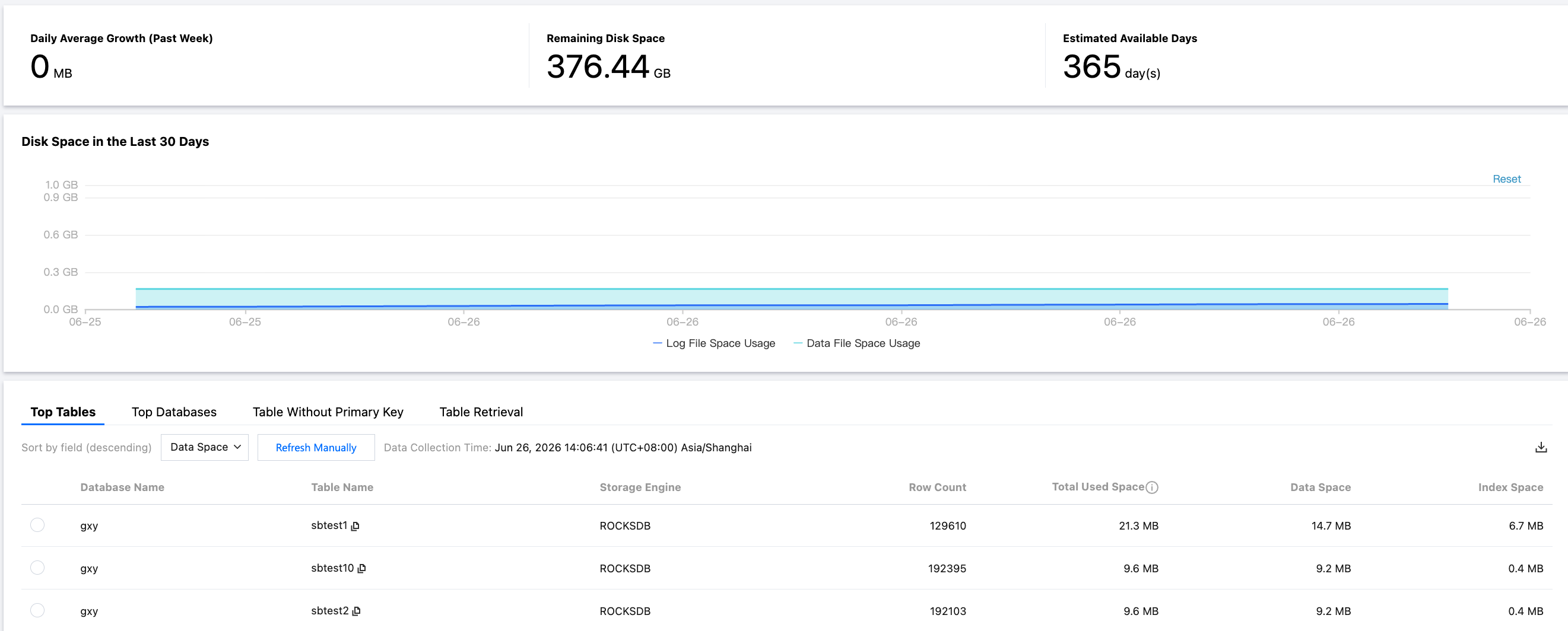
Space Overview: Displays the instance's average daily growth over the past week, remaining disk space, and estimated available days.
Space Trend: Disk space usage over the past 30 days, including log file space usage and data file space usage.
TOP Databases / TOP Tables: A list of databases and tables sorted in descending order by space occupied, where you can view the data volume, index volume, number of rows, and other details for each table.
Tables Without Primary Keys: Lists tables without primary keys in the instance, facilitating data governance.
Implementation Mechanism
The data for space analysis is sourced from a scheduled statistical task in the backend.
1. By default, space metadata (such as data volume, index volume, and number of rows) for databases and tables under an instance is collected daily on a scheduled basis.
2. The system collects the overall disk usage and retains the history for the past 30 days.
3. Display by TOP dimension and estimate the remaining available days based on the growth rate over the past 30 days.
Use Limits
Data Collection Frequency: Data for TOP tables, TOP databases, and tables without primary keys is collected once daily by default. To obtain the latest data, click Manual Refresh to trigger real-time collection.
Trend Retention: Only the last 30 days of space trend data is retained.
Notes
When the estimated available days are short (for example, less than a week), it is recommended to promptly evaluate a scale-out or data cleanup plan to avoid triggering disk alarms and impacting business operations.
Prerequisites
The TDSQL Boundless instance has been connected in DBbrain.
The current account has DBbrain view permissions for this instance.
2. In the left sidebar, select Performance Optimization.
3. At the top of the page, select TDSQL Boundless as the database type, and then select the target instance ID.
4. Click the Space Analysis tab.
5. On the Space Analysis page, you can view the comparison of average daily growth over the past week, remaining disk space, estimated available days, and the disk space trend chart for the past 30 days.
Metric Value
Description
Daily Average Growth (Past Week)
Average daily increase in storage usage over the past week, in GB.
Remaining Disk Space
Remaining disk space = Purchased disk space - Data space, in GB.
Estimated Available Days
Estimated available duration of remaining space, calculated based on recent growth rates.
Disk Space in the Last 30 Days
X-axis: Date
Y-axis: Space Usage
The chart includes two curves: Log File Space Usage and Data File Space Usage, allowing you to intuitively observe the relationship between space growth rate and the remaining waterline.
To view specific values, hover the mouse over the curve.
Viewing Top Tablespaces
The TOP Tables view displays details of tables that currently occupy significant space, including number of rows, total used space, data space, and index space. You can use this information to understand disk space usage details and perform optimizations in a timely manner.
Note:
The TOP tables/databases feature supports a "Manual Refresh" function. Data is collected once daily by default. If the collected data becomes inaccurate due to a significant time gap between the collection time and the current time, you can click Refresh Manual to trigger real-time collection and analysis of TOP table/database information. Note that some delay may occur when the instance contains a large number of tables/databases or is under high access pressure.
2. In the left sidebar, select Performance Optimization.
3. At the top of the page, select TDSQL Boundless as the database type, and then select the target instance ID.
4. Click the Space Analysis tab.
5. Select the TOP Tables tab, choose the sorting field (descending order) from options such as data space, index space, total used space, and number of rows, and then view the list of TOP tables.
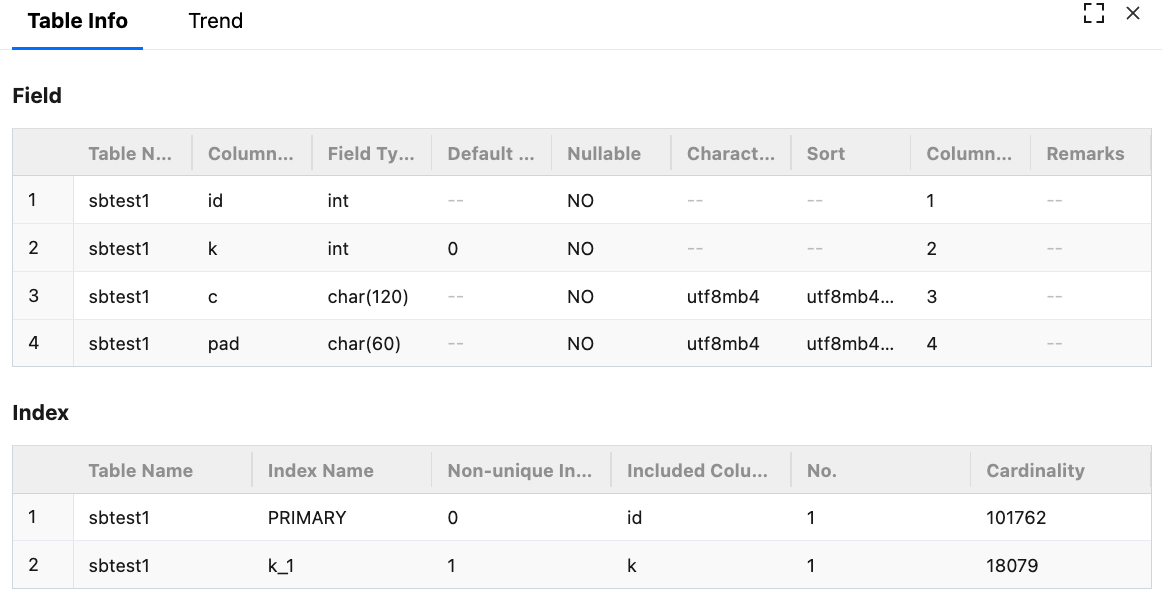
6. Click the data row in the list of top tables to view the table information and trend charts.
Table Info: Displays detailed field and index information for the table. Field information includes table name, column name, field type, default value, nullable, character set, collation, column position, and so on. Index information includes table name, index name, non-unique index, included columns, sequence number, cardinality, and so on.
Trend Charts: These charts show trends for space usage (data space, index space, total used space) and physical file size (number of rows).
7. (Optional) In the upper-right corner of the list, click
to download the top table data in .csv format.
TOP Database Space
The TOP Databases view displays details of databases that currently occupy significant space, including number of rows, total used space, data space, and index space. You can use this information to understand disk space usage details and perform optimizations in a timely manner.
2. In the left sidebar, select Performance Optimization.
3. At the top of the page, select TDSQL Boundless as the database type, and then select the target instance ID.
4. Click the Space Analysis tab.
5. Select the TOP Databases tab, choose the sorting field (descending order), and then view the list of TOP databases.
6. Click a data row in the list of TOP databases to view the trend charts. These charts show trends for space usage (data space, index space, total used space) and physical file size (number of rows).
7. (Optional) In the upper-right corner of the list, click
to download the top database data in .csv format.
Tables Without Primary Keys
The Table Without Primary Key section displays information about tables in the current instance lacking primary keys. Such tables pose potential risks and may affect instance read/write performance and synchronization efficiency. It is recommended to promptly address these tables and add primary keys suitable for the business scenarios.
2. In the left sidebar, select Performance Optimization.
3. At the top of the page, select TDSQL Boundless as the database type, and then select the target instance ID.
4. Click the Space Analysis tab.
5. Select the Table Without Primary Key tab to view the list of tables without primary keys.
The list of tables without primary keys supports two refresh methods: periodic scanning (once per day) and manual refresh. Click a table in the list to view its field and index information.
6. (Optional) In the upper-right corner of the list, click
to download the data of tables without primary keys in .csv format.
2. In the left sidebar, select Performance Optimization.
3. At the top of the page, select TDSQL Boundless as the database type, and then select the target instance ID.
4. Click the Space Analysis tab.
5. Select the Table Retrieval tab, select the database, enter the table name, and retrieve the space analysis data of the table.
6. Click the row of the table to view its information and trend chart.
Following Steps
When the Estimated Available Days are low, plan a scale-out or data archiving strategy.
For objects in the TOP tables where the index space ratio is abnormal, evaluate the effectiveness of the indexes by combining slow SQL analysis, and clean up redundant indexes when necessary.
For the identified tables without primary keys, it is recommended to add appropriate primary keys using the ALTER TABLE statement after the business scenarios are evaluated, in order to improve the instance's read/write performance and replication efficiency.
Regularly review space usage trends to identify and trace the root cause of sudden space growth events.
Q1: Why Is There a Large Deviation in "Estimated Available Days"?
This value is estimated based on the average growth rate over the past 30 days and is for reference only. When there are sudden changes in business data growth (such as during promotions or batch imports), the actual remaining days may deviate from the estimated value. It is recommended to make a comprehensive judgment by considering the business rhythm.
Q2: Why Does the Space Display the Previous Value When My Table Has Many Writes?
Space analysis data is collected periodically by the backend, with a delay of several hours. If you need to view the latest space usage, you can refresh the page later.
Q3: Why Is the Index Space Larger Than the Data Space for Some Tables?
This is usually because the table has multiple indexes or the index keys are designed too broadly. It is recommended to evaluate the actual usage of each index by combining slow SQL and execution plans, and clean up invalid indexes when necessary.