This document describes how to quickly complete the steps of ordering, purchasing, installing, and deploying Tencent Cloud Code Analysis (TCA) Enterprise Edition through CloudApp, as well as the process from initially connecting a code repository to starting code analysis and viewing the results.
Operation Process
Operation steps
Description
Preparations
Ensure that the account has the permissions to operate the target resources: it must have infrastructure permissions such as TKE, CLB, MySQL, and COS.
Go to the team and complete the process of initiating code analysis.
Step 3: View Analysis Progress
View the progress details of the analysis task to understand its execution status.
Step 4: View Analysis Results
View the code analysis execution results data.
Preparations
Ensure that your account has the permissions to operate the target resources: it must have infrastructure permissions for services such as TKE, CLB, MySQL, and COS.
Operation Steps
Installing an Application
1. Refer to Purchase Method to complete the installation of the Enterprise Edition application.
2. Go to the installed application, switch to the Application Configuration section, and obtain information such as the platform access URL and the default administrator password.
Starting an Analysis
1. Access the Tencent Cloud Code Analysis (TCA) Enterprise Edition platform and log in to your account.
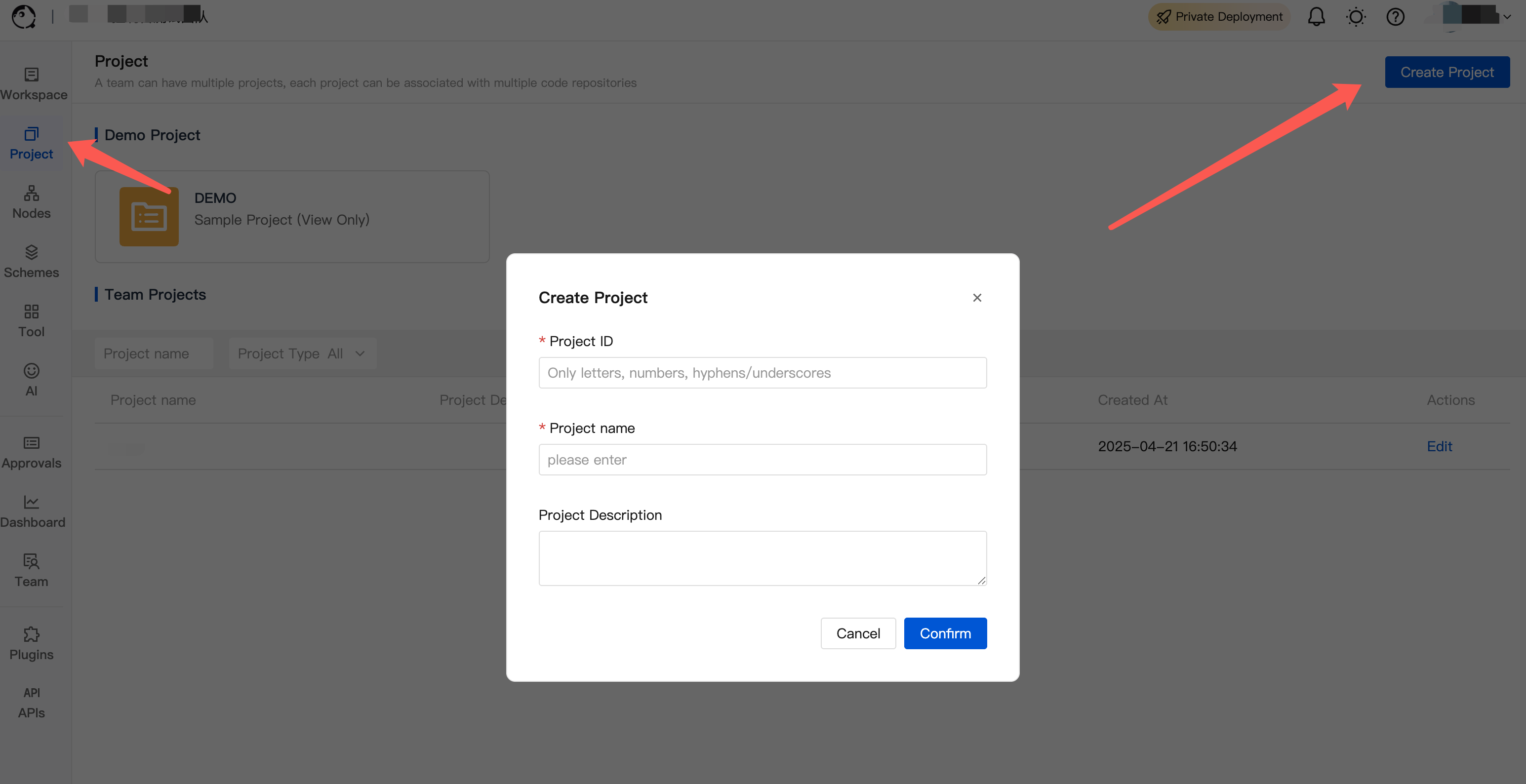
2. Create a project for the team or select an existing project, and go to the project.
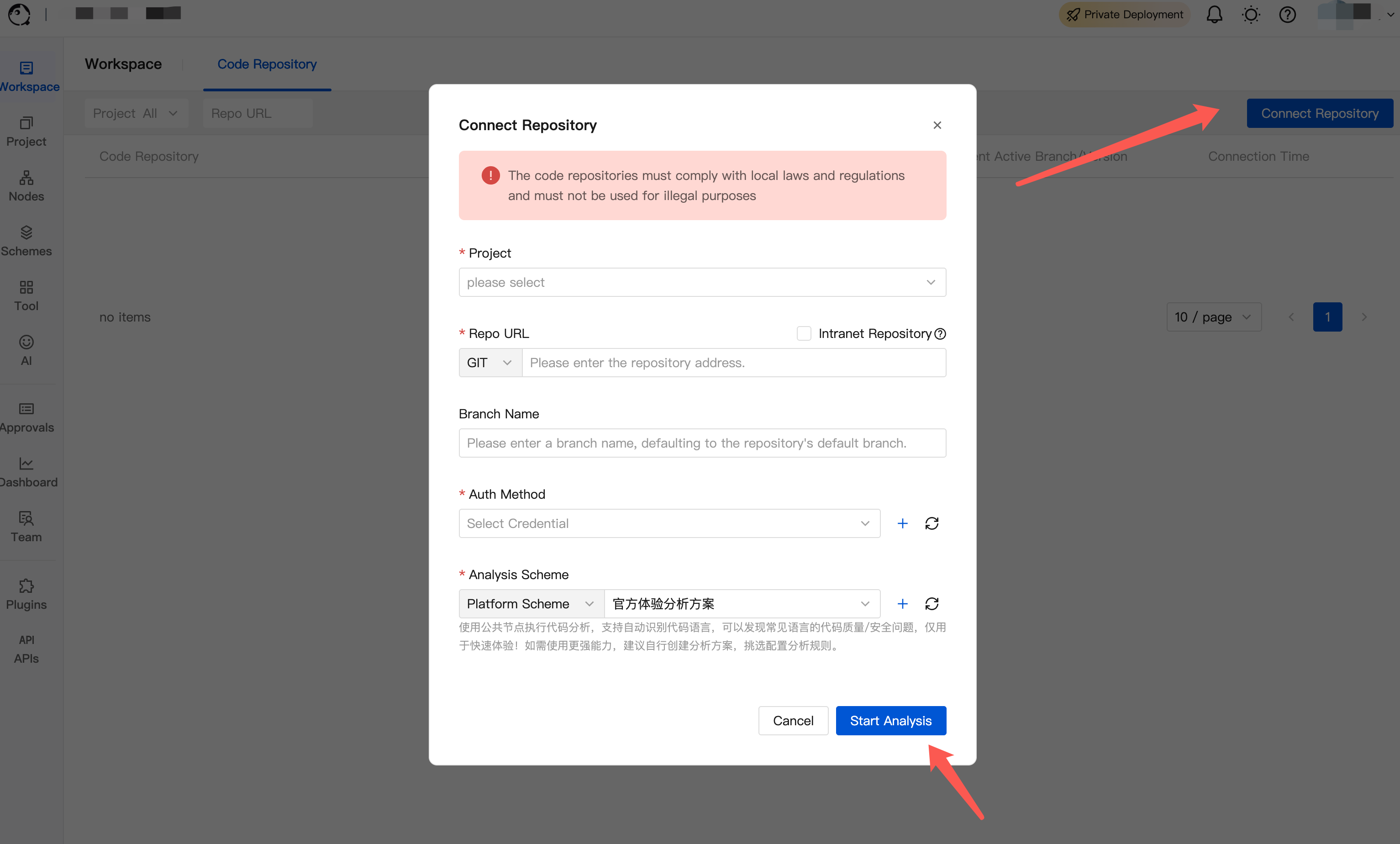
3. Access the code repository, select authorization credentials, click Start Analysis to initiate the first code analysis.
Note:
You can create an analysis scheme after you access the node, and select appropriate rules in the rule configuration to perform code analysis.
Viewing the Analysis Progress
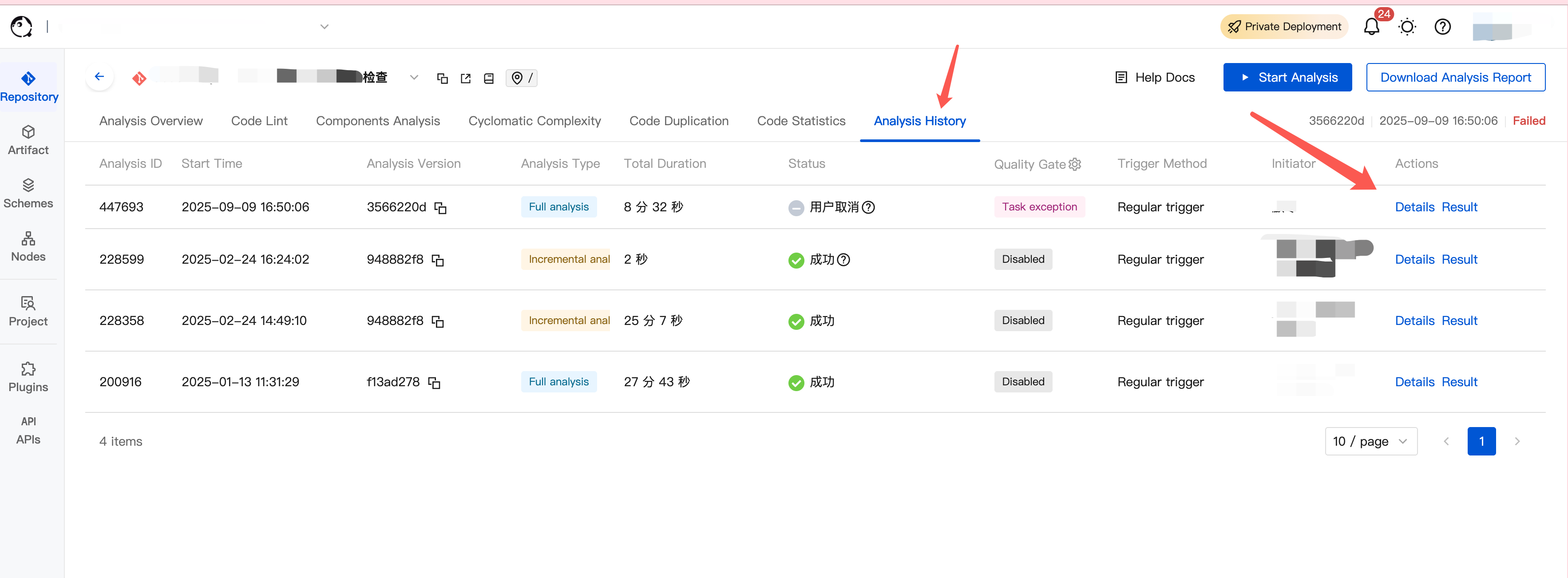
After analysis is enabled, you can go to the analysis history page to view analysis records. Click Details to view specific analysis progress.
View the analysis results
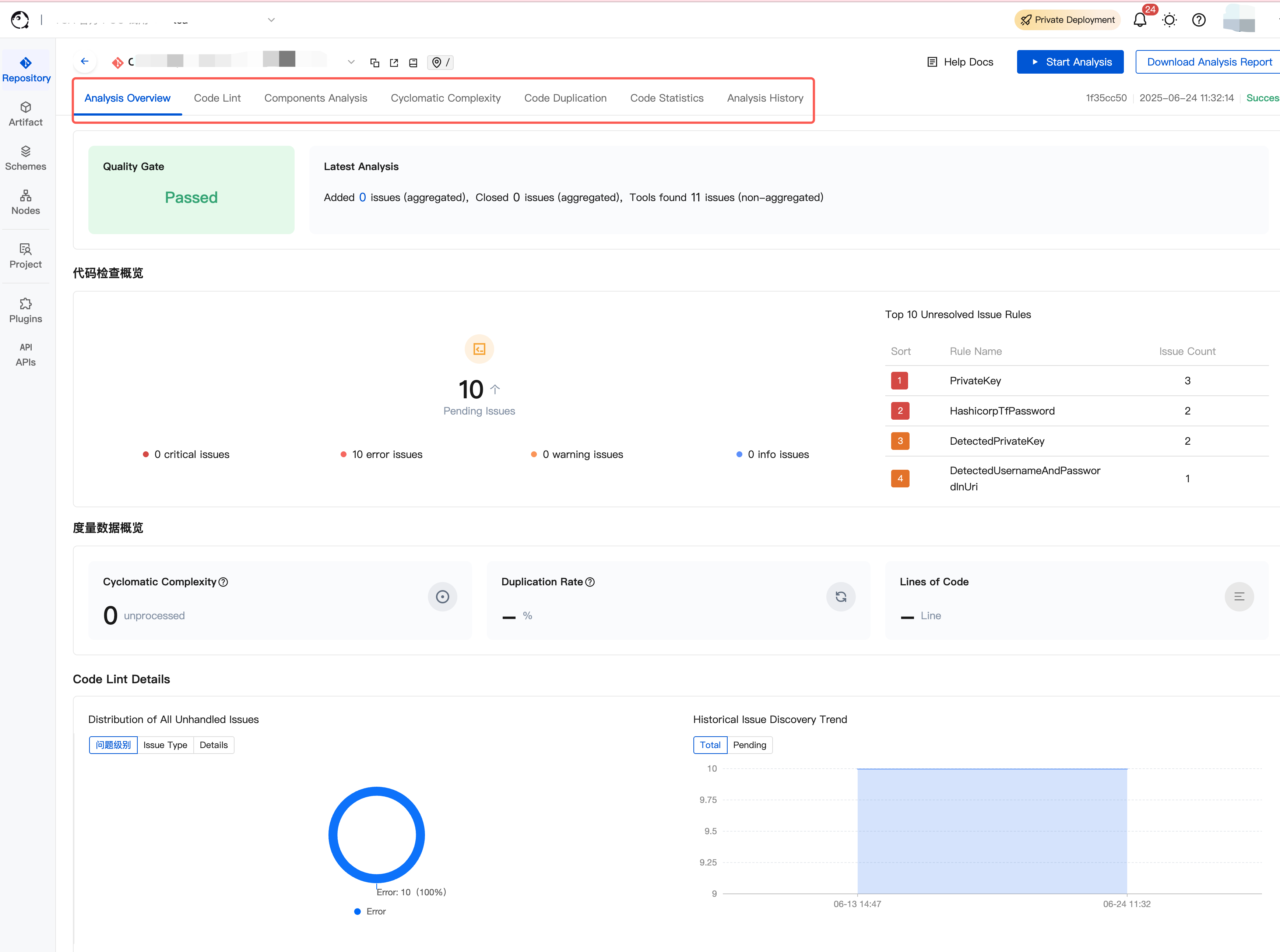
After the analysis is completed, go to the analysis overview to view the overview data for the specified analysis scheme of this branch.
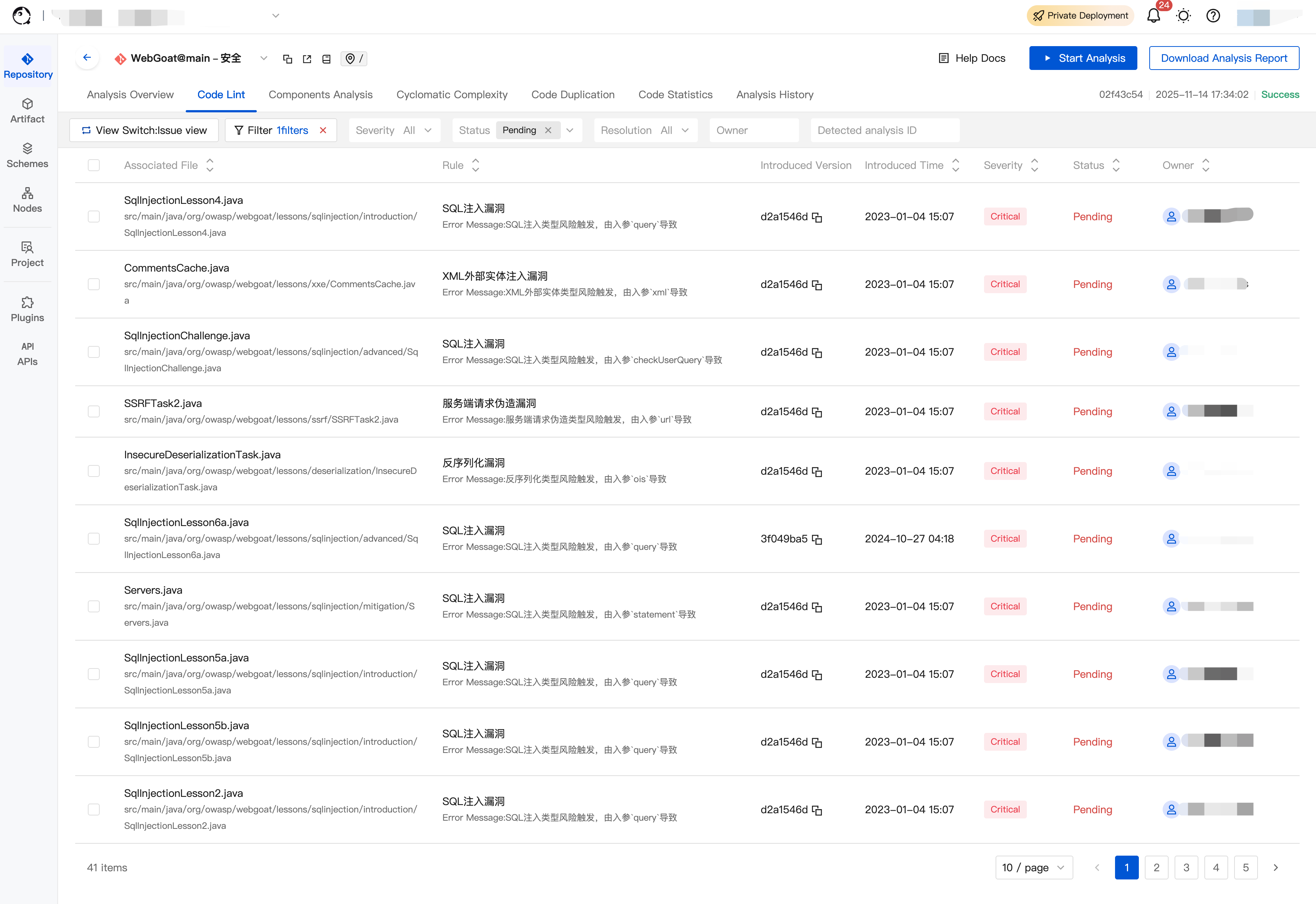
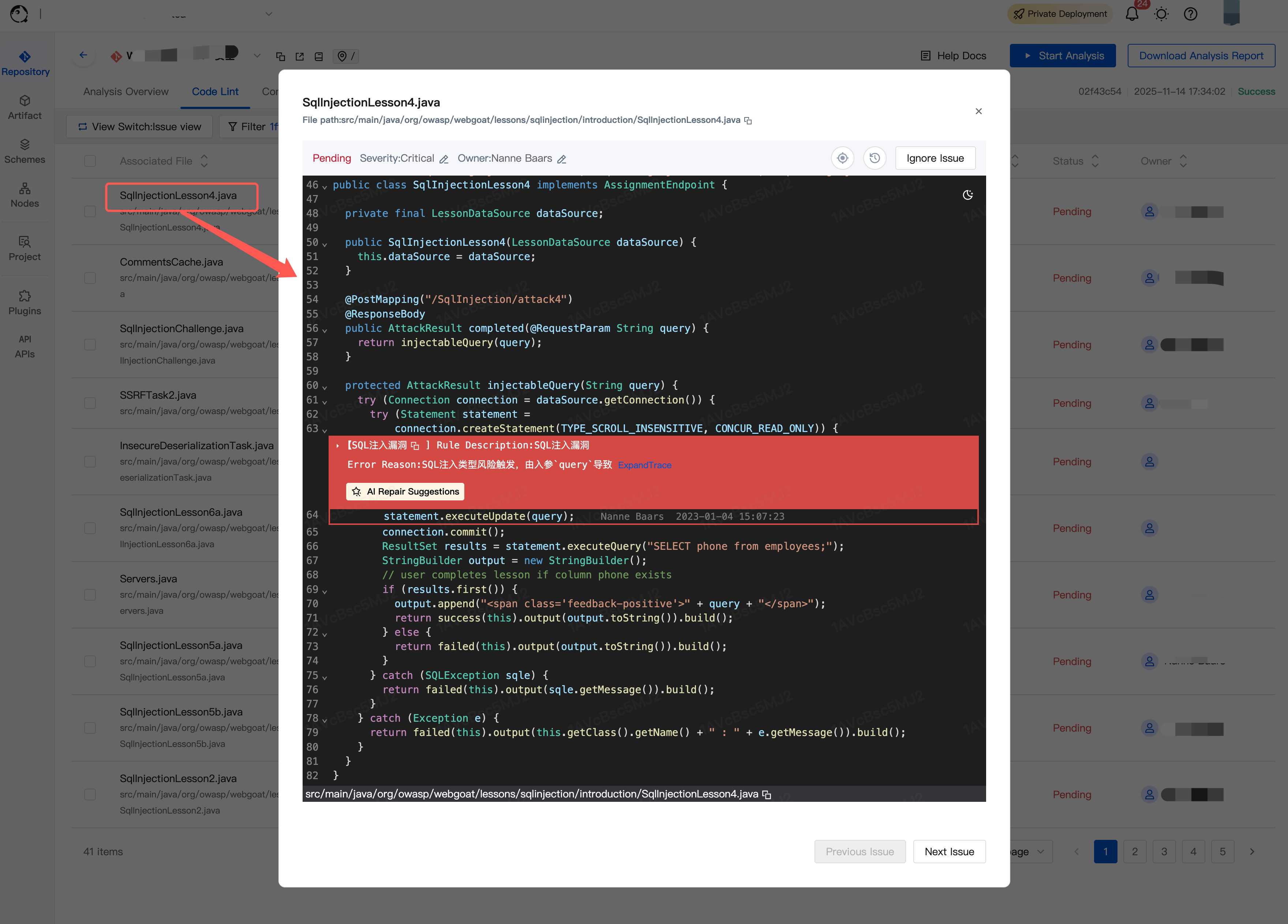
After code analysis is started, if the feature includes code inspection and issues are detected, users can view the list and details of code inspection issues on the platform.