tencent cloud

Chat

News and Announcements
Release Notes
Announcements
Product Introduction
Overview
Basic Concepts
Scenarios
Features
Account System
User Profile and Relationship Chain
Message Management
Group Related
Official Account
Audio/Video Call
Use Limits
Purchase Guide
Billing Overview
Pricing
Purchase Instructions
Renewal Guide
Service Suspension Explanation
Refund Policy
Development Guidelines
Demo Zone
Activate Service
Free Demos
Quick Run
Download
SDK and Demo Source Code
Update Log
Chat Interaction (UI Included)
TUIKit Introduction
Getting Started
Full-feature Integration
Single-function Integration
Build with AI
Build Basic Interfaces
More Features
Customizing Appearance
Internationalization
Push Service
Overview
Noun explanation
Activate the Service
Quick Start
Manufacturer Channel
Statistics
Troubleshooting Tool
Client APIs
REST API
Push Callback
Advanced Features
Release Notes
Error Codes
FAQS
Desk
Overview
Quick Start
Integration Guide
Admin Operation Manual
Agent Manual
More Practices
Live Streaming Setup Guide
AI Chatbot
Super Large Entertainment and Collaboration Community
Discord Implementation Guide
How to Integrate Chat into Games
WhatsApp Channel-style Official Account Integration Solution
Send Red Packet
Firewall Restrictions
No UI Integration
Quick Start
SDK Integration
Initialization
Login and Logout
Message
Conversation
Group
Community Topic
User Profile and Relationship Chain
Offline Push
Cloud Search
Local Search
Official Channel Management
Client APIs
JavaScript
Android
iOS & macOS
Swift
Flutter
Electron
Unity
React Native
C APIs
C++
Server APIs
Secure authentication with UserSig
RESTful APIs
Webhooks
Console Guide
New Console Introduction
Creating and Upgrading an Application
Basic Configuration
Feature Configuration
Account Management
Group Management
Official Channel Management
Webhook Configuration
Usage
Viewing Guide for Resource Packages
Real-Time Monitor
Auxiliary Development Tools
Access Management
Advanced Features
FAQs
uni-app FAQs
Purchase
SDK
Account Authentication
User Profile and Relationship Chain
Message
Group
Audio-Video Group
Nickname and Profile Photo
Security Compliance Certification
Service Level Agreement
Security Compliance Certification
Chat Policies
Privacy Policy
Data Privacy and Security Agreement
Migration
Migration Solutions
Migration Solutions Lite
Error Codes
Contact Us
DocumentationChatPush ServiceTroubleshooting Tool

Troubleshooting Tool

PDF
Focus Mode
Font Size
Last updated: 2025-02-28 17:50:19
This article aims to introduce the various pages and feature usage of the Push Notification Troubleshooting Tool, guiding users to troubleshoot the entire push notification link details when an offline push message is not received.

Regular Push

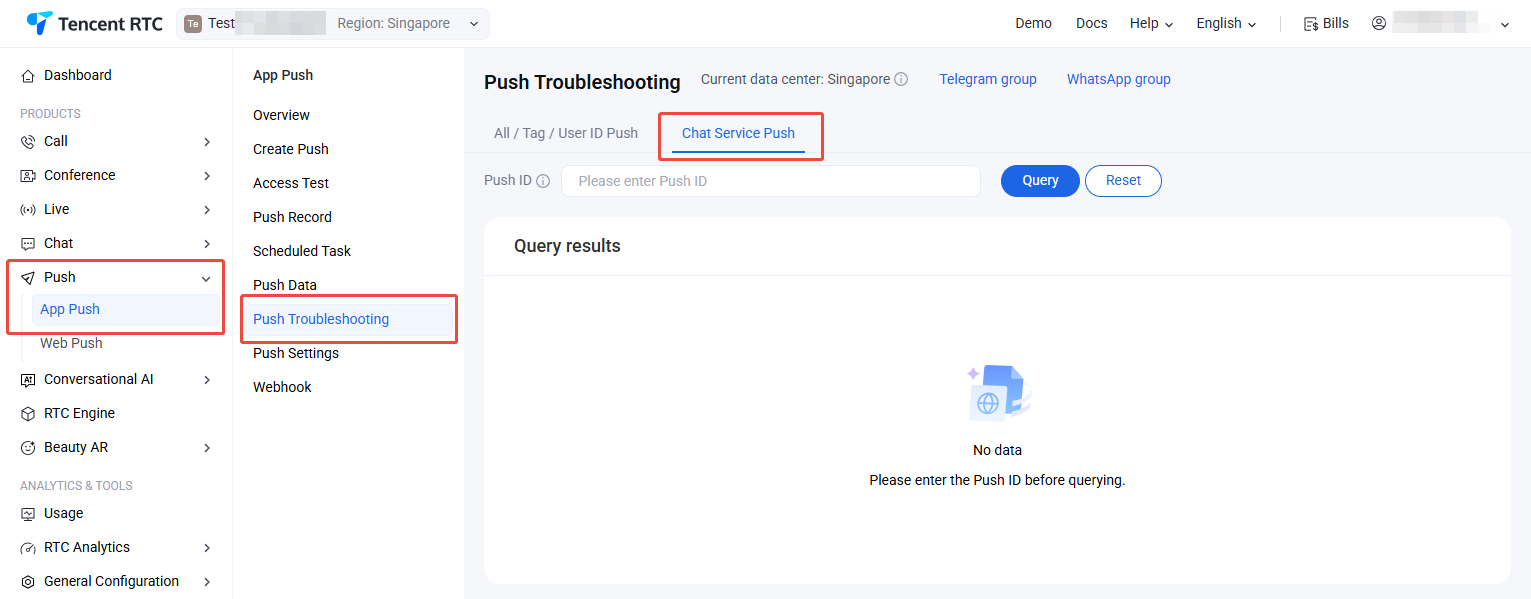
The Regular Push Troubleshooting Tool is primarily for developer users to troubleshoot specific push notification reception issues. By finding the push record and copying the unique Push ID of that push, one can query the detailed push notification link details of that push.

Query Fields

Push ID: The unique ID used to identify a regular push, which can be found in the push records. It is required.

Query Result

Basic Information: The basic information of the current device at the time of push delivery, including model, operating system, SDK, and Plugin Version Number, etc.
Device Status: The push's notification bar switch status and the device's token binding status at the time of dispatch.
Push Status: The end-to-end information for the push delivery, including the entire link from Chat server > Manufacturer Server > Terminal Device > User Click.


All-staff/Tag Push

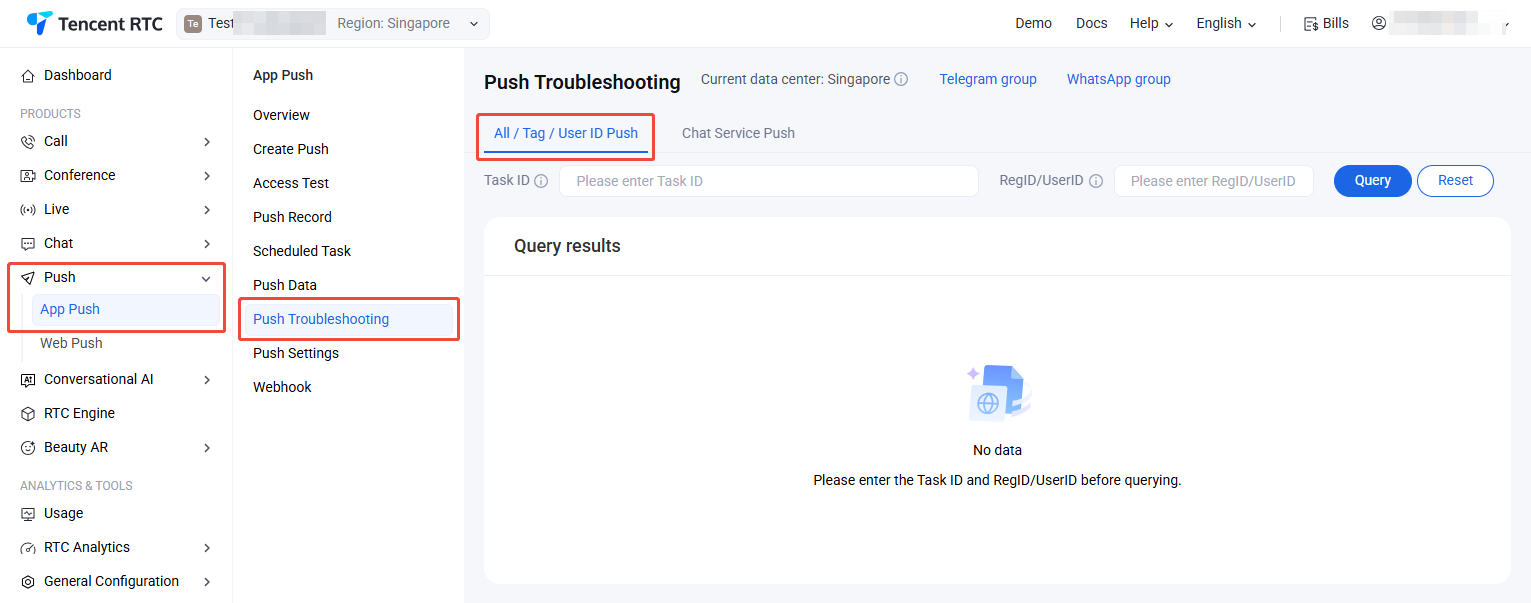
The All-staff/Tag Push Troubleshooting Tool is primarily for administrator users to investigate the reception status of a specific user in an All-staff/Tag push. By finding the push record and copying the unique Task ID of that push, and entering the recipient's UserID, one can query the detailed push notification link details for that UserID.

Query Fields

Task ID: The unique ID used to identify an All-staff/Tag push, which can be found in the push records. It is required.
UserID: A user ID for whom the All-staff/Tag push is intended, also the recipient of the push. It is required.

Query Result

Basic Information: At the time of push delivery for the specified UserID, the basic information of the current device includes model, operating system, SDK, and plugin version number, etc.
Device Status: At the time of push delivery for the specified UserID, the device's notification bar switch status, as well as the device's token binding status.
Push Status: The end-to-end information of the push delivered to the specified UserID, including the entire link situation from Chat server > Manufacturer Server > Terminal Device > User Click.


Help and Support

Was this page helpful?

Help us improve! Rate your documentation experience in 5 mins.

Feedback