CFW provides a cluster mode VPC border toggle feature. On the VPC firewall page, it can automatically detect your CCN instances and configure the corresponding Firewall Toggle for you.
You can log in to CFW console, in the left sidebar, choose Firewall Toggle > VPC Firewall (Cluster), to configure the cluster mode VPC Firewall.
Access Impact
When the VPC Firewall is accessed, a 1-2 second network jitter may occur when routes take effect due to dynamic route publishing for traffic steering. During this period, cross-VPC or intra-VPC CVM communication will not be interrupted, with users only perceiving brief latency fluctuations.
Note:
This network jitter is a normal technical phenomenon during route publishing. It is recommended to perform the Firewall Toggle enabling operation during off-peak business hours and verify the automatic reconnection capability of critical services in advance.
Firewall Toggle
1. Log in to the CFW Console, choose Firewall Toggle > VPC Firewall (Cluster) in the left sidebar.
2. On the VPC Firewall page, locate the CCN instances requiring protection in the Protection Objects column and enable the Firewall Toggle.
Note:
Enabling protection for each CCN instance consumes 1 general instance quota. Make sure sufficient quota is available before enabling.
3. In the pop-up window, select the access mode:
Automatic access: CFW automatically coordinates with CCN to configure policy-based routing tables according to your configured VPC traffic steering policy.
Manual access: In manual access mode, you need to manually configure traffic steering on the CCN console.
Note:
The automatic access mode relies on the policy-based routing feature of CCN. This feature is currently in public beta and is unavailable by default. To try this feature, submit a ticket to CFW.
5. In the instance list, you can perform operations such as disabling and editing on protected CCN instances.
Note:
After the Firewall Toggle is disabled, relevant network assets (such as VPCs and subnets) used by the current CCN-type instance to access the firewall will be automatically cleared.
If the protected object's access mode is Manual access, you must manually disassociate the CCN instance from the CFW console before disabling the Firewall Toggle. Otherwise, directly disabling the toggle may cause network interruption. For detailed steps, see Disassociating a CCN Instance from CFW (Multiple Routing Tables).
Spec Adjustment
On the VPC Firewall (Cluster) page, click Scale-out to redirect to the purchase page where you can scale parameters such as bandwidth and log storage capacity.
In cluster mode, all CCN instances with the toggle enabled share the VPC firewall bandwidth, so you don't need to adjust settings for individual instances.
Synchronizing Assets
The interval for the backend's scheduled polling of user asset information is 5 minutes. Therefore, when the scale of user assets changes within this interval but has not yet been synchronized by the backend, you can click Sync assets above the list to promptly call the backend interface to re-read and synchronize the user's asset information and data.
If newly added assets do not appear in the Firewall Toggle list, you can click Sync assets above the list to attempt synchronization.
Transparent Mode
On the VPC Firewall (Cluster) page, click More, and select Enable transparent mode from the dropdown. In transparent mode, the current firewall instance only forwards network traffic, and related Access Control or Intrusion Defense features will not take effect. This mode is recommended for debugging purposes and takes effect within approximately 1 minute after enabling. Please manually disable transparent mode after debugging. If further assistance is needed, submit a ticket.
Firewall Status Monitoring
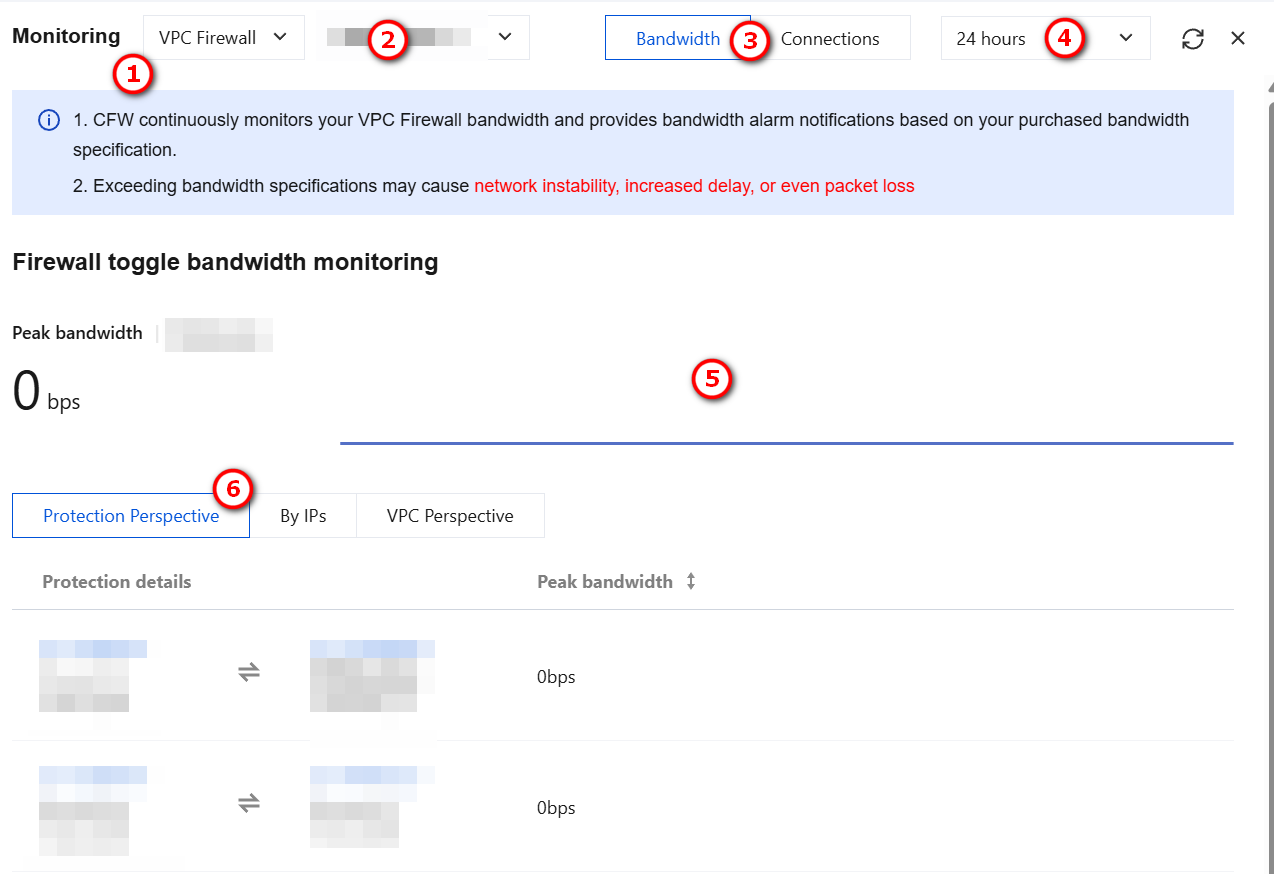
VPC Firewall status monitoring supports statistics on the bandwidth of each CCN instance.
1. In the upper-right corner of the bandwidth configuration panel, click View Monitoring.
2. On the Status Monitoring - ①VPC Firewall page, you can filter the dimension for bandwidth monitoring by ②CCN instance name, or choose to ③switch to connections. By selecting a ④time range, you can modify the statistical dimension. You can view the ⑤monitoring curve and examine ⑥monitoring data from different perspectives.
Note:
Due to differences in statistical models and collection frequencies, there may be normal deviations between monitoring data and the Observability Platform.
Differences Between Primary/Secondary Mode and Cluster Mode
For differences between the primary/secondary mode and cluster mode editions of VPC Firewall, see the following table.