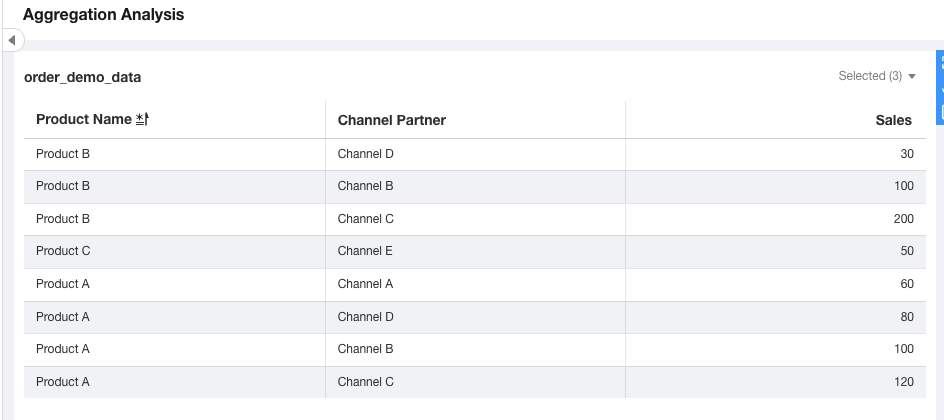
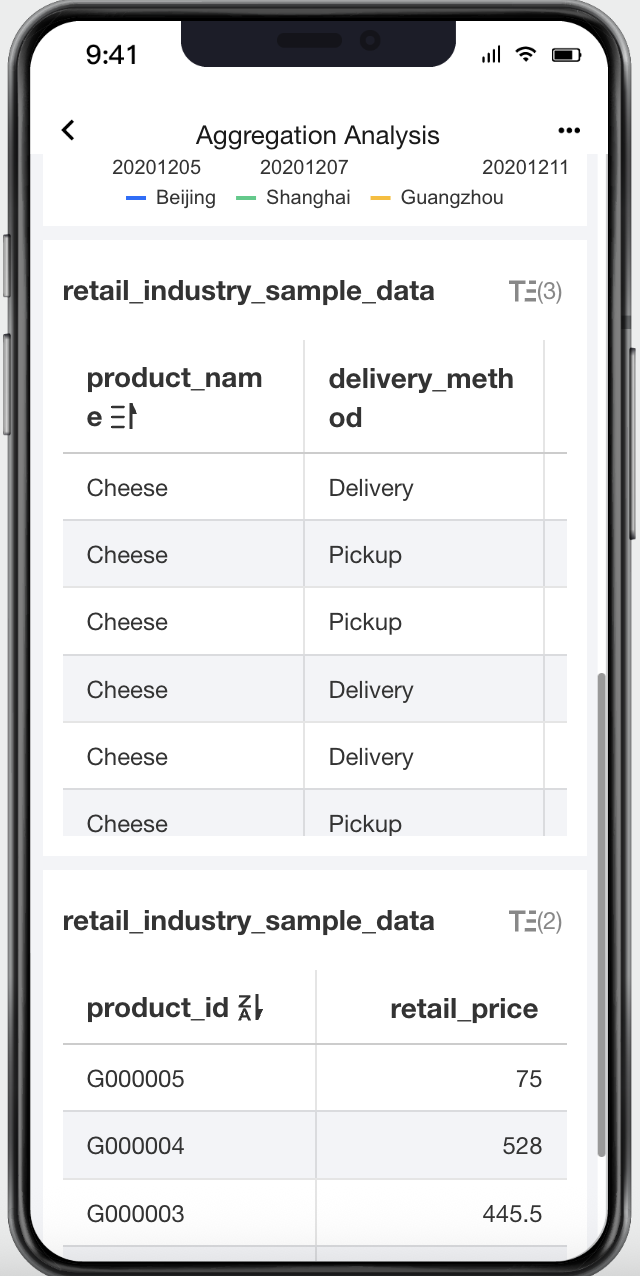
During data analysis, sorting on the editing side determines the range of objects for data computing. Sorting allows you to quickly obtain a list of key information when accessing data.
The sorting feature offers editing-side sorting (sorting when generating reports) and browsing-side sorting (sorting when users access data). The support for sorting varies slightly between different components.
This document introduces the following operations:
No Sorting
Sorting in Ascending/Descending Order
Sorting by Other Fields
Custom Sorting
Global Sorting
Also, the relevant operation instructions are given:
Browsing-Side Sorting Instructions
Mobile-Side Sorting Instructions
Usage Instructions for Different Components
Sample base table data:
Product Name | channel partner | sales |
Product A | Channel A | 60 |
Product A | Channel B | 100 |
Product B | Channel C | 200 |
Product A | Channel C | 120 |
Product B | Channel B | 100 |
Product C | Channel E | 50 |
Product B | Channel D | 30 |
Product A | Channel D | 80 |
* In the following examples, details tables are used. Other components vary slightly. For details, see "Usage Instructions for Different Components".
No Sorting
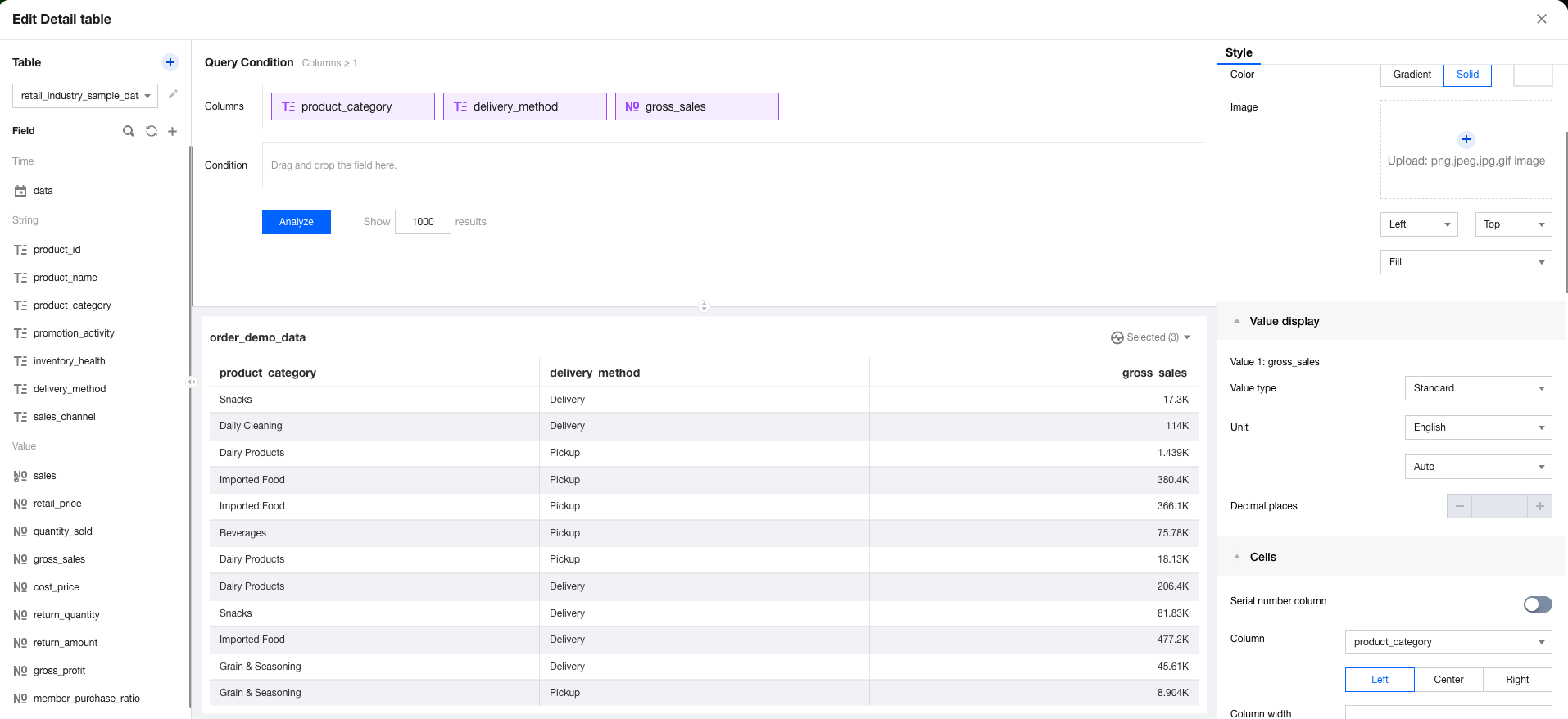
Selecting no sorting means that the sorting rule follows the natural sorting order of the database. By default, all fields are set to "no sorting".
Sorting in Ascending/Descending Order
Use ascending and descending ORDER to quickly sort the current field, such as in the sample table. Dimensional sorting is equivalent to ORDER BY dimension in sql.
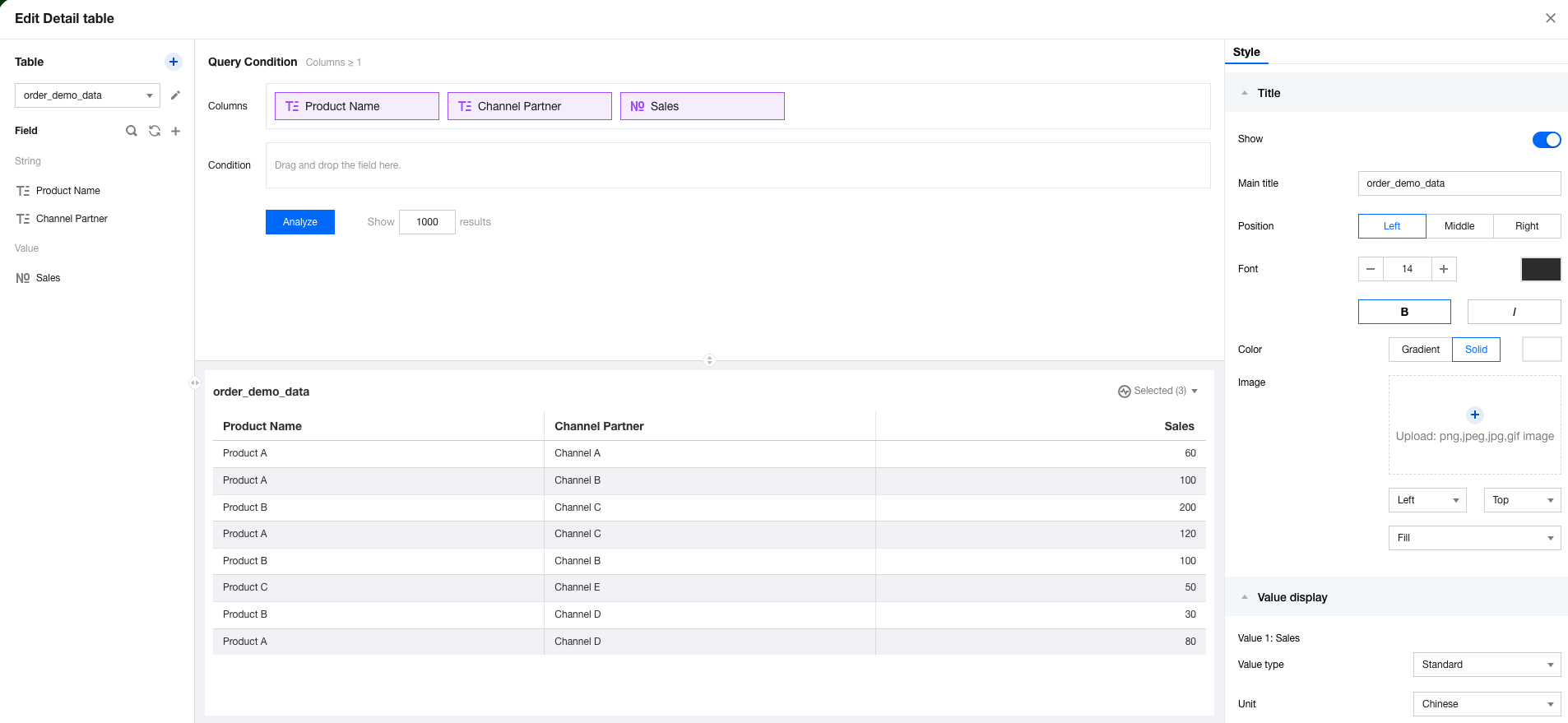
1. Create a details table, reference the data table, and set the data column information.
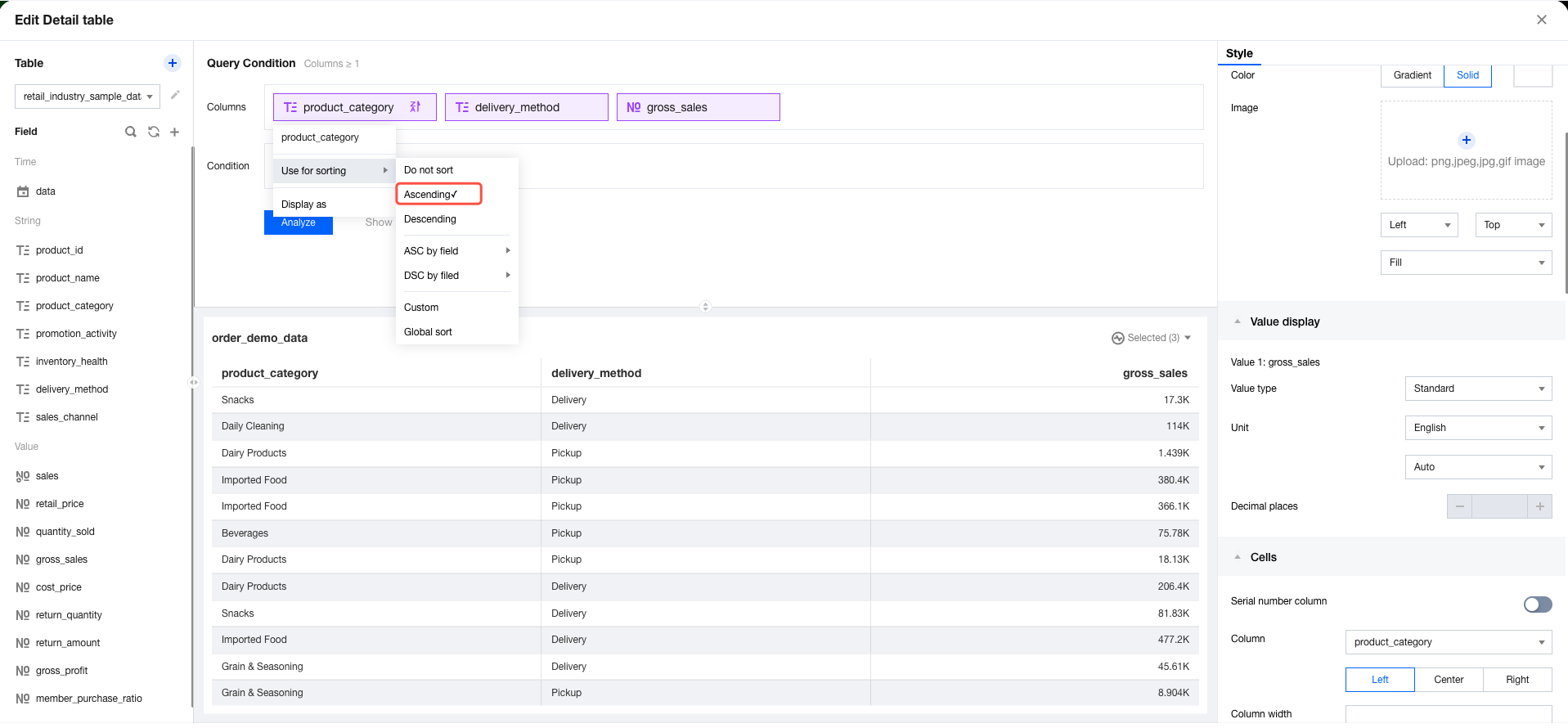
2. Select "Sort" and then "Ascending" in this field.
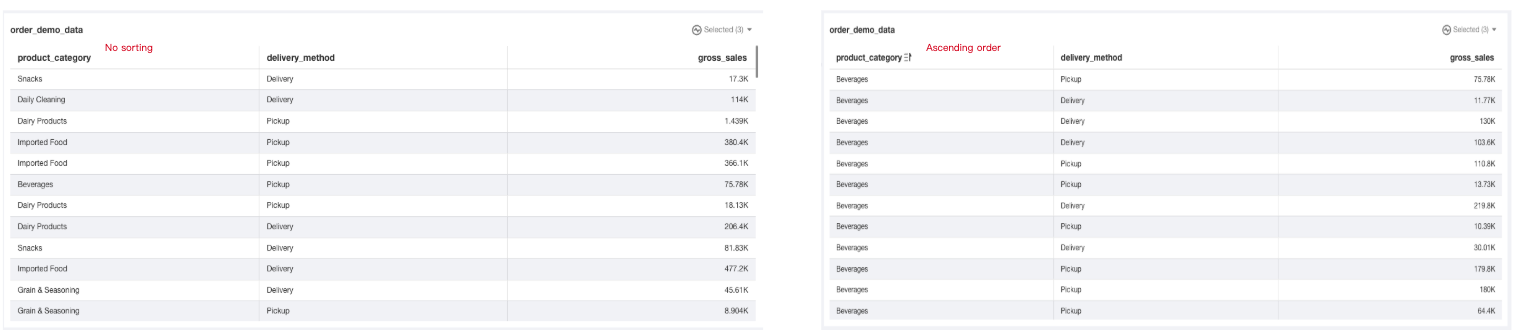
3. View the results. The data has been sorted by dimension value in ascending order (with text sorted by ASCII code).
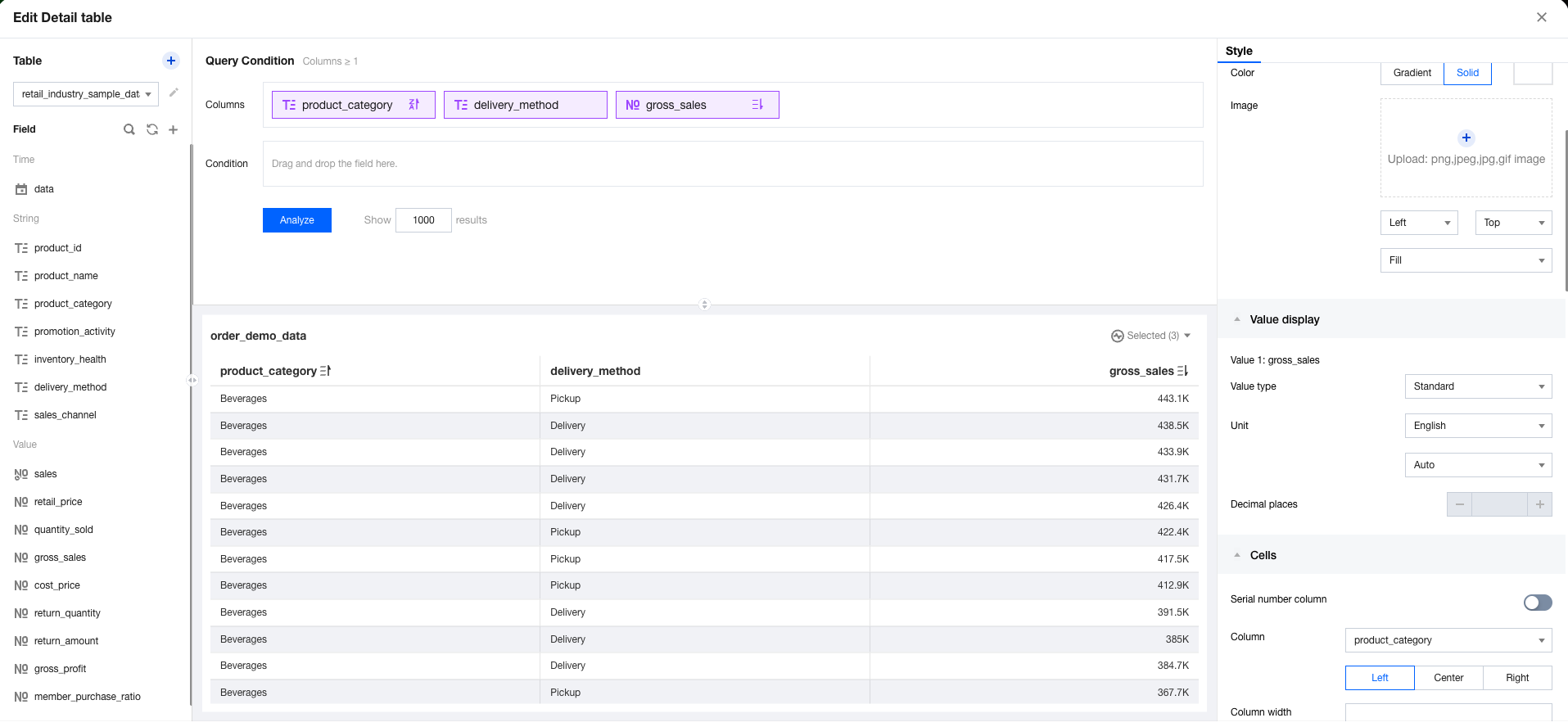
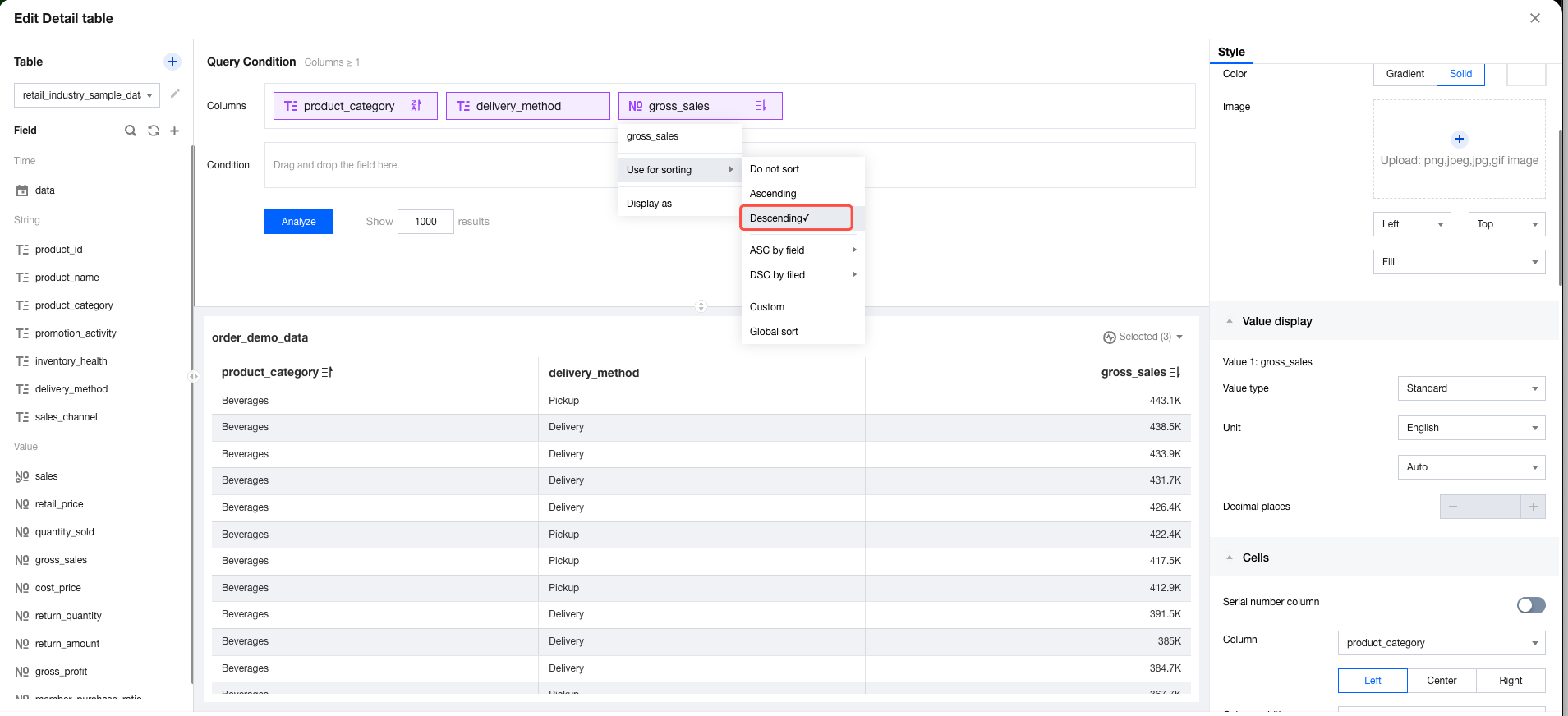
4. To identify high-performing metrics, sort the data by metrics in descending order by selecting "Sort" and then "Descending" in the numerical field.
5. View the results. The data has been sorted by numeric value in descending order.
Note:
During actual query execution, sorting is converted to "ORDER BY" execution. Therefore, different sorting may result in inconsistent query results.
Sorting by Other Fields
Sorting by field mainly has 2 use cases:
Sort multiple dimension fields by a single metric: For example, sort the dimension by numerical metric in descending order and sort its sub-dimension by numerical metric in ascending order.
The displayed sorting fields are not suitable for sorting by themselves: For example, sorting text months by themselves may result in April appearing before January. In this case, you can add a calculation field to map "English month" and "numeric month" (such as mapping April to 4), then sort "English month" by "numeric month" in ascending order to finally obtain the appropriate order.
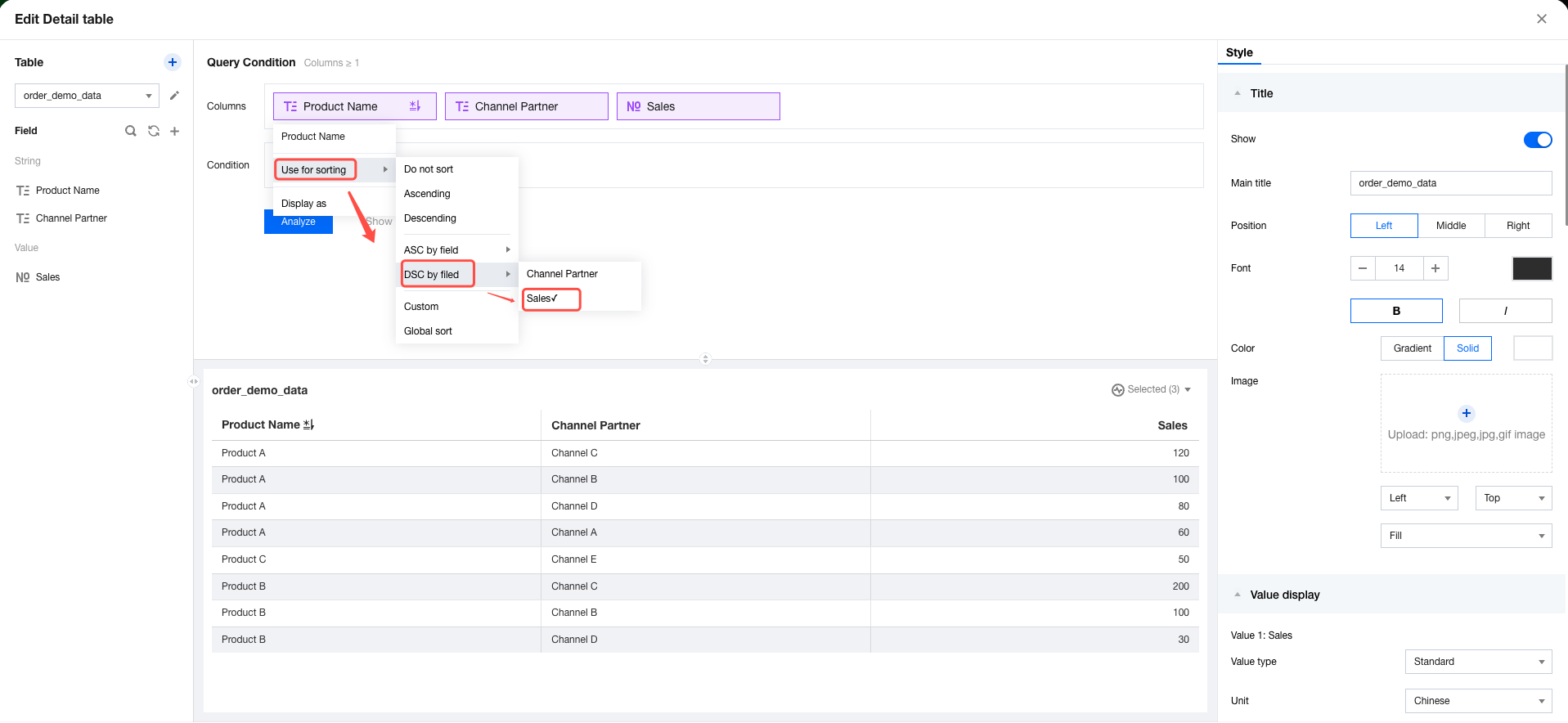
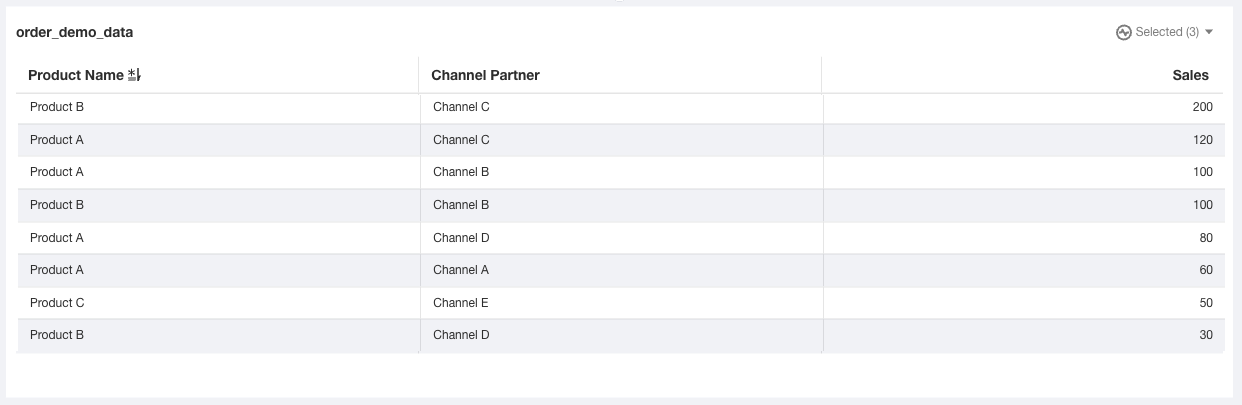
1. Create a details table, reference the sample base table, and set the data column information. 2. Select "Sort" > "Sort by Field in Descending Order" > "Sales" sequentially on the dimension field. 3. View the result. The dimension column is sorted in descending order by the numerical metric (at this point, the effect is equivalent to only descending order of the numerical metric). Custom Sorting
For dimension fields, you can enforce sorting for dimension values, such as Monday to Sunday. In actual scenarios, to sort data from Monday to Sunday, you can perform custom sorting.
Assuming we need to forcibly display a dimension in a custom sequence, below is the display operation process:
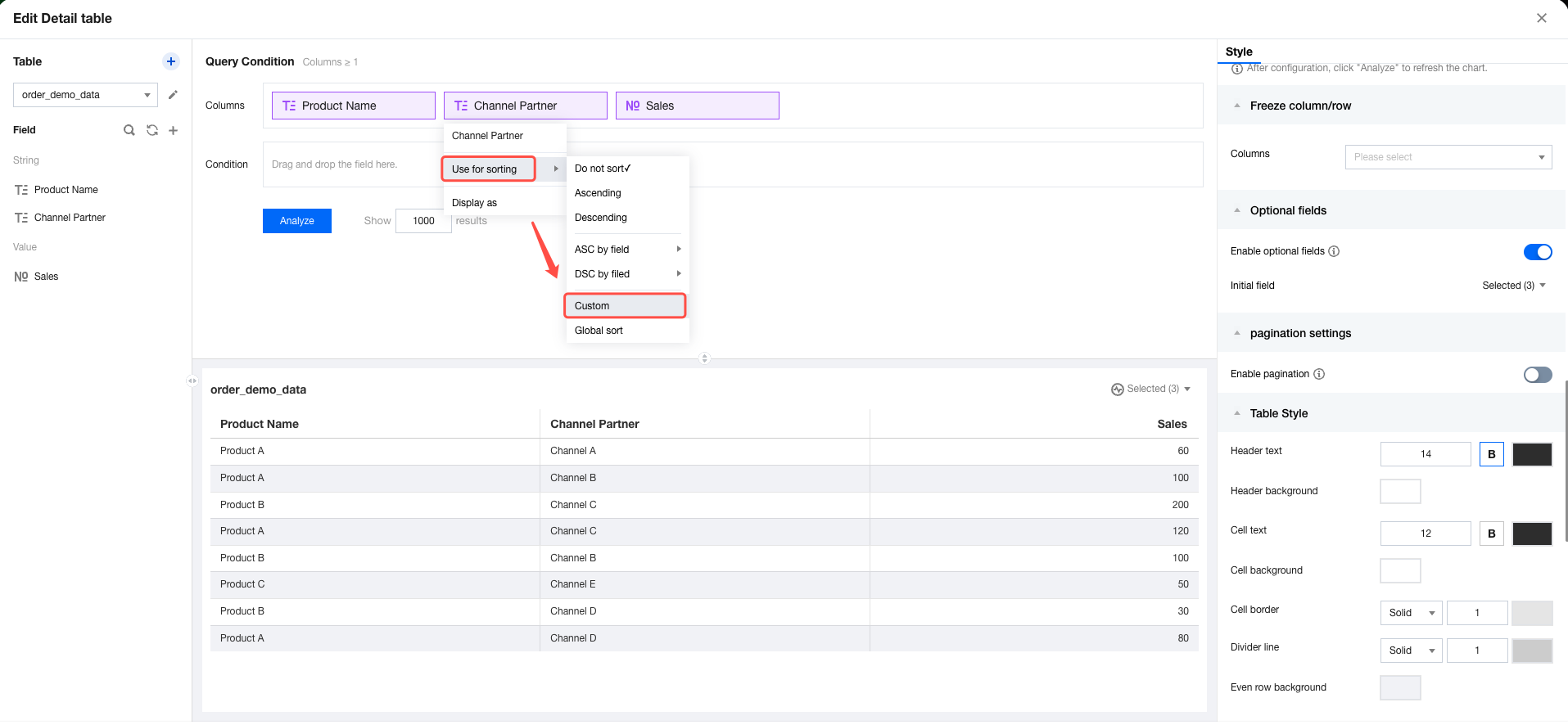
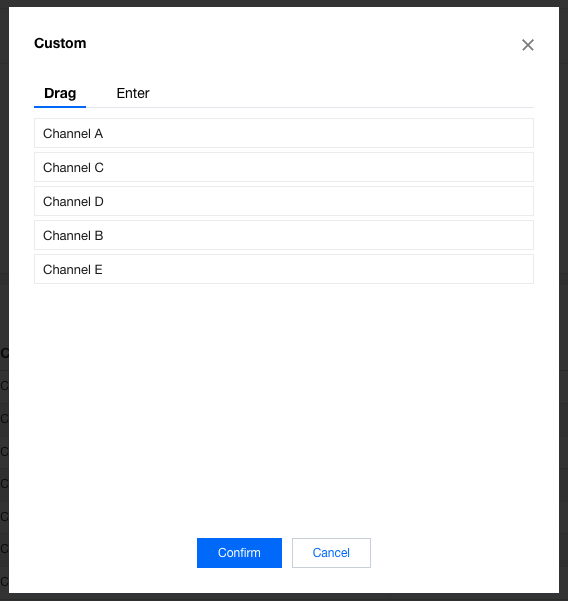
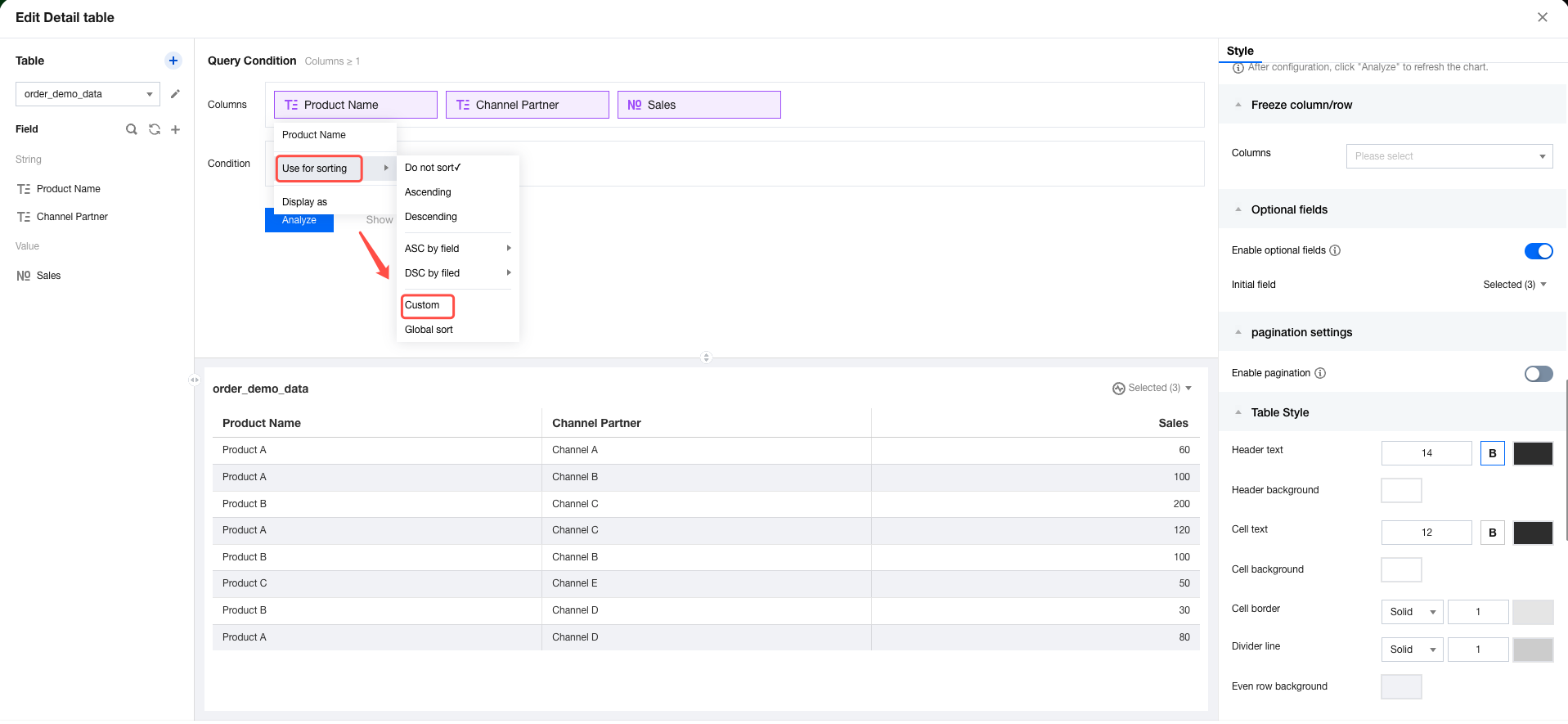
1. Edit the component. Select "Sort" > "Custom Sorting" sequentially on the dimension field. 2. In the pop-up layer for custom sorting settings, you can drag and drop dimension values to sort them.
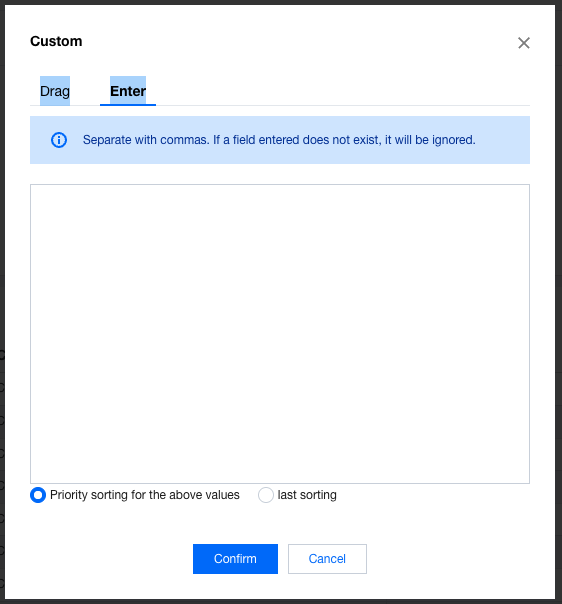
3. When you have a large amount of data, sorting through drag-and-drop operations is inconvenient. In this case, you can use input sorting by directly entering text to sort. During input sorting, you do not need to enter all dimension values. Values that are not entered will follow natural sorting.
To display the entered values first and then display the remaining values in natural sorting (no sorting), you can select "Prioritize the above values".
To display the remaining values in natural sorting (no sorting) first and then display the entered values, you can select "Prioritize the above values last".
During input sorting, if you enter non-existing dimension values, you can still submit them, as the submitted dimension values may exist in other scenarios or be generated in future records.
During input sorting, you can drag and drop up to 1000 record entries for sorting.
The time field does not support custom sorting.
Global Sorting
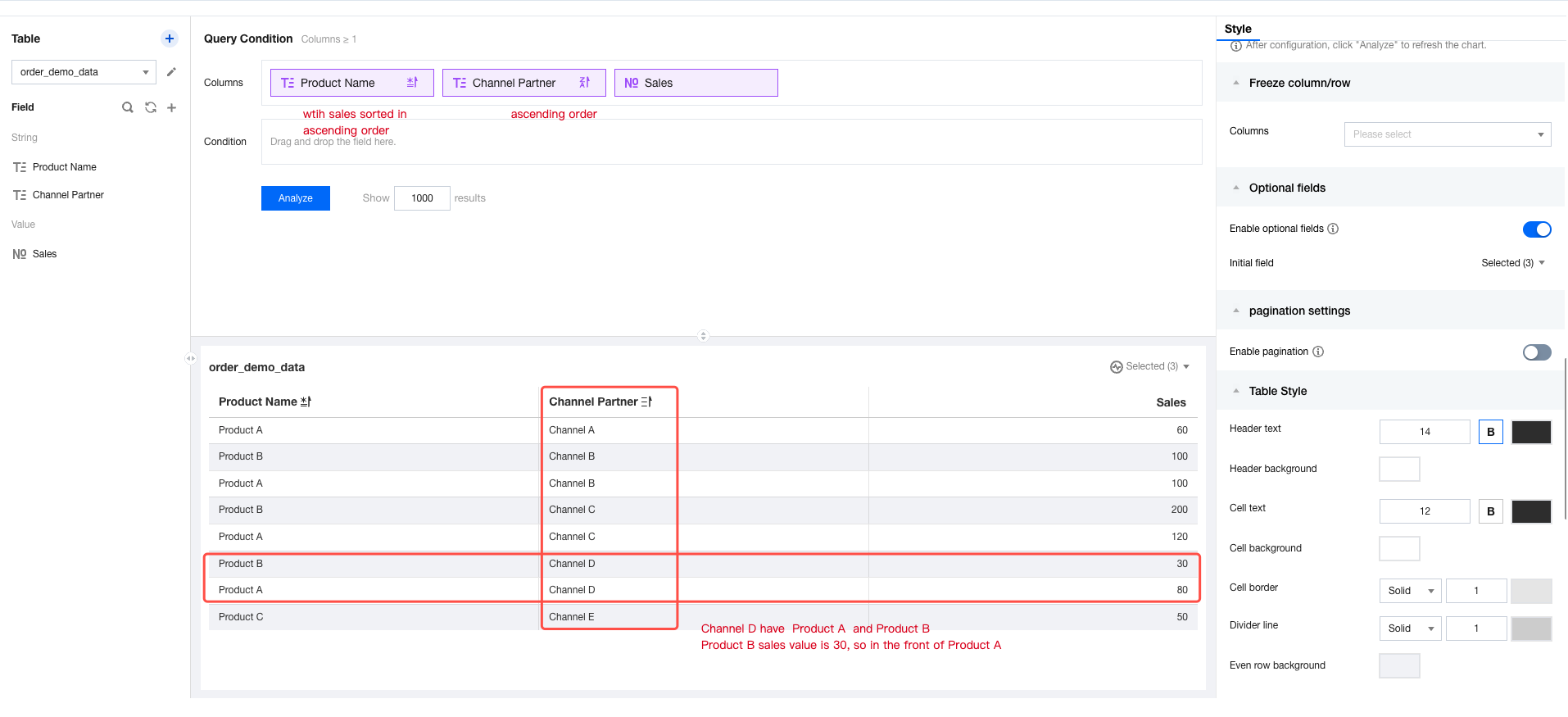
When multiple dimension fields exist, the default sorting priority is determined by their position order. For example, if sorting is set for all fields, the first dimension takes precedence. If the dimension values are identical, then sorting by subsequent fields is performed, and so on.
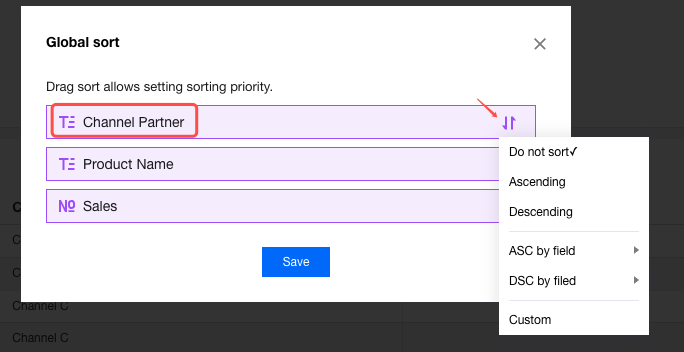
In another scenario, for the same table, we want to give priority to sorting by the specified dimension and then by other dimensions. This sorting order is inconsistent with the position order of the fields. In this case, you need to use the global sorting feature. Global sorting determines the priority of sorting fields.
1. Edit the component. Select "Sort" and then "Global Sort" sequentially in any field. 2. Drag and drop the sorting fields to adjust their priority (you can also reset the field sorting rule here). 3. We see that a field is prioritized for sorting first, followed by other fields, with numerical metrics sorted in ascending order. The final effect is as follows: Browsing-Side Sorting Instructions
After completing the initial sorting on the editing side, visitors can also sort the data on the browsing side as required.
The browsing side here refers to accessing the data dashboard, share page, or embedded page (the mobile side is excluded here due to its particularity and will be explained separately later).
The following uses accessing the data dashboard as an example to explain the operations:
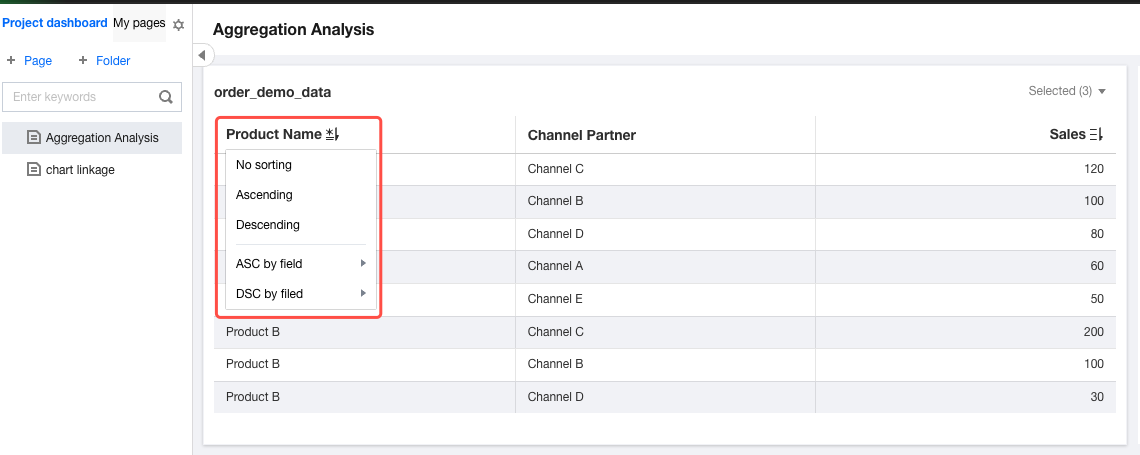
1. Go to the console, then Project, and then Data dashboard. Access a page. 2. Click the header of the table component, then select the sorting mode from the pop-up sorting options. * On the browsing side, custom sorting and global sorting are not supported. Only sorting in ascending or descending order and sorting by field are supported.
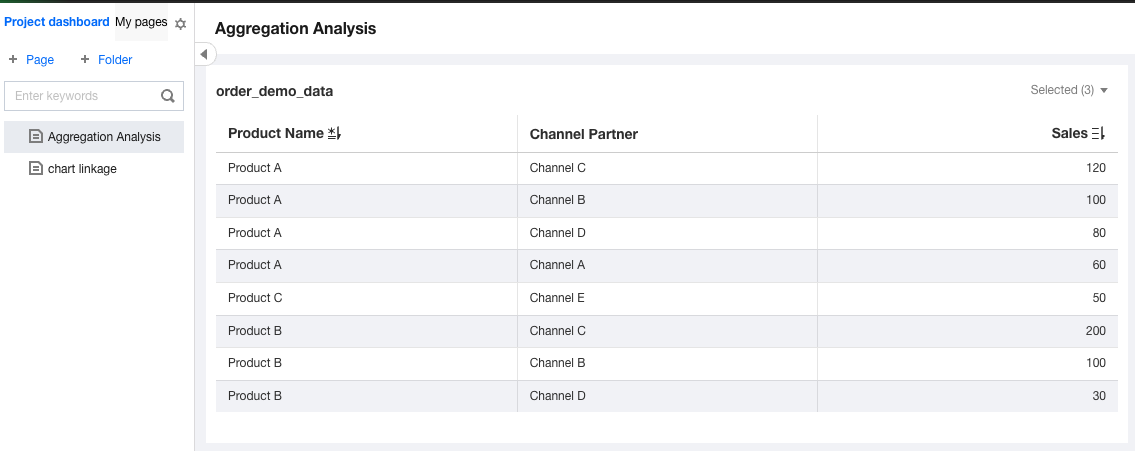
3. View the results. The sorting order on the browsing side has been adjusted accordingly. Mobile-Side Sorting Instructions
Due to its particularity, the mobile side cannot perform complex sorting. It only supports switching between no sorting, sorting in ascending order, and sorting in descending order based on the rules set on the editing side.
1. Open a report in a mobile terminal, then click the header icon in the table to switch the sorting mode.
2. Sorting switchover is only supported for the following:
Sorting in ascending order: If sorting by other fields is not set on the editing side, sorting in ascending order is to sort the current field in ascending order. If sorting by other fields (such as the "income" field) is set, sorting in ascending order is to sort "income" in ascending order.
Sorting in descending order: This feature is the same as sorting in ascending order. The sorting mode is sorting in descending order.
No sorting: Return to the default sorting.
Usage Instructions for Different Components
All the examples above use details tables. In fact, different components handle sorting differently (Currently, the sorting feature is only supported for tables, while support for other charts is still being developed synchronously. For related updates, stay tuned to Release Notes). Editing Side/Browsing Side/Mobile Side | Component | No Sorting | Sorting in Ascending/Descending Order | Sorting by Field in Ascending/Descending Order | Global Sorting | Custom Sorting |
Editing Side | Details table | Supported | Supported | Supported | Supported | Supported |
| Table | Supported | Supported | Supported (not supported for metrics) | Supported | Supported (not supported for metrics) |
| Crosstab | Supported | Supported | Supported (not supported for metrics) | Supported (not supported for column dimensions) | Supported (not supported for metrics) |
Browsing Side | Details table | Supported | Supported | Supported | Not supported | Not supported |
| Table | Supported | Supported | Supported (not supported for metrics) | Not supported | Not supported |
| Crosstab | Supported | Supported | Supported (not supported for metrics) | Not supported | Not supported |
Mobile Side | Details table | Supported | Supported | Supported | Not supported | Not supported |
| Table | Supported | Supported | Supported (not supported for metrics and determined by editing-side configurations) | Not supported | Not supported |
| Crosstab | Supported | Supported | Supported (not supported for metrics and determined by editing-side configurations) | Not supported | Not supported |