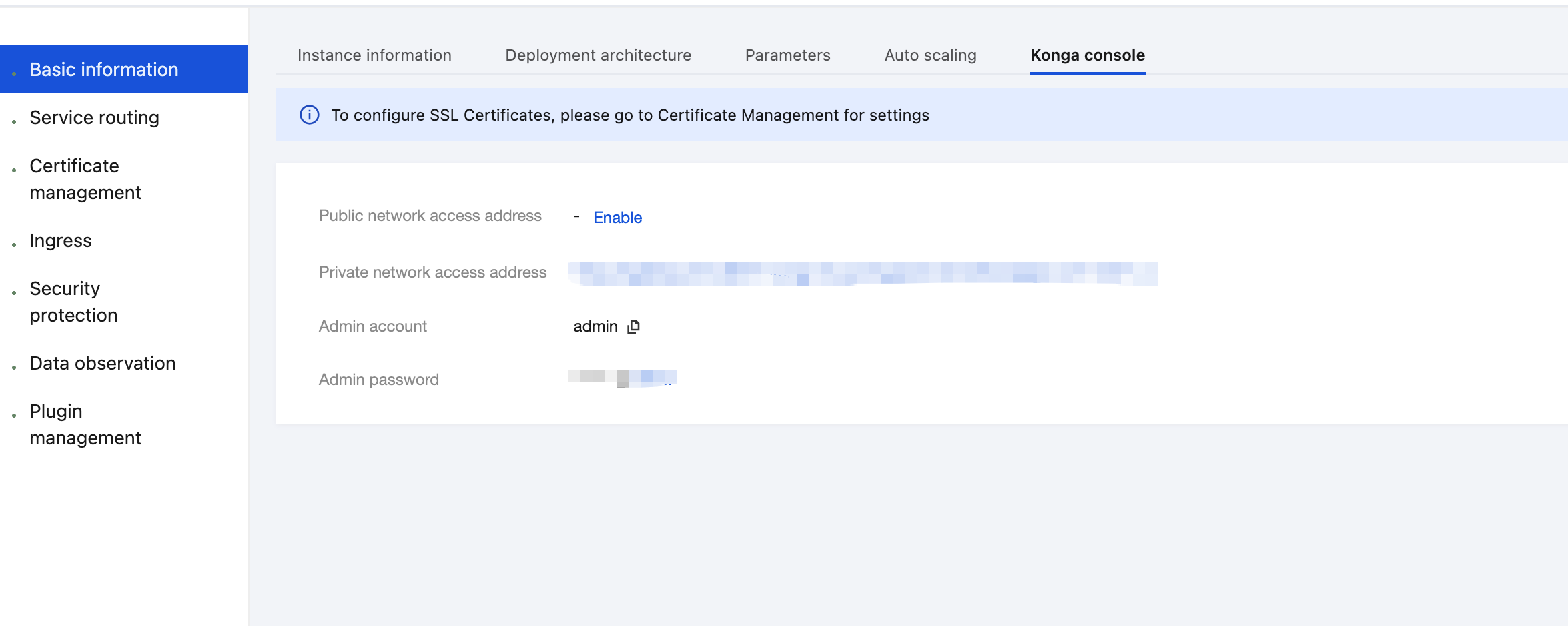
2. Select Cloud Native Gateway in the left sidebar and click the target instance to go to the instance details.
3. On the Basic Information page, click the Konga console Tag to view the management console login method.
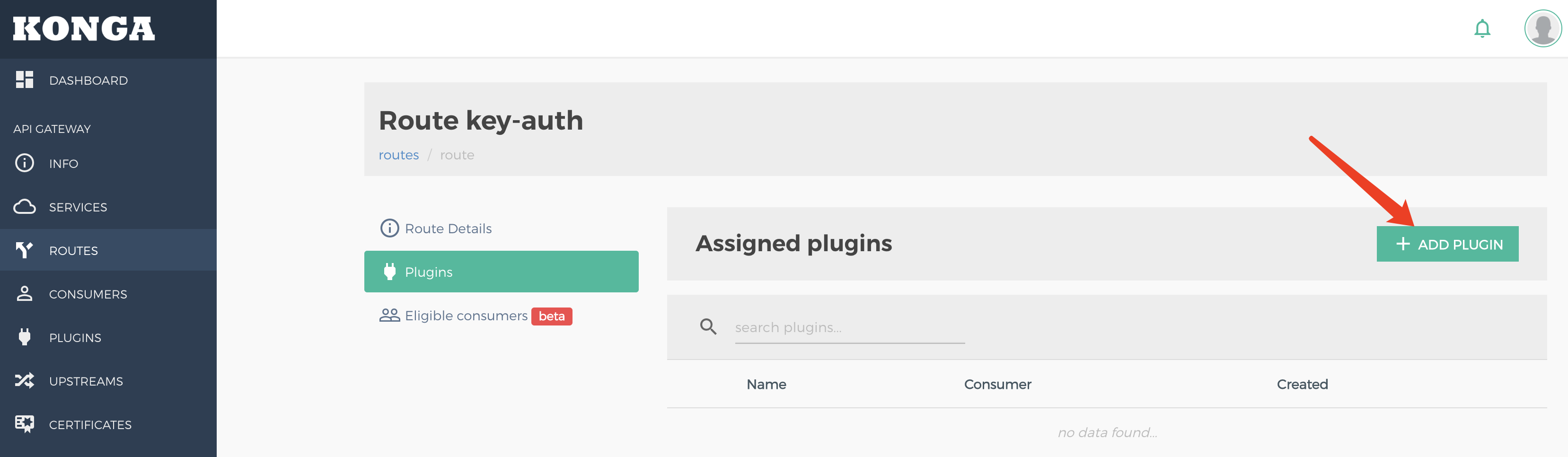
4. Log in to the Konga console, go to the details page of the route for which key authentication needs to be configured, and click ADD PLUGIN.
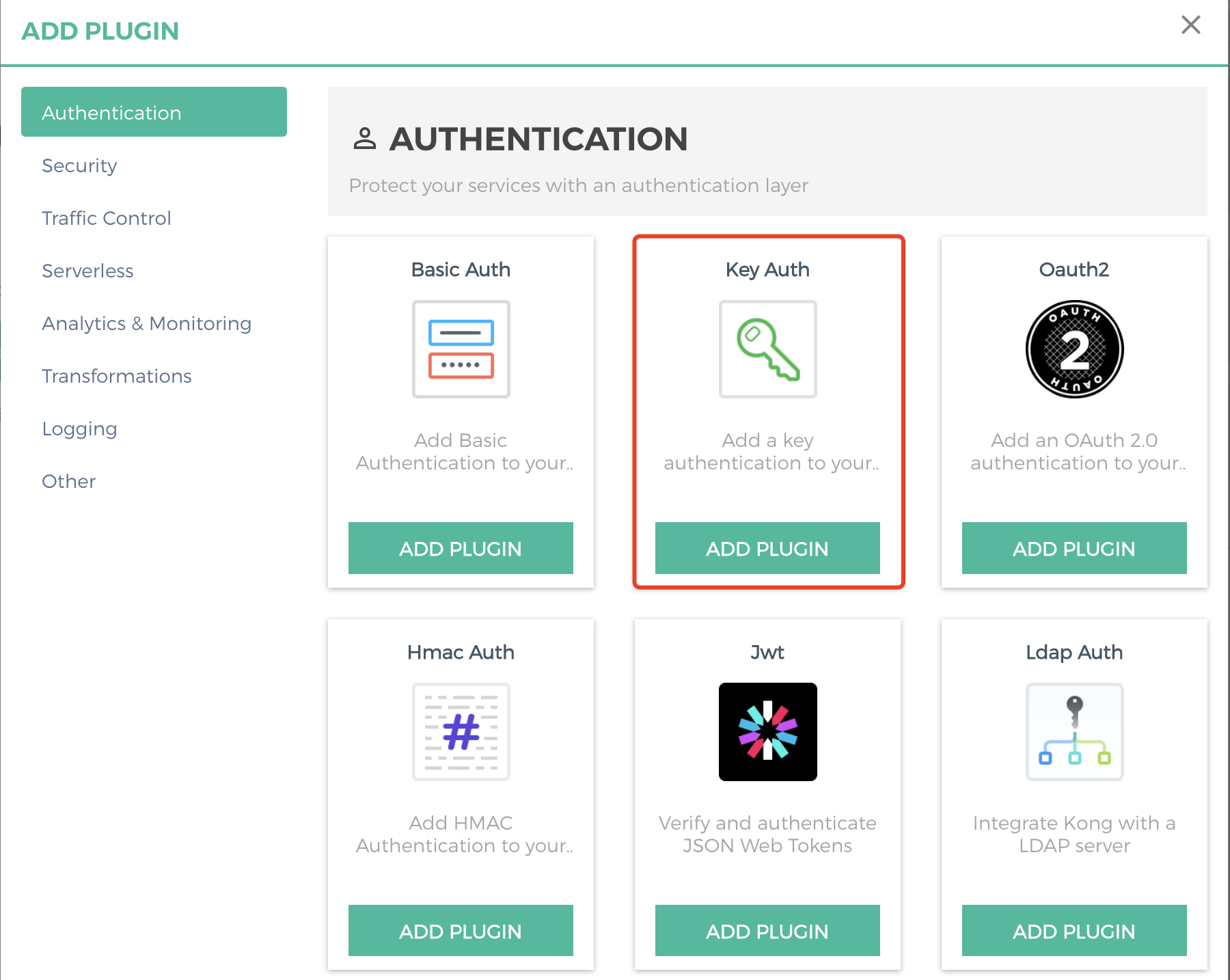
5. Select Key Auth under the Authentication group in the plugin marketplace and click ADD PLUGIN.
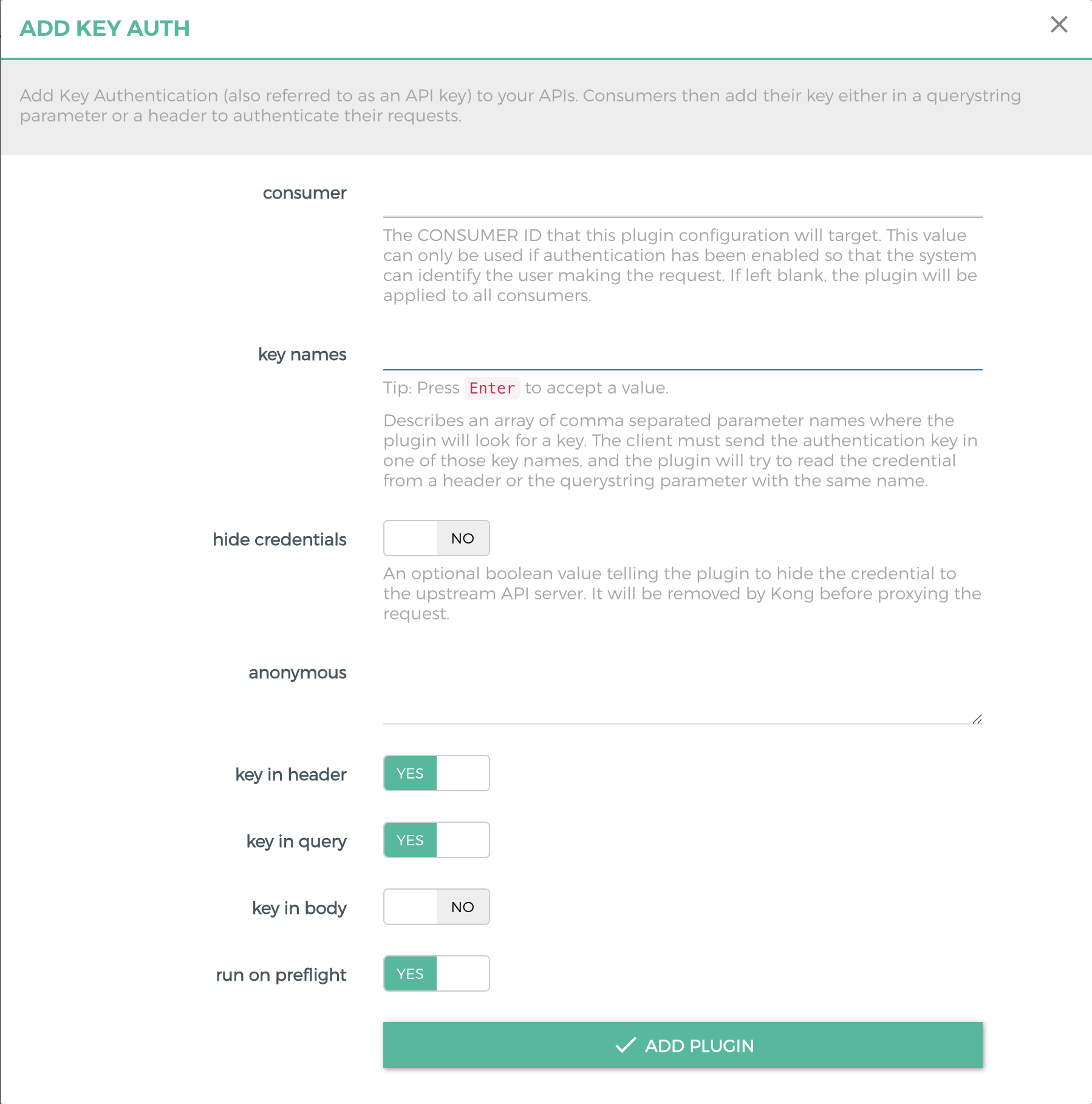
6. Set parameters of the Key Authentication plugin and save the configurations.
key names: array of parameter names (apikey by default) from which the plugin searches for a key. The client should send an identity authentication key using one of the key names. The plugin attempts to read the credential from the header or query parameters with the same name.
Note:
Key names can only contain letters (a–z and A–Z), digits (0–9), underscores (_), and hyphens (-). Underscores (_) are not allowed in key names.
hide credentials: whether to hide credentials from the upstream service.
anonymous: optional string (user uuid) used as the "anonymous" user if authentication fails. If it is empty (default), the request fails, identity authentication fails, and a 4xx response is returned. Note that this value should refer to the consumer ID field rather than the custom_id field in Cloud Native API Gateway.
key in header: If it is enabled, parameters of the key that the plugin searches for are in the header.
key in query: If it is enabled, parameters of the key that the plugin searches for are in Query.
key in body: If it is enabled, the plugin reads the request body (if the request has one and its MIME type is supported) and attempts to find the key in it. Supported MIME types are application/x-www-form-urlencoded, application/json, and multipart/form-data.
run on preflight: whether the plugin should run its logic on OPTIONS preflight requests.
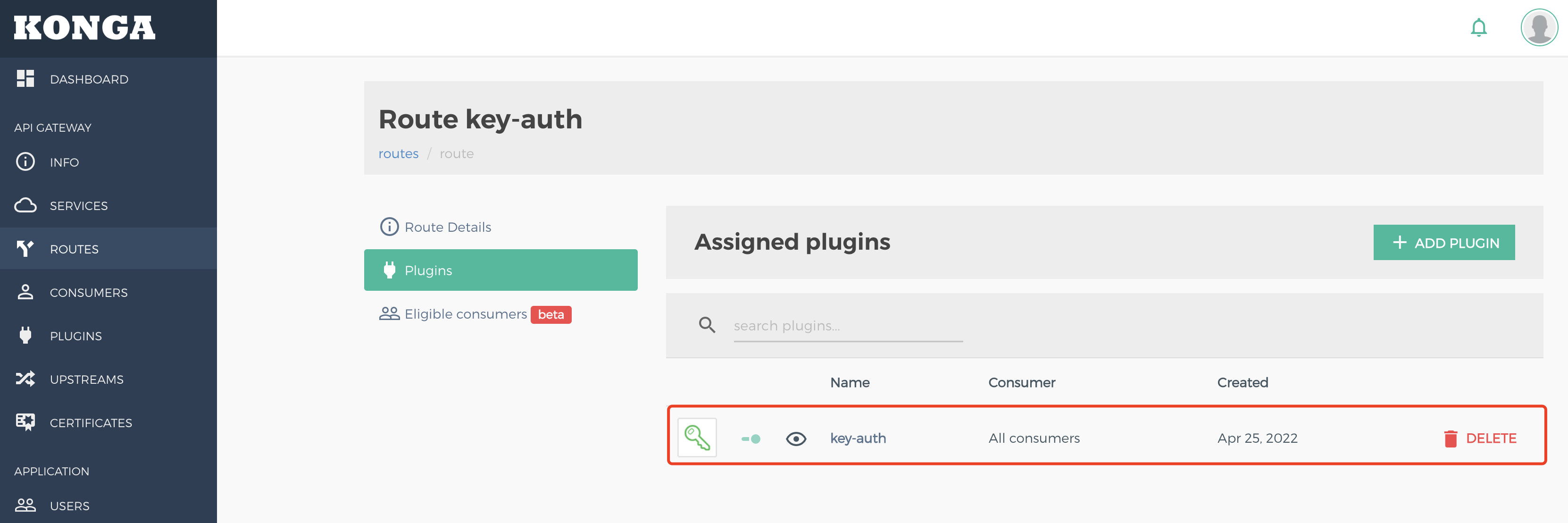
7. Return to the details page of the route, and confirm that the route is bound to the created plugin.
Step 2: Creating a Consumer
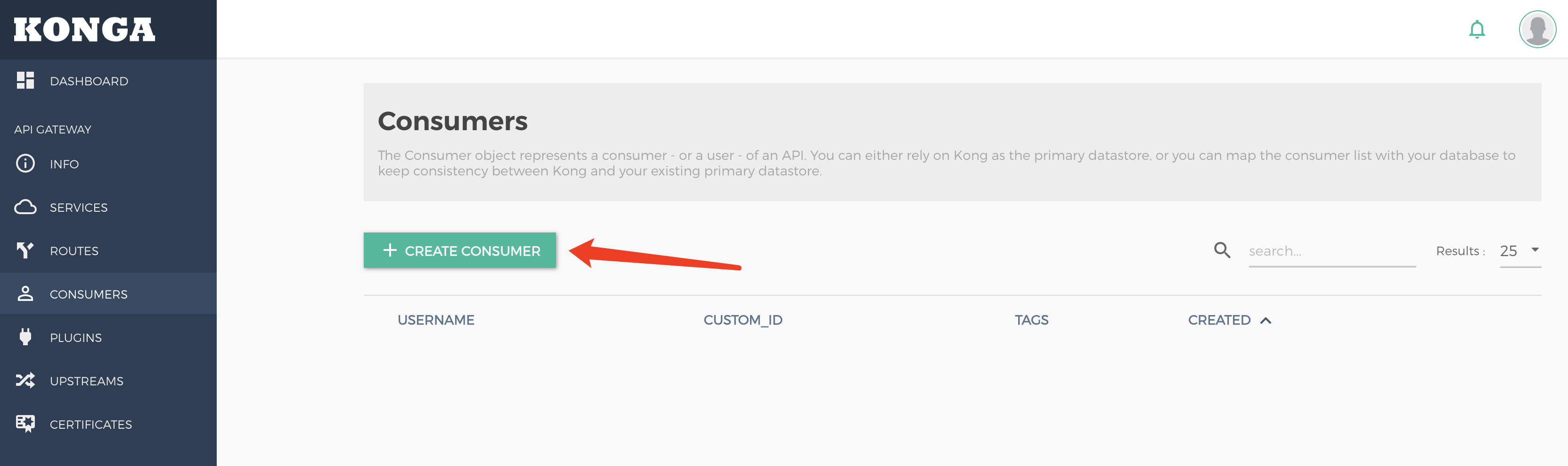
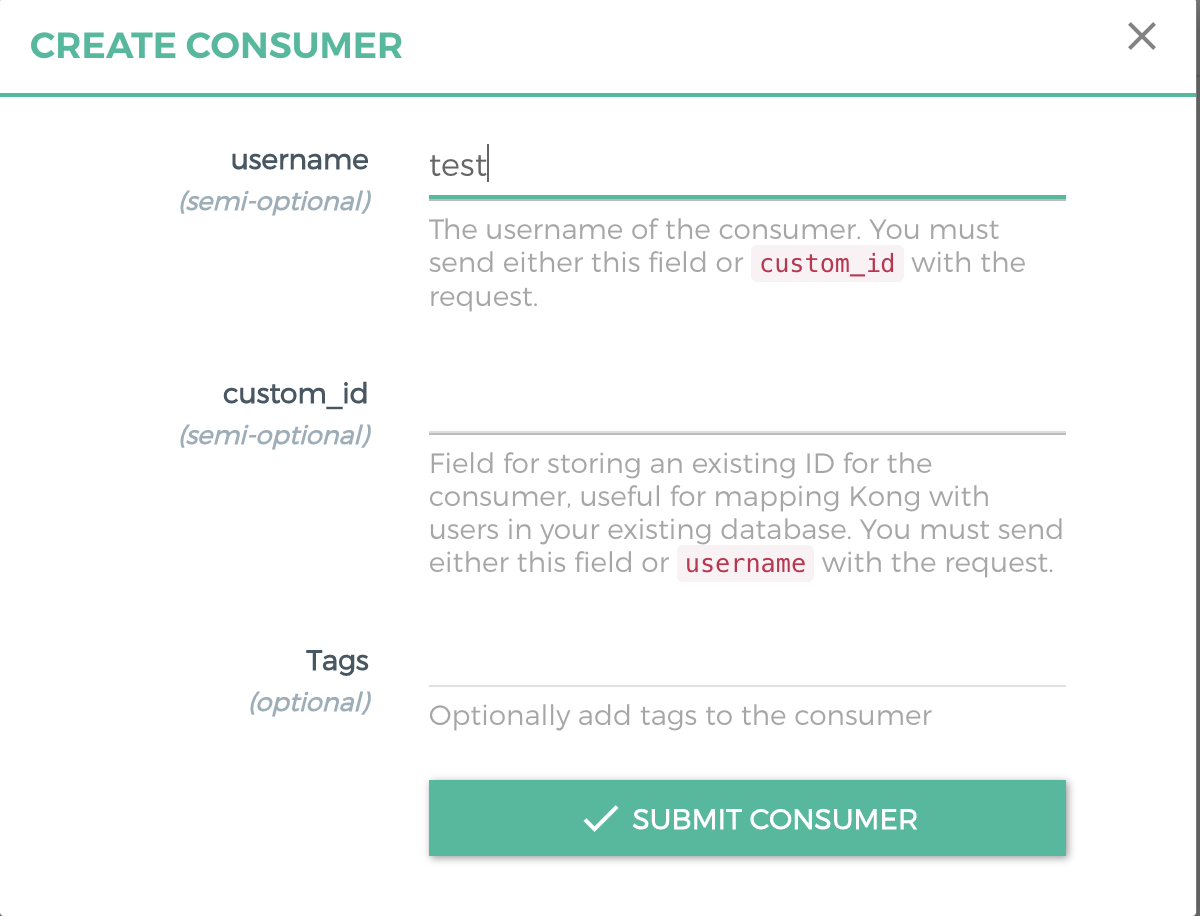
1. Go to the CONSUMERS page to create a consumer.
username: user (application) name. Either this field or custom_id should be specified.
custom_id: custom identifier used to map the user to another database. Either this field or username should be specified.
Tags: tag.
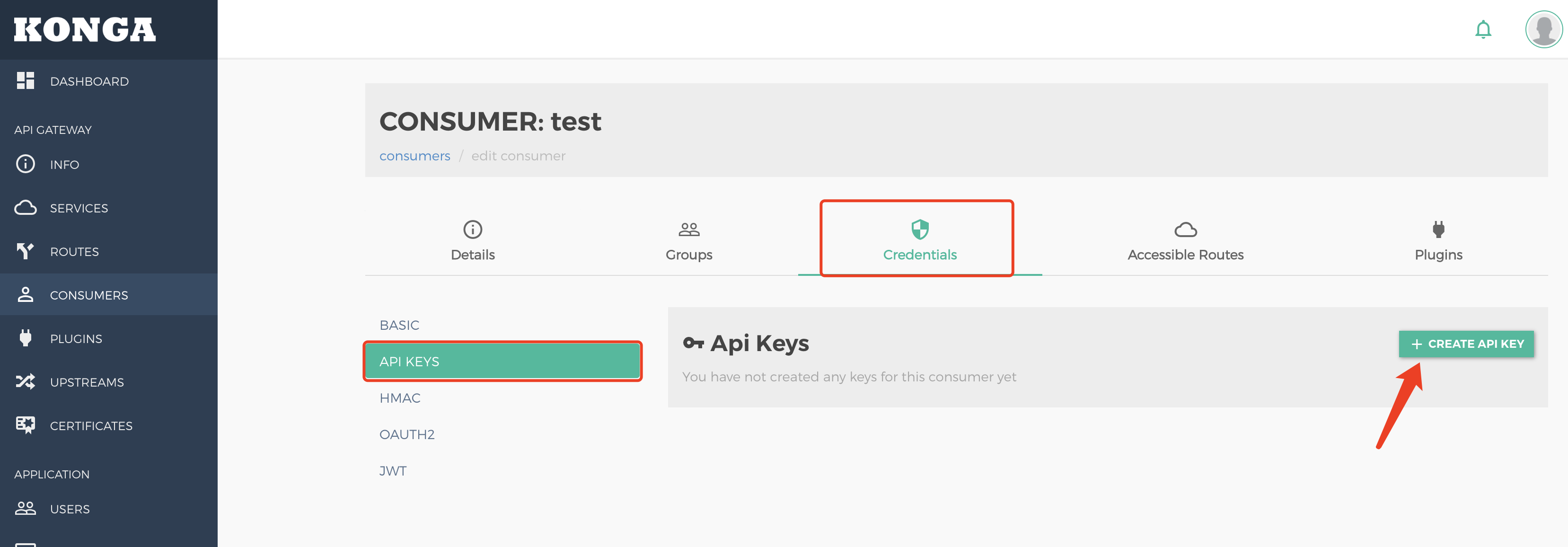
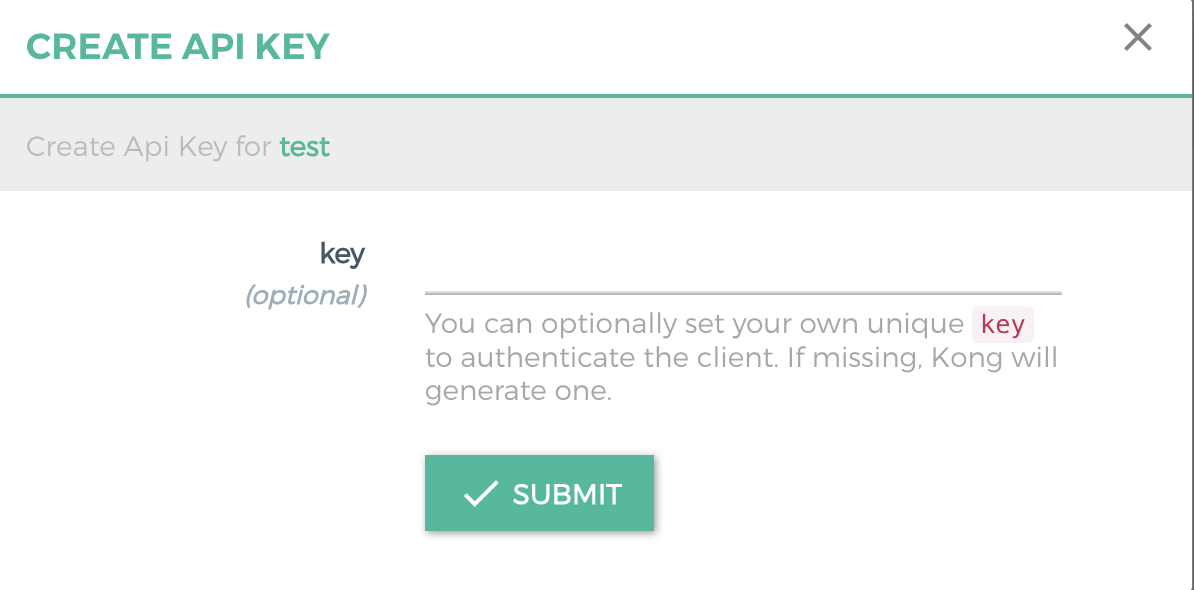
2. Create an API key credential for the consumer.
key: key value. If it is not specified, a key is generated automatically by default.
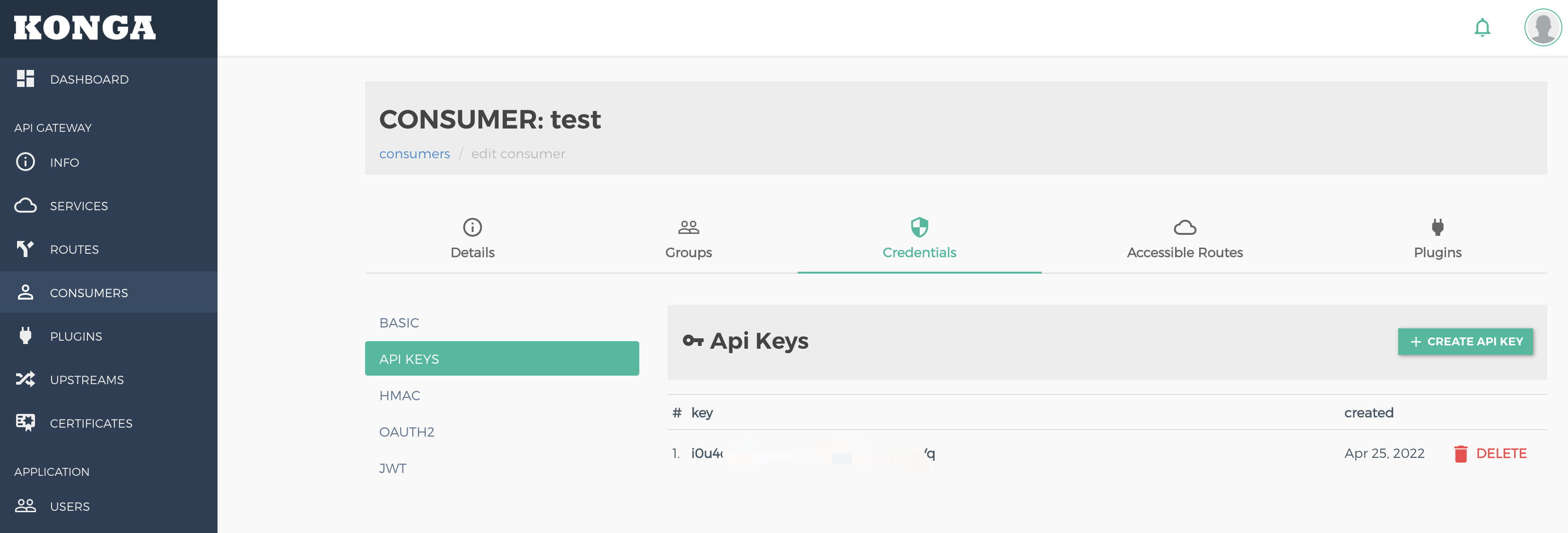
3. View the generated key.
Step 3: Initiating an API Request
1. Initiate an API request without the API key. An errorcurl http://kong:8000/{proxy path}/ is returned.
Note:
The proxy path is the request address.
HTTP/1.1 401 Unauthorized
Server:
Date: Mon, 25 Apr 202214:16:10 GMT
Content-Type: application/json;charset=utf-8
Content-Length: 45
Connection: keep-alive
WWW-Authenticate: Key realm="kong"
X-Kong-Response-Latency: 1
{
"message":"No API key found in request"
}
2. Initiate a request with the correct API key. The request is allowed. curl http://kong:8000/{proxy path}?apikey=<some_key>
Note:
The proxy path is the request address.
The API key is the key required for access.
HTTP/1.1 200 OK
Server:
Date: Mon, 25 Apr 202214:19:19 GMT
Content-Type: text/html;charset=UTF-8
Content-Length: 6
Connection: keep-alive
X-Kong-Upstream-Latency: 5
X-Kong-Proxy-Latency: 0
Via: kong/2.4.1
ok
Must-Knows
Key authentication does not support using different API keys for different consumers. For key authentication of a single user, the post function plugin also needs to be used to add the processing logic for identifying the user ID.