Enabling Multi-AZ Deployment
다운로드
포커스 모드
폰트 크기
Feature Description
TencentDB for MongoDB provides flexible management capabilities for multi-AZ deployment of instances and supports the following configuration operations:
Configuration at Creation: When creating a database instance, you can directly choose to deploy it in a specified single AZ or multiple AZs to meet different disaster recovery and network latency requirements.
Deployment Upgrade: For existing single-AZ instances, you can upgrade them to a multi-AZ deployment architecture to enhance disaster recovery capabilities without having to rebuild the instances.
Flexible AZ Adjustment: For instances already configured for multi-AZ deployment, you can flexibly adjust the AZ range of their deployment based on changes in business planning and disaster recovery policies.
Configuring Multi-AZ During Creation
1. Log in to the TencentDB for MongoDB purchase page with a Tencent Cloud account.
2. On the purchase page, to configure information such as the instance's billing mode, region, and specifications, see Create a MongoDB Instance.
3. In the AZ configuration item, select Multi-AZ Deployment to configure the distribution of nodes across multiple AZs. By default, a 3-node setup (1 primary node and 2 secondary nodes) is used. You can select the number of primary/secondary nodes as needed, choose target AZs for the instance's primary and secondary nodes respectively, and configure hidden nodes (in Hidden state) as needed. The following section describes three mainstream multi-AZ deployment schemes.
Three-AZ Deployment Scheme: Distribute the primary/secondary nodes evenly across three independent AZs (AZ1, AZ2, AZ3), deploy one voting node in each AZ, and form a 1 + 1 + 1 peer structure.
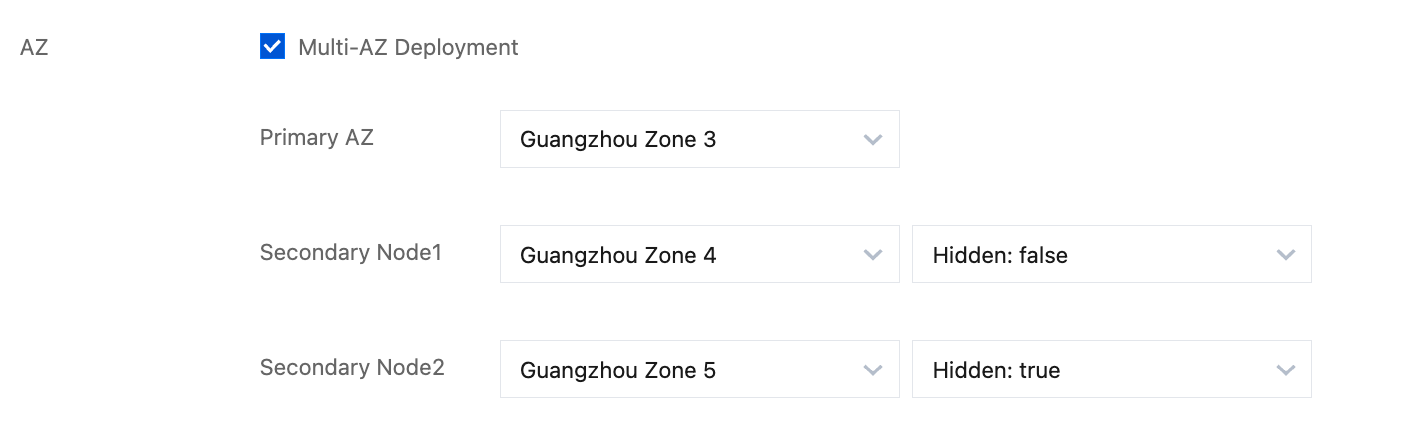
"Dual AZ + Cross-Region Hidden" (1 + 1 + 1) Scheme: The primary/secondary nodes are deployed in two AZs of the business region, and the Hidden node is deployed in another nearby region.
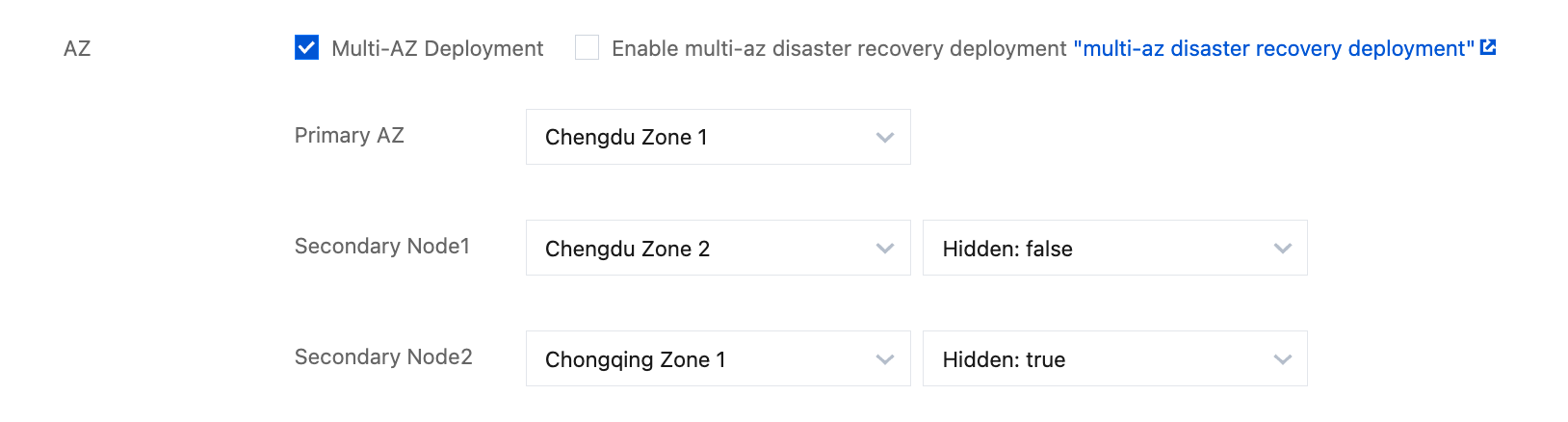
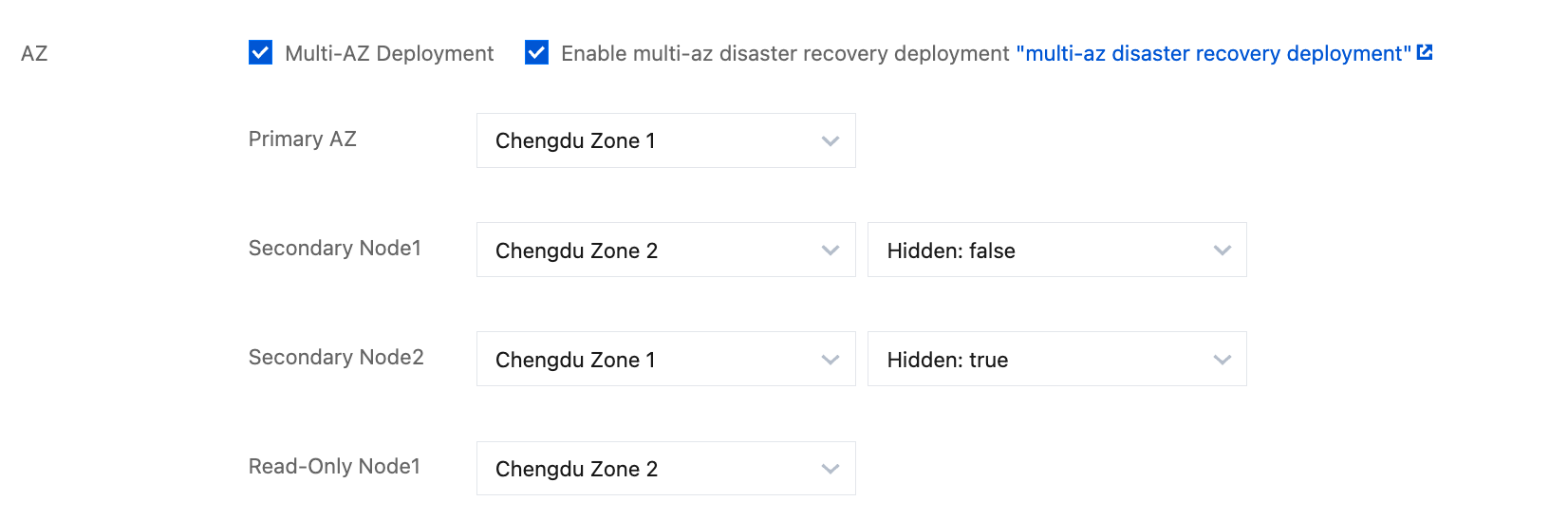
Select Enable multi-az disaster recovery deployment: According to the 2 + 2 (2 nodes in each of the two AZs) scheme, the deployment follows the principle of having 2 nodes in each AZ. Configure the AZ distribution for a total of 4 nodes (3 voting nodes + 1 read-only node). For details, see Multi-AZ Deployment Scheme.
Note:
The "2 + 2 Dual-AZ Disaster Recovery Scheme" is currently in a targeted open phase. To apply for adding your Tencent Cloud account to the allowlist for this feature, submit a ticket or contact your dedicated account manager.
4. When you select Pay-as-you-go, you can click Billing Details to view product pricing information. When you select Yearly/Monthly Subscription, you can view product pricing information on Product Pricing and confirm the total cost.
5. Click Buy Now. A purchase successful prompt is displayed. Then, click Go to the Console to go to the instance list. Wait for the instance status in the Monitoring/Status column to become Running. The multiple AZs of the instance will be displayed in the AZ column.
Updating AZs After Multi-AZ Is Enabled
Warning:
Adjusting AZs triggers a primary-secondary switchover, resulting in a momentary disconnection of approximately 10 seconds. Please perform this operation during an off-peak service period.
Attention:
If a sharded cluster instance involves an increase in the number of Mongos nodes during the adjustment process and exceeds the free quota, corresponding fees may be incurred. Please refer to the console for the specific monetary amounts.
1. Log in to the MongoDB console and go to the instance details page of the target instance.
2. In the Basic Info section, click Modify AZs to the right of Region.
3. In the Modify AZs dialog box that pops up, adjust the AZ distribution for each node as needed.
Note:
If your account has been approved for the Dual-AZ (2 + 2) Disaster Recovery Scheme, you can select Enable multi-az disaster recovery deployment in the dialog box. After selecting it, please re-plan the AZ distribution for the primary node, secondary node, and Hidden node according to the symmetric deployment rules prompted by the system.
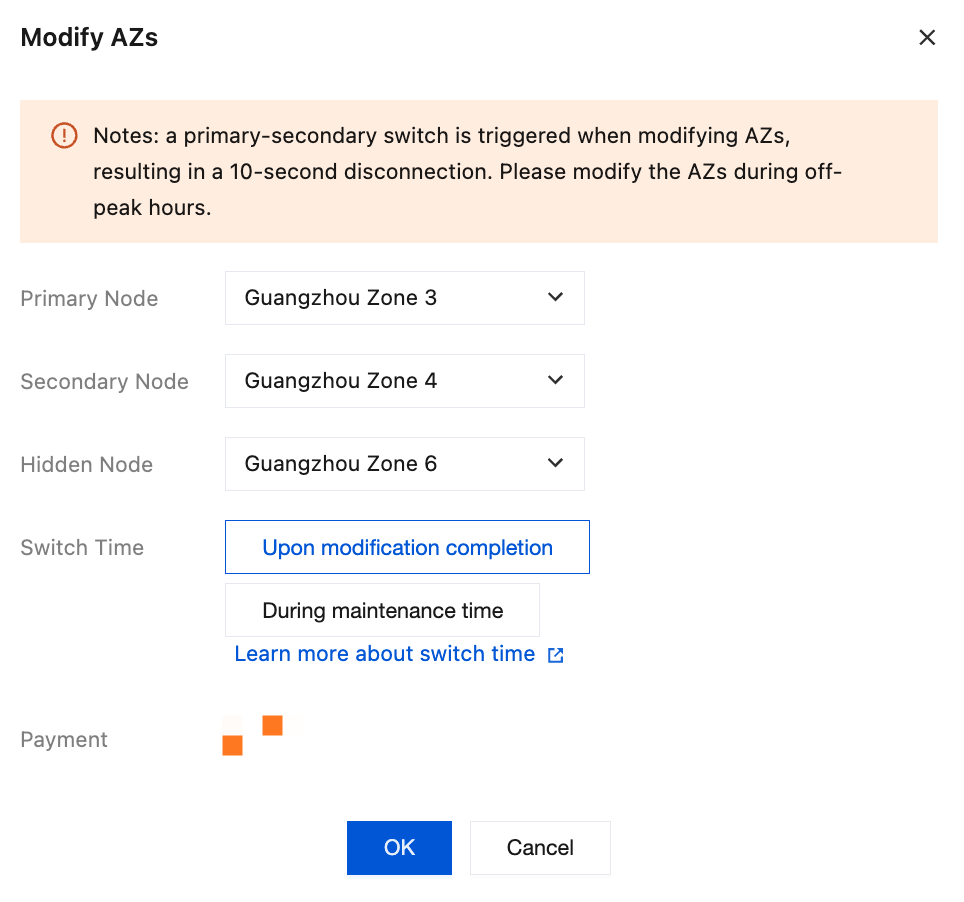
4. Select a time for the AZ switch task after Switch Time. Click Learn more about switch time to adjust the instance maintenance period based on your off-peak hours. For detailed operations, see Adjust Instance Maintenance Time.
Attention:
If a task is scheduled to run During maintenance time, avoid changing it to **Execute immediately** before the maintenance window begins. A conflict between these two modes will cause a system exception. Once a task is initiated, it cannot be stopped manually. To stop a task, submit a ticket to request it.
Upon modification completion: The system will immediately start switching AZs after the configuration is complete.
During maintenance time: The system will start switching AZs within the maintenance period you preset.
5. If a fee is incurred, confirm the Total Fee, click OK, and complete the operation.
6. The instance status changes to Switching AZs. Wait for the task to complete, and you can then view the adjusted AZs.
Accessing Multi-AZ Instances
You can access a multi-AZ instance by using the Shell method or by constructing a URI with a multi-language SDK. For detailed operations, see Connect to an Instance.
피드백