tencent cloud

Cloud Streaming Services

Release Notes and Announcements
Announcements
User Guide
Product Introduction
Overview
CSS Products
Concepts
Features
Use Cases
Strengths
Use Limits
Purchase Guide
Billing Overview
Basic Service Fee
Value-Added Service Fee
Prepaid plan
Purchase Process
Changing Billing Modes
Refund Policy
Viewing Bills
Renewal
Processing for Overdue Payments
Billing FAQs
Live Video Broadcasting (LVB)
Overview
Use Cases
Getting Started
SDK Integration
Live Event Broadcasting (LEB)
Overview
LEB Versus LVB
Use Cases
Getting Started
SDK Integration
Live Video Caster
Overview
Application Scenarios
Feature Area Introduction
Managing Live Video Caster
General Cloud Director
Configuring Program Lists and Automated Broadcasting
Console Guide
Console Overview
Overview
Domain Management
Stream Management
Package Management
AI Features
Feature Configuration
Relay
Billing Usage Statistics
Monitoring
Toolkit
OOTB live
CAM-Based Access Control
Feature Guide
Push and Playback
Features
Practices in Typical Scenarios
Cloud Native Recording
Live Streaming Security
Global CSS Service
Callback Notifications
User Guides for Common Third-Party Tools
SDK Guide
0. SDK Integration Guide
1. Stream Push
2. Playback
3. Advanced Features
API Documentation
History
Introduction
API Category
Making API Requests
Live Pad APIs
Live Stream Mix APIs
Time Shifting APIs
Monitoring Data Query APIs
Billing Data Query APIs
Live Transcoding APIs
Delayed Playback Management APIs
Domain Name Management APIs
Watermark Management APIs
Certificate Management APIs
Stream Pulling APIs
Recording Management APIs
Live Callback APIs
Screencapturing and Porn Detection APIs
Authentication Management APIs
Live Stream Management APIs
Data Types
Error Codes
Ops Guide
Video Stuttering
Troubleshooting Push Failure
Troubleshooting Playback Failure
CLS Assists in Live Stream Troubleshooting
Troubleshooting High Latency
Troubleshooting Poor Quality of Pulled Video
Authorizing CSS to Store Screenshots in a COS Bucket
Troubleshooting
Live Stream Mixing Error `InvalidParameter.OtherError`
About Pushing
Generating Push URLs
PC Push
Playing Method
Web Player
Live Streaming Quiz
FAQs
Service Region
Live Streaming Basics
Push and Playback
CSS Billing
Global CSS Service
Live Recording
On-Cloud Stream Mix
Domain Configuration
Related to Live Video Caster
Compatibility with Apple ATS
Difference Between Stream Interruption and Stream Suspension
SLA
CSS Service Level Agreement
CSS Policy
Privacy Policy
Data Processing And Security Agreement
Glossary

Template

PDF
Focus Mode
Font Size
Last updated: 2025-12-03 18:07:10
Time shifting is powered by the recording capability of CSS. It allows users to rewind and play earlier parts of a live stream. This is commonly used to play back highlights of live streamed sports events.

Notes

After creating a time shifting template, you need to bind it to a push domain. The configuration takes effect 5-10 minutes after binding.
When enabling the new live time-shifting feature, billing will be based on the Time-shift Data Write Volume. Using the new live time-shifting feature will also generate Live Streaming Traffic Bandwidth Fees and Live Transcoding Fees.
To timeshift a transcoded live stream, you need to configure a transcoding task for the stream in advance. This will incur transcoding fees. Please make sure the transcoding template used is not deleted.
When writing time-shift transcoded stream data, transcoding will be initiated first, generating Live Transcoding Fees. Please make sure that the selected transcoding template has not been accidentally deleted, otherwise, the accidentally deleted time-shift transcoded stream will not be playable. No transcoding fees will be generated when playing the time-shift transcoded stream.

Prerequisites

You have activated CSS and added a push domain name.

Creating a Time Shifting Template

1. Log in to the CSS console and select Feature Configuration > Time Shifting on the left sidebar.
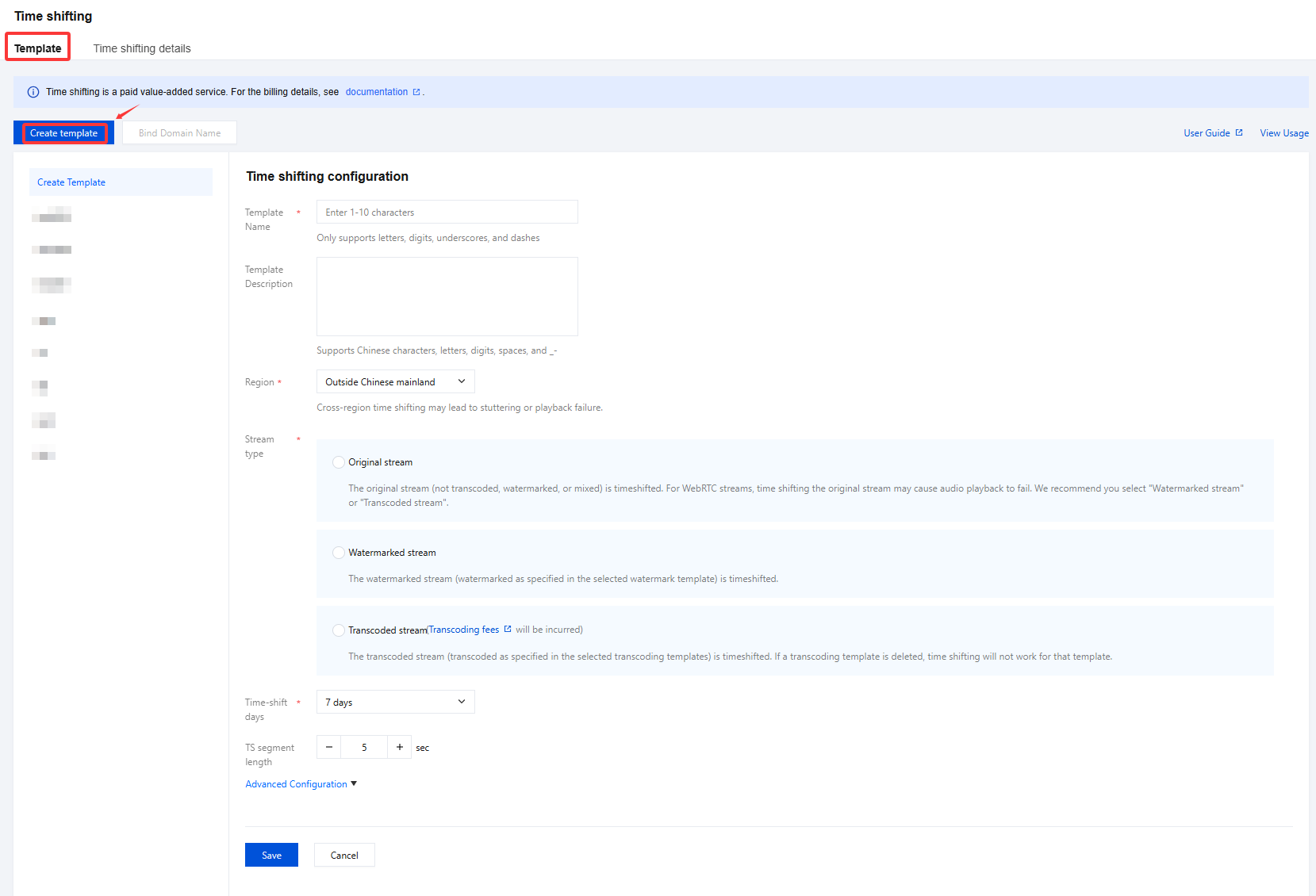
2. Click Create template to set the template information and configure the following settings:

Item
Description
Template Name
The time shifting template name, which can be 1-10 characters long and can contain Chinese characters, letters, numbers, and _-
Template Description
The introduction and description of the live broadcast time shift template can be customized (only Chinese, English, numbers, spaces, _, - are supported).
Region
By default, outside Chinese mainland, Hong Kong, Macao, and Taiwan regions are supported, with the option to select Chinese mainland. Please bind the correct time-shift playback acceleration region, as cross-regional time-shift playback may result in lagging or inability to pull the stream.
Stream type
Original stream
If you choose this configuration, the time-shift content will not have transcoding, watermark, or mixed-stream effects. For time-shift content with WebRTC push, the audio may not be compatible with some players. It is recommended to choose "Watermarked Stream" or "Transcoded Stream".
Watermarked stream
The watermarked stream (watermarked as specified in the selected watermark template) is timeshifted.
Transcoded stream
When selecting this configuration, the time-shift video content will be the content after transcoding according to the transcoding template ID. If the transcoding template is deleted, the time-shift playback content will become invalid. Transcoded streams will generate Transcoding Fees.
Time-shift days
The default is 7 days, with options to choose 1 day, 3 days, 15 days, and 30 days.
TS segment length
The default length is five seconds. You can set it to a value between 3 and 10.
3. After completing the input, click Save to confirm.

Binding a Domain Name

1. Log in to the CSS console, and select Feature Configuration > Time Shifting on the left sidebar.
Bind a domain to an existing template: Click Bind Domain Name in the top left.

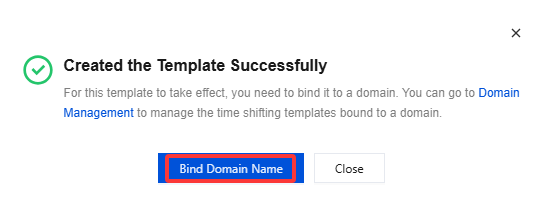
Bind a domain after creating a template: After creating a template, click Bind Domain Name in the dialog box that pops up.

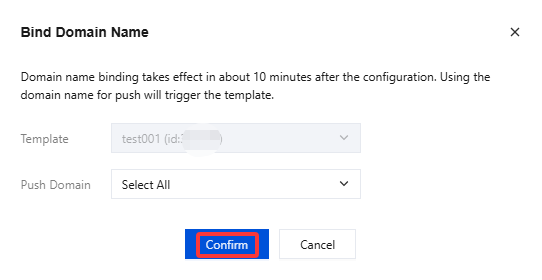
2. In the pop-up window, select a time shifting template and a push domain name(Multiple push domain names can be bound simultaneously) and then click Confirm.


Unbinding a Domain Name

1. Log in to the CSS console, and select Feature Configuration > Time Shifting on the left sidebar.
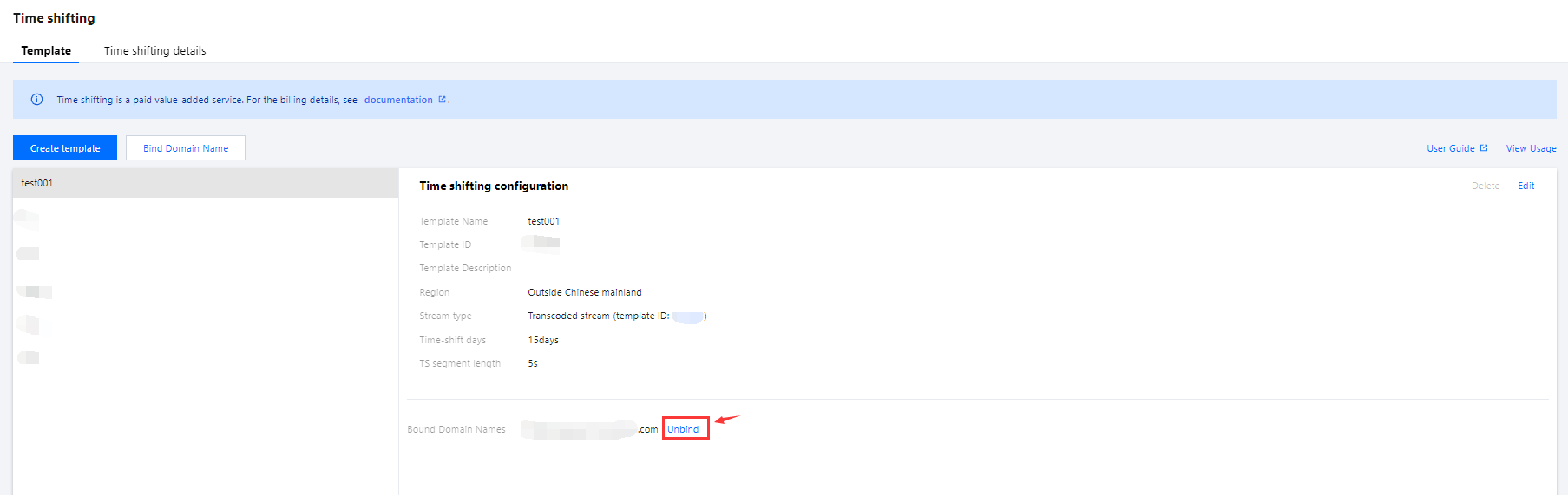
2. Select a time shifting template bound with domain names, find the target domain name, and click Unbind.


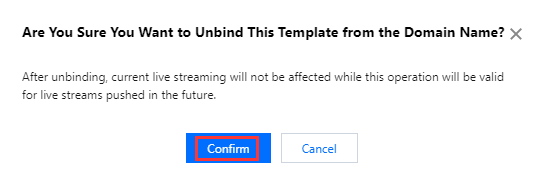
3. In the pop-up window, click Confirm.


Note:
Unbinding a time shifting template will not affect ongoing live streams.
Modifying a Template

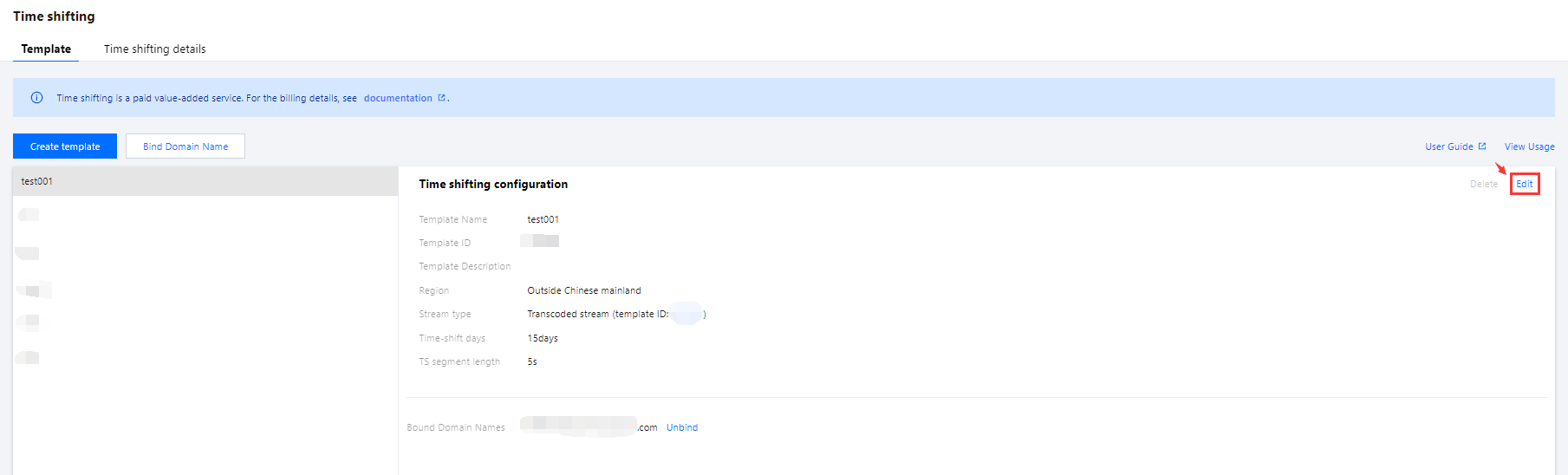
1. Go to Feature Configuration > Time Shifting.
2. Select the target time shifting template, click Edit on the right, modify the settings, and click Save.


Deleting a Template

1. Log in to the CSS console, and select Feature Configuration > Time Shifting on the left sidebar.
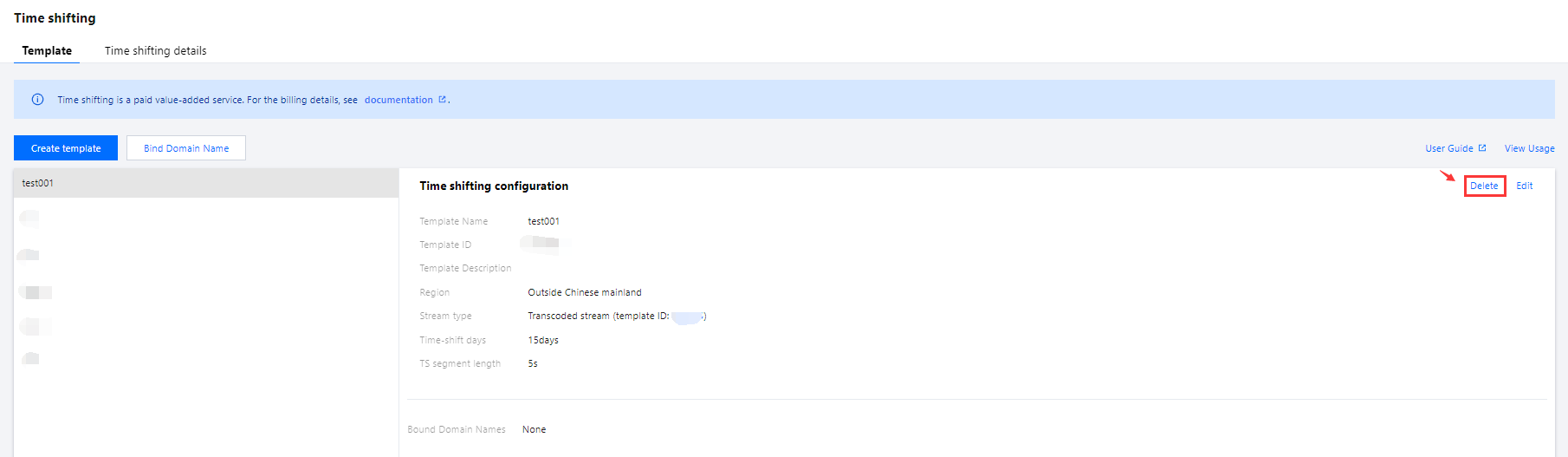
2. Select the target time shifting template, and click Delete in the upper right.


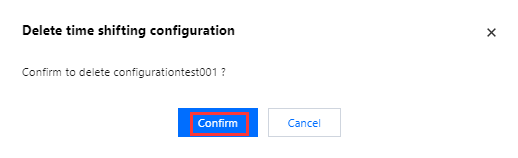
3. In the pop-up window, click Confirm.


Note:
If domain names are bound to a template, you need to unbind them before you can delete the template.
In the console, time shifting templates are managed at the domain level. You cannot unbind time shifting rules bound to streams by APIs.

More

You can also unbind and bind domains and time shifting templates on the Domain Management page. For details, see Time Shifting Configuration.

Help and Support

Was this page helpful?

Help us improve! Rate your documentation experience in 5 mins.

Feedback