Rate Limiting Policy
Unduh
Mode fokus
Ukuran font
Overview
Rate limiting primarily protects backend services by configuring rate limiting rules. This prevents a sudden surge in traffic from causing service and data crashes, which would result in service unavailability. When resources become a bottleneck, requests must be rate limited to activate the traffic control protection mechanism. The TSF Cloud Native Intelligent Gateway supports rate limiting at the service and route levels. This document describes how to configure rate limiting rules.
Prerequisites
The tse-rate-limiting (traffic control) plugin is upgraded to the latest version before a traffic throttling policy is configured. If refined configuration is required for the traffic throttling threshold, ensure that the tse-global-configuration (global configuration) plugin is upgraded to the latest version.
1. Log in to the TSF console, click Cloud Native Gateway > Instance Management in the left sidebar, and go to the instance list page.
2. Click the instance ID/Name to go to the instance details page.
3. Choose the Plugin Management > System Plugins tab to check whether the plugins are updated to the latest version. If not, click the plugin name to go to the plugin details page, and click Install Latest Version on that page.
Service-Level Traffic Throttling
Service-level traffic throttling takes effect on all routes under the service. To configure traffic throttling for a specific route, go to the Service & Route page.
Step 1: Configuring a Traffic Throttling Policy
1. Log in to the TSF console, click Cloud Native Gateway > Instance Management in the left sidebar, and go to the instance list page.
2. Click the instance ID/Name to go to the instance details page.
3. Click Service & Route, select the Service tab, click the service name, and go to the service details page.
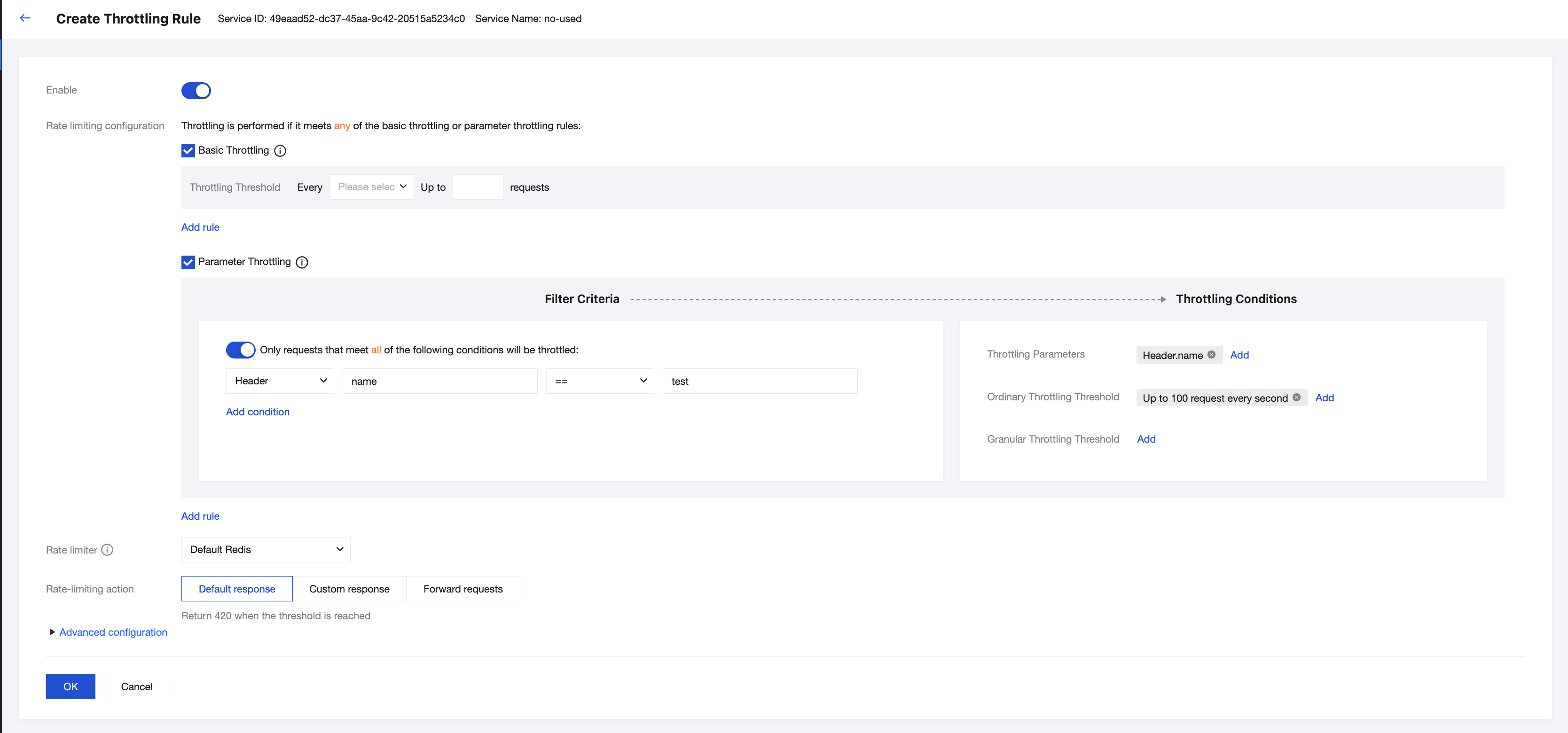
4. Select the Traffic Throttling Policy tab at the top of the page, and click Configure Traffic Throttling Rule.
Parameter | Required | Description |
Enable or Not | Yes | A traffic throttling rule takes effect after it is enabled. |
Rate limiting configuration | Yes | Basic traffic throttling: Traffic is controlled based on the request quantity threshold. When the request quantity on this service exceeds the threshold within a set period, traffic throttling is triggered. Six time dimensions: second, minute, hour, day, month, and year are supported. Parameter-based traffic throttling: Traffic is controlled based on user request parameters and specified conditions. Filter conditions (optional): Only requests that meet certain filter conditions (IP address or path) are counted for traffic throttling. Traffic throttling condition: Traffic throttling is triggered when the monitored traffic throttling parameter reaches the specified threshold. It supports traffic control based on Header, Cookie, Path, IP address, and Query parameters, and allows you to set a fixed traffic throttling threshold or use global configurations for fine-grained configuration based on different traffic throttling parameter values. |
Count Policy | Yes | When the default Redis database is selected for storage, the counter is stored in the built-in Redis service node of the Cloud Native API Gateway instance to implement distributed traffic throttling, and the Redis service node can store a maximum of 3 million traffic throttling keys. When an external Redis database is selected for storage, you can configure the Redis access address (server address, connection password, and timeout period) to implement distributed traffic throttling on a larger scale. |
Traffic Throttling Processing Policy | Yes | Return directly: 429 is returned directly when traffic throttling is triggered. Custom return: When traffic throttling is triggered, HTTP response behavior is customized. The status code, response header, and response content are required. Request forwarding: After traffic throttling is triggered, you are redirected to the specified page and need to enter the request forwarding address. |
Request Queuing | No | Maximum request queuing period, ranging from 0 to 15 seconds. The value 0 indicates that a request is handled without latency. For values greater than 0, the gateway tries to handle a request every 1 second. If the request is not processed after the maximum queuing period reaches, the request will be throttled. |
Hide Traffic Throttling Response Headers | No | It is enabled by default. After traffic throttling response headers are hidden, the client will not receive response headers related to traffic throttling. |
Note:
1. Refined traffic throttling thresholds are applicable to scenarios where different traffic throttling parameters have different thresholds. For example, traffic throttling is performed based on the Query parameter appid. When appid = 1, the traffic throttling threshold is 100 per minute. When appid = 2, the traffic throttling threshold is 200 per minute.
2. The refined traffic throttling threshold can be configured only after an ordinary traffic throttling threshold is configured. The ordinary traffic throttling threshold is used as the default traffic throttling threshold when the specified request parameter is not matched.
3. The refined traffic throttling threshold is defined using a global configuration and described in JSON format. Configure it in the format of traffic throttling key:traffic throttling threshold, and use underscores (_) to connect all traffic throttling parameter values in sequence as the traffic throttling key. For example, when traffic throttling is performed based on the query parameter appid and appid is set to 1, the traffic throttling threshold is 100. When appid is set to 2, the traffic throttling threshold is 200. The global configuration is as follows:
{"1": 100,"2": 200}
5. Click Confirm to complete the rule creation.
Step 2: Verifying Whether the Policy Takes Effect
Send a request to trigger the traffic throttling rule and check whether traffic throttling takes effect.
Route-Level Traffic Throttling
Route-level traffic throttling takes effect for a route only. To configure service-level traffic throttling, go to the Service-Level Traffic Throttling Policy page.
Step 1: Configuring a Traffic Throttling Policy
1. Log in to the TSF console, click Cloud Native Gateway > Instance Management in the left sidebar, and go to the instance list page.
2. Click the instance ID/Name to go to the instance details page.
3. Click Service & Route, select the Route tab, click the route name, and go to the route details page.
4. Select the Traffic Throttling Policy tab, go to the route-level traffic throttling page, and click Configure Traffic Throttling Rule.
Parameter | Required | Description |
Enable or Not | Yes | A traffic throttling rule takes effect after it is enabled. |
Rate limiting configuration | Yes | Basic traffic throttling: Traffic is controlled based on the request quantity threshold. When the request quantity on this service exceeds the threshold within a set period, traffic throttling is triggered. Six time dimensions: second, minute, hour, day, month, and year are supported. Parameter-based traffic throttling: Traffic is controlled based on user request parameters and specified conditions. Filter conditions (optional): Only requests that meet certain filter conditions (IP address or path) are counted for traffic throttling. Traffic throttling condition: Traffic throttling is triggered when the monitored traffic throttling parameter reaches the specified threshold. It supports traffic control based on Header, Cookie, Path, IP address, and Query parameters, and allows you to set a fixed traffic throttling threshold or use global configurations for fine-grained configuration based on different traffic throttling parameter values. |
Count Policy | Yes | When the default Redis database is selected for storage, the counter is stored in the built-in Redis service node of the Cloud Native API Gateway instance to implement distributed traffic throttling, and the Redis service node can store a maximum of 3 million traffic throttling keys. When an external Redis database is selected for storage, you can configure the Redis access address (server address, connection password, and timeout period) to implement distributed traffic throttling on a larger scale. |
Traffic Throttling Processing Policy | Yes | Return directly: 429 is returned directly when traffic throttling is triggered. Custom return: When traffic throttling is triggered, HTTP response behavior is customized. The status code, response header, and response content are required. Request forwarding: After traffic throttling is triggered, you are redirected to the specified page and need to enter the request forwarding address. |
Request Queuing | No | Maximum request queuing period, ranging from 0 to 15 seconds. The value 0 indicates that a request is handled without latency. For values greater than 0, the gateway tries to handle a request every 1 second. If the request is not processed after the maximum queuing period reaches, the request will be throttled. |
Hide Traffic Throttling Response Headers | No | It is enabled by default. After traffic throttling response headers are hidden, the client will not receive response headers related to traffic throttling. |
5. Click Confirm to complete the rule creation.
Step 2: Verifying Whether the Policy Takes Effect
Send a request to trigger the traffic throttling rule and check whether traffic throttling takes effect.
Bantuan dan Dukungan
Apakah halaman ini membantu?
Anda juga dapat Menghubungi Penjualan atau Mengirimkan Tiket untuk meminta bantuan.
masukan