Web
Download
Mode fokus
Ukuran font
TUIRoomKit includes an AI Meeting Assistant, providing intelligent AI-powered support for online meetings. Once enabled, users can access key features directly from the meeting interface:
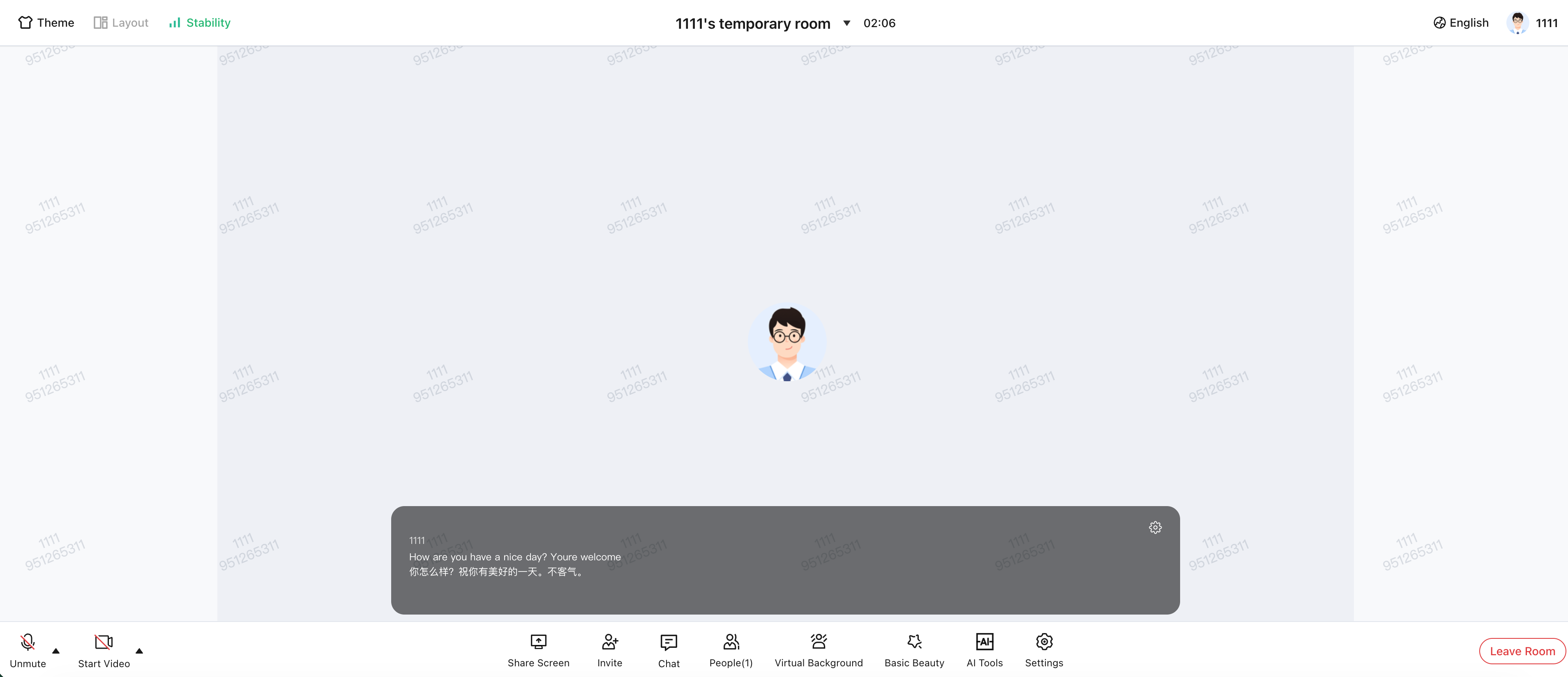
AI Real-Time Subtitles: Instantly converts spoken discussion into on-screen text subtitles during meetings to enhance communication and understanding.
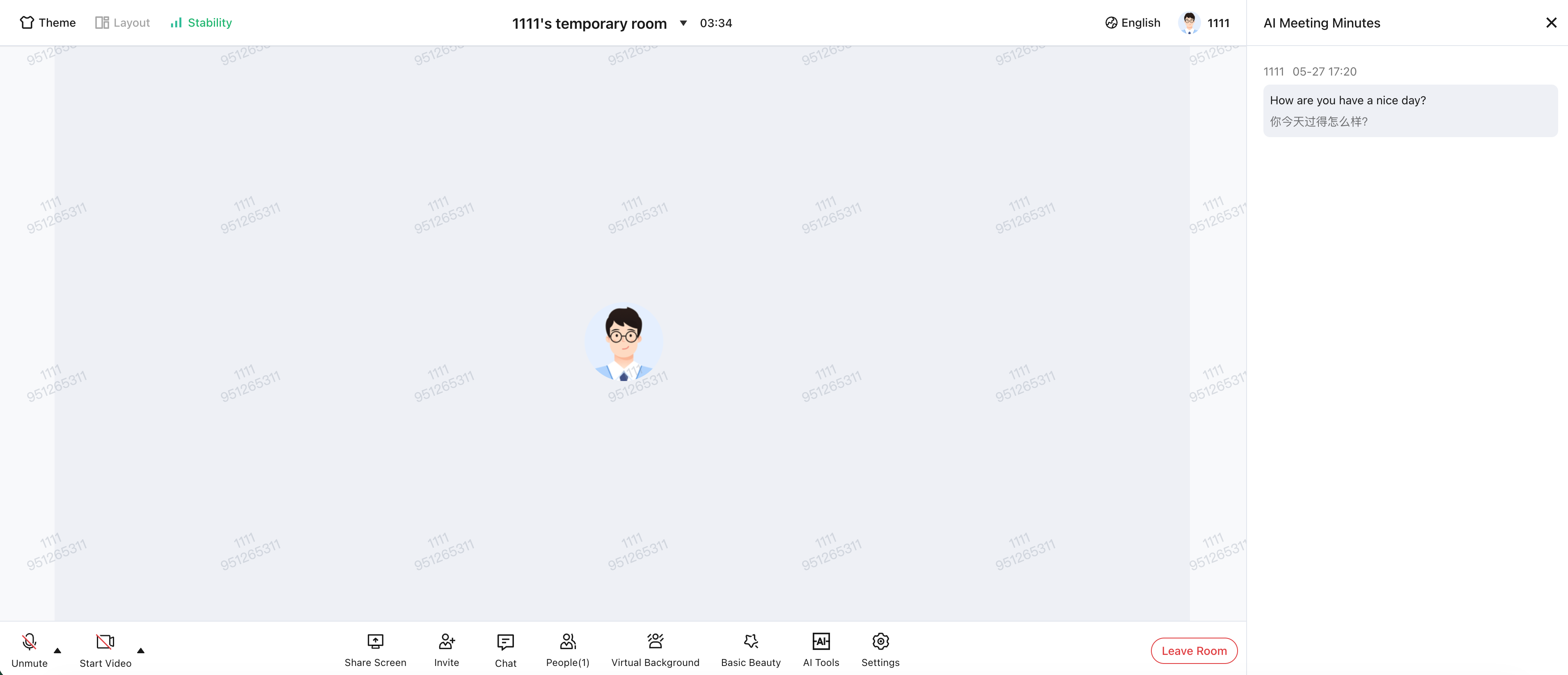
AI Real-Time Meeting Transcription: Continuously transcribes spoken content into text records, making it easier to organize and review meetings afterward.
AI Real-Time Subtitles
AI Real-Time Meeting Notes
Prerequisites
1. Purchase an AI Speech Duration Package
How to choose a package?
Small teams (2–3 meetings per week): Approximately 1,000 minutes/month
Medium enterprises (1–2 meetings per day): Approximately 10,000 minutes/month
Large enterprises (frequent meetings): Approximately 20,000 minutes/month or more
Note:
For first-time use, we recommend subscribing to the Trial Version (Free) to evaluate the features. For production use, select the appropriate package on the purchase page based on your estimated usage.
2. Integrate Basic Environment
Follow the Quick Integration Guide to add
@tencentcloud/roomkit-web-vue3 to your project. Ensure the package version is ≥ 5.1.2.Enabling AI Meeting Assistant
To enable the AI Meeting Assistant in the UI, call the
conference.setFeatureConfig API and set aiTools.enable to true.Note:
After setting
aiTools.enable to true, when the host creates a room, the component automatically starts the AI transcription task internally.<template><ConferenceMainView /></template><script setup lang="ts">import { conference } from '@tencentcloud/roomkit-web-vue3';conference.setFeatureConfig({ aiTools: { enable: true } });</script>
Disabling AI Meeting Assistant
When using the AI Meeting Assistant component, you do not need to manually stop the AI transcription task. The component automatically handles cleanup:
When Exited Room: Automatically stops the AI transcription task.
Resource Release: Frees related memory resources automatically.
Development Notes
Version Dependency: The AI Meeting Assistant requires
@tencentcloud/roomkit-web-vue3 version ≥ 5.1.2. Confirm the installed version meets this requirement.Call Timing: Execute the configuration code at the very top of your page script, before loading
ConferenceMainView.Billing Logic: The AI feature is only enabled automatically when the host enters the room. Each room is billed just once; additional participants joining will not incur extra charges.
Network Requirements: AI recognition depends on a stable upstream network. Network instability may cause subtitle delays or loss.
FAQs
Why doesn’t the "AI Meeting Assistant" button appear in the meeting interface after adding the configuration code?
Issue: The configuration code was added following the documentation, but the "AI Meeting Assistant" button is not visible.
Solution: Make sure you call
conference.setFeatureConfig before the ConferenceMainView component is mounted (i.e., before `` is rendered). Place this configuration at the very top of your component script.Can all members in the room use AI features?
Answer: When the
AIToolsButton is visible and the host enters the room, the transcription task starts automatically. All members in the room can then use both AI real-time subtitles and meeting transcription features.Will enabling AI features result in duplicate charges?
Answer: No, duplicate charges will not occur. The transcription task is triggered only once by the host, so each meeting room incurs a single charge. If the
AIToolsButton is not visible, the transcription task does not start and no charges are incurred.Bantuan dan Dukungan
Apakah halaman ini membantu?
Anda juga dapat Menghubungi Penjualan atau Mengirimkan Tiket untuk meminta bantuan.
masukan