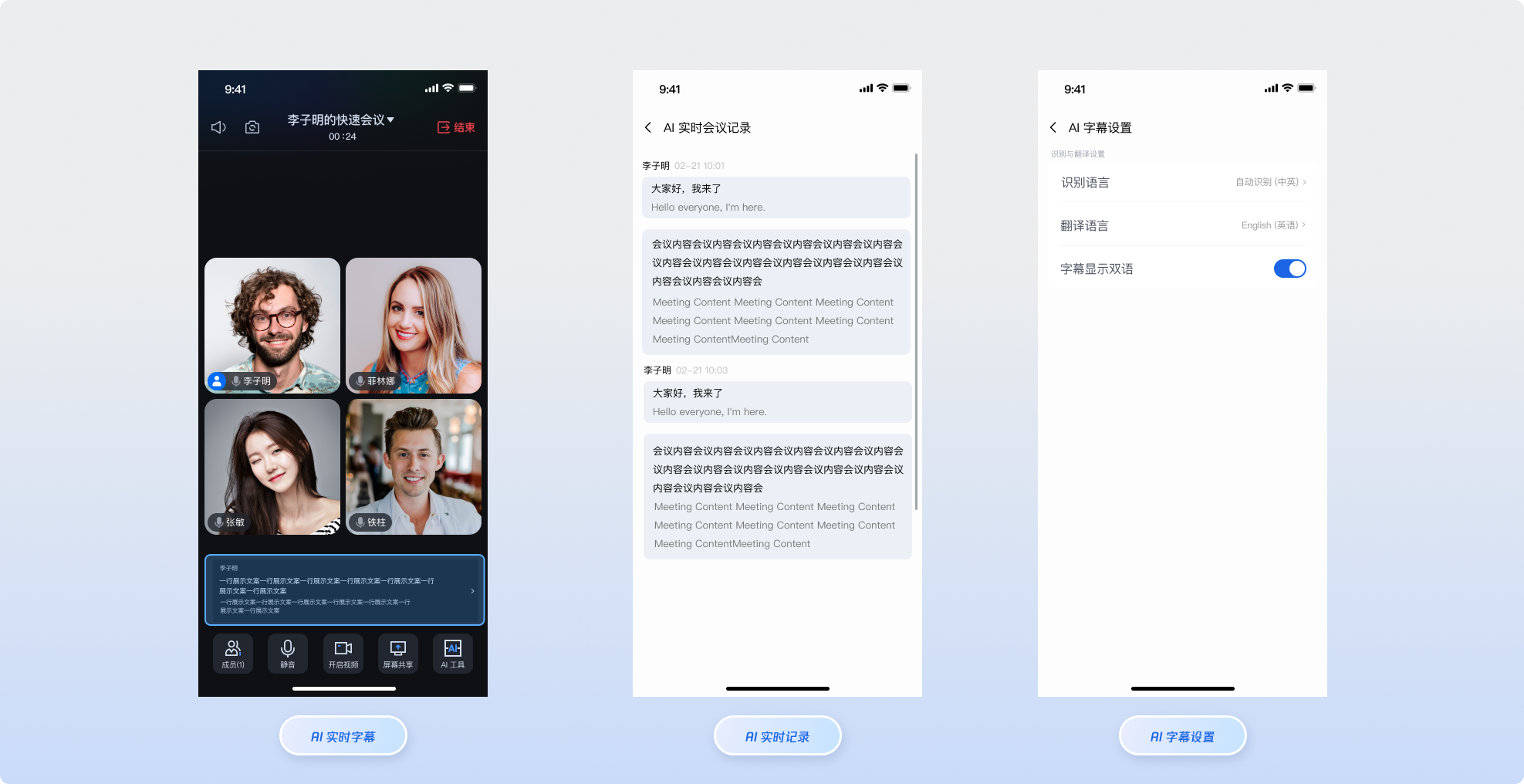
TUIRoomKit integrates AI Meeting Assistant features to deliver intelligent support for online conferences. Once enabled, users can access the following core functions from the interface:
AI Real-Time Subtitles: Transcribes spoken content into text subtitles in real time during a meeting, providing on-screen captions to enhance communication and understanding.
AI Real-Time Translation: When AI Real-Time Subtitles are active, real-time translation is also enabled by default. The room owner can configure the translation language. For a comprehensive list of supported languages, see the Language List.
AI Real-Time Meeting Minutes: Continuously transcribes spoken content into meeting records during the session, making it easier to organize and review discussions after the meeting.
Prerequisites
1. Purchase an AI Speech Duration Package
Before activating AI features, verify that your account includes an available AI Speech Duration Package.
Note:
For first-time use, we recommend subscribing to the Trial Version (Free) to evaluate the features. For production environments, select an appropriate package based on your expected usage from the Purchase Page.
2. Integrate Basic Environment
Follow the Quick Integration Guide to add TUIRoomKit to your project, and ensure your version is ≥ 4.2.0.
Implementation Steps
Enable AI Real-Time Subtitles
The AI subtitle UI component source code is located in the aitranscription directory of the TUIRoomKit repository, specifically under subtitleview. In the Standard Room mode, AI Real-Time Subtitles are enabled by default. To activate subtitles, click the AI Tools button at the bottom of the standard room interface and select AI Real-Time Subtitles. Subtitles will then be displayed in the room.
private val repository:AITranscriberRepository by lazy {
AITranscriberRepository(roomID)
}
private fun showAISubtitleView(){
val subtitleView =AISubtitleView(context).apply {
bindRepository(repository)
}
addView(subtitleView)
val layoutParams = subtitleView.layoutParams as?FrameLayout.LayoutParams
?:FrameLayout.LayoutParams(
FrameLayout.LayoutParams.MATCH_PARENT,
FrameLayout.LayoutParams.WRAP_CONTENT
).apply {
leftMargin =16
rightMargin =16
bottomMargin =10
gravity =android.view.Gravity.BOTTOM
}
subtitleView.layoutParams = layoutParams
addView(subtitleView)
subtitleView.visibility = VISIBLE
repository.startTranscription()
}
}
Note:
Only the host can enable AI Real-Time Subtitles. If the host exits the room or transfers host privileges, the subtitle feature will automatically stop.
Disable AI Real-Time Subtitles
When using the AI Real-Time Subtitles component, developers do not need to manually terminate the AI transcription task. The component includes an automatic cleanup mechanism:
When the host ends the room, leaves the room, or transfers host privileges: The AI transcription task will stop automatically.
Resource Release: Associated memory resources are automatically cleaned up.
View Real-Time Meeting Minutes
The AI meeting minutes UI component source code is found in the aitranscription directory, specifically under minutesview. To view AI Real-Time Meeting Minutes, the host must first enable AI Real-Time Subtitles. Once enabled, you can access real-time meeting records via the AI Tools entry at the bottom of the interface.
private val repository:AITranscriberRepository by lazy{
AITranscriberRepository(roomID)
}
private fun showAIMinutesView(){
AIMinutesActivity.bindRepository(repository)
val intent =Intent(this,AIMinutesActivity::class.java)
startActivity(intent)
}
}
Development Notes
Version Dependency: The AI Meeting Assistant features require TUIRoomKit version ≥ 4.2.0. Make sure you have installed the correct version.
Billing Logic: AI features are only enabled when the host enters the room. Each room is billed a single time; additional members joining do not incur extra charges.
Network Requirements: AI recognition relies on a stable upstream network. Network instability may result in delayed or missing subtitles.
FAQs
Can all members in the room use AI features?
Feature Description: AI subtitles and real-time meeting minutes are controlled by the host. Once the host enters the room and enables AI subtitles, all room members can access the AI Real-Time Subtitles and Meeting Minutes features.
Will AI features incur duplicate charges?
Billing Description: Duplicate charges will not occur. The transcription task is initiated only once by the host, and each meeting room is billed a single time. If the host enters the room but does not enable AI Real-Time Subtitles, the transcription task does not start and no related fees are incurred.