Risky
다운로드
포커스 모드
폰트 크기
The Database Risky Monitoring module focuses on behaviors that have not triggered risks but present long-term security threats. It covers core scenarios such as permission compliance remediation, attack surface hardening, and account security optimization to reduce the probability of security incidents.
Policy Name | Policy Content | Recommended Remediation Action |
Excessive Operational Permission Scope | Calculate the permission utilization (used permissions / authorized permissions) based on the account's permissions used in the last 7 days. A risk is triggered when the utilization is lower than the configured threshold. | |
Modify account permissions by bypassing DSPM. | A risk is triggered when a discrepancy is detected between the account's current permissions and the permissions set by DSPM. | |
Unmanaged Account | An account that is self-built by the database and is not configured as a service account. | |
Delete account by bypassing DSPM. | A risk is triggered when an account deletion that bypasses DSPM is detected. | |
Public Network Access Exposure | A risk is triggered when a public network address is enabled for the database instance. |
Risk List
1. Log in to the CSC console. In the left navigation pane, click Data Security Situation Management > Database Risk Monitoring.
2. On the Database Risky Monitoring page, click the Risky Tag.

3. On the Risk page, data security risks that have triggered risk policies are displayed. This includes information such as risk name/type, threat level, instance ID/name, database account, owner/user type, detection time, and handling status.
Risky Details
On the Risky page, select the target risk, click Risky Name, and view the risk details.
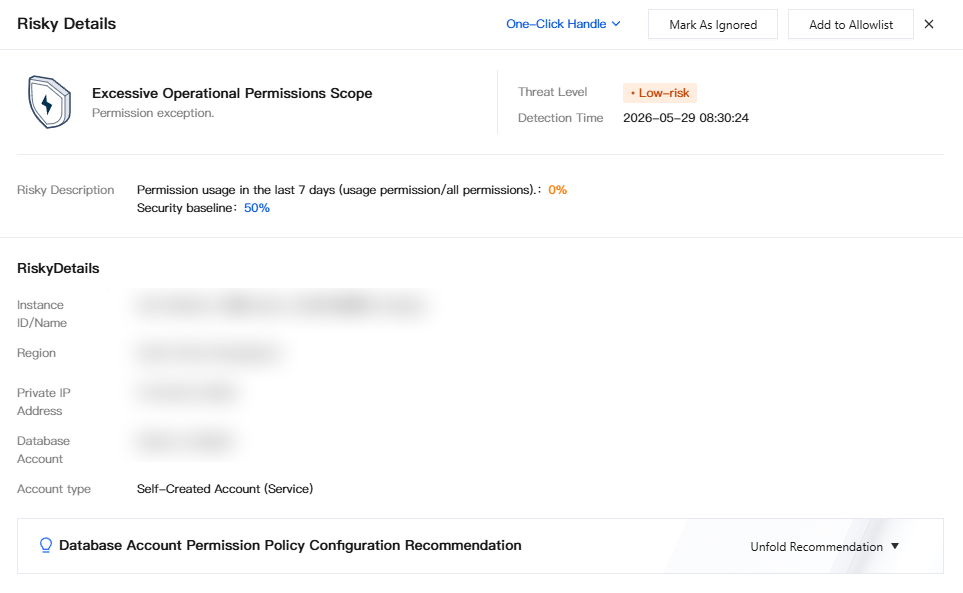
Risky Handling
Marking as Ignored
Mark the status of risk items with excessive operation permission scopes to eliminate interference in risk statistics.
Note:
If a risk's handling status is marked as Ignored, the risk will not be included in risk statistics.
1. On the Risk Tag page, you can process target risks individually or in batches:
Single Risk Handling: In the operation column of the risk named Excessive Operation Permission Scope, click Mark As Ignored.

Batch Handling: On the Risk page, select the risk named Excessive Operation Permission Scope, and click Mark As Ignored.

2. In the secondary confirmation dialog, click Confirm to mark the risk as ignored.
Adding Allowlists
1. On the Risk Tag page, in the operation column of the risk named Excessive Operation Permission Scope, click Add to Allowlist.

2. In the Add to Allowlist window, review the allowlist policy content. After confirming it is correct, click Confirm to add the policy information triggered by this risk to the allowlist.
Note:
After the risk allowlist policy rule takes effect, the corresponding behavior no longer triggers a risk.
Marking as Handled
Update the status of risks for which emergency response has been completed to achieve a closed-loop handling process.
1. On the Risk Tag page, select one or multiple target risks, and click Tag Disposal.

2. In the confirmation window, verify the risk information. After confirming it is correct, click OK to mark the risk as handled.
Note:
After a risk's handling status is marked as Handled, the risk will not be included in risk statistics.
One-Click Handling
For different risk items, you can perform risk handling operations with one-click handling.
On the Risk Tag page, select the target risk and click One-Click Handle in the operation column. You can handle the risk using the system's preset handling operations.

Risk Policy Configuration
1. Log in to the CSC console. In the left navigation pane, click Data Security Situation Management > Database Risk Monitor.
2. On the Database Risk Monitoring page, click Policy Management in the upper-right corner.

3. In the Policy Management window, click the Risk Policy Tag.
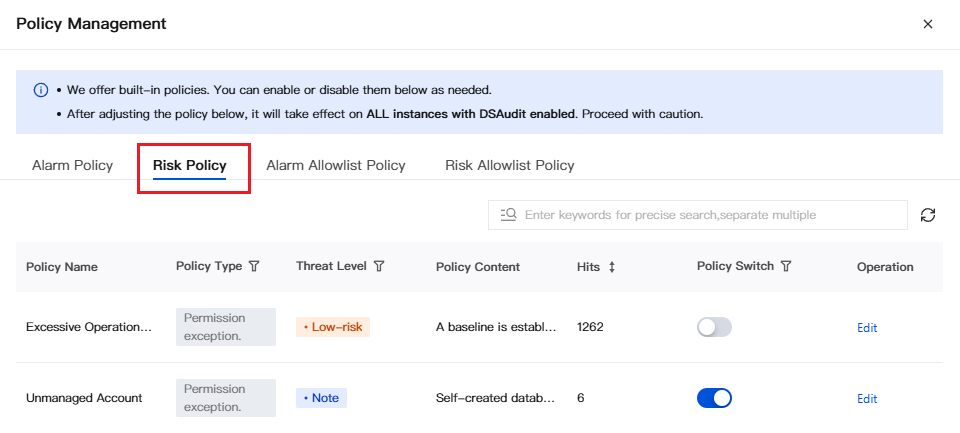
4. On the Risk Policy Tag page, all built-in preset risk policies are displayed. On this Tag page, you can enable/disable risk policies, adjust their threat levels, modify their content, and perform other operations.
Enabling/Disabling Risk Policies
On the Risk Policy Tag page, select the target risk policy, and click the Switch in the policy switch column to enable or disable the risk policy.
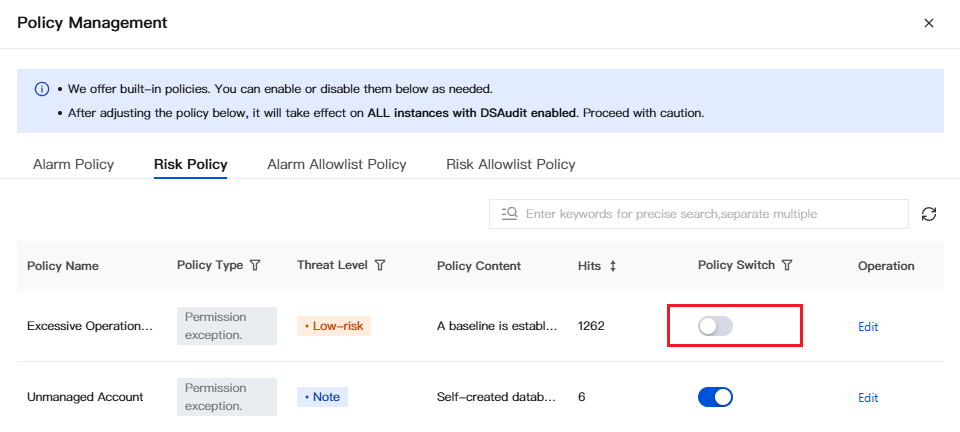
Editing Risk Policies
1. On the Risk Policy Tag page, select the target risk policy, and click Edit in the operation column.
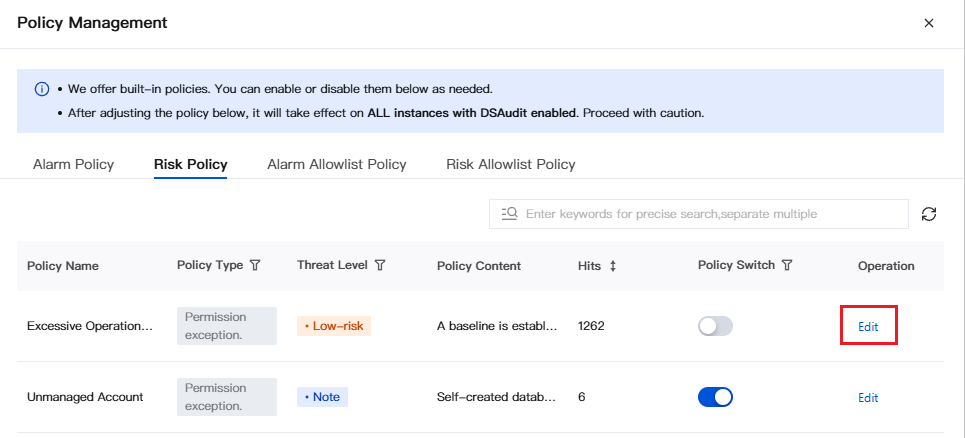
2. In the Edit Policy window, you can modify the threat level and policy content (excluding service accounts).
피드백