JupyterLab is a highly extensible and interactive development environment under the Jupyter project, with rich features available, supporting notebook, code and data writing. The flexible interface allows you to configure and arrange workflows in data science, scientific computing, computational journalism and machine learning. The modularized design allows expansion to extend and enrich functions. This article briefly introduces how to use JupyterLab on EMR with an example. For detailed operation instructions, see JupyterLab Official Website Documentation.
Prerequisites
A machine learning cluster of EMR on TKE has been created and JupyterLab and Eg services are selected. For details, see Creating a Cluster.
Access the JupyterLab WebUI
1. You can enable public network access on the Edit Deployment page of the JUPYTERLAB service when purchasing a cluster, or after purchasing the cluster. Enter the cluster console Cluster Service, select JUPYTERLAB service, and click Enable Network Access in Role Management.
2. After enabling network access, click View WebUI in the upper right corner to open the JupyterLab WebUI (the security group needs to enable port 8888).
Usage Example
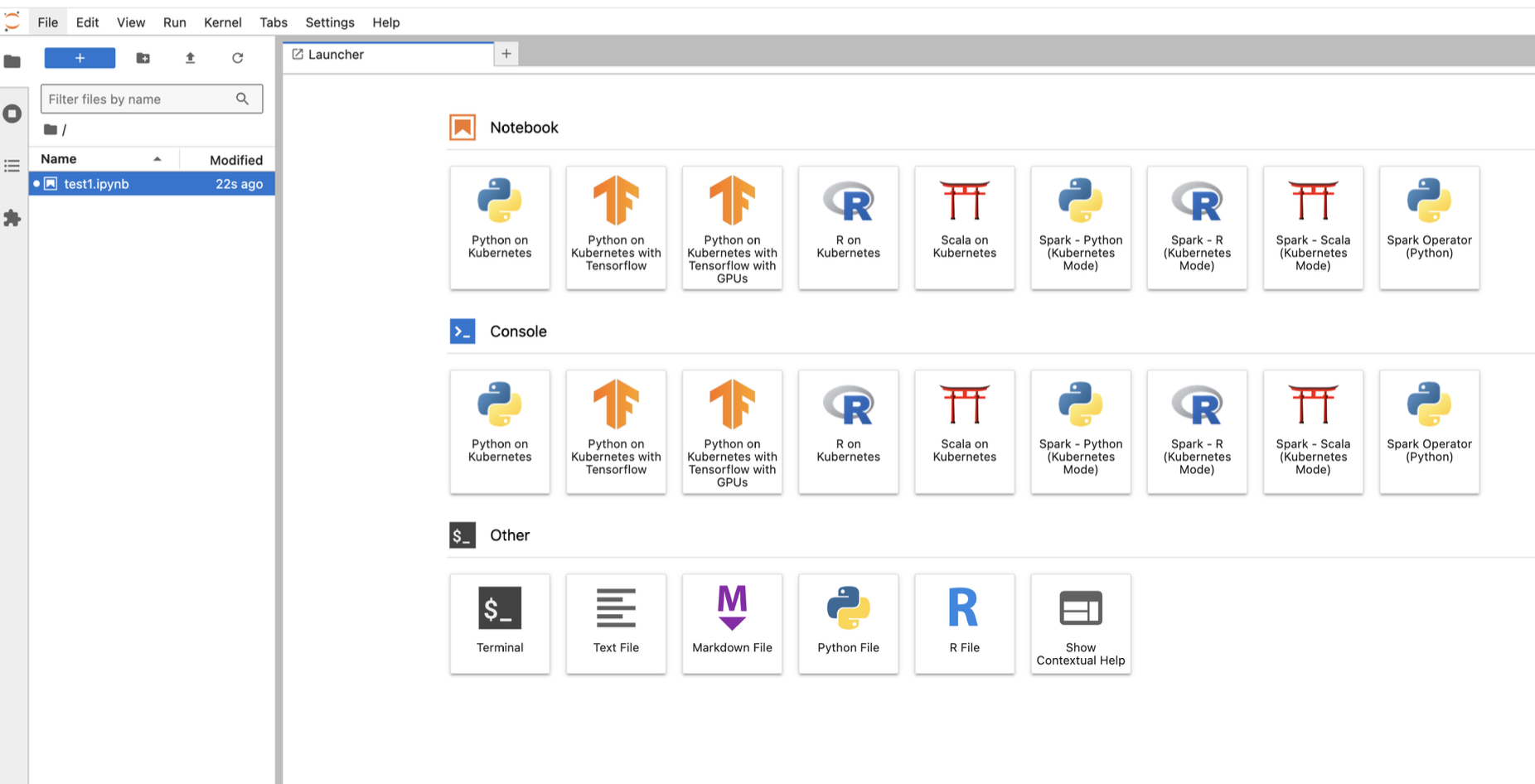
Log in to the JupyterLab Web page, select a notebook, console, text, or others in the workspace as needed. Take notebook as an example.
Select the kernel you want to use and start code writing.
Cell Toolbar
Each cell has a toolbar for quick access to common features. If you want to disable a cell toolbar, open the settings editor, select the cell toolbar in the left panel, and then deselect "Show Cell Toolbar".
Administrator can turn off the cell toolbar by running the following command: