AI Agent
다운로드
포커스 모드
폰트 크기
Overview
The AI Agent is a built-in AI Agent module in the CFW console. It can leverage CFW rules, alarms, logs, traffic data, and product documentation to assist with product inquiries, security analysis, report generation, rule handling, and alarm analysis through conversations, full-screen reports, and scheduled tasks.
Capability Overview
Capability | Description |
Security Investigation | Provide conversational Q&A on CFW features, configurations, logs, and common issues. |
Security Report | Analyze alarms or logs and provide investigation conclusions and handling suggestions. |
Report generation | Generate security reports such as alarm analysis, traffic insight, and exposure risk insight reports. |
Rule Configuration | Add, delete, and modify access control rules. |
Alarm handling | Block, add to allowlist, isolate, or ignore alarm events. |
Scheduled task | After a frequency is set, the system automatically triggers AI analysis. It has two System built-in task: Firewall Security Monthly Report and Alert Noise Reduction. Custom scheduled tasks are also supported. |
IM notification | After IM is bound, push notifications are received when report generation and scheduled task execution are completed. |
Prerequisite
You already have the required resource and log viewing permissions. If not, go to the CFW purchase page to purchase them.
The AI Agent is currently in public beta and requires no additional application. If you encounter any issues during use, you can contact a Tencent Cloud account manager or submit a ticket for consultation.
Sub-accounts can use the conversation and report features only after being granted relevant CFW access permissions by the root account through CAM.
When performing change operations using the operation list, you must have the required operation permissions for the corresponding module, such as permissions to add, delete, and modify Access Control rules and permissions to handle alarms. If your permissions are insufficient, the operation will be blocked.
Operation Steps
Initiating a Conversation
The AI Agent supports three ways to initiate a conversation: asking questions directly, using preset scenarios, and entering from a feature module entry.
Direct Inquiry
1. Log in to the CFW console and click AI Agent in the left sidebar.
2. You can directly ask questions in the conversation regarding CFW product features, configuration items, log fields, common issues, and so on. For example,
What are the differences between an Enterprise Security Group and a traditional security group?
What is the difference between "Allow" and "Permit" in intra-VPC rules?
Can the source address after NAT be seen in the public network firewall logs?
3. Click Send or press the
Enter key to submit.4. The AI Agent provides an answer in the response area. You can then perform follow-up operations based on the answer, such as log queries, rule adjustments, or asset inspections.
Note:
The answers and reports generated by the AI Agent are based on existing CFW data and product documentation. The conclusions and suggestions are provided for reference only. For formal actions, please execute them after combining the alarm details, traffic logs in the console, and manual analysis.
5. Context is retained for multiple rounds of questions within the same session. Click Create Dialogue in the upper-right corner of the conversation area to enable a new session without context.
6. Click Historical Sessions in the upper-left corner of the AI Agent to view previous sessions. Historical sessions are displayed in reverse chronological order and retained for the last 30 days. Sessions older than 30 days are automatically cleared.
Using Preset Scenarios
The preset scenarios provide commonly used question templates across four dimensions: Product Q&A, Security Report, Security Investigation, and Troubleshooting. After you click a template, the corresponding text is populated into the dialog box. You can edit it and then click Send.
The descriptions and typical scenarios for each dimension are as follows:
Level | Description | Typical Scenario |
Security Investigation | Perform in-depth security analysis and provide investigation conclusions and handling recommendations. | Alarm investigation, rule optimization analysis, vulnerability impact assessment, abnormal outbound connection detection. |
Product Q&A | Consult CFW features, configuration methods, asset status, and so on. | Feature usage guidance, asset query, concept explanation. |
Security Report | Generate various types of security analysis reports. | Alarm analysis report, traffic insight report, exposure surface report |
Troubleshooting | Troubleshoot common issues encountered during firewall usage. | Connectivity failure, rule mismatch, IPS non-interception, NAT forwarding exception. |
Entering from the Feature Module Entry
An AI Agent button is displayed in the upper-left corner of the pages of the following four modules: Access Control, Alarm Center, NDR, and Traffic Center. Scenario guidance text is displayed in a scrolling marquee. Click the button to navigate to the AI Agent with the corresponding question pre-filled.
1. Log in to the CFW console and go to the target module page (for example, Access Control).
2. An AI Agent button is displayed in the upper-left corner of the page.
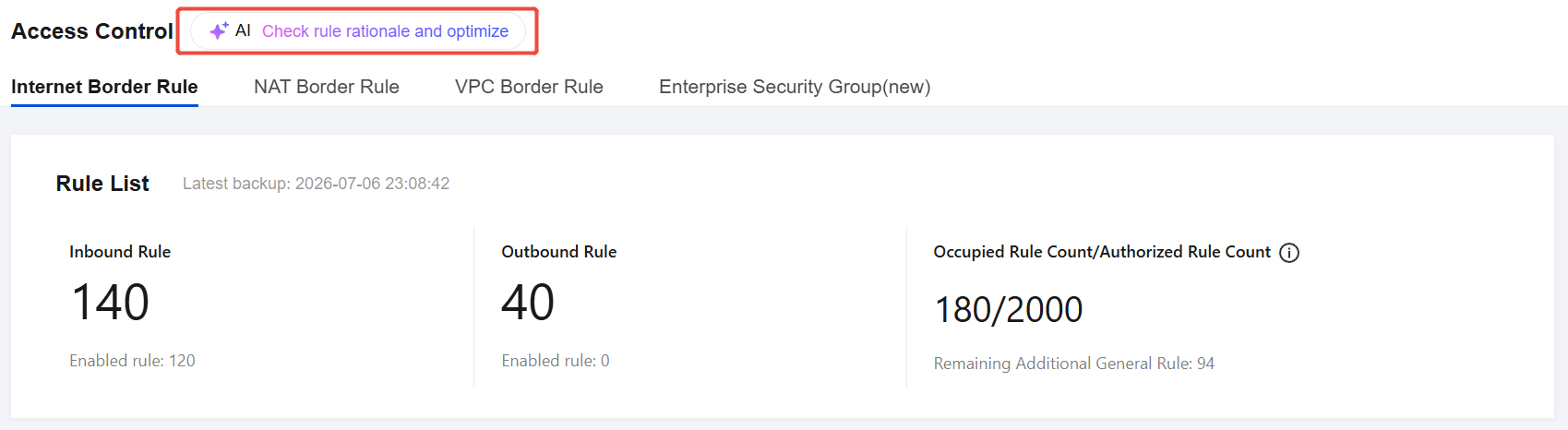
3. Click the guidance text currently displayed on the button. The page navigates to the AI Agent, and the corresponding question is pre-filled in the input box. You need to send it manually.
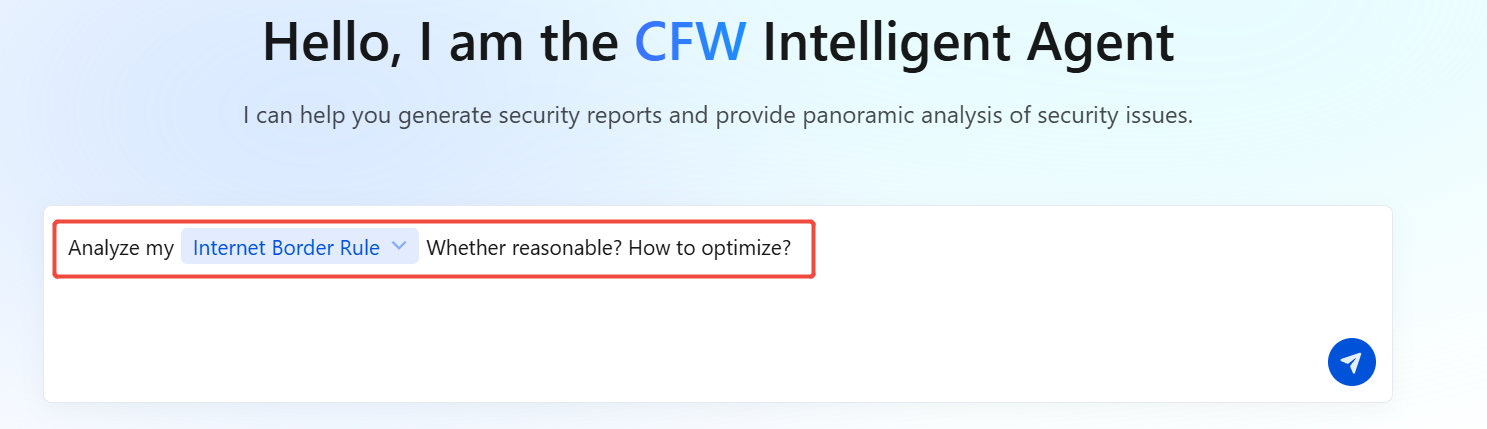
4. After editing the pre-filled content, click Send or press the
Enter key to submit.Command Execution
When a conversation involves change operations such as rule configuration or alarm handling, the AI Agent generates an Operation List for confirmation before execution. The Operation List is displayed in a drawer on the right side of the page, where you can view all operation details and parameters and choose Confirm Execution or Reject Execution. If no response is made within 30 seconds, the list is automatically canceled. Operation items cannot be edited. If you need to make adjustments, describe the modification requirements in the conversation, and the AI Agent will regenerate the list.
Note:
The Operation List does not support selecting individual items. You must either execute or reject the entire list.
The system supports performing Add, Delete, and Edit operations on four types of rules: Internet Border, NAT Border, VPC Border, and Enterprise Security Group.
The system supports performing Block, Allow, Quarantine, and Ignore operations on alarm events.
Generating a Security Report
The AI Agent supports generating multiple types of security analysis reports through conversations. Reports are displayed on a full-screen page. You can view and download historical reports in the report list below the dialog box. Both conversations and report generation count toward the Token quota.
The supported report types and their content focus are as follows:
Report Type | Content Focus |
Comprehensive alarm analysis | Trends of alarms, Top attack sources, Top rules hit, typical events, and so on, within a selected time range |
Full traffic deep insight | Overall trend of north-south traffic, newly added access relationships, abnormal sessions, and so on. |
East-west traffic visualization | Access relationships and traffic composition between VPCs and between subnets |
Exposure surface risk insight | Changes in the internet-facing attack surface, risk levels of exposed assets, risky services, and so on. |
The report time range supports three options: 24 hours, 3 days, and 7 days. If no time range is specified in your question, the AI Agent will prompt you in the conversation to select one of these three options.
Initiating a Report in a Conversation
1. Log in to the CFW console and click AI Agent in the left sidebar.
2. In the conversation input box, describe the report content you need, for example, "Generate a comprehensive alarm analysis report for the last 7 days."
3. Follow the prompts in the conversation to confirm parameters such as the report type and time range. After confirmation, generation will begin.
4. The conversation area displays the report generation progress. After generation is complete, you can click View Report in Full Screen or Download Report on the right side of the conversation.
Note:
If report generation is not completed within 5 minutes, a "Generation timeout, please try again later" message will appear in the conversation. You can then restart the process from within the conversation.
Viewing and Downloading Historical Reports
1. In the Report List below the dialog box, you can view the historical reports generated by your current account.
2. Click Target Report to go to the report full-screen page, where you can view the analysis conclusions section by section.
3. Click Download in the upper-right corner of the target report to download the current report in PDF format to your local device.
Scheduled task
Scheduled tasks automatically perform AI analysis at the configured frequency and are divided into two types: System built-in task and Custom Task.
1. Log in to the CFW console and click AI Agent in the left sidebar.
2. On the AI Agent page, click Scheduled Task in the upper-left corner.
Note:
During scheduled task execution, only query tools (for logs, alarms, and assets) are called. No operation lists are generated, and no change operations are performed.
After Binding IM, notifications are also sent through the IM when scheduled tasks are completed. You can click the link in the notification to navigate to the corresponding conversation.
Scheduled task execution consumes Token quota. When the quota is exhausted, all scheduled tasks are automatically disabled. After the quota is restored, you need to manually re-enable them.
System built-in tasks
System built-in task are preset by the system, and all sub-accounts share the enable/disable and frequency configurations. The following System built-in task are currently provided:
System built-in task | Description | Initial status | Configurable Item |
Firewall Security Monthly Report | Comprehensively review the overall firewall status (asset onboarding, feature enablement, alert posture, traffic trends) and generate a security monthly report. | Enabling log access | Frequency Notification Method |
Alarm analysis and noise reduction | Analyze whether current medium/high-risk alerts have real business impact, downgrade alerts without real impact and tag them with AI Downgrade label; frequency fixed to auto and not editable. | Enabling log access | Not configurable |
Note:
The enable/disable and frequency configurations of System built-in task take effect for all sub-accounts.
After the firewall security monthly report task is completed, the notification recipients configured in the existing channels for system log push are notified.
Custom Tasks
1. On the Scheduled Tasks page, click Create Task and configure the following settings:
Field | Required | Description |
Task name | Yes | Name that identifies the task and distinguishes it from other tasks in the task list. No more than 64 characters. |
Prompt | Yes | The first message automatically sent to the AI agent when the task is triggered, which determines the content and direction of each execution by the AI agent. No more than 5000 characters. Specify the task objective, output format, and constraints. |
Frequency | Yes | Recurring execution: repeats at a specified time every day, on specific days of the week, or on specific days of the month. One-time execution: runs once at a specified future time, and the task is automatically disabled after execution. |
Completion notification | No | After enabled, a notification is pushed through system logs to the notification objects configured in the existing channel notification configuration each time execution is completed. |
2. Click OK to complete the creation. The task is automatically executed at the configured frequency. Each execution creates a separate conversation, and the AI analysis results are retained in the corresponding conversation.
Note:
Each sub-account can create up to 10 custom tasks, which are visible and manageable only by the creator.
Custom task conversations are recorded as normal conversations and marked with the Scheduled Task tag. You can continue the conversation in the conversation history.
Viewing Execution History
1. In the Custom Tasks list, click Executions in Last 30 Days of a task to go to its execution history.
2. The execution history lists each execution record from the last 30 days in reverse chronological order, including the execution time and the corresponding conversation entry.
3. Click View Session to navigate to the corresponding session. If the session has been cleared because it exceeded the 30-day retention period, it cannot be viewed.
Binding IM to Receive Notifications
After an IM is bound, notifications are sent through the IM when report generation is completed. You can click the link in the notification to navigate to the report page.
1. Log in to the CFW console and click AI Agent in the left sidebar.
2. On the AI Agent page, click IM Binding Settings in the upper-right corner.
3. In the pop-up window, select the IM to bind: WeCom, WeChat, or Lark.
4. Scan the QR code on the page in the corresponding client and complete the binding as prompted.
Note:
The QR code expires about 5 minutes after being displayed. If it expires, click Refresh QR Code to obtain a new one.
5. In the same window, click Unbind next to the corresponding IM. After confirmation, the binding will be removed.
Viewing Token Quotas
The CFW AI Agent manages usage based on Token quotas.
1. Log in to the CFW console and click AI Agent in the left sidebar.
2. On the AI Agent page, you can view the remaining Token quota for your current account in the upper-right corner.
3. Token quotas are configured by Tencent Cloud based on business requirements. To apply for a quota, click Request Quota in the upper-right corner.
4. After the quota is exhausted, the current conversation cannot continue to send messages, and new conversations and reports cannot be initiated until the quota is restored. Scheduled tasks are automatically disabled, and warning-level notifications are pushed through system logs to remind creators to handle the issue promptly.
피드백