Packet Capture Tool
다운로드
포커스 모드
폰트 크기
Feature Introduction
The Network Packet Capture Tool provides users of the Enterprise Edition and above with the capability to obtain network packets from specified IP addresses and ports and analyze packet content. This helps you locate network faults and analyze attack behaviors, thereby identifying security risks in network communications.
Operation Steps
1. Log in to the CFW console, and click Common Tool in the left navigation pane.
2. On the Common Tool page, click Configuration now in Packet capture tool.
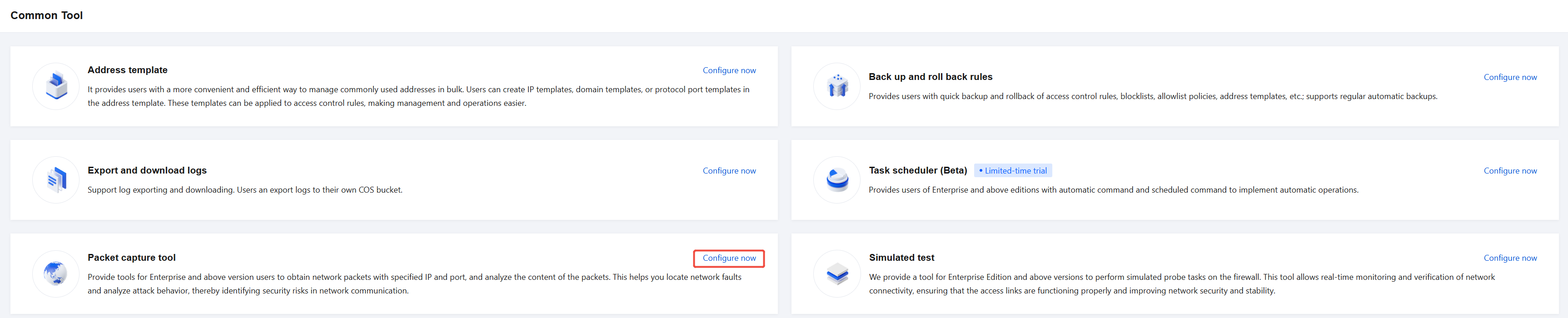
3. On the Network Packet Capture Tool page, click Create task.

Note:
A single account can create a maximum of 50 packet capture tasks per day.
4. In the New Packet Capture Task pop-up window, configure the relevant parameters and click Capture now.
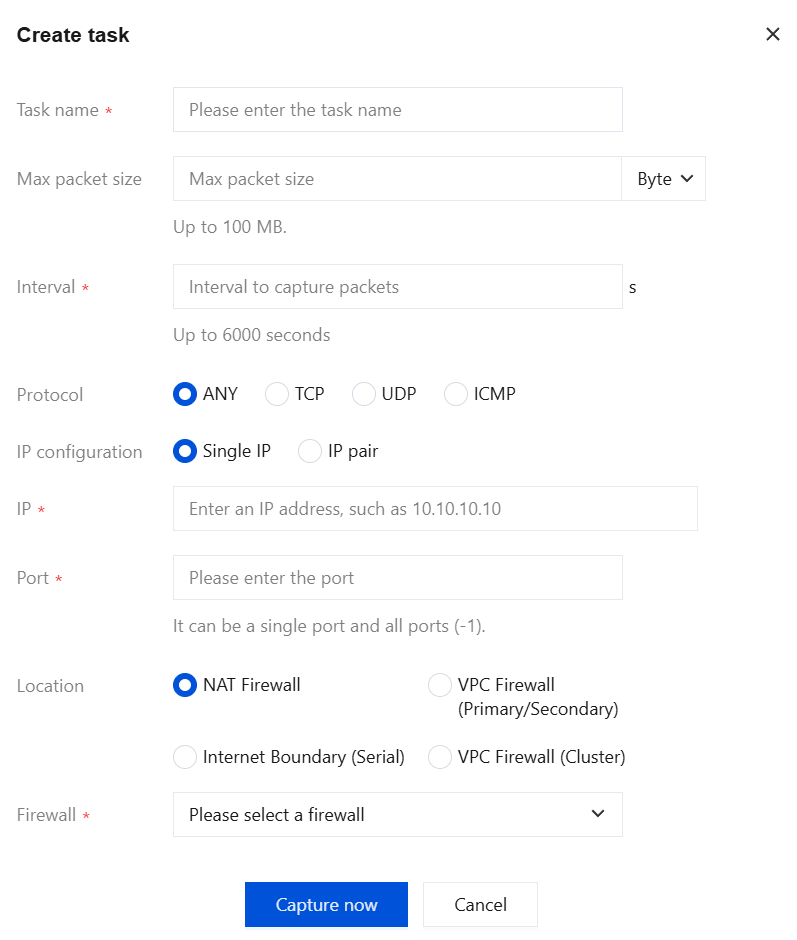
Parameter Name | Description |
Task Name | Customize the packet capture task name to identify different tasks in the task list. |
Maximum Packet Size | The maximum size of a single packet capture file. Supported units are Byte, KB, and MB, with a maximum limit of 100 MB. The task automatically ends when the size limit is reached. |
Interval | The maximum duration of a packet capture task, measured in seconds, with a maximum limit of 6000s. The task automatically ends when the duration limit is reached. |
Protocol | The protocol type of the traffic to be captured. Options include ANY, TCP, UDP, and ICMP. |
IP Configuration | Single IP: Filters traffic based on a single-side IP address and port, matching traffic where the source or destination hits that IP address and port. When you select Single IP, you must configure the IP address and port. IP: Enter the IP address of the traffic to be captured. Both IPv4 and IPv6 addresses are supported. Port: Only a single port or all ports are supported. To specify all ports, enter -1.IP Pair: Filters traffic based on both the local and remote ends simultaneously, matching only traffic that hits both the local and remote ends. When you select IP Pair, you must configure the local IP address, local port, remote IP address, and remote port. Local IP address: Enter the local IP address. Both IPv4 and IPv6 addresses are supported. Local Port: Only a single port or all ports are supported. To specify all ports, enter -1. Peer IP: Enter the remote IP address. Both IPv4 and IPv6 addresses are supported. Peer Port: Only a single port or all ports are supported. To specify all ports, enter -1. |
Location | The firewall boundary type for packet capture. Options include NAT Boundary, Internet Boundary (serial), VPC Boundary (primary/secondary), and VPC Boundary (cluster). |
Firewall | Dynamically displayed based on the selected Packet Capture Location, used to specify the specific packet capture target: When you select NAT Boundary or VPC Boundary (primary/secondary), select the corresponding firewall instance. When you select VPC Boundary (Cluster), select the corresponding CCN. When you select Internet Boundary (Serial), the packet capture target is the IP address entered in IP Configuration, and no additional instance selection is required. Note: Please confirm that the corresponding firewall switch for your capture object is enabled; otherwise, traffic cannot be captured. |
5. After the packet capture task is completed, click Download to download the capture results. The packet capture file is valid for 3 days. Please download it promptly.

6. You can use network packet capture software to open the capture results for further analysis.
피드백