Elastic IP Operation Guide
다운로드
포커스 모드
폰트 크기
This article describes how to request an Elastic IP in Tencent Cloud CDC.
Prerequisites
Directions
The lifecycle of Elastic IP usage includes requesting an Elastic IP, binding to a CVM, unbinding from a CVM and releasing the Elastic IP.
Request an Elastic IP
1. Log in to Tencent Cloud CDC console.
2. In the left sidebar, choose Network > Elastic IP, and click Request.
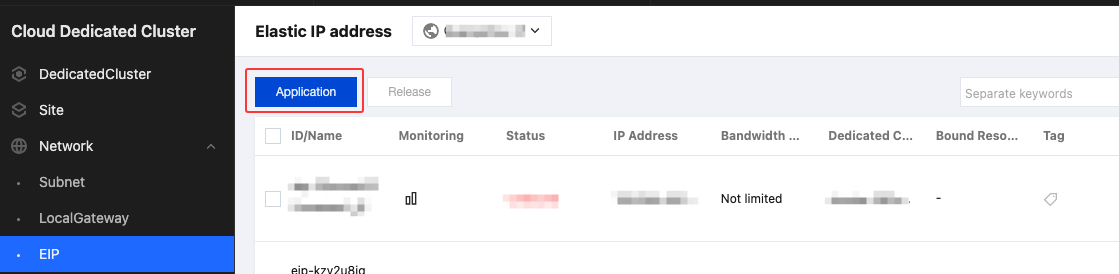
3. In the Request Elastic IP dialog box, complete the following configurations and click OK to complete the request.
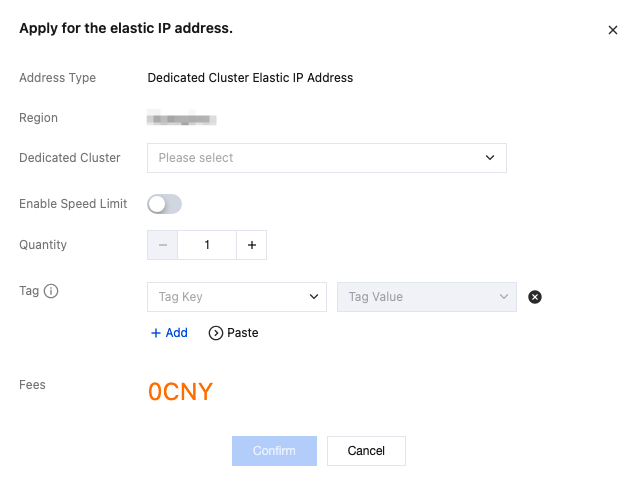
Bind CVM
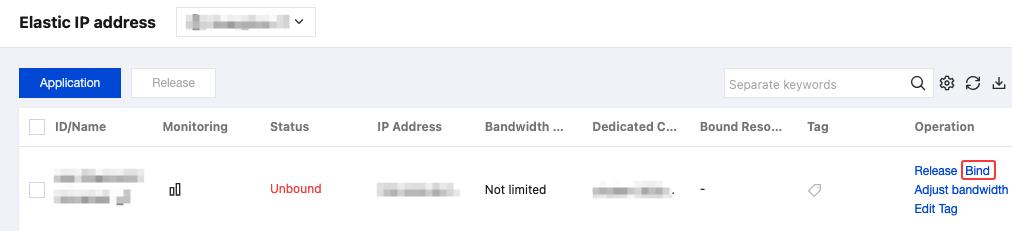
1. In the Elastic IP list, select an Elastic IP with the status unbound, and click Bind.
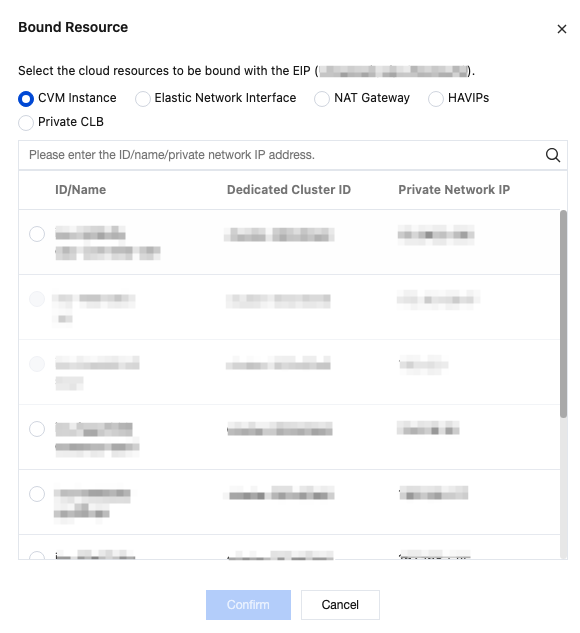
2. In the Bind Resource window that pops up, select the CVM instance to be bound. For the creation process of CVM (Cloud Virtual Machine), see Create and View a CVM.
Unbind CVM and Release Elastic IP
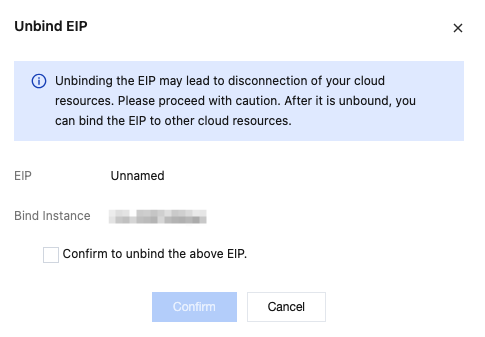
If you need to unbind from a CVM or change the bound CVM, in the Elastic IP list, click Unbind in the Operation column of the target Elastic IP, and confirm the unbinding information in the dialog box.
Note:
Unbinding an Elastic IP may cause network disconnection of your cloud resources. Exercise caution when performing this operation.

If you no longer need this Elastic IP, after unbinding, click Release in the Operation column and confirm the Elastic IP information to be released in the dialog box.
Warning:
Once an Elastic IP is released, it cannot be recovered. Exercise caution when this operation is performed.

피드백