Client Management
Baixar
Modo Foco
Tamanho da Fonte
After the client is installed, you can configure advanced capabilities such as resource usage limits, self-protection policies, and log collection on the client management page, reducing the impact on business hosts while ensuring detection effectiveness. This document describes the configurations and operations related to client management.
Prerequisites
The client has been installed on the target host.
Have the corresponding configuration permissions in the CSC console.
Going to Client Management
1. Log in to the CSC console.
2. In the left sidebar, choose Access Management > Client Management.
3. The Client Management page contains the following configuration areas:
Area | Description |
Client Resource Settings | Limit client resource usage by business priority, security priority, or custom settings. |
Self-Protection Settings | Configure anti-uninstall and process protection. |
Advanced Settings | Automatic host cleanup, scan filtering, enhanced log collection, and adaptive threat detection |
Note:
Configuration synchronization with CWPP: For customers who have switched from CWPP to CSC, client management configurations (except for enhanced log collection) are synchronized with CWPP configurations, and subsequent adjustments remain mutually effective.
Client Resource Mode Settings
Configure an appropriate client resource mode for your business. The memory usage and CPU usage shown on the page are the peak values during client group runtime.
Mode | Description | Memory Usage | CPU Usage | Packet Capture | Host Configuration Scope |
Business-first | Applicable only to scenarios with low security requirements. The system runs in low-power mode, which may cause missed detections of security risks or delayed responses. It is recommended that core businesses enable Security-First mode to ensure comprehensive and timely threat detection and protection. Note: In this mode, the system performs measures such as alarm aggregation, deduplication, filtering, and interception performance control. | Adaptive | 10% per core | 30000 pps | Except for the hosts configured in the other two modes, all remaining hosts are included in this scope. |
Security-first | Applicable to security protection scenarios for critical businesses. Servers with Professional Edition or Ultimate Edition bound for the first time enter this mode upon initialization to ensure comprehensive and timely threat detection and protection. | Adaptive | 30% per core | 100000 pps | User-selected hosts |
Custom | In this mode, memory and CPU usage can be flexibly controlled. It is recommended to refer to the configurations of Business-First and Security-First modes for appropriate adjustments. Excessively low resources may cause some detection capabilities to fail, so configure with caution. | Adaptive | Configurable: 30% per core, 40% per core, 50% per core, 60% per core. | Configurable: 30000 pps, 50000 pps, 100000 pps, 150000 pps, 200000 pps, 300000 pps. | User-selected hosts |
Note:
The host ranges of the three modes cannot overlap.
When you add a host in a mode, the selected host is removed from its original mode and enters that mode.
When you remove a host from a mode, the selected host is restored to the business-first mode by default.
If the number of machines exceeds 500, change them in batches to ensure greater safety and stability.
Steps
1. On the Client Management page, click the edit icon in the upper-right corner of Client Resource Settings.
2. In edit mode, configure as needed and click Save.
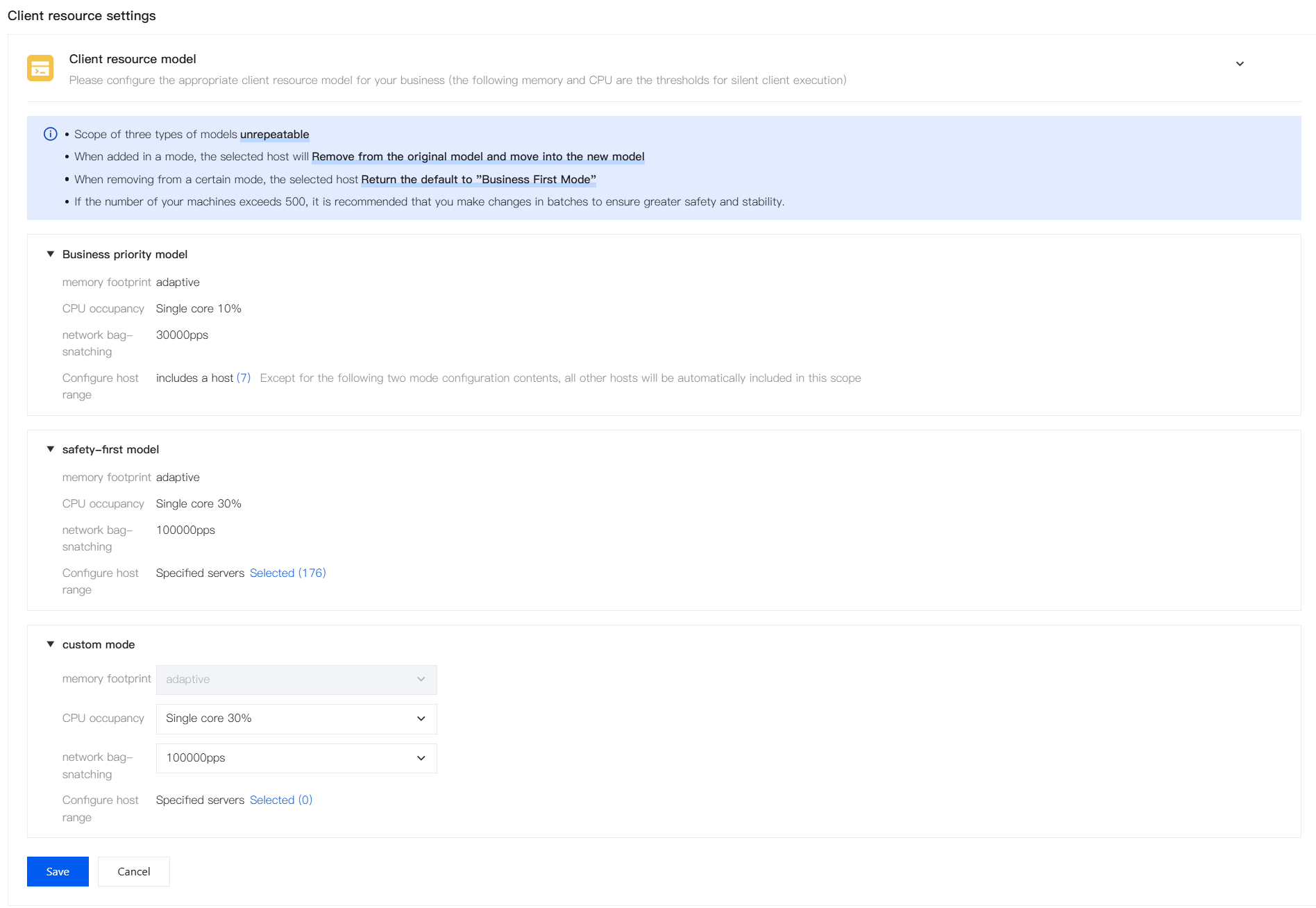
Business-first mode: You do not need to select hosts separately. Hosts that are not included in the security-first mode or a custom mode are automatically assigned to this mode by default.
Security-first mode: Click Selected to add target hosts to this mode.
Custom mode: Set CPU usage and packet capture, and then click Selected to add target hosts.
Self-Protection Settings
Client self-protection settings include two capabilities: anti-uninstall and process protection.
Client Self-Protection - Uninstall Prevention
The client completes human-machine verification on the endpoint through a random-number Captcha and automatically reinstalls itself after detecting uninstallation by unofficial methods, countering malicious behavior. Any uninstallation method other than uninstalling the client from the CWPP console or using official uninstall scripts/programs is determined as malicious uninstallation.
Steps
1. Go to the Client Management page.
2. In the self-protection settings area, turn on the Client Self-Protection - Anti-Uninstall switch.

3. In Selection Method, select the effective scope and click Save.
All hosts: Applies to all hosts.
Excluded hosts: Applies to all hosts except the specified hosts.
Selected hosts: Applies only to the selected hosts.
Note:
To uninstall the client from a host with anti-uninstall enabled, complete human-machine verification before uninstalling, add the host to Excluded Hosts first, or disable the anti-uninstall switch before proceeding.
Client Self-Protection - Process Guard
Protect client processes at the driver level to prevent them from being stopped.
empty
1. Go to the Client Management page.
2. In the self-protection settings area, turn on the Client Self-Protection - Process Guard switch.

3. Click Selected, select the hosts for which to enable process guard, and click Save.
Note:
Process guard is supported only on Windows, and the system version must be later than Windows Server 2008.
Advanced Settings
Host Auto Cleanup
Automatic host cleanup automatically unbinds protection licenses from hosts that meet cleanup rules and cleans up data such as assets, risks, and alarms. When a cleaned host installs the client again, it is treated as a new host without retaining historical data. Cleanup rules differ between Tencent Cloud hosts and non-Tencent Cloud hosts:
Host Type | Cleanup Rule | Description |
Tencent Cloud CVM | Automatically clean up when a server is terminated/unsubscribed by default. | Automatic cleanup records are based on server termination/unsubscription records. |
Non-Tencent Cloud Host | Set automatic cleanup rules based on the switch and client offline days. | You can view the automatic cleanup records of non-Tencent cloud hosts on the client management page. |
Steps
1. Go to the Client Management page.
2. In Advanced Settings, turn on the Automatic Host Cleanup switch.

3. In Cleanup Rules, set the offline days for non-Tencent Cloud hosts and click Save.
Note:
Automatic cleanup unbinds licenses and deletes related historical data. Set the offline days for non-Tencent Cloud host clients carefully based on business retention requirements.
Client Lightweight Configuration - Scan Filtering
When the client performs scans (file kill/vulnerability scan/baseline scan), it automatically skips disk environments (only nfs file system network disks on Linux, such as Tencent Cloud CFS) to avoid performance timeouts.
Steps
1. Go to the Client Management page.
2. In Advanced Settings, turn on the Client Lightweight Configuration - Scan Filtering switch.

3. In Selection Method, select the effective scope and click Save.
Incremental Log Collection
For paid hosts, enabling this feature collects more logs and enriches the fields of some existing logs to improve threat investigation capabilities. We recommend that you enable this feature.
Collection Item | Description |
Source port collection | After this feature is enabled, source port information in network quintuple is collected and stored to supplement complete session data and facilitate tracing of the entire network chain. You can view the collected source port field in log analysis. |
TCP/HTTP log configuration | Inbound logs: When inbound logs are enabled, TCP/HTTP access requests to the host from external sources are recorded for analyzing external attack behavior. You can view the related logs in log analysis. Outbound logs: When outbound logs are enabled, TCP/HTTP outbound connections initiated by the host are recorded. This can be used for checking for behaviors such as lateral scanning and connections to malicious IPs, and it also supports alarm triggering. You can view the logs in log analysis and the related alarms in alarm center. |
Application access log configuration | After this feature is enabled, access logs of business applications are collected to record application-layer request details for analyzing application-layer attacks or abnormal access. You can view the collected application access logs in log analysis. |
Deep collection | After this feature is enabled, log collection information is enriched to help improve event tracing efficiency: 1. Strengthen the "context" information for investigation and tracing. Process network profile: Automatically enriches all network connections (NetFlow) with core context such as the initiating process and command line. DNS process binding: Correlates massive DNS queries with the specific initiating processes to quickly distinguish between normal business updates and malware probing. 2. Add "key evidence" for deep forensics. Malicious file operation capture: enhances monitoring of covert tampering behaviors such as file renaming, and effectively detects traces of Trojan disguise and log cleanup. Note: After enabling deep collection, you can also perform supporting configurations by using the related policy entries provided on the page, such as application collection path configuration and TCP log exception network segment configuration. |
Steps
1. Go to the Client Management page.
2. In advanced settings, click the expand icon for incremental log collection.

3. Expand the current log enhanced collection configuration, adjust the collection content as needed, and select the asset scope to which it applies.
Collection content: You can select source port collection, TCP inbound logs, HTTP outbound connection logs, HTTP inbound connection logs, and application access logs.
Other configurations: You can select deep collection.
Selectable effective assets:
All paid assets (all Professional Edition and Ultimate Edition hosts are selected by default).
Select by tag: The effective scope is automatically matched based on asset tags. After a tag is changed, the scope is automatically updated based on the host asset maintenance results.
Direct selection: Manually select hosts.
Adaptive Threat Detection
When a high-risk intrusion event occurs on a host, the system adaptively enables the Strict Prevention mode alarm within 1 day to detect attacker behavior faster and more comprehensively, improving the visibility of covert activities such as lateral movement.
Steps
1. Go to the Client Management page.
2. In Advanced Settings, turn on the Adaptive Threat Detection switch.

FAQs
Why Is a Server Not Visible in Business Priority After Being Added to Security Priority?
The scopes of the three modes cannot overlap. After a host is added to a mode, it is removed from the original mode. After a host is removed from the security-first mode or a custom mode, it returns to the business-first mode by default.
How to Properly Uninstall the Client After Enabling Uninstall Protection?
Complete human-machine verification with a mobile phone verification code in the console before uninstalling, add the host to Excluded Hosts first, or disable the anti-uninstall switch before uninstalling. Any method other than console uninstallation or official uninstall scripts/programs is considered malicious uninstallation.
What to Do If Process Guard Does Not Take Effect?
Confirm that the target host runs Windows, that the system version is later than Windows Server 2008, and that the host has been selected in Process Guard.
Why Does the Server Slow Down or Network Traffic Increase After Incremental Log Collection Is Enabled?
Incremental log collection is available for paid hosts and increases resource consumption after it is enabled. Enable it only for necessary assets, reduce collection items, or lower the CPU usage and network packet capture limits in the resource mode accordingly.
What Data Is Cleaned Up by Automatic Server Cleanup?
The protection license is unbound, and data such as assets, risks, and alarms is cleaned up. When a cleaned host installs the client again, it is treated as a new host, and no historical data is retained.
Ajuda e Suporte
Esta página foi útil?
Você também pode entrar em contato com a Equipe de vendas ou Enviar um tíquete em caso de ajuda.
comentários