Kilo Code
Baixar
Modo Foco
Tamanho da Fonte
Kilo Code is an open-source AI coding assistant that adapts to your entire development workflow, whether in IDEs, terminals, browsers, or mobile office environments. Leveraging AI capabilities that deeply understand codebases, it efficiently generates code, automates code reviews, debugs issues, and accelerates R&D delivery. This document describes how to configure and use the Tencent Cloud Large Language Model Token Plan Enterprise Edition in Kilo Code.
Prerequisites
Before you start the configuration, ensure that you have completed the following preparations:
2. Obtain the model configuration: models available for the Pro Plan and models available for the Lite Plan.
Installing Kilo Code and Using the Token Plan Enterprise Edition
Search for and install the Kilo Code plugin in your IDE. The following sections demonstrate the installation and configuration process using JetBrains and VS Code as examples.
1. Open VSCode, search for Kilo Code in the Extensions Marketplace, and install it.
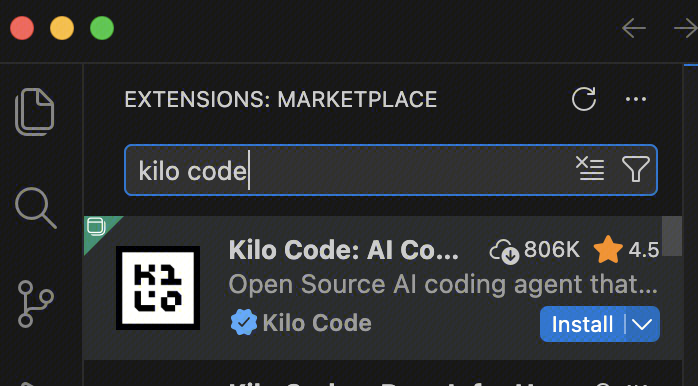
2. Open Kilo Code, select Bring my own Key, and configure the following information:
API Provider: OpenAI Compatible (The Token Plan API is compatible with the OpenAI standard).
Base URL:
Singapore:
https://tokenhub-intl.tencentcloudmaas.com/plan/v3Guangzhou:
https://tokenhub.tencentcloudmaas.com/plan/v3API Key: The API Key dedicated to the Token Plan.
Model: Enter the Model ID of a model available in your plan. For the complete model list, see models available for the Professional Plan and models available for the Lite Plan.
3. After configuration is complete, you can enter your requirements in the input box to interact with the model.
4. Model Switching: You can switch models by clicking the Settings icon in the upper-right corner, searching for a model in the Model input box, and selecting Use custom.
1. Open JetBrains, search for Kilo Code in the Extensions Marketplace, and install it.
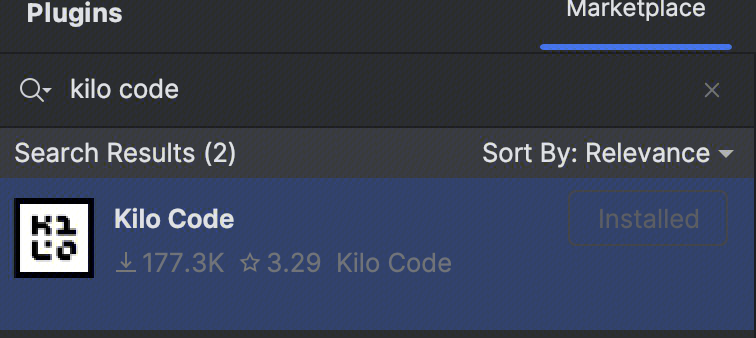
2. After installation is complete, restart the IDE, click the icon on the right, select Bring my own Key to go to the settings page, and configure the following information:
API Provider: OpenAI Compatible (The Token Plan API is compatible with the OpenAI standard).
Base URL:
Singapore:
https://tokenhub-intl.tencentcloudmaas.com/plan/v3Guangzhou:
https://tokenhub.tencentcloudmaas.com/plan/v3API Key: The API Key dedicated to the Token Plan.
Model: Enter the Model ID of a model available in your plan. For the complete model list, see models available for the Pro Plan and models available for the Lite Plan.
3. To use it in Kilo Code, click the Settings icon in the upper-right corner and modify the Model to switch models.
Ajuda e Suporte
Esta página foi útil?
Você também pode entrar em contato com a Equipe de vendas ou Enviar um tíquete em caso de ajuda.
comentários