You can access the Billing Center in the Tencent Cloud console to view your available account balance, transaction details, fees incurred from using TencentDB for MySQL, and recharge or remit funds to your account, and so on.
This document introduces how to query the fee details incurred from using TencentDB for MySQL via the console.
2. In the top-right navigation bar Billing Center, click Billing Center to go to the Billing Center overview page.
Note:
On the overview page of the Billing Center, you can view the outstanding amount.
3. In the left sidebar, choose Bills > View bills.
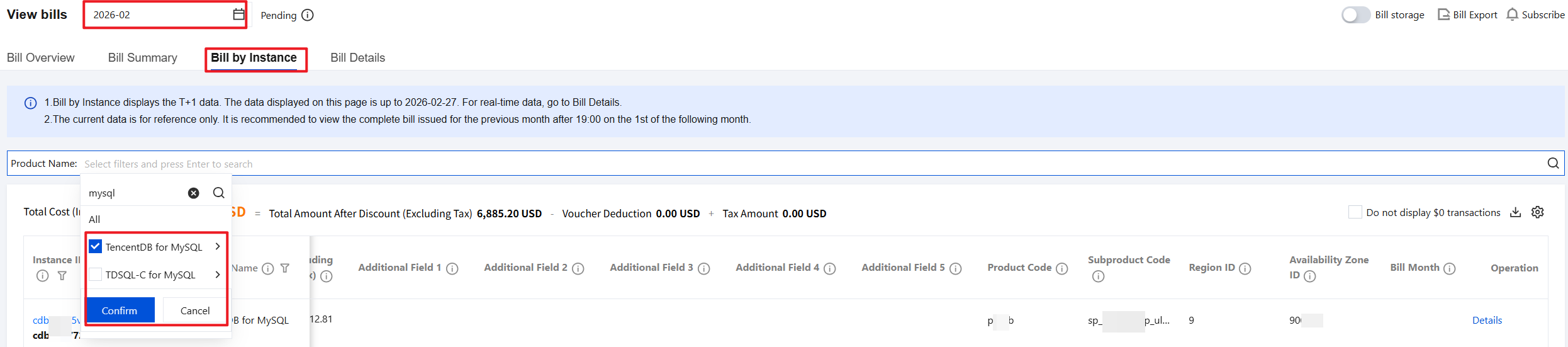
4. On the bill view page, select the query time (monthly) at the top, choose Bill by Instance, then select Product Name in the search box, filter and locate TencentDB for MySQL, and click Confirm to view the fees incurred by this product during the selected month in the list below.
Note:
To check the bill details of a specific resource, click Details in the Operation column.
To download bill details, click the icon
on the right.
Example: View the Fee Bill After an Instance Is Created
For example, you created a MySQL cloud disk edition instance with a yearly/monthly subscription billing mode in the Beijing region. Within half an hour after the instance is successfully created, the fees incurred from this instance creation will be billed. After the billing, you can refer to the following methods to view the relevant fees in the bill.
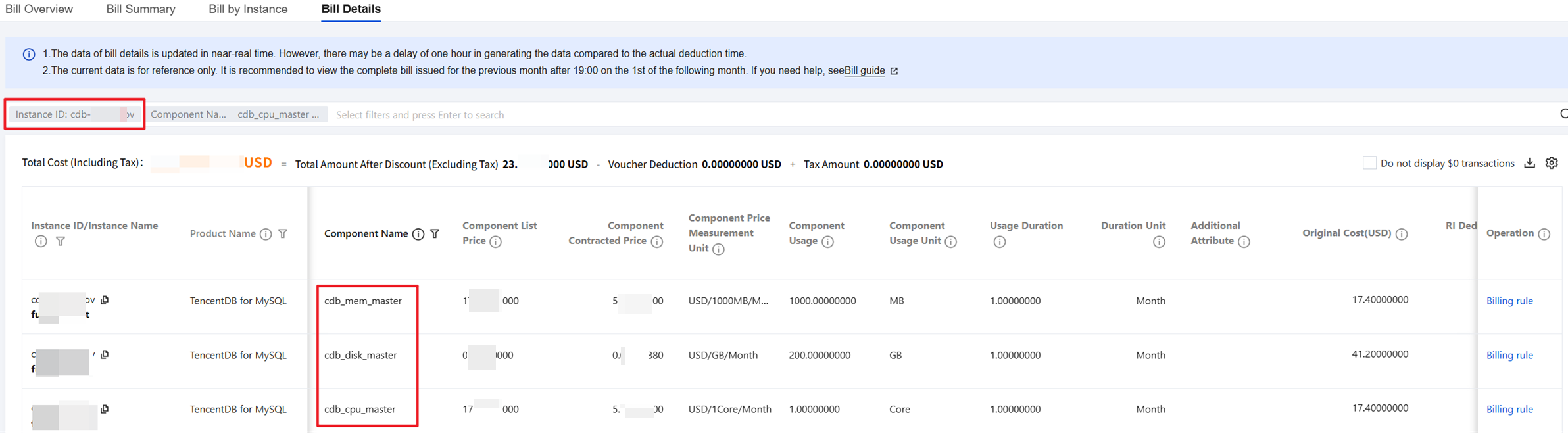
2. In the left sidebar, choose Bills > View bills > Bill Details.
3. In the search box, select Instance ID, enter the MySQL instance ID to be queried, press Enter to search, and then view the overall cost and detailed bills for the created instance in the list below.