Log
Download
Modo Foco
Tamanho da Fonte
Log-type charts support saving raw logs to dashboards for viewing. After viewing analysis results on the dashboard page, you can quickly see the associated log content without having to navigate to the search and analysis page.
Operation Steps
1. Log in to the CLS console, choose Dashboard > Dashboard List, and then select the dashboard you want to view.
2. Select the target dashboard to go to its view page, click Edit, and then enter the edit page.
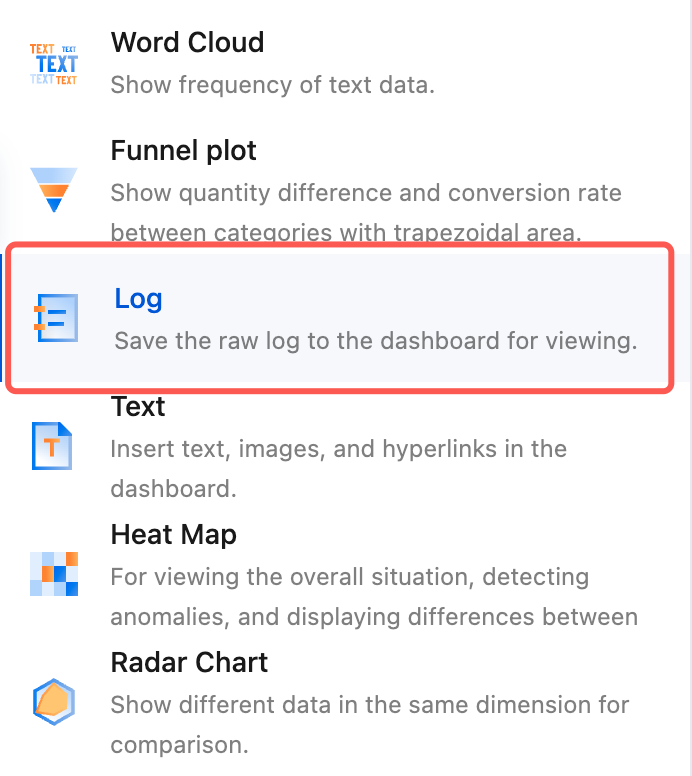
3. Click Add Chart to create a chart, and select Log as the chart type.
4. Configure the chart as needed.
Chart Configuration
Configuration Item | Description |
Basic Info | Chart Name: Set the display name of the chart, which can be left empty. Description: Set the description of the chart, which can be left empty. |
Log style | Layout style: Select the original layout to display logs as text, or select the table layout to display logs as structured fields and field values in a table. Showed Field: Select the fields to be displayed. If this parameter is left empty, all fields will be displayed. Line Break: After it is enabled, log text in the original layout will be divided into lines by field, where each field occupies a line. Line No: After it is enabled, the log number will be displayed. Log Time: After it is enabled, the log time will be displayed. |
Field configuration | Field configuration supports configuration items that apply only to selected fields, which will overwrite the default chart configuration. |
Chart Operations
Adding a log chart to the dashboard
Option 1: Select Search and Analysis > Raw Data and click Add to Dashboard in the top-right corner to add the current log to the dashboard.
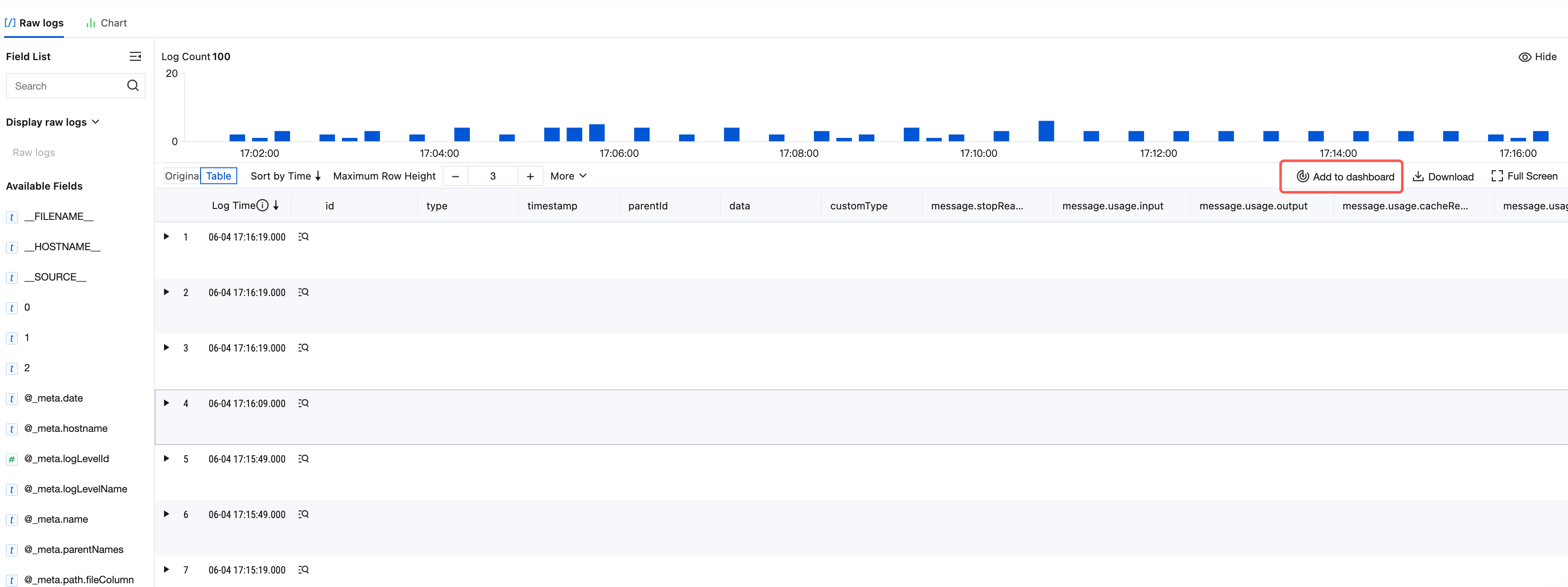
Option 2: Click Dashboard > Add Chart, select the Log chart type on the dashboard chart edit page, and enter the search statement.
Loading more logs
A log chart displays the first 20 logs by default, and more logs will be loaded automatically when you scroll down the page.
Ajuda e Suporte
Esta página foi útil?
Você também pode entrar em contato com a Equipe de vendas ou Enviar um tíquete em caso de ajuda.
comentários