Rules
Download
Focus Mode
Font Size
Rules provide system-level instructions and contextual information for AI Agents. They package prompts, workflows, coding standards, and more, making it easier to manage and share best practices within teams.
CodeBuddy IDE supports a multi-tier rule system that allows you to define AI Agent behavior at different scopes:
Project Rules: Stored in the
.codebuddy/rules directory of your codebase, version-controlled, and shareable with team membersUser Rules: Globally effective across all projects
How Rules Work
Large language models don't automatically retain memory between different conversation turns. The rule system addresses this limitation by providing persistent, reusable context at the prompt level.
When a rule is applied, its content is automatically injected at the beginning of the context information sent to the model. This ensures the AI Agent receives consistent guidance and behavioral standards when generating code, understanding edit intentions, or assisting with workflows.
Tip:
Since rules are only added at the beginning of each session, you need to start a new conversation session after creating or modifying rules for them to take effect. The current session won't automatically load newly added or updated rules.
Rule Types
Both project rules and user rules support three application types:
Rule Type | Description | Context Loading Method |
Always | Applied to every chat session, suitable for core coding standards, architectural constraints, and security requirements | Always loads the full rule content |
Agent Requested | Automatically applied when the Agent determines it's relevant based on description, suitable for documentation, usage guides, and reference materials | Only loads the rule name and description, fetches full content when the model determines it's needed |
Manual | Applied when @ mentioned in conversation (e.g., @my-rule), suitable for feature-specific development guides and optional best practices | Not automatically loaded |
Project Rules
Project rules are located in
.codebuddy/rules. Each rule corresponds to a folder containing a RULE.mdc file and is version-controlled. Rules can be scoped by path patterns, triggered manually, or automatically included based on relevance.Using project rules allows you to:
Capture domain knowledge relevant to your codebase
Automate project-specific workflows or templates
Standardize style or architectural decisions
Creating Project Rules
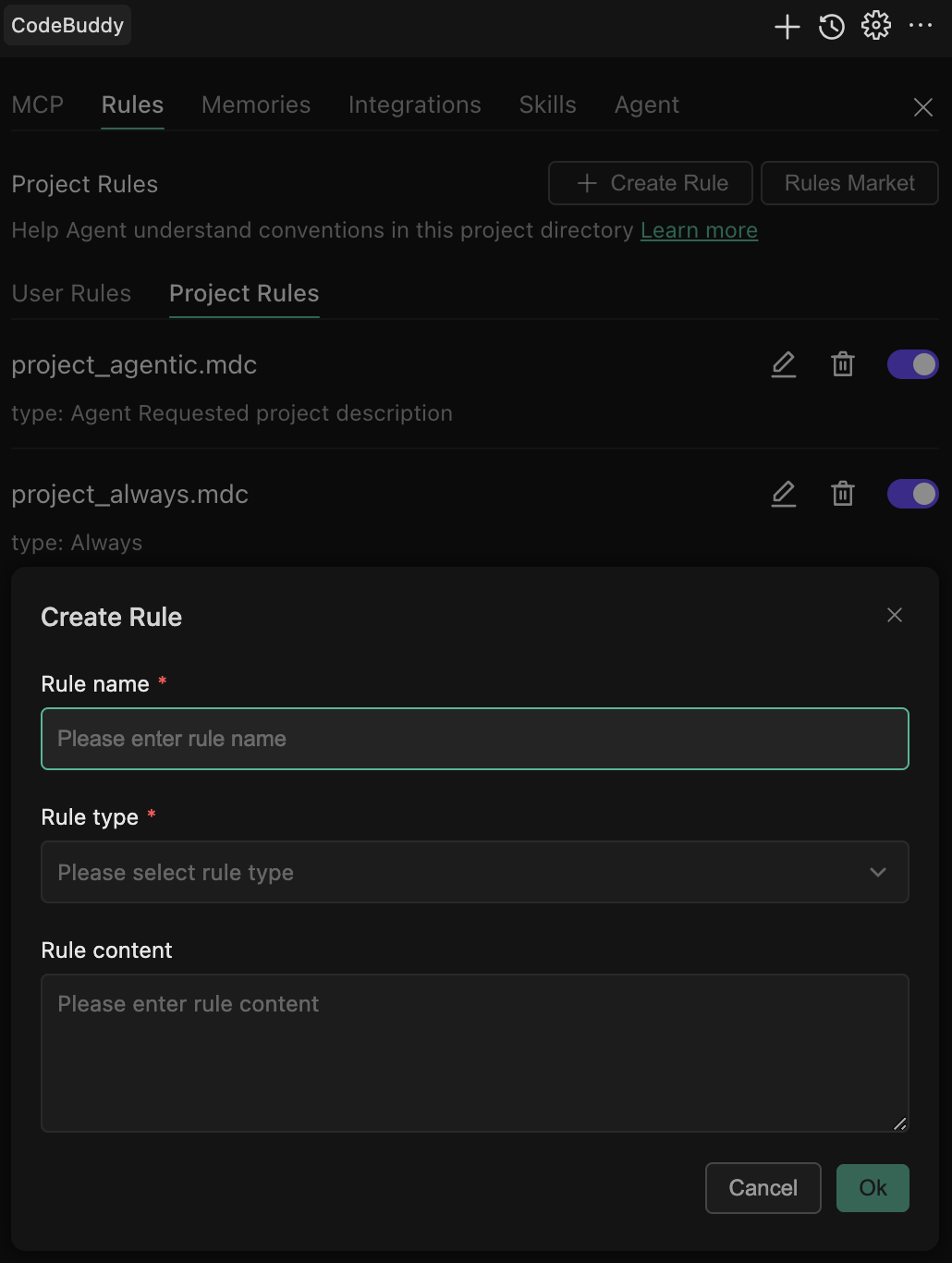
1. Open CodeBuddy IDE settings page
2. Find the "Rules" button at the top of the dialog
3. Click "Create Rule"
4. Select "Project Rule"
5. Fill in rule name, type, and content
Rule File Format
Rule files use Markdown format, with an example as follows:
---description: project descriptionalwaysApply: falseenabled: trueupdatedAt: 2026-01-13T12:03:50.791Zprovider:---...rest of the rule content
User Rules
User rules take effect globally on the local CodeBuddy IDE and apply across all projects. They are suitable for defining personal coding preferences and work habits.
Creating User Rules
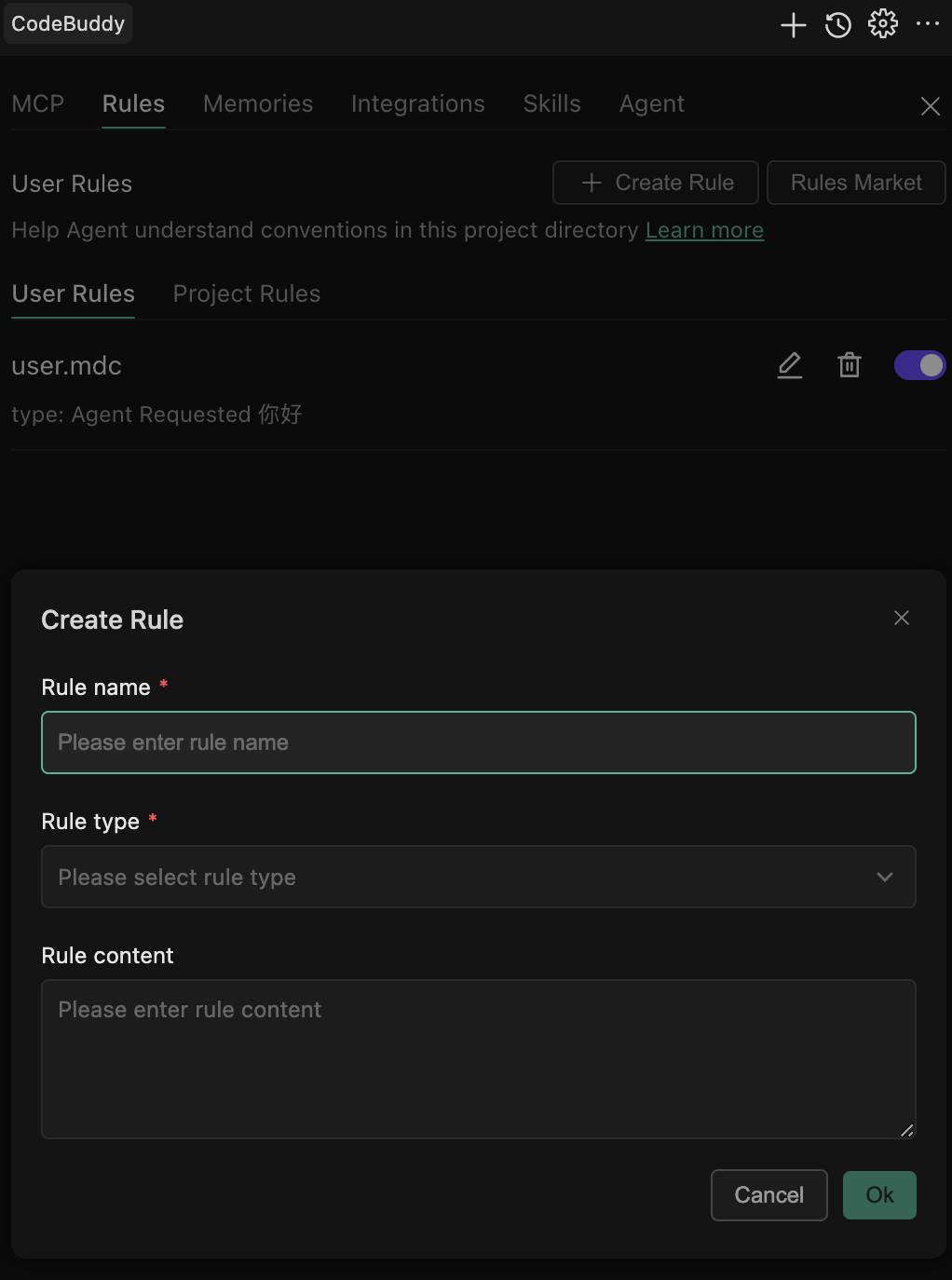
1. Open CodeBuddy IDE settings page
2. Find the "Rules" button at the top of the dialog
3. Click "Create Rule"
4. Select "User Rule"
5. Fill in rule name, type, and content
User rules are stored in your user directory and are not tracked by version control systems.
Example: Personal Code Style Rule
---description: My personal coding preferencesalwaysApply: true---# Personal Coding Style## General Preferences- Use 4 spaces for indentation (no tabs)- Maximum line length of 100 characters- Use single quotes instead of double quotes (unless necessary)- Add semicolons at the end of statements## Comment Style- Functions must have JSDoc comments above them- Add inline comments to explain complex logic- Write comments in English## Error Handling- Always wrap potentially error-prone code with try-catch- Log detailed error messages- Display user-friendly error messages to users
CODEBUDDY.md
CODEBUDDY.md is a Markdown file that helps AI quickly understand your current project.Unlike project rules,
CODEBUDDY.md is a plain Markdown file without metadata or complex configuration. It's ideal for projects that only need simple, readable instructions without the additional overhead of structured rules.
CodeBuddy supports CODEBUDDY.md located in the project root directory, and by default, loads the entire content into context.Tip:
Compatible with
AGENTS.md: For backward compatibility, when AGENTS.md exists in the project root directory but CODEBUDDY.md doesn't, CodeBuddy will automatically load the complete content of AGENTS.md into the conversation context.Best Practices
Good rules should be focused, actionable, and clearly scoped.
Keep rules under 500 lines
Split larger rules into multiple composable rules
Provide specific examples or reference files
Avoid vague guidance—write rules like clear internal documentation
Reuse existing rules when repeating prompts in chat
FAQ
Q: Will having too many rules affect performance?
A:
CodeBuddy IDE intelligently loads rules. Only rules with alwaysApply: true are always loaded; other rules are loaded on demand. Recommendations:Set core standards to
always (3-5 rules)Set other rules to
manual or requestedQ: Can rule content reference external files?
A: Yes, you can mention file paths in rules, and the AI will read these files as needed:
## Architecture DesignPlease refer to the project's architecture documentation: `docs/architecture.md`
Q: How do I debug whether rules are taking effect?
A: Ask the AI in conversation: "What rules are currently applied?" The AI will list all rules loaded in the current session.
Q: Can I define custom commands with rules?
A: Rules are primarily for guiding AI behavior. For custom commands, it's recommended to use CodeBuddy's custom command feature.
Help and Support
Was this page helpful?
You can also Contact sales or Submit a Ticket for help.
Help us improve! Rate your documentation experience in 5 mins.
Feedback