Config MCP
ダウンロード
フォーカスモード
フォントサイズ
Introduction
MCP (Model Context Protocol) is designed to solve the need for seamless integration between large language models (LLMs) and external data sources and tools. By standardizing the interaction between AI systems and data sources, it helps models access richer contextual information, leading to more accurate and relevant responses. The main functionalities include:
Context Sharing: Applications can provide models with the required contextual information (such as file contents, database records, etc.) through MCP, enhancing the model's understanding.
Tool Exposure: MCP allows applications to expose functions (such as file reading/writing, API calls) to models, enabling models to use these tools to perform complex tasks.
Composable Workflows: Developers can use MCP to integrate multiple services and components, building flexible and scalable AI workflows.
Security: By running on a local server, MCP avoids uploading sensitive data to third-party platforms, ensuring data privacy.
CodeBuddy IDE supports MCP Server configuration, enabling you to extend the functionality of your applications.
Configuration
1. In the top-right corner of the sidebar conversation panel, click the CodeBuddy Settings button.
2. Switch to the MCP tab. Currently, you can customize the MCP Server configuration and install MCP Servers with one click from the MCP Market.
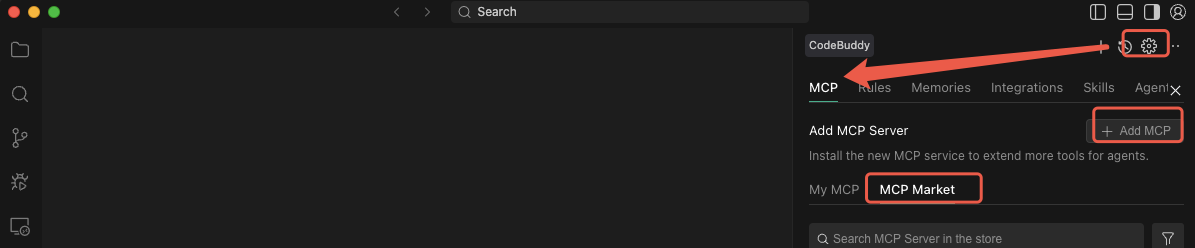
MCP Market Installation of MCP Server
The MCP Market provides a large number of MCP Servers that you can install with one click.
Based on your actual needs, choose an MCP Server to install with one click. After a successful installation, the MCP Server will show a green status; if the installation fails, a red status will be displayed.
Custom Configuration of MCP Server
1. In the MCP tab, click the Add MCP button on the right.
2. Add the MCP Server configuration content in the JSON configuration file. For example:
{"mcpServers": {"python-tools": {"type": "stdio","command": "python","args": ["-m", "my_mcp_server"],"env": {"PYTHONPATH": "/path/to/tools"},"description": "Python toolset"}}}
Usage
After the MCP Server is successfully installed, you can click the Try to Run button on the right side of the MCP Server to verify its usage; or you can directly input task requirements in Craft Agent, which will analyze the task requirements and call the MCP Server tools to complete the task.
フィードバック