tencent cloud

Game Multimedia Engine

Release Notes
Product Introduction
Overview
Strengths
Features
Scenarios
Compliance
User Tutorial
Billing
Free Plan
Purchase Guide
SDK Download Guide
Product Feature Demo
Basic Feature Demo
Scenario-Specific Demo
Console Guide
Usage Querying
Activating Services
Getting Started
Quick Integration of SDK
Quick Integration of Sample Project
Basic Feature Development Guide
Authentication Key
Voice Chat Role Configuration
Sound Quality
Advanced Feature Development Guide
Server-Side Recording
Range Voice
3D Sound Effect
Sound Effect and Accompaniment
Network Audio Stream Forwarding Routing
Custom Message Channel
How to deal with the restrictions of corporate firewall
Language Parameter Reference List
Integrating GME Chat Room Management
Client API
SDK for Unity
SDK for Unreal Engine
Cocos2D SDK
SDK for Windows
SDK for iOS
SDK for Android
SDK for macOS
H5 SDK
Electron SDK
SDK for Flutter
SDK Version Upgrade Guide
Error Codes
Toolchain
Server APIs
History
Introduction
API Category
Usage APIs
Recording APIs
Making API Requests
Voice Chat APIs
Application APIs
Data Types
Error Codes
FAQ
Product Features
Troubleshooting Guide
Billing
Sample Project Usage
General
Authentication
Voice Chat Room Entry Failure
Sound and Audio
Network
Speech-to-text Conversion
Program Export
Service Agreement
Service Level Agreement
Contact Us
Glossary
GME Policy
Data Privacy and Security Agreement
Privacy Policy

Real-Time Sound Equalizer

PDF
Focus Mode
Font Size
Last updated: 2024-01-18 14:27:26
This document describes the GME APIs for equalizer in voice chat so that developers can easily integrate and debug them.


Overview

The GME equalizer feature can adjust the equalizer of the audio stream captured by the GME SDK in real time. This feature can be applied to the online karaoke scenario. After the player starts singing, call the equalizer API of the GME SDK to adjust the player's real-time audio stream for voice beautification.

Prerequisites

You have activated the voice chat service. For more information, see Activating Services.
You have accessed the GME SDK, including core APIs and voice chat APIs. For more information, see Quick Integration of Native SDK, Quick Integration of SDK for Unity, and Quick Integration of SDK for Unreal Engine.

Demos

Demo Download

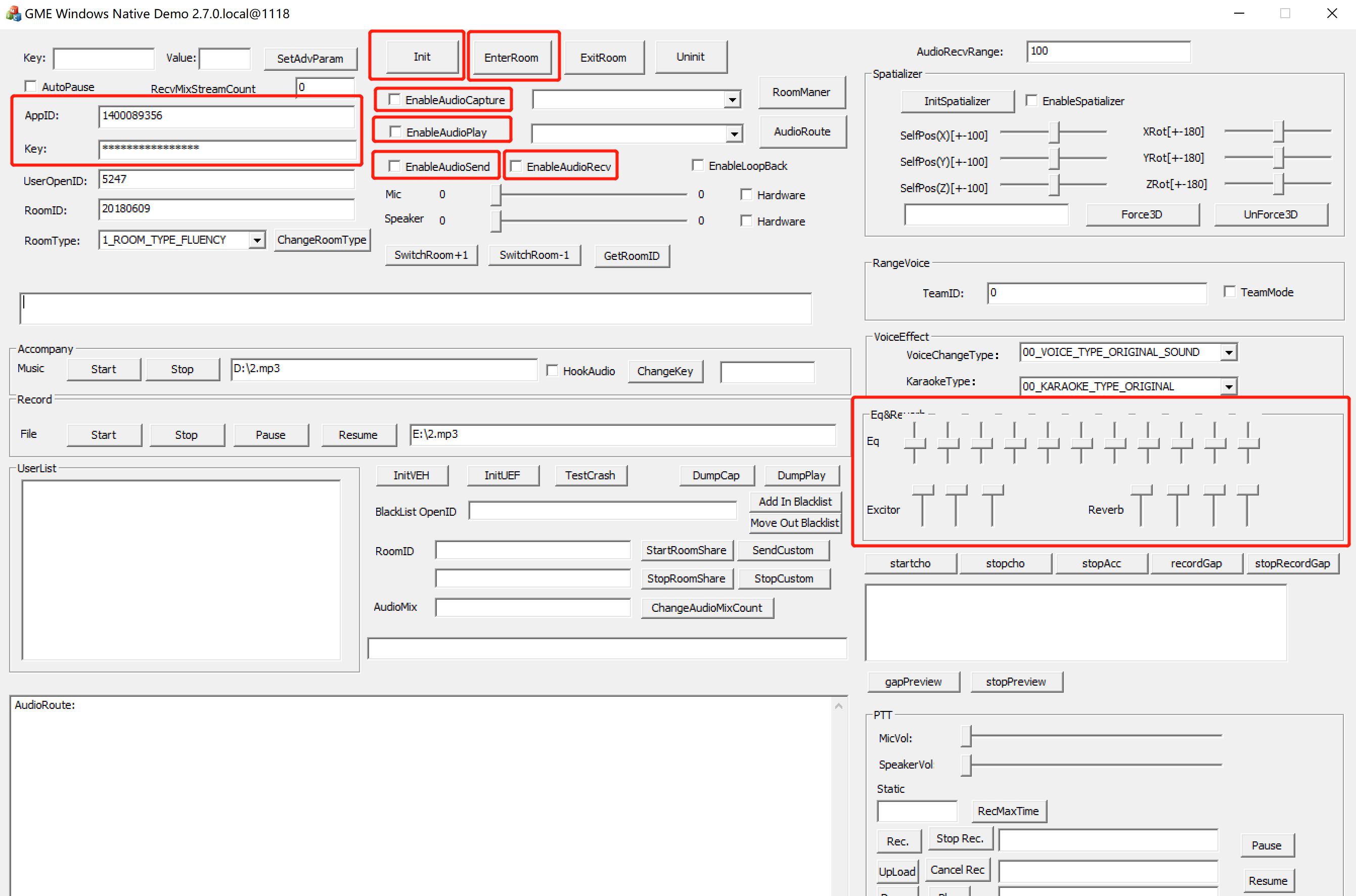
This free demo is a Windows executable program.


Configuring parameters

You can enter your GME AppID and Key in the input box.
You can also enter the targeted room ID and OpenID.

Directions

1. Follow the steps to open your mic and speaker: Init > EnterRoom > EnableCapture > EnablePlay > EnableSend > EnableRecv.
2. After successfully entering the room, you can hear your voice by enabling EnableLoopBack.
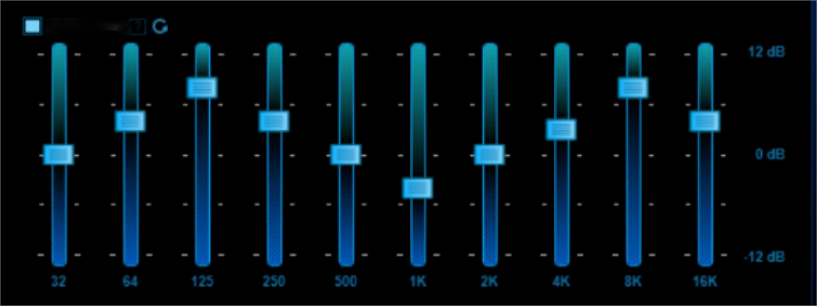
3. Adjust EQ

Integrating the Equalizer Feature

Only after successfully entering the room can the API use the equalizer on the sound captured on local.

Function prototype

int SetKaraokeType(ITMG_VOICE_TYPE_EQUALIZER* pEqualizer, ITMG_VOICE_TYPE_REVERB* pReverb)
Parameter
Type
Description
pEqualizer
ITMG_VOICE_TYPE_EQUALIZER
Frequency band gain
pReverb
ITMG_VOICE_TYPE_REVERB
Cover HARMONIC and REVERB

Structure details

The structure member in ITMG_VOICE_TYPE_EQUALIZER is of type float. Value range: [-12,12].
ITMG_VOICE_TYPE_EQUALIZER
Description
EQUALIZER_32HZ
Gain applied on the 32HZ band
EQUALIZER_64HZ
Gain applied on the 64HZ band
EQUALIZER_128HZ
Gain applied on the 128HZ band
EQUALIZER_250HZ
Gain applied on the 250HZ band
EQUALIZER_500HZ
Gain applied on the 500HZ band
EQUALIZER_1KHZ
Gain applied on the 1KHZ band
EQUALIZER_2KHZ
Gain applied on the 2KHZ band
EQUALIZER_4KHZ
Gain applied on the 4KHZ band
EQUALIZER_8KHZ
Gain applied on the 8KHZ band
EQUALIZER_16KHZ
Gain applied on the 16KHZ band
EQUALIZER_MASTER_GAIN
Overall volume
The structure member in ITMG_VOICE_TYPE_REVERB is of type float. Value range: [0,1].
ITMG_VOICE_TYPE_REVERB
HARMONIC_GAIN
HARMONIC_START_FREQUENCY
HARMONIC_BASS_CONTROL
REVERB_SIZE
REVERB_DEPTH
REVERB_GAIN
REVERB_ECHO_DEPTH

Sample code

void CTMGSDK_For_AudioDlg::OnVScroll(UINT nSBCode, UINT nPos, CScrollBar* pScrollBar)
{
if ((CWnd*)pScrollBar == (CWnd*)&m_SliderEQ1 ||
(CWnd*)pScrollBar == (CWnd*)&m_SliderEQ2 ||
(CWnd*)pScrollBar == (CWnd*)&m_SliderEQ3 ||
(CWnd*)pScrollBar == (CWnd*)&m_SliderEQ4 ||
(CWnd*)pScrollBar == (CWnd*)&m_SliderEQ5 ||
(CWnd*)pScrollBar == (CWnd*)&m_SliderEQ6 ||
(CWnd*)pScrollBar == (CWnd*)&m_SliderEQ7 ||
(CWnd*)pScrollBar == (CWnd*)&m_SliderEQ8 ||
(CWnd*)pScrollBar == (CWnd*)&m_SliderEQ9 ||
(CWnd*)pScrollBar == (CWnd*)&m_SliderEQ10 ||
(CWnd*)pScrollBar == (CWnd*)&m_SliderEQ11 ||
(CWnd*)pScrollBar == (CWnd*)&m_SliderExGain ||
(CWnd*)pScrollBar == (CWnd*)&m_SliderExStartFrequency ||
(CWnd*)pScrollBar == (CWnd*)&m_SliderExBaseCtrl ||
(CWnd*)pScrollBar == (CWnd*)&m_SliderReverbSize ||
(CWnd*)pScrollBar == (CWnd*)&m_SliderReverbDepth ||
(CWnd*)pScrollBar == (CWnd*)&m_SliderReverbGain ||
(CWnd*)pScrollBar == (CWnd*)&m_SliderReverbEchoDepth
)
{
ITMG_VOICE_TYPE_EQUALIZER equalizer = {
(m_SliderEQ1.GetPos() - 50) * 24.0f / 100,
(m_SliderEQ2.GetPos() - 50) * 24.0f / 100,
(m_SliderEQ3.GetPos() - 50) * 24.0f / 100,
(m_SliderEQ4.GetPos() - 50) * 24.0f / 100,
(m_SliderEQ5.GetPos() - 50) * 24.0f / 100,
(m_SliderEQ6.GetPos() - 50) * 24.0f / 100,
(m_SliderEQ7.GetPos() - 50) * 24.0f / 100,
(m_SliderEQ8.GetPos() - 50) * 24.0f / 100,
(m_SliderEQ9.GetPos() - 50) * 24.0f / 100,
(m_SliderEQ10.GetPos() - 50) * 24.0f / 100,
(m_SliderEQ11.GetPos() - 50) * 24.0f / 100
};

ITMG_VOICE_TYPE_REVERB reverb = {
(m_SliderExGain.GetPos()) * 1.0f / 100.0f,
(m_SliderExStartFrequency.GetPos()) * 1.0f / 100.0f,
(m_SliderExBaseCtrl.GetPos()) * 1.0f / 100.0f,
(m_SliderReverbSize.GetPos()) * 1.0f / 100.0f,
(m_SliderReverbDepth.GetPos()) * 1.0f / 100.0f,
(m_SliderReverbGain.GetPos()) * 1.0f / 100.0f,
(m_SliderReverbEchoDepth.GetPos()) * 1.0f / 100.0f
};

m_pTmgContext->GetAudioEffectCtrl()->SetKaraokeType(&equalizer, &reverb);

}
CDialogEx::OnVScroll(nSBCode, nPos, pScrollBar);
}

Equalizer Instructions

Note:
This document is for guidance only.
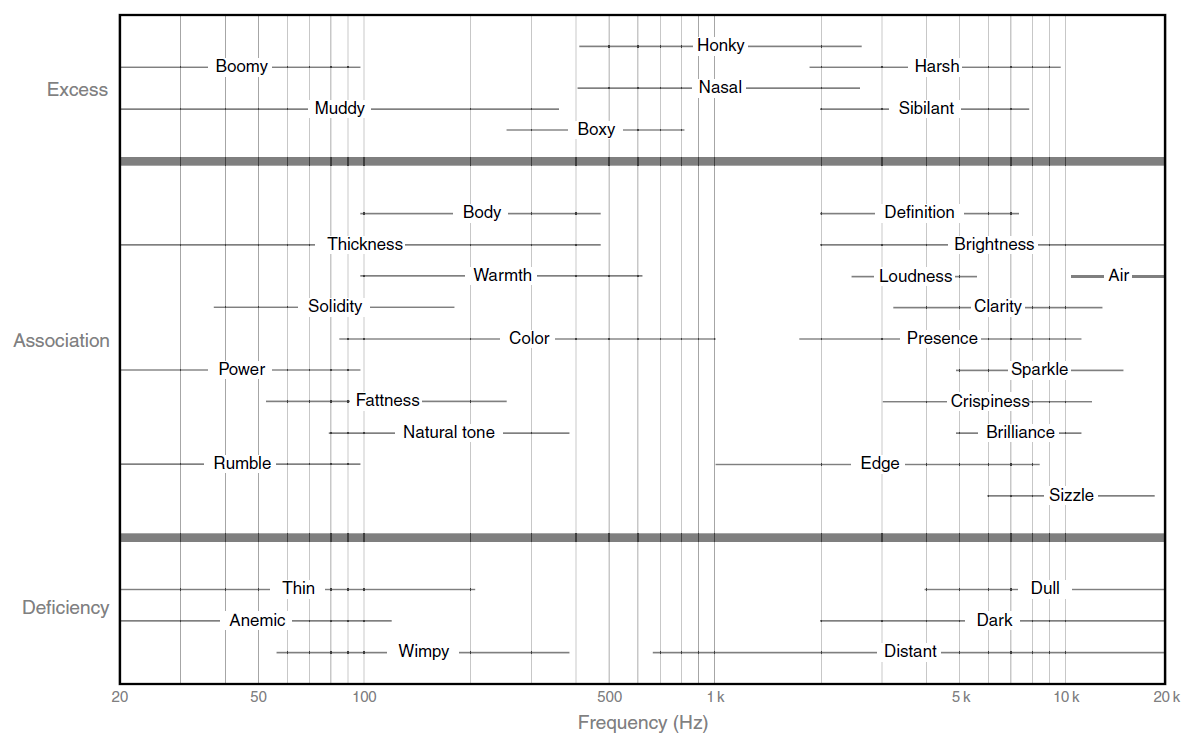
The sound range of human is roughly between 20 Hz and 20 kHz. The perception of each frequency band presents a logarithmic relationship, so the mixing project often divides the human audible frequency band into 10 octaves, which are divided into the following areas:
Band
Zone
Description
20 Hz – 32 Hz
Infrasound and subwoofer zone
Most of the frequency band in this zone is below the lower limit of the human hearing. Music in the super-large pipe organ and the film of the explosion and thunder sound effects can reach this frequency, while the human voice can not. Generally, VOIP calls are recommended to be tuned to z minimum to remove DC interference and leave the signal energy for other frequency bands.
32 Hz – 64 Hz
Heavy bass zone
It is mainly used to adjust the dive of the drums and bass. The tone is not obvious, which can be reached by part of the baritone. It is recommended to tune down the VoIP call to remove industrial frequency interference and leave the energy for other frequency bands.
64 Hz - 125 Hz
Bass zone
It is the range of the base clock of most orchestral instruments, which also determines the strength of the percussion.
125 Hz - 250 Hz
Bass zone
It is the range of the base clock of the human voice, which determines the perception of the human voice tone. If it is too heavy, it will lead to a slurred sound.
250 Hz—500 Hz
Mid-bass zone
It contains important lower harmonics of the tone in the frequency band, which can be used to adjust the tone and the enhancement of this section makes the tone warm and thick, while excessive enhancement makes it slurred.
500 Hz – 1 kHz
Midrange
It is used to adjust the female voice tone to make it fuller. Note that if it is too high, it will lead to a heavy nasal sound. Cell phones and other mobile playback devices resonance peak in this band, so please don’t make it too high.
1 kHz – 2 kHz
Midrange
It is a sensitive area of the human ear. The value affects the loudness and sense of presence, so it is recommended to enhance.
2 kHz-4 kHz
Soprano zone
It is the most sensitive area of human ear. The enhancement can increase the loudness of the voice and improve the intelligibility. Note that if it is too high, the sibilant could be heavy.
4 kHz – 8 kHz
Soprano zone
It can show the details of high frequency instruments, for example, cymbals and string instruments. Besides, it can decide details of voice, such as labiodental and fricative. Adjustment is not recommended.
8 kHz - 16 kHz
Super treble and super voice zone
It is the high frequency overtones area of the instrument. The adjustment has little effect on the voice.
For details, see:


Help and Support

Was this page helpful?

Help us improve! Rate your documentation experience in 5 mins.

Feedback