tencent cloud

Tencent Real-Time Communication

Release Notes and Announcements
Release Notes
Recent Product Announcement
TRTC Live (TUILiveKit) Product Launch Announcement
TRTC Conference Official Editions Launched
The commercial version of Conference is coming soon
Terms and Conditions Applicable to $9.9 Starter Package
Rules for the "First Subscription $100 Discount" Promotion
Announcement on the Start of Beta Testing for Multi-person Audio and Video Conference
TRTC Call Official Editions Launched
License Required for Video Playback in New Version of LiteAV SDK
TRTC to Offer Monthly Packages
Product Introduction
Overview
Concepts
Features
Strengths
Use Cases
Performance Statistics
Tencent RTC Quickplay: Experience Ultimate Real-Time Audio and Video Interaction!
Purchase Guide
Billing Overview
Free Minutes
Monthly subscription
Pay-as-you-go
TRTC Overdue and Suspension Policy
FAQs
Refund Instructions
User Tutorial
Free Demo
Call
Overview
Activate the Service
Run Demo
Integration
Offline Call Push
Conversational Chat
On-Cloud Recording
AI Noise Reduction
UI Customization
Calls integration to Chat
Additional Features
No UI Integration
Server APIs
Client APIs
Solution
ErrorCode
Release Notes
FAQs
Conference
Overview(TUIRoomKit)
Activate the Service (TUIRoomKit)
Run Demo(TUIRoomKit)
Integration(TUIRoomKit)
Screen Sharing (TUIRoomKit)
Schedule a meeting (TUIRoomKit)
In-meeting Call (TUIRoomKit)
UI Customization(TUIRoomKit)
Virtual Background (TUIRoomKit)
Conference Control (TUIRoomKit)
Cloud Recording (TUIRoomKit)
AI Noise Reduction (TUIRoomKit)
In-Conference Chat (TUIRoomKit)
Robot Streaming (TUIRoomKit)
Enhanced Features (TUIRoomKit)
Client APIs (TUIRoomKit)
Server APIs (TUIRoomKit)
FAQs (TUIRoomKit)
Error Code (TUIRoomKit)
SDK Update Log (TUIRoomKit)
Live
Billing of Video Live Component
Overview
Activating the Service (TUILiveKit)
Run Demo
No UI Integration
UI Customization
Live Broadcast Monitoring
Video Live Streaming
Voice Chat Room
Advanced Features
Client APIs
Server APIs
Error Codes
Release Notes
FAQs
RTC Engine
Activate Service
SDK Download
API Examples
Usage Guidelines
API Reference Manual
Advanced Features
AI Integration
Overview
Configure MCP Server
Install Skills
Integration Guide
FAQ
RTC RESTFUL API
History
Introduction
API Category
Room Management APIs
Stream mixing and relay APIs
On-cloud recording APIs
Data Monitoring APIs
Pull stream Relay Related interface
Web Record APIs
AI Service APIs
Cloud Slicing APIs
Cloud Moderation APIs
Making API Requests
Call Quality Monitoring APIs
Usage Statistics APIs
Data Types
Appendix
Error Codes
Console Guide
Application Management
Package Management
Usage Statistics
Monitoring Dashboard
Development Assistance
Solution
Real-Time Chorus
FAQs
Migration Guide
Billing
Features
UserSig
Firewall Restrictions
How to Downsize Installation Package
Android and iOS
Web
Flutter
Electron
TRTCCalling for Web
Audio and Video Quality
Others
Legacy Documentation
RTC RoomEngine SDK(Old)
Integrating TUIRoom (Web)
Integrating TUIRoom (Android)
Integrating TUIRoom (iOS)
Integrating TUIRoom (Flutter)
Integrating TUIRoom (Electron)
TUIRoom APIs
On-Cloud Recording and Playback (Old)
RTC Analytics Monthly Packages (Previous Version)
Protocols and Policies
Compliance
Security White Paper
Notes on Information Security
Service Level Agreement
Apple Privacy Policy: PrivacyInfo.xcprivacy
TRTC Policy
Privacy Policy
Data Processing And Security Agreement
Glossary

Mac

PDF
Focus Mode
Font Size
Last updated: 2024-09-20 22:06:50
This document describes how to quickly run the demo for the TRTC macOS SDK.

Prerequisites

Xcode 11.0 or later.
A valid developer signature for your project.
Qt Creator 4.13.3 (macOS) or later.

Steps To Run Demo

Step 1. Download the Demo

Download the Mac sample demo code on github, or run the following command in a terminal:
We offer OC and Swift for you to choose from:
OCDemo: run pod install in a terminal window after entering the directory of your project, and take no notice of other steps in iOS SDK Importing.
SwiftDemo: download the SDK required for the project and move the unzipped TXFFmpeg.xcframework/TXSoundTouch.xcframework/TXLiteAVSDK_TRTC_Mac.xcframework/dSYMs files to TRTC_Mac/SDK folder.

Step 2. Configure the Demo

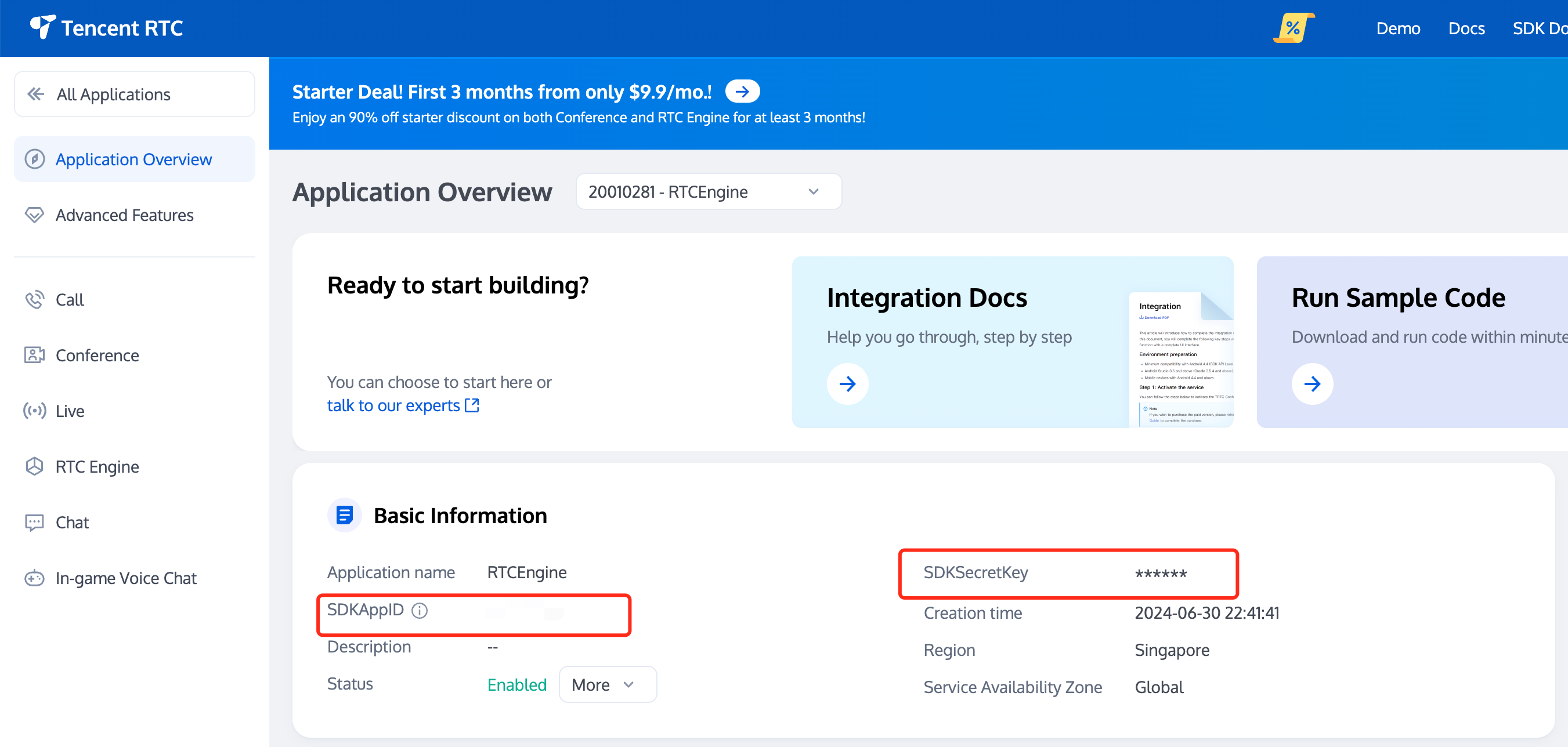
1. Log in to the TRTC Console and click Create Application. If you have already done so, you may skip this step.
2. And then, your own SDKAppID and SDKSecretKey of your created application can be obtained in the Basic Information section.


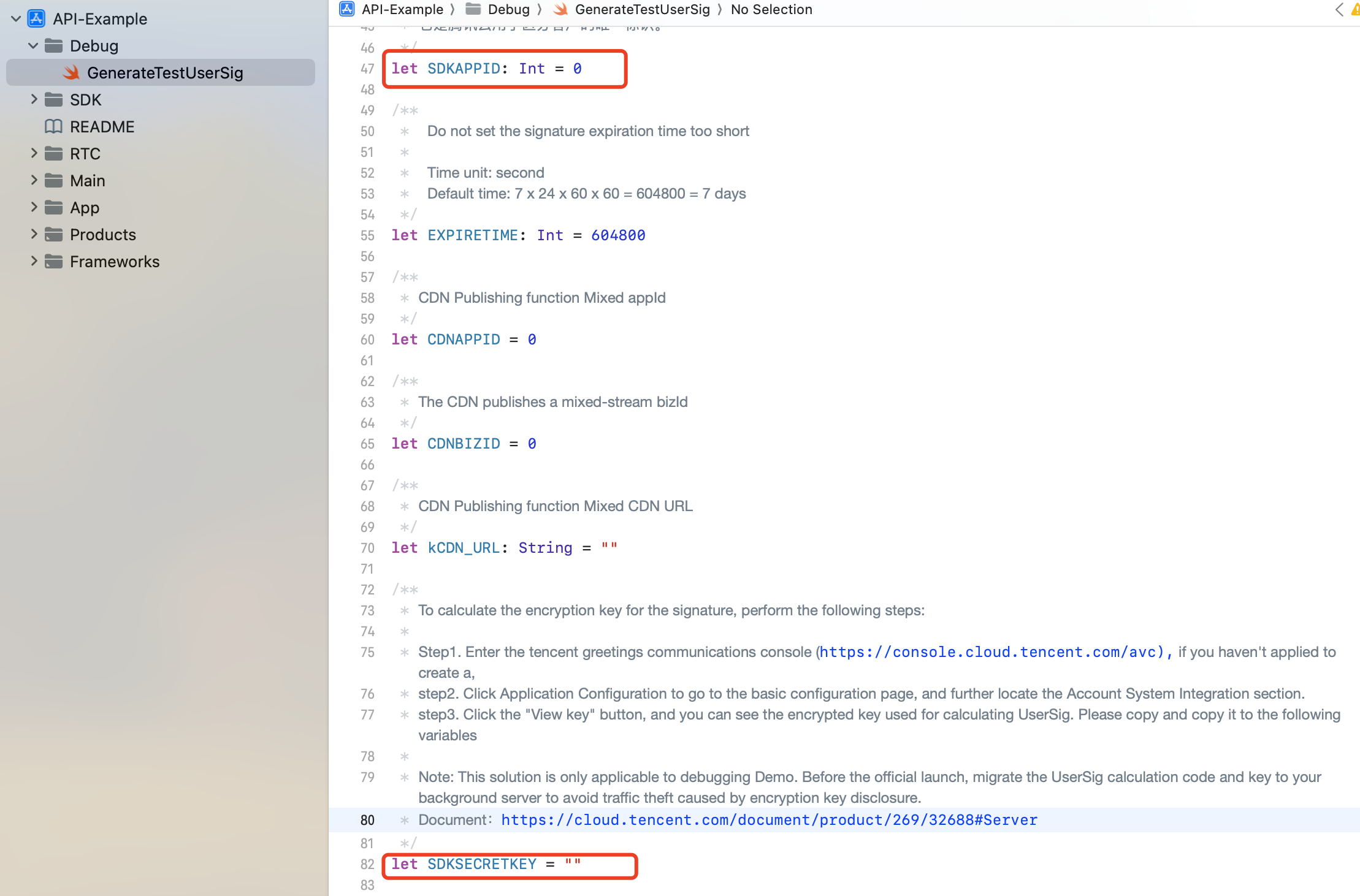
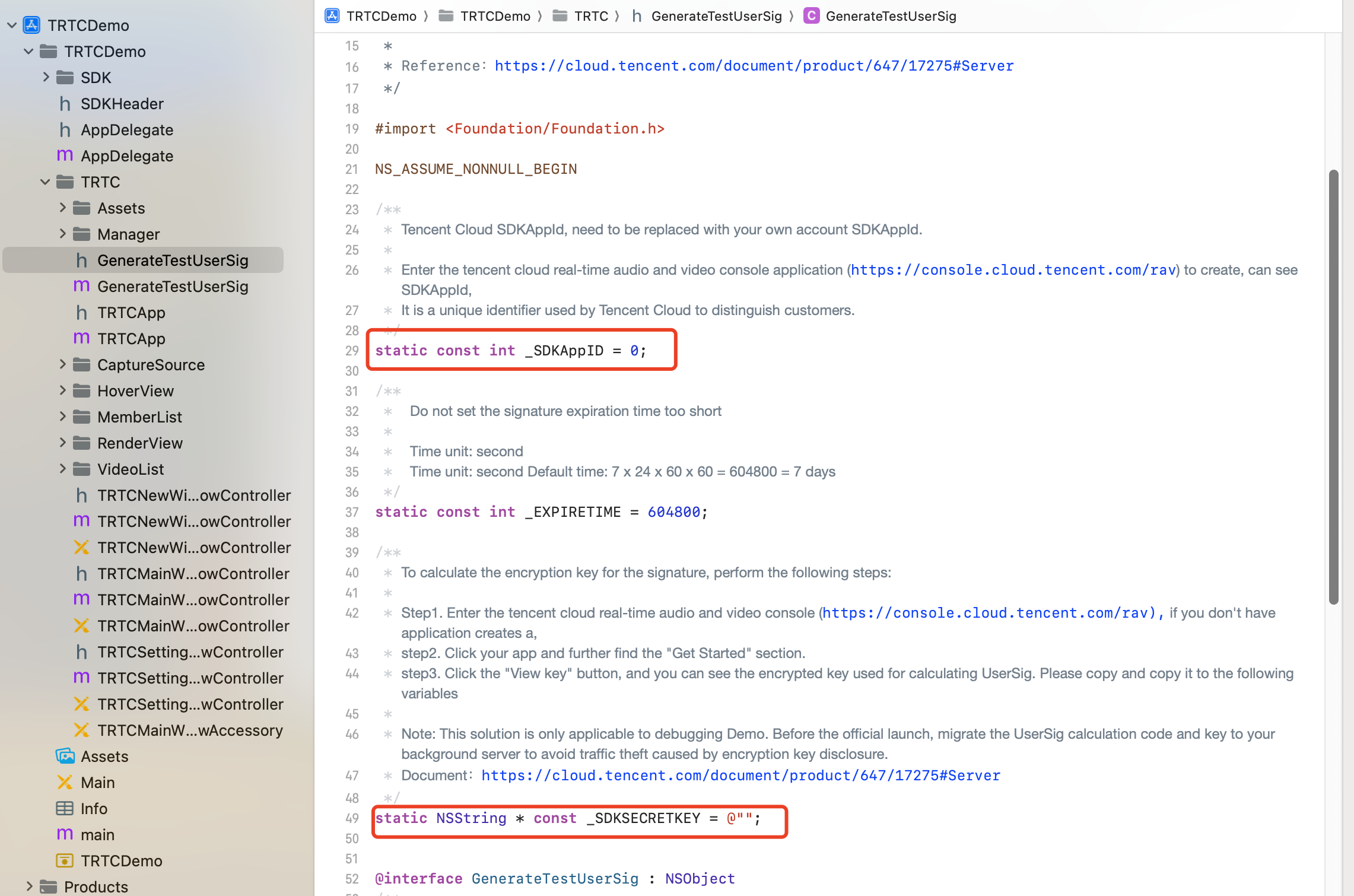
3. Replace the values of SDKAPPID and SDKSECRETKEY in the GenerateTestUserSig.h file in the TRTCDemo/TRTC directory with the information obtained in Step 2. For SwiftDemo, it's the GenerateTestUserSig.swift file under API-Example/Debug directory.


Note:
In the demo above, we used SDKSecretKey to generate UserSig locally in order to help you go through the demo easier. However, in the production environment, you are not supposed to generate userSig in this way, which may lead to SDKSecretKey leakage, thereby creating a chance for attackers to steal your TRTC traffic. The correct way to generate UserSig is to integrate Server-Side Generation of UserSig on your server. When an user enters the room:
Send a http request to your server.
Generate a UserSig on your server.
Return it to the user to enter the room.
When you deploy your page to a production environment, you need to have your page accessed through the HTTPS(e.g. https://domain/xxx). For the reason, please refer to the document Page Access Protocol Restriction Description.

Step 3. Run the Demo

OCDemo: Open the TRTCDemo.xcworkspace/API-Example.xcworkspace project in the source code directory with Xcode (11.0 or later), then compile and run the TRTC-API-Example project.
SwiftDemo: Simply compile and run the API-Example project.

FAQs

If you encounter any problems with access and use, please refer to FAQs.
If you have any requirements or feedback, you can contact: info_rtc@tencent.com.
Help and Support

Was this page helpful?

Help us improve! Rate your documentation experience in 5 mins.

Feedback