Troubleshooting MongoDB Connection Failures
ダウンロード
フォーカスモード
フォントサイズ
Scene Description
Use a CVM instance to connect to TencentDB for MongoDB via the auto-allocated intranet address. For specific connection methods, see Connecting to TencentDB for MongoDB Instance. If the connection fails, refer to the table below for troubleshooting and solutions.
Troubleshooting and Resolution
No. | Possible Causes | Troubleshooting Methods | Solution |
1 | The CVM and MongoDB intranet are not interconnected. The CVM and database are not within the same VPC. The CVM and database must be within the same account and VPC, or within the basic network, for the internal network to directly interconnect. Security group configuration error. To use a CVM to connect to MongoDB, configure outbound rules in the CVM security group. If the target configuration of the outbound rules is not 0.0.0.0/0 and the protocol port is not ALL, add the IP and port of MongoDB to the outbound rules. To allow a in specified CVM to connect to a MongoDB instance, configure inbound rules in the MongoDB security group. If the source configuration of the inbound rules is not 0.0.0.0/0 and the protocol port is not ALL, add the IP address and port of the CVM to the inbound rules. | 1. Log in to the CVM console and view the CVM network information in the Instance Configuration of the instance list. 2. Log in to the MongoDB console and view the MongoDB network information in the instance list. For specific operations, see Viewing Instance Details. 3. Compare whether CVM and MongoDB belong to the same network. 4. Log in to the CVM and use telnet 10.x.x.34 27017
to verify whether the MongoDB network port is accessible.Connectivity issue, as shown in the figure below.  Connection link is successful, as shown in the figure below. 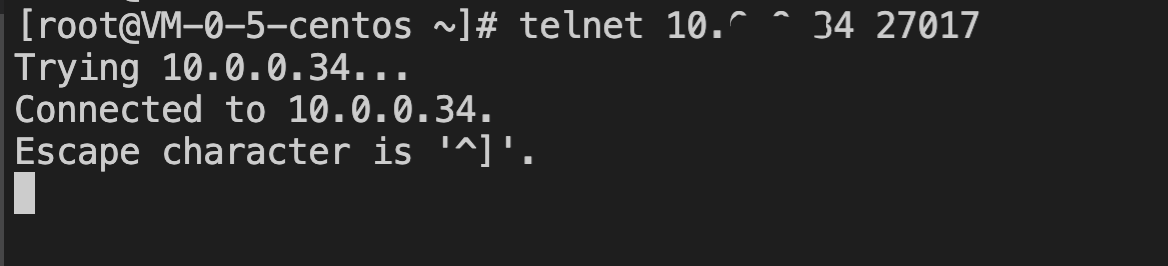 | The following situations may cause connection failure due to network issues. CVM uses VPC, while MongoDB uses basic network. It is recommended to switch MongoDB from basic network to VPC network. Please refer to Switching Instance Network. CVM uses basic network, while MongoDB uses VPC. It is recommended to switch CVM from basic network to VPC network. See Switching Private Network Service. CVM and MongoDB are in the same region but belong to different VPC networks. It is recommended to migrate MongoDB to the VPC network where CVM is located. See Switching Instance Network. CVM and MongoDB are in different regions and belong to different VPC networks. It is recommended to establish a Cloud Connect Network between the two VPC networks. CVM and MongoDB have different accounts and belong to different VPC networks. It is recommended to establish a Cloud Connect Network between the two VPC networks. |
| | | Incorrect CVM security group configuration 1. Log in to the Security Group Console, find the security group bound to the CVM in the security group list, click the security group name to enter the details page of the security group bound to the CVM. 2. Select the Outbound Rules tab, and click Add Rules. Type select Custom. Target fill in the IP address (range) of your MongoDB. Protocol Port fill in the MongoDB internal network port. Policy select Allow. MongoDB security group configuration error 1. Log in to the security group console, find the security group bound to the MongoDB instance in the security group list, click the security group name, and enter the MongoDB bound security group details page. 2. Select the Inbound Rules tab, and click Add Rules. 3. Fill in the IP address (range) you allow to connect and the port information (MongoDB private network port) that needs to be opened, and select Allow. Type select Custom. Source fill in your CVM's IP address (range). Protocol Port fill in the MongoDB internal network port. Policy select Allow. |
2 | Incorrect username or password. | Log in to the CVM and establish connections to the database instance. If an error message such as Error: Authentication failed is displayed, it indicates that the username or password is incorrect. | Log in to the MongoDB console, on the Instance Details page, select the Database Management tab, go to the Account Management page, view all database account information, and reset the password. For specific operations, see Account Management. |
3 | The database access password contains special characters such as % and @.
| The password contains special characters such as % and @. Drivers or clients like MongoDB Shell do not automatically escape these special characters, causing them to conflict with the connection string address and resulting in incorrect username or password. An error message such as Password cannot properly be URL decoded or
Error: Authentication failed is displayed. | Process the special characters in the access password according to the following escape rules: Exclamation mark "!" : escape to %21 At "@" : escape to %40 Warning sign "#" : escape to %23 Percentage sign "%" : escape to %25 Caret "^" : escape to %5e Asterisk "*" : escape to %2a Left parenthesis "(" : escape to %28 Right parenthesis ")" : escape to %29 Underscore "_" : escape to %5f For example, if the original password is: ^%@132121a, the escaped password should be: ^%25%40132121a. |
4 | MongoDB Shell outdated version | Log in to the CVM and run mongo --version to confirm the version information. | To ensure authentication success, install Mongo Shell 3.0 or above. For installation steps, see official documentation. |
5 | The authentication library is not correctly used in the client connection string. Users created in the console: TencentDB for MongoDB uses the admin database as the authentication database for login. In the URI, "/admin" must be added after the port to specify the authentication database. After authentication, switch to the specific business database for read and write operations. Users created in the command line: Directly specify the corresponding database for authentication. For example, for users created under the test database, specify the authentication database as test when logging in. | For users created in the console: Check whether the connection string configured in the client program contains "/admin" or authSource=admin. Users created in the command line: Please check if the authentication database in the connection string is the correct database name. | Log in to the MongoDB console. On the Instance Details page, in the Network Configuration area, copy the connection string in URI format for the default account connection. For other accounts, modify the authentication database to the correct one before attempting to connect. For specific operations, see Connecting to a MongoDB Instance. If the above methods still do not solve the problem, you can also contact aftersales via online consultation. |
6 | There are operations blocking other requests. If a foreground index creation operation (background option set to false) is performed during a busy business period, it will block all other operations, causing requests to be locked until the index creation is completed. For specific index creation methods, refer to the MongoDB Official Website. | The business side should investigate the index creation methods on their own. | Create indexes in the background. However, creating indexes in the background has its costs and may result in longer index creation times. For specific index creation options, refer to the MongoDB Official Website. Meanwhile, you can use the currentOp command to check the progress of the current index creation. The specific command is as follows:db.currentOp(
{
$or: [
{ op: "command", "query.createIndexes": { $exists: true } },
{ op: "insert", ns: /\\.system\\.indexes\\b/ }
]
}
) |
7 | Check if the customer connection count has reached the limit. Each instance has a connection limit, and exceeding this limit will prevent connections. | Log in to the MongoDB console, on the DMC page, select the Connection Management tab, and view the instance's maximum connections, current connections, and connection utilization. For specific operations, see Connection Management. | |
Note:
Users created in the official console use admin as their authentication database. Therefore, you must specify admin as the authentication database when logging in. For users created via the command line, such as those created under the test database, specify test as the authentication database during login.
フィードバック